
Request details
What an opened request shows: request and response, connection timings, firewall decision, related requests, tags, span waterfall, traces and AI prompts.
Open any request in the request log to see everything ApiTraffic recorded about it: what was sent and returned, how long each part took, what the firewall decided, which other requests it was part of, and what your code did while handling it.
To open a request, select the expand button at the start of its row. The details open in place, under the row. Select the button again to close them.
An opened request with its tabs.
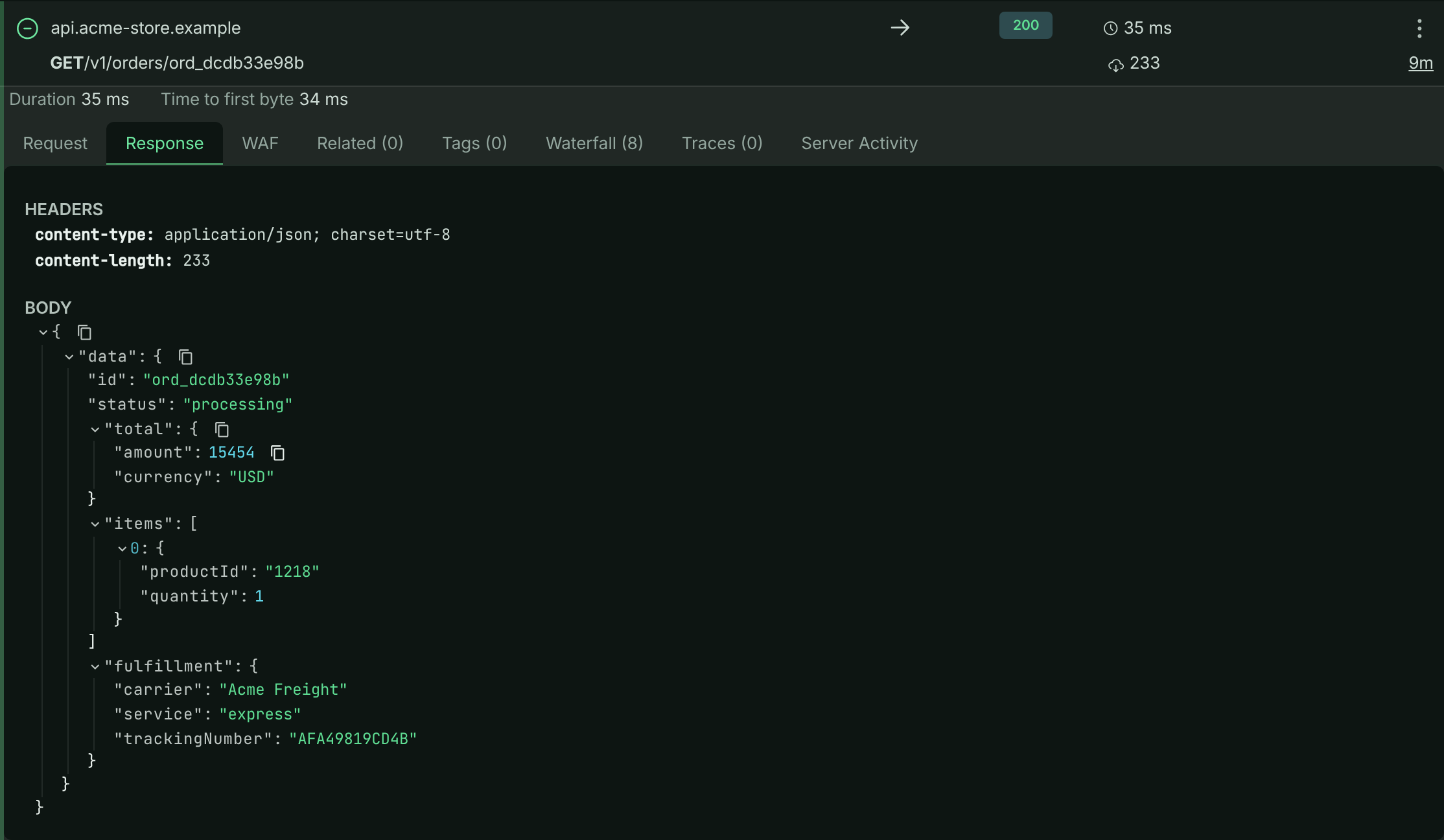
Tabs at a glance
Which tabs appear depends on the request:
| Tab | Shows | When it appears |
|---|---|---|
| Request | ID, full URL, headers and body of the request | Always |
| Response | Response headers and body | Every request except captures (opened first) |
| Connection | DNS, TCP, TLS and transfer timings | When connection timings were recorded |
| WAF (n) | The firewall’s decision and matched rules | Every request except captures |
| Related (n) | The outbound calls made while handling this request, or its parent | Every request except captures |
| Workflows (n) | Workflow runs this request triggered | Your own buckets (not the sample) |
| Tags (n) | Tags your code attached | Every request except captures |
| Waterfall (n) | APM spans on a timeline, with Ask AI | Every request except captures |
| Traces (n) | Trace messages your code logged | Every request except captures |
| Distributed Trace | Every request sharing this request’s trace id | When the request belongs to a distributed trace |
| Server Activity | What else the same server was running at the time | Every request except captures |
| Fix with AI | A paste-ready fix prompt for this failure | Requests with a status code of 400 or higher |
The numbers in brackets are counts, so you can see at a glance whether a tab has anything in it.
When a request is a long-lived connection (a stream) or the SDK reported a time to first byte, a line above the tabs shows Connection open (or Duration) and Time to first byte. Streams carry a Stream badge and the note Left out of response-time metrics.
Request
The Request tab shows:
- ApiTraffic ID: the request’s id. Quote it to support, or pass it to the MCP tools such as
get_request_detail. - FULL URL, including the query string.
- HEADERS, after redaction.
- BODY, formatted when it is JSON.
Response
The Response tab shows the response HEADERS and BODY. If the firewall blocked the request, your application never answered it, and the tab says This request was blocked by the firewall, see the WAF tab for details. If nothing was recorded for the response, it says No response data available.
When a body is no longer available
Bodies are kept for your plan’s body retention period, which can be shorter than how long the request itself is kept. After that, the request is still listed with its headers, timings and metadata, but the body shows This body passed your plan’s body retention period and is no longer stored.
If the body is stored but couldn’t be fetched just then, the tab says This body could not be loaded right now. Try again in a moment. Close and reopen the request to try again.
Connection
For requests where the SDK measured the connection phases (typically outbound calls), the Connection tab charts how long each phase took: DNS, TCP, TLS, Wait, Request, First Byte and Download, with the total. Phases that took no time are left out. Use it to tell a slow network or TLS handshake apart from a slow server.
WAF
The WAF tab explains what the web application firewall did with this request, and why. It is shown even when the firewall did nothing, so you can confirm that: The application firewall did not record any activity for this request.
The firewall’s decision on a blocked request.
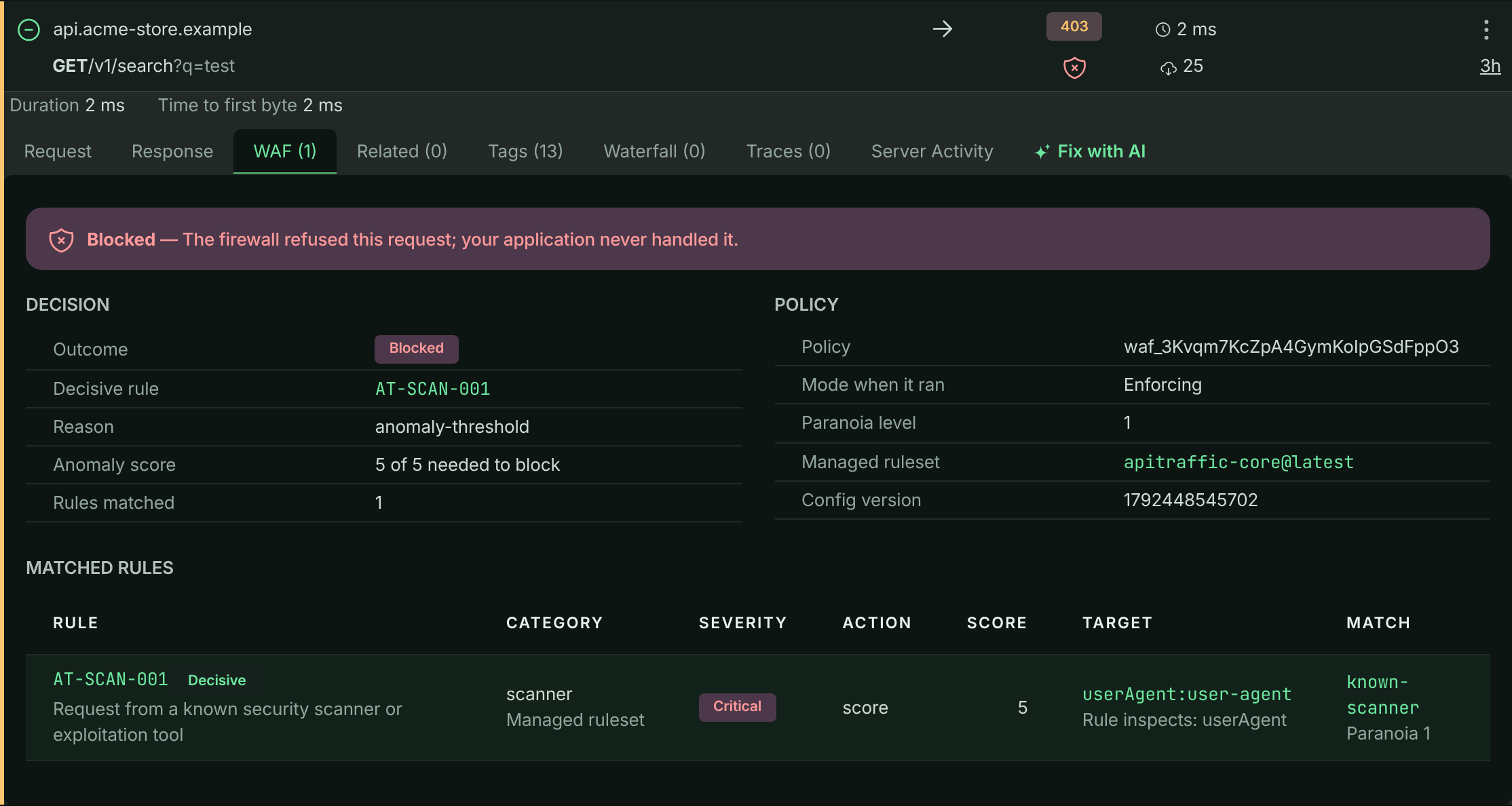
The outcome is one of:
- Blocked: the firewall refused the request; your application never handled it.
- Monitored: the policy is in Monitor mode, and this request would have been blocked if it were enforcing.
- Inspected: rules matched and were recorded, but the request stayed below the blocking threshold.
Below the outcome you see the Decisive rule, the Reason, the Anomaly score against the score needed to block, how many Rules matched, and the policy context: Policy, Mode when it ran, Paranoia level, Managed ruleset and Config version. If the policy’s mode has changed since, a note says which mode it is in now. The table lists every matched rule with its Category, Severity, Action, the Target it inspected and the Match, and marks whether it came from the managed rule set or is Your rule.
The decision is read from what the firewall recorded when the request ran, so it reflects the policy as it was at that moment. To act on it, use Add to WAF.
Related requests
When your application makes outbound calls while handling an inbound request, ApiTraffic links them with a shared context id. The Related tab lists them:
- On an inbound request, the Outbound Requests it made, such as the calls
POST /v1/checkoutmakes to the payment, tax and inventory providers in the sample bucket. - On an outbound request, the Parent Request that made it.
Each related request can be expanded in place. When there are none, the tab says This request has no related requests. To search for the same set in the log, use context_sid == "" in Advanced mode.
Workflows
The Workflows tab lists the workflow runs this request triggered, with each run’s Status, Start Time and Duration. Open a run to see its details. The tab isn’t shown on the sample bucket, which runs no workflows.
Tags
Tags are key/value pairs your code attaches to a request, such as the customer, tenant or plan it was made for. They are shown on the Tags tab and are searchable, so you can find every request for one customer: tag:customerId == "cus_123".
The firewall also records its decision as tags whose keys start with waf., so firewall-matched requests show those here too. The sample bucket’s own code doesn’t add custom tags.
Add tags from the SDK
Call tag(key, value) anywhere in code that runs while a request is being handled, such as a route handler or middleware. The tag is attached to the request currently being processed.
const apitraffic = require('@apitraffic/node');

app.get('/v1/orders/:id', async (req, res) => {
  apitraffic.tag('customerId', String(req.user.id));
  apitraffic.tag('plan', req.user.plan);
  // ...
});
const apiTraffic = require('@apitraffic/express');

apiTraffic.tag('customerId', String(req.user.id));
const apiTraffic = require('@apitraffic/fastify');

apiTraffic.tag('customerId', String(request.user.id));
const apitraffic = strapi.plugin('apitraffic').service('sdk');

apitraffic.tag('tenant', String(ctx.state.user.tenantId));
The same tag() function is exported by @apitraffic/hapi and @apitraffic/koa.
Rules and limits:
- Keys and values must be strings. Keys can be up to 100 characters and values up to 255.
- A request can carry up to 100 tags. Setting a key again overwrites its value.
tag()never throws into your code. Outside a request it does nothing, and an invalid tag is dropped with a debug warning.
The full per-request API is in SDK configuration.
Tip: Tag with a stable business identity (an account, tenant or organization id) rather than an API key. Keys rotate and one customer can hold several; the identity stays the same.
When a request has no tags, the tab says No tags were logged for this request.
Waterfall
The Waterfall tab shows the APM spans recorded while the request ran: database queries, Redis and cache operations, outbound HTTP calls, queue and RPC operations, and custom spans, each as a bar on the request’s timeline. Nested work is indented under the span that started it, and failed spans are marked in red.
The N+1 query on GET /v1/orders/{order_id}, with one span’s detail open.
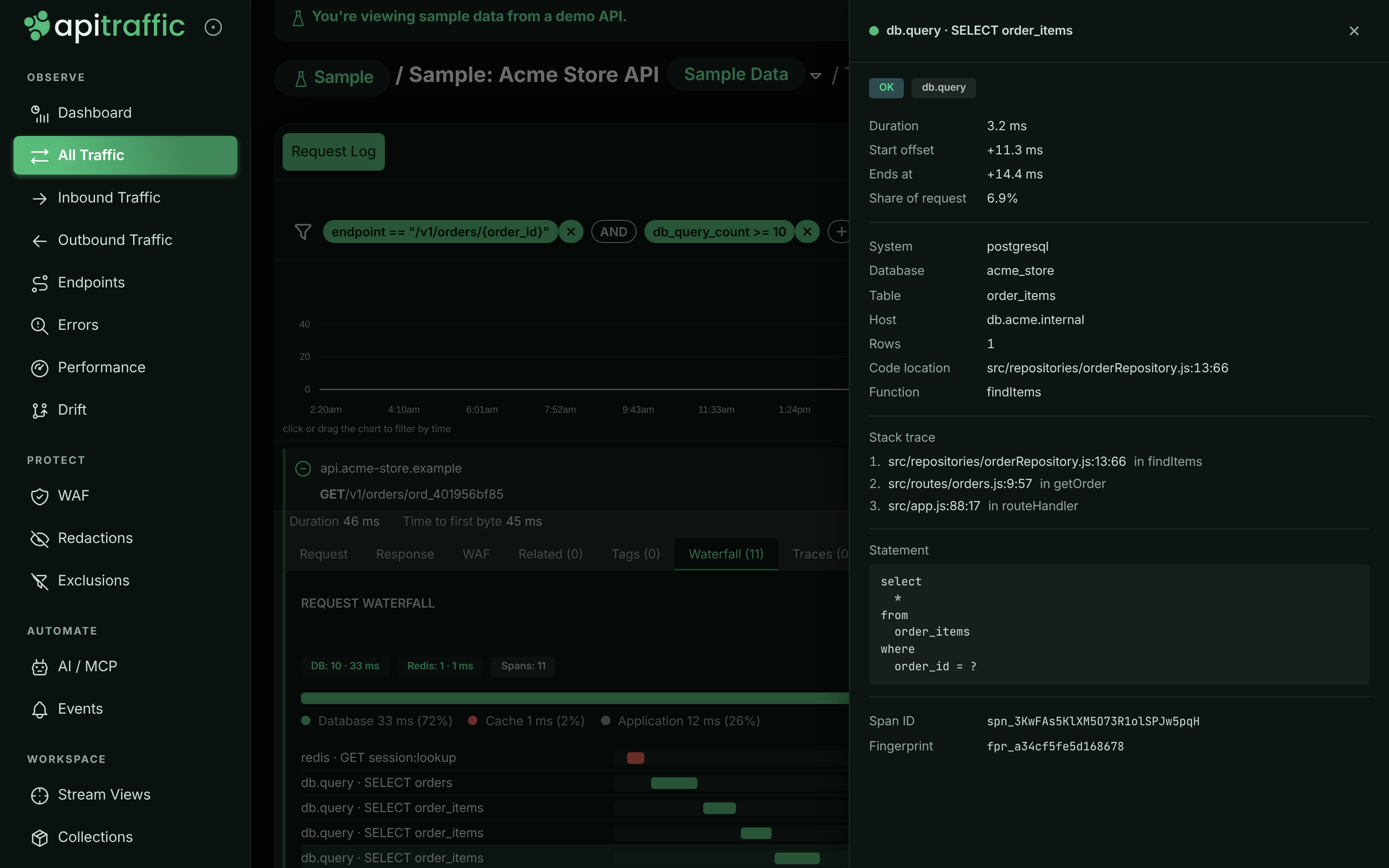
Above the bars:
- a summary per kind of work, for example DB: 9 · 84 ms, plus Spans and, when the SDK had to drop some, Dropped,
- a breakdown of the request’s time into Database, Cache, Outbound HTTP, Queue / RPC and Application.
Select a span to open its details: OK or Failed, the Duration, Start offset, Ends at and Share of request, the statement or URL, the Code location and Stack trace when the SDK captured them, and the Span ID, Parent ID, Fingerprint and Trace ID. With a Git integration, code locations link to the commit that was deployed.
When nothing was recorded, the tab says No spans were recorded for this request. See Set up APM.
Ask AI about the waterfall
Select Ask AI at the top of the waterfall to get a prompt for your AI coding agent about this request’s performance. The prompt carries every span with its timing, code location and call stack, plus the commit that was deployed. Captured parameter values are not included.
Open the panel
Select Ask AI. ApiTraffic assembles the prompt (Assembling the prompt…).
Choose a question
Edit Your question (up to 2,000 characters), or pick one of the suggested questions.
Copy the prompt
Select Copy prompt and paste the Paste-ready prompt into your AI coding agent, ideally from your repository so it can open the code the prompt points at.
Building a prompt counts as one AI diagnosis. It needs a plan that includes AI diagnoses; when the period’s diagnoses are used up, the panel says a new prompt can’t be built until the next billing period. Select Hide AI prompt to close the panel.
Traces
Traces are short messages your code logs while it handles a request, like console.log for production: “reached the discount branch”, “cache miss, loading from the database”. The Traces tab shows them in order on a timeline that starts at Request Started, each with the time since the previous one. Use them to see which code path a request took.
Call trace(message) from code that runs during the request:
const apitraffic = require('@apitraffic/node');

apitraffic.trace('reached the discount branch');
trace() is exported by every ApiTraffic SDK package (@apitraffic/node, @apitraffic/express, @apitraffic/fastify, @apitraffic/hapi, @apitraffic/koa). Each message can be up to 255 characters, and a request keeps up to 250 of them. Like tag(), it never throws, and does nothing outside a request.
When a request has no traces, the tab says No traces were logged for this request.
Note: Traces are your own log lines. For timed operations such as queries and outbound calls, use the Waterfall instead. For a request’s path across several of your services, use Distributed Trace.
Distributed Trace
When a request carries a trace id shared with other requests, for example because one of your services called another and both report to ApiTraffic, the Distributed Trace tab lists every request in that trace in time order. For each one you see When, the Request, its Endpoint, Status, Duration and Spans, with This request marked. Use it to find the hop in a chain of calls that failed or was slow.
Server Activity
The Server Activity tab shows what else the server that handled this request was doing at the time, so you can tell a slow endpoint from a busy server.
At the top: the Server, how many requests were already In flight on arrival, the Event loop delay and Loop utilization. Below, the overlapping requests are listed BY ENDPOINT and individually under REQUESTS, with how much of their time Overlapped this one and the Competing time: overlapping time spent working rather than waiting on I/O.
If the tab says No server attribution on this request, the request was captured by an SDK version that doesn’t report which server handled it. Update the SDK and restart your application; requests captured after that show server activity.
Fix with AI
On a failed request (status code 400 or higher), the Fix with AI tab builds a prompt you paste into your AI coding agent to locate the handler, find the likely cause and get a fix with a regression test.
A fix prompt for a failed payment capture.
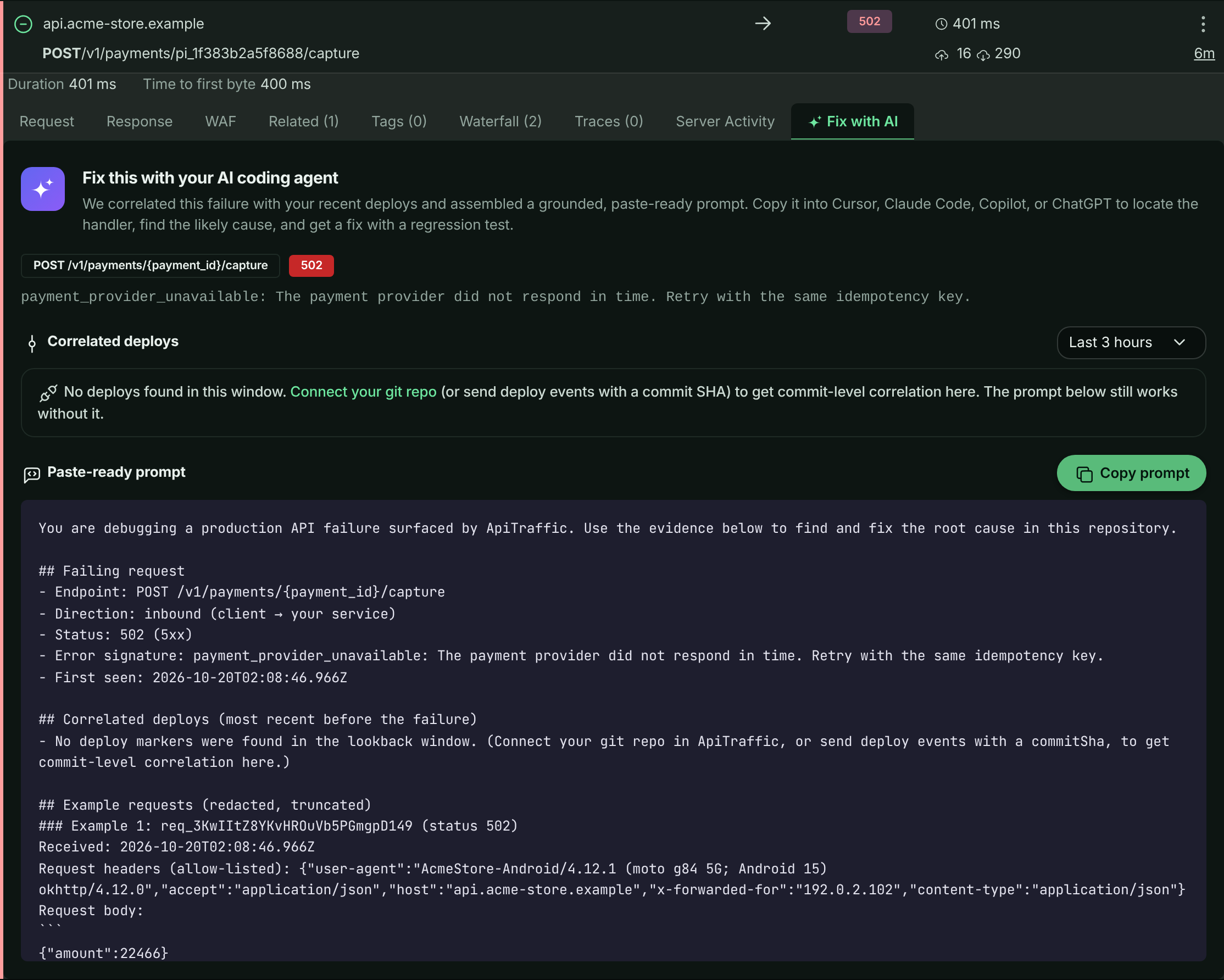
The tab shows the failing method and endpoint, the status code and error signature, and Correlated deploys: deploys shortly before the failure, with their commits. Change the window with the selector (Last 1 hour, Last 3 hours, Last 12 hours, Last 24 hours or Last 3 days; the default is 3 hours). Without deploy events, the tab suggests connecting a Git integration or sending deploy events with a commit SHA; the prompt still works without them.
Select Copy prompt to copy it. Each prompt counts as one AI diagnosis and needs a plan that includes AI diagnoses.
Request actions
The actions menu (⋮) on each request row offers more ways to use a request.
Copy Request
Copy Request opens a panel that turns the request into code. Choose the Language: cURL, JavaScript - Fetch, JavaScript - Axios, Python - Requests, PHP - cURL, Go - net/http, Ruby - net/http, Java - HttpClient or C# - HttpClient, then copy it to the clipboard. Use it to reproduce a request locally.
Warning: The code contains the request’s headers and body as captured (after redaction). Check it for credentials before you share it.
Find Similar
Find Similar turns this request into a search. The Find similar requests panel offers shortcuts under Start from (Same server, Same machine, Same endpoint, This failure, Slow like this, This firewall rule, depending on the request) and individual facets grouped as Request, Outcome, Server, Firewall and Context (tags, query parameters and a few safe headers).
Turning one request into a query.
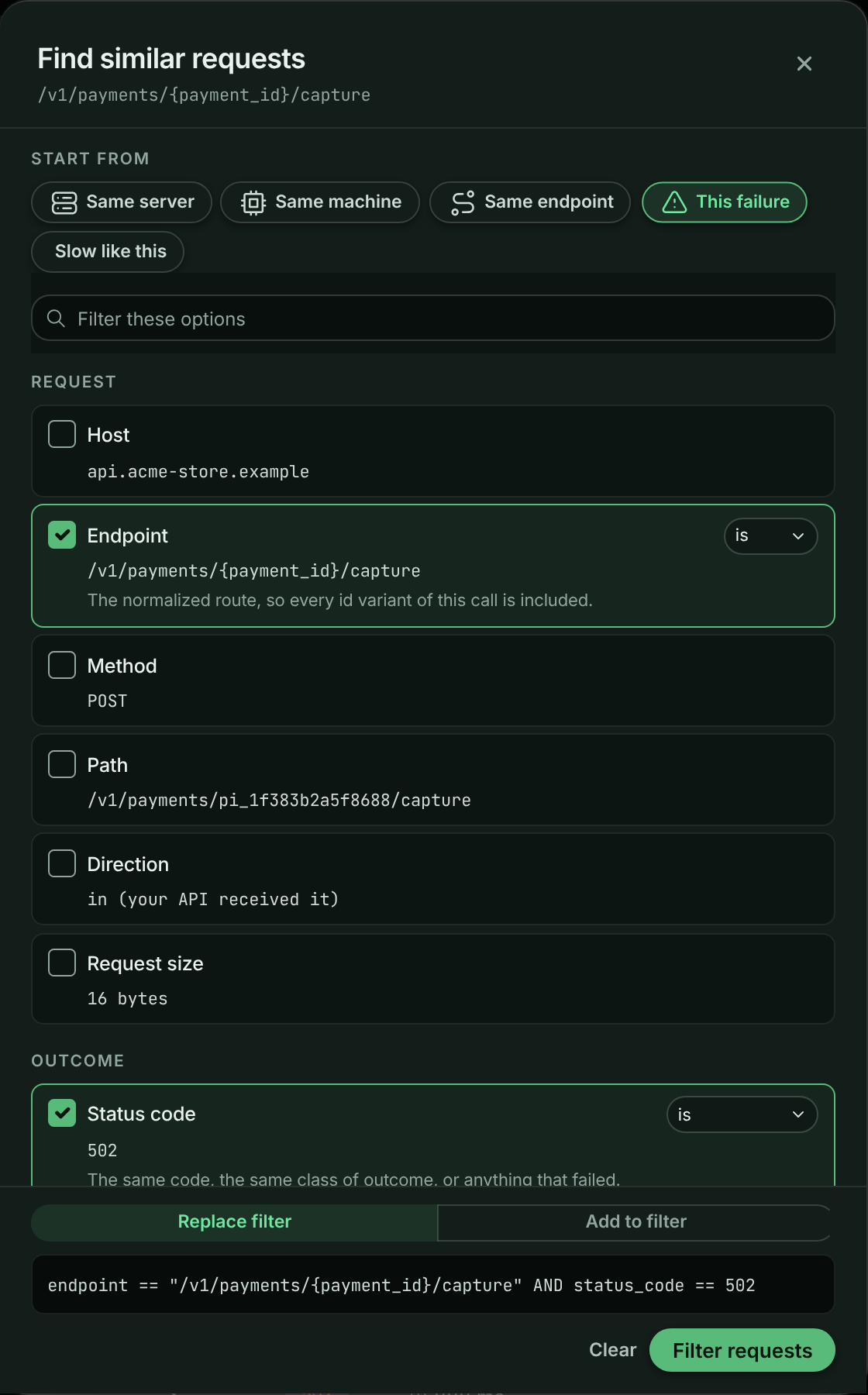
Tick the facets that must match. Some offer a match mode, such as is or is not for a value, or at least, at most or exactly for a duration. The query appears at the bottom as you go. If the log is already filtered, choose Replace filter or Add to filter. Select Filter requests to apply it. Values the search language can’t express yet are offered disabled, with the reason.
Add to Collection
Add to Collection saves the request, with an optional Request Name, into an existing collection or a new one. See Collections.
Add to WAF
Add to WAF turns a request into a rule on one of your firewall policies without opening the policy editor: block its exact path, the path and everything under it, its client IP or its user agent, or, for a request a rule flagged by mistake, stop that rule on this path. Before you save, Run preview shows how the change would treat this request and up to 100 requests from the last hour.
It is available to owners and admins, on plans with the Web application firewall, and only for inbound requests. If the policy is in Monitor mode, matching requests are recorded, not blocked. For the full steps, see Add a request to a policy.
Share
Share creates a public link to the request. Anyone with the link can view the request details without signing in. Give it an optional Name and a Link Expiration (24 hours, 7 days, 30 days or No expiration), then select Create Share Link. Open Share again to copy the link or Revoke Share Link. Share links need a plan that includes Share links. Before you share, read what a shared link exposes.
Info: On the read-only sample bucket, Add to Collection, Add to WAF and Share aren’t offered, and the Workflows tab is hidden.
Related
-
Search and filter requests: Search on tags, spans, server and firewall fields.
-
How APM works: Where the waterfall’s spans come from.
-
Firewall policies: Tune what the firewall blocks.
-
Share requests and collections: Share requests and collections outside your team.