
Event markers
Mark deploys, incidents, rollbacks and config changes on your traffic charts, from the app, the API, your CI pipeline, an AI assistant or Git.
An event marker records a moment that might explain a change in your traffic: a deploy, an incident, a rollback, a configuration change. ApiTraffic draws each one as a line on your charts, so when errors jump or latency climbs you can see at a glance what changed just before.
Events also feed the rest of the product. Deploy markers are what ApiTraffic uses to tell an AI assistant which commit was running when a request failed, and to compare traffic before and after a release.
Before you begin
- Plan. Creating and editing events needs a plan that includes Deploy & incident markers. Without it, events you already recorded stay listed and can be deleted, but new ones are refused, whether they come from the app, the API, an AI assistant or a linked Git repository.
- Role. Any member of the account can create events. Through the API, use an API token with the Administrator or User role. An Ingest token (the one your SDK sends traffic with) cannot create events.
- Sample data. The Sample: Acme Store API bucket is read-only. Its events are posted by the sample scenario, and you can’t add your own there.
Event types
The type field is free text (up to 100 characters), so you can use your own vocabulary. The app offers these five when you create an event, and gives each a colored badge in lists:
| Type | Use it for |
|---|---|
deployment |
Releases, rollbacks, container image updates. |
incident |
Outages, degradations, alerts that fired. |
config_change |
Feature flag flips, environment variable or DNS changes. |
scale |
Autoscaling, manual scaling, database upgrades. |
custom |
Anything else worth lining up against your traffic. |
Linked Git repositories add four more types on their own: git.push, git.commit, git.tag and git.release.
Tip: Record rollbacks as
deploymentevents with a name that says so, such asrollback v2026.10.14, and put"rollback": truein the metadata. They then count as deploys for before-and-after comparisons, and the name tells people what happened.
How ApiTraffic uses deploy events
Events of type deployment, deploy or release, and every git.* event, count as deploys. ApiTraffic looks for the deploys that landed in the three hours before a failure and uses them in:
- the Fix with AI prompt on a failed request, which names the commit that was likely responsible,
- the MCP tools
get_deployed_code,regressions_since_deployandcompare_windows, so an AI assistant can read the code as it ran and check a release.
For this to work, put the commit in the event’s metadata: commitSha (or sha), plus repoFullName (for example acme/store-api) and branch when you have them.
How events appear on charts
Each event is drawn at its start time as a dashed vertical line with a dot on top. All markers use the same accent color whatever their type, so they never compete with the red and green of your data. Events that fall in the same time slot share one marker.
Markers appear on the charts that cover a window of time:
- Throughput and Response Time on the bucket dashboard,
- the Service Performance overview chart on the Performance page,
- Matching & Enforcement Over Time on the firewall page.
Deploy and incident markers on the dashboard charts for the sample bucket.
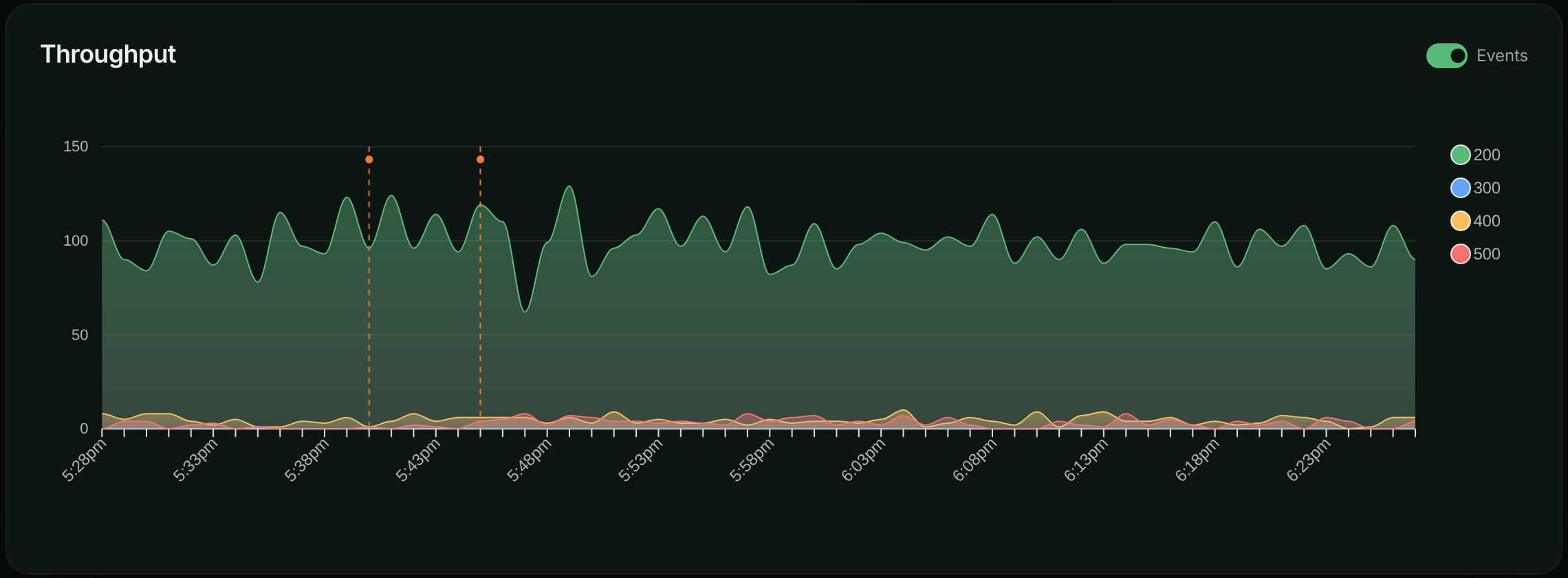
Select a marker’s dot to see the events behind it. For each event the popover shows the type, the name, the first seven characters of metadata.commitSha, when it started and its source (via ci). It also shows the description, or a View commit, View push, View tag or View release link when the event came from Git. All events opens the full list.
Use the Events switch in a chart’s header to hide or show markers. The setting applies to every chart and is remembered in your browser. The switch only appears when the window contains events.
The dashboard also lists what changed in the selected period in its Recent Changes panel, newest first.
Point-in-time and duration events
Leave Ended At empty for something that happens at a moment, such as a deploy or a config change. Set it for something that lasts, such as an incident, so the record shows how long the impact went on.
Markers are drawn at the start time only. The end time is shown in the event lists and returned by the API.
Scope an event to buckets and environments
By default an event applies to every bucket and every environment (stored as ["*"]), so it appears on every chart. If a change only affects one service or one environment, scope the event so other charts stay clean:
{
  "type": "deployment",
  "name": "payments-service v1.4.2",
  "bucketSids": ["k3m9p2x"],
  "environmentSids": ["prd7k2"]
}
A bucket’s charts show the events that list that bucket or *, in the environment you are viewing.
Create an event in the app
Use this for incidents, one-off changes, or anything your pipeline doesn’t record.
Open the events list
Open the account menu, choose Account, then select Events under Integration. Select Create Event.
To create an event that is already scoped to the bucket and environment you’re looking at, open Events under Automate in the left navigation and select Add Event instead.
Describe the event
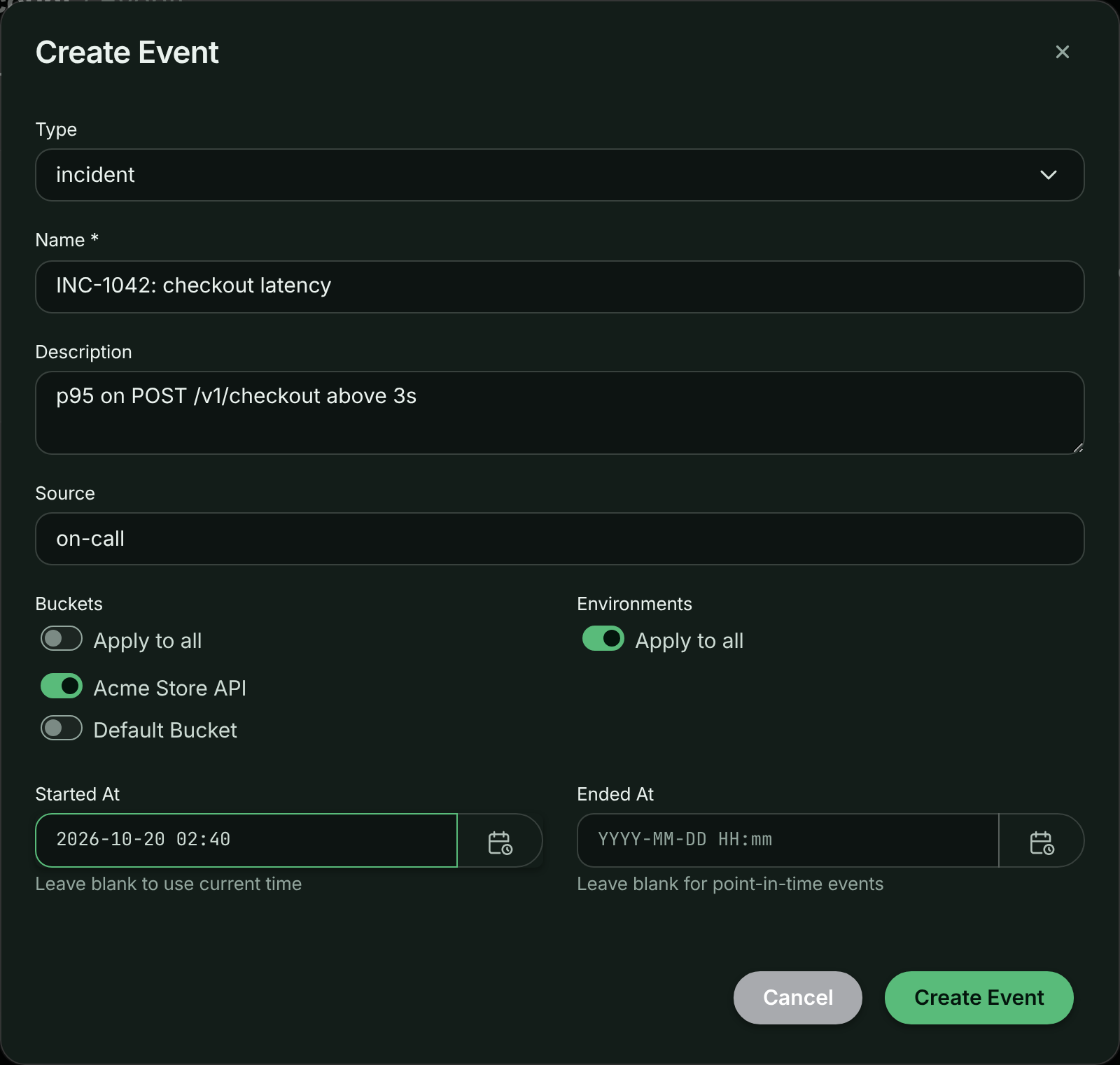
Choose a Type and enter a Name, such as v2.3.1 production release. Add a Description and a Source (for example github_actions or manual) if they help.
The Create Event dialog.
Choose where it applies
Under Buckets and Environments, leave Apply to all on, or switch it off and pick the buckets and environments the event applies to.
Set the time and save
Leave Started At blank to use the current time, and leave Ended At blank for a point-in-time event. Select Create Event.
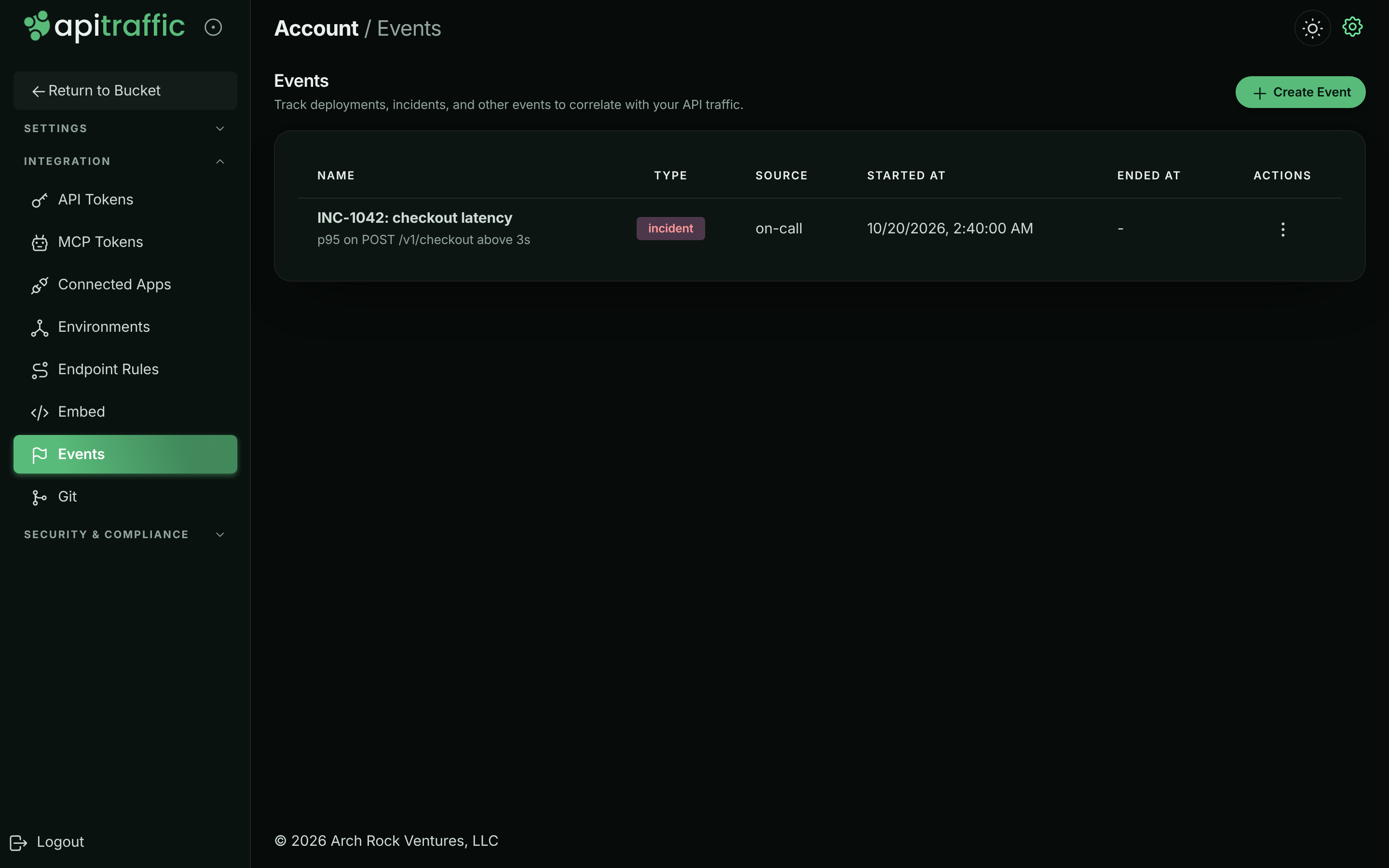
The new event in the account’s events list.
Send events from your CI pipeline
The most useful events are the ones nobody has to remember to create. Add one API call to the end of your deploy job and every release appears on your charts.
You need:
- An API token with the Administrator or User role. See API tokens.
- Your account SID (it starts with
acc_). CallGET https://api.apitraffic.io/v1/authentication/verifyonce with the token in theAuthorizationheader; the response containsaccountSid.
Store both as secrets in your CI system, then call POST /v1/accounts/{accountSid}/events. Only type and name are required; startedAt defaults to now.
GitHub Actions
name: Deploy
on:
  push:
    branches: [main]

jobs:
  deploy:
    runs-on: ubuntu-latest
    steps:
      - uses: actions/checkout@v4

      # ... your existing deploy steps ...

      - name: Record the deploy in ApiTraffic
        if: success()
        run: |
          curl -s -X POST \
            "https://api.apitraffic.io/v1/accounts/${{ secrets.APITRAFFIC_ACCOUNT_SID }}/events" \
            -H "Authorization: Bearer ${{ secrets.APITRAFFIC_API_TOKEN }}" \
            -H "Content-Type: application/json" \
            -d '{
              "type": "deployment",
              "name": "${{ github.ref_name }} @ ${{ github.sha }}",
              "description": "Deployed by ${{ github.actor }}",
              "source": "github_actions",
              "metadata": {
                "commitSha": "${{ github.sha }}",
                "repoFullName": "${{ github.repository }}",
                "branch": "${{ github.ref_name }}",
                "runUrl": "${{ github.server_url }}/${{ github.repository }}/actions/runs/${{ github.run_id }}"
              }
            }'
GitLab CI
deploy:
  stage: deploy
  script:
    # ... your existing deploy steps ...
    - |
      curl -s -X POST \
        "https://api.apitraffic.io/v1/accounts/${APITRAFFIC_ACCOUNT_SID}/events" \
        -H "Authorization: Bearer ${APITRAFFIC_API_TOKEN}" \
        -H "Content-Type: application/json" \
        -d "{
          \"type\": \"deployment\",
          \"name\": \"${CI_COMMIT_TAG:-$CI_COMMIT_SHORT_SHA} deploy\",
          \"description\": \"Pipeline ${CI_PIPELINE_ID} by ${GITLAB_USER_LOGIN}\",
          \"source\": \"gitlab_ci\",
          \"metadata\": {
            \"commitSha\": \"${CI_COMMIT_SHA}\",
            \"repoFullName\": \"${CI_PROJECT_PATH}\",
            \"branch\": \"${CI_COMMIT_BRANCH}\",
            \"pipelineUrl\": \"${CI_PIPELINE_URL}\"
          }
        }"
Jenkins
pipeline {
    agent any
    stages {
        stage('Deploy') {
            steps {
                // ... your existing deploy steps ...
            }
        }
    }
    post {
        success {
            sh """
                curl -s -X POST \
                  "https://api.apitraffic.io/v1/accounts/\${APITRAFFIC_ACCOUNT_SID}/events" \
                  -H "Authorization: Bearer \${APITRAFFIC_API_TOKEN}" \
                  -H "Content-Type: application/json" \
                  -d '{
                    "type": "deployment",
                    "name": "${env.BUILD_TAG}",
                    "description": "Build #${env.BUILD_NUMBER}",
                    "source": "jenkins",
                    "metadata": {
                      "commitSha": "${env.GIT_COMMIT}",
                      "buildUrl": "${env.BUILD_URL}"
                    }
                  }'
            """
        }
    }
}
CircleCI
version: 2.1
jobs:
  deploy:
    docker:
      - image: cimg/base:stable
    steps:
      # ... your existing deploy steps ...
      - run:
          name: Record the deploy in ApiTraffic
          command: |
            curl -s -X POST \
              "https://api.apitraffic.io/v1/accounts/${APITRAFFIC_ACCOUNT_SID}/events" \
              -H "Authorization: Bearer ${APITRAFFIC_API_TOKEN}" \
              -H "Content-Type: application/json" \
              -d "{
                \"type\": \"deployment\",
                \"name\": \"${CIRCLE_TAG:-$CIRCLE_SHA1}\",
                \"source\": \"circleci\",
                \"metadata\": {
                  \"commitSha\": \"${CIRCLE_SHA1}\",
                  \"branch\": \"${CIRCLE_BRANCH}\",
                  \"buildUrl\": \"${CIRCLE_BUILD_URL}\"
                }
              }"
Shell script
#!/bin/bash
# Call at the end of any deploy script: ./deploy-event.sh "v2.3.1"
EVENT_NAME="${1:-manual deploy}"

curl -s -X POST \
  "https://api.apitraffic.io/v1/accounts/${APITRAFFIC_ACCOUNT_SID}/events" \
  -H "Authorization: Bearer ${APITRAFFIC_API_TOKEN}" \
  -H "Content-Type: application/json" \
  -d "{
    \"type\": \"deployment\",
    \"name\": \"${EVENT_NAME}\",
    \"source\": \"manual\",
    \"metadata\": { \"hostname\": \"$(hostname)\" }
  }"
The request accepts these fields:
| Field | Required | Description |
|---|---|---|
type |
Yes | Up to 100 characters. |
name |
Yes | Up to 255 characters. Shown on the marker and in lists. |
description |
No | Longer text, shown in the marker popover. |
source |
No | Up to 100 characters, such as github_actions or on-call. |
metadata |
No | Any JSON object. Returned as stored. |
bucketSids, environmentSids |
No | Where the event applies. Default ["*"]. |
startedAt |
No | ISO 8601. Defaults to now. |
endedAt |
No | ISO 8601, or null for a point-in-time event. |
The full contract is in the Events API reference.
Open and close an incident
Create the incident when it starts, without endedAt, and keep the sid from the response. When it is resolved, set the end time and an updated description:
curl -s -X PUT \
  "https://api.apitraffic.io/v1/accounts/${APITRAFFIC_ACCOUNT_SID}/events/${EVENT_SID}" \
  -H "Authorization: Bearer ${APITRAFFIC_API_TOKEN}" \
  -H "Content-Type: application/json" \
  -d '{
    "endedAt": "2026-10-14T14:40:00Z",
    "description": "Recovered once the payments provider shed load."
  }'
The sample data does exactly this every day: incident INC-{date}: payment capture failures opens at 14:00 UTC and is closed with an end time of 14:40 UTC.
Create events from an AI assistant
If you have connected an assistant to the MCP server, it can record events with the create_event tool and read them with list_events. For example:
“Create a deployment event for v2.3.1 on the Acme Store API bucket, with commit a1b2c3d.”
create_event is the only MCP tool that writes to your account. An assistant connected with a bucket-scoped token or connection can only create events for buckets in its scope.
Create events automatically from Git
Link a GitHub, GitLab or Bitbucket repository to a bucket and every push, tag and release on a mapped branch becomes an event, with the commit in its metadata. See Git integrations.
Manage events
Account → Events lists every event in the account with its Name, Type, Source, Started At and Ended At. To delete one, open the Actions menu on its row, choose Delete, then confirm with Delete Event. Deleting an event removes its marker from every chart.
A bucket’s Events page lists only the events that apply to that bucket in the current environment. It also shows which linked repositories send deploys to the bucket, with a link to Git Integrations.
The app doesn’t edit events. To change one, use PUT /v1/accounts/{accountSid}/events/{eventSid} from the Events API.
Best practices
- Automate deploy events. Add the call to every pipeline that ships code, including rollbacks.
- Name events so they make sense on a chart:
payments-service v2.3.1,feature flag dark-mode on,INC-1234: gateway timeouts. - Put the commit in the metadata.
commitSha,repoFullNameandbranchlet fix prompts and AI assistants name the code that ran. - Scope when you can. An event scoped to the bucket that changed keeps other dashboards uncluttered.
- Close incidents. An incident with an end time is a record of how long it lasted.
- Agree on source names across pipelines, such as
github_actions,gitlab_ci,jenkins,manual.
Troubleshooting
My CI call returns 403
Check three things. The token must have the Administrator or User role, not Ingest. The account’s plan must include Deploy & incident markers; the response then says the feature is not in your plan. And the account SID in the URL must be the account the token belongs to.
The event was created but I don’t see a marker
Markers only appear when the event’s start time falls inside the chart’s time range, and when the event applies to the bucket and environment you are viewing. Check the event’s buckets and environments, widen the time range, and make sure the Events switch in the chart header is on.
Two deploys show as one marker
Events that land in the same time slot on a chart share one marker. Select it to see all of them, or narrow the time range so each slot covers less time.
I can’t create an event on the sample bucket
The sample bucket is read-only. Create events in your own buckets.
Related
-
Git integrations: Turn pushes, tags and releases into events automatically.
-
Events API reference: Create, list, update and delete events over REST.
-
MCP server: Let an AI assistant check a release against your traffic.
-
Dashboard: The charts events are drawn on.