
Share requests and collections
Create public links to a captured request or a collection, set an expiry, see every active link and revoke them, and know what a link exposes.
A share link is a public, read-only page for one captured request or one collection. Send it to a teammate who isn’t on the account, a partner whose integration is failing, or a support ticket, so they see exactly what your API received and returned. Nobody needs an ApiTraffic account to open it.
Because anyone with the link can open it, treat a share link like the data it contains. Choose an expiry, check what the request holds before you share it, and revoke links when you’re done with them.
Before you begin
- Plan. Creating share links needs a plan that includes Share links. If your plan stops including them, existing links are paused: anyone who opens one sees This shared link is no longer available until you upgrade. You can still list and revoke them.
- Role. Any member of the account can create and revoke share links.
- Sample data. Sharing isn’t offered on the read-only Sample: Acme Store API bucket.
Share a request
Open the request
Find the request in the request log and open it.
Choose Share
Open the request’s actions menu (the ⋮ button) and choose Share.
Set up the link
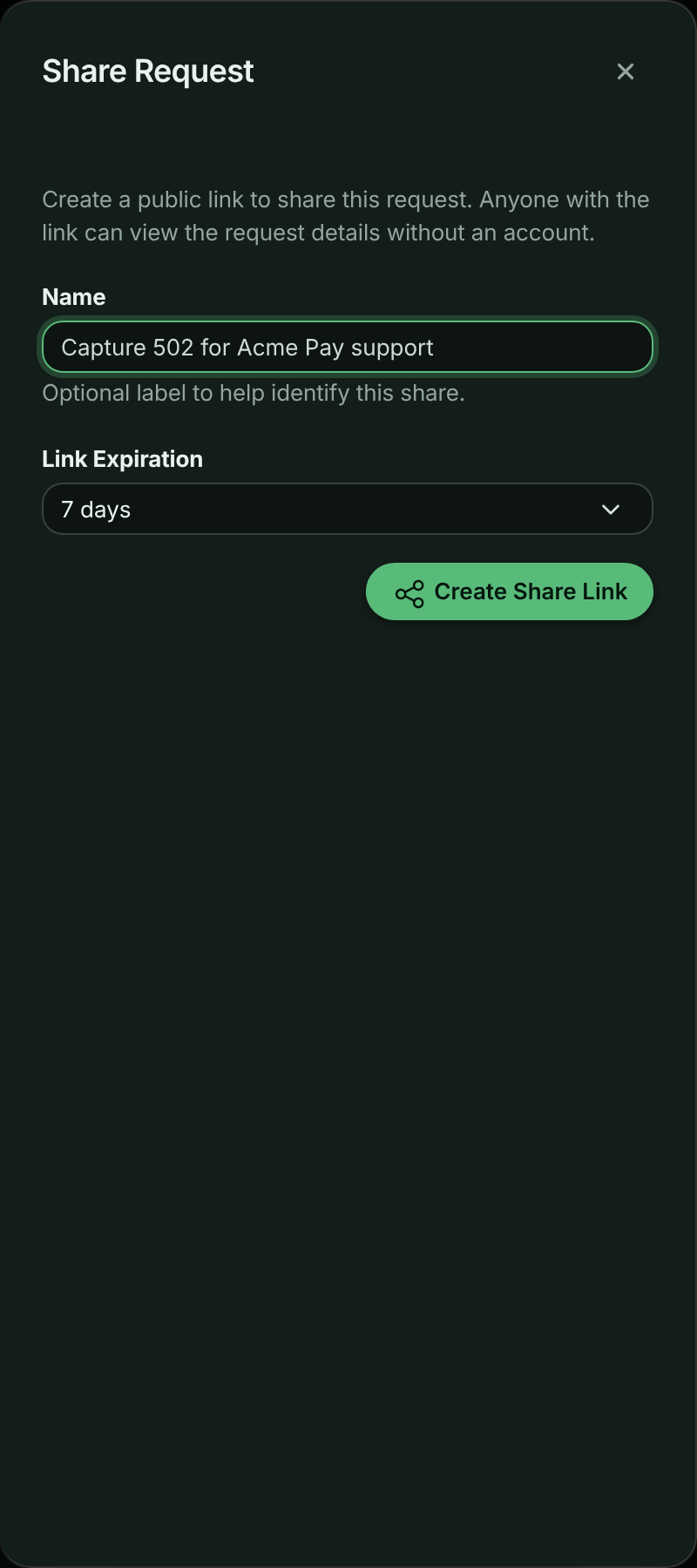
In the Share Request panel, enter an optional Name so you can recognize the link later, such as Bug report for team. Choose a Link Expiration: 24 hours, 7 days, 30 days or No expiration. Select Create Share Link.
Setting the name and expiry of a share link.
Copy the link
Select Copy next to Share Link and send it. The panel shows when the link expires and when it was created.
The link, ready to copy.
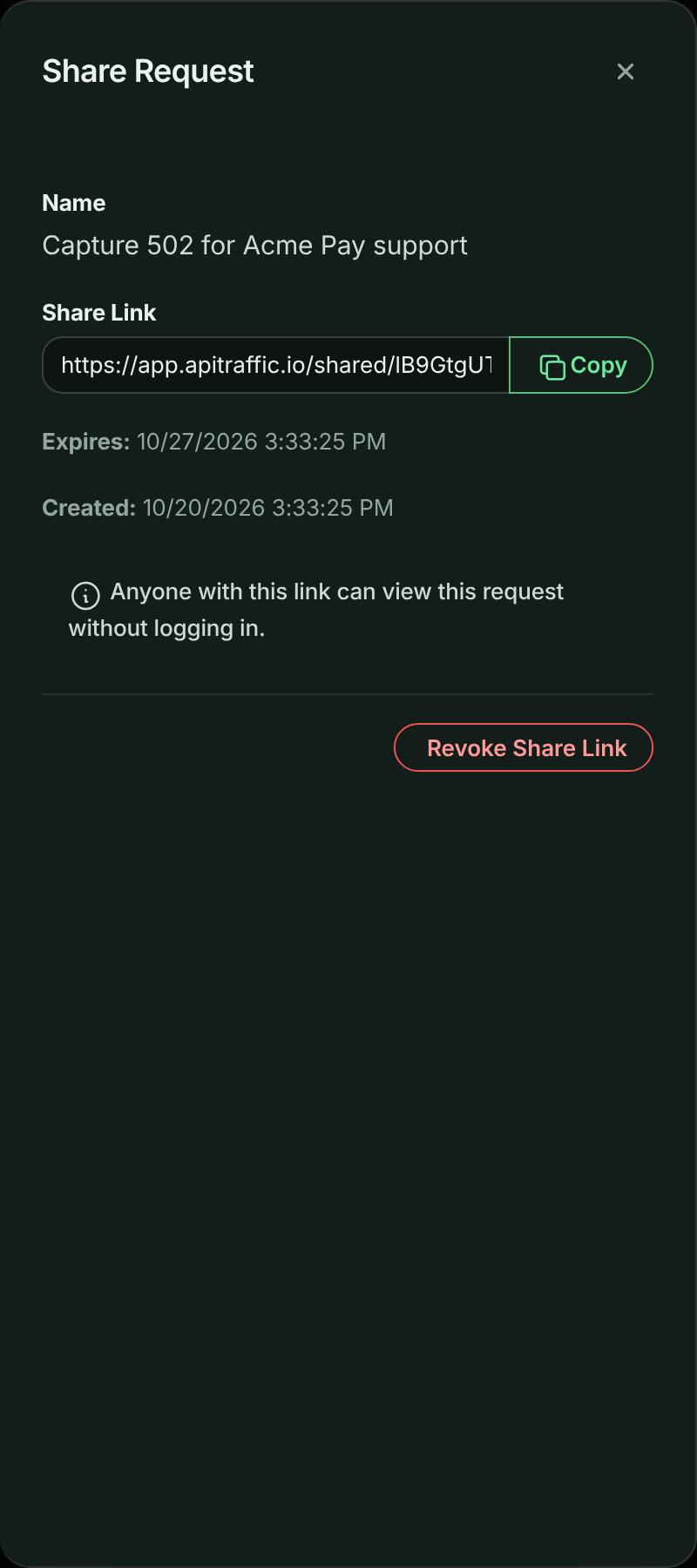
A request has one active share link at a time. If you choose Share again on a request that is already shared, the panel shows the existing link instead of making a new one. To change the expiry or name, revoke the link and create a new one.
To share a whole collection, use Share on the collection. See Share a collection.
What people see
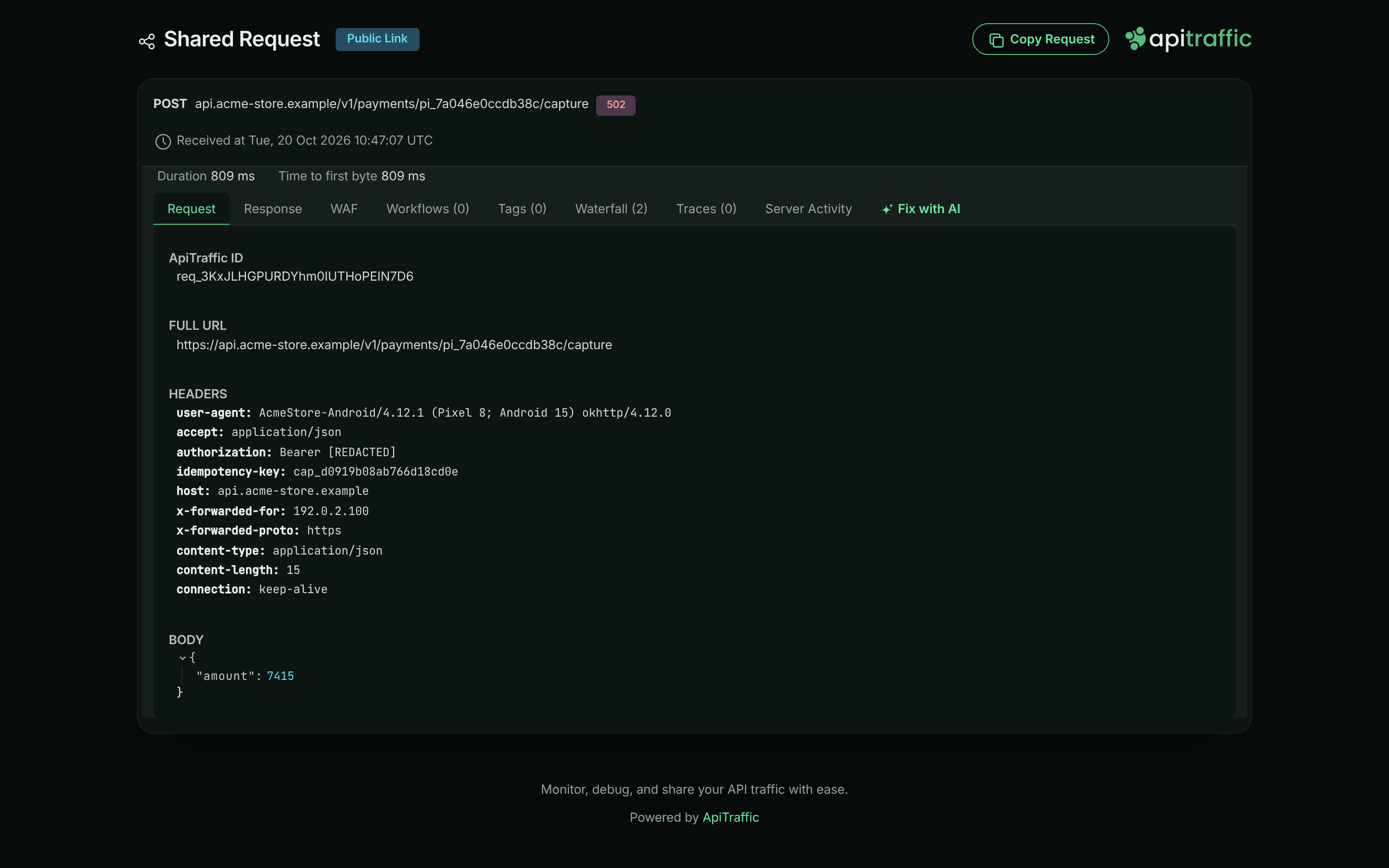
The link opens a Shared Request page marked Public Link. It shows the method, host and path, the status code, when the request was received (in UTC), and the same request detail you see in the app. Visitors can also use Copy Request to turn the request into ready-to-run code.
A shared request, as anyone with the link sees it.
A shared collection opens a page with the collection’s name, details and request list. Each request expands to the same detail.
What a shared link exposes
A share link shows the request as ApiTraffic stored it, including:
- the request line, headers and query string,
- the request and response bodies,
- timings, tags and the firewall decision,
- APM spans, which can include database statements.
There are no per-link options to hide parts of a request. What protects sensitive values is what you set up before the data was stored:
- Redaction rules mask or remove values before the request is saved, so they are masked on shared pages too. See Redactions.
- Credential headers such as
Authorizationand cookies are always redacted before storage. - Exclusion rules stop matching traffic from being captured at all. See Exclusions.
Warning: Open the request and read its headers and bodies before you share it. Personal data, tokens in bodies, or internal hostnames that your redaction rules don’t cover will be visible to anyone with the link.
Other things to know:
- Links are hard to guess, not private. Each link carries a long random token. Anyone who gets the URL, for example by it being forwarded or pasted in a public channel, can open it.
- Prefer an expiry. Use 24 hours or 7 days for one-off debugging. Keep No expiration for links you will remember to revoke.
- A shared collection is live. Requests you add to a collection after sharing it appear on its public page.
- Sharing is recorded. Creating and revoking a link appear in the account history.
When a link stops working
Visitors see a message instead of the request when:
| Situation | What the visitor sees |
|---|---|
| The link was revoked | This shared link has been revoked. |
| The link expired | This shared link has expired. |
| Your plan no longer includes share links, or the account was closed | This shared link is no longer available. |
| The request is older than your plan’s retention period, or was deleted | The shared request could not be loaded. |
| The shared collection was deleted | The shared collection could not be loaded. |
| The link is wrong or incomplete | This shared link is not valid. |
Manage and revoke share links
You can see every active link for one bucket, or for the whole account.
- One bucket: in the left navigation, under Workspace, select Shared.
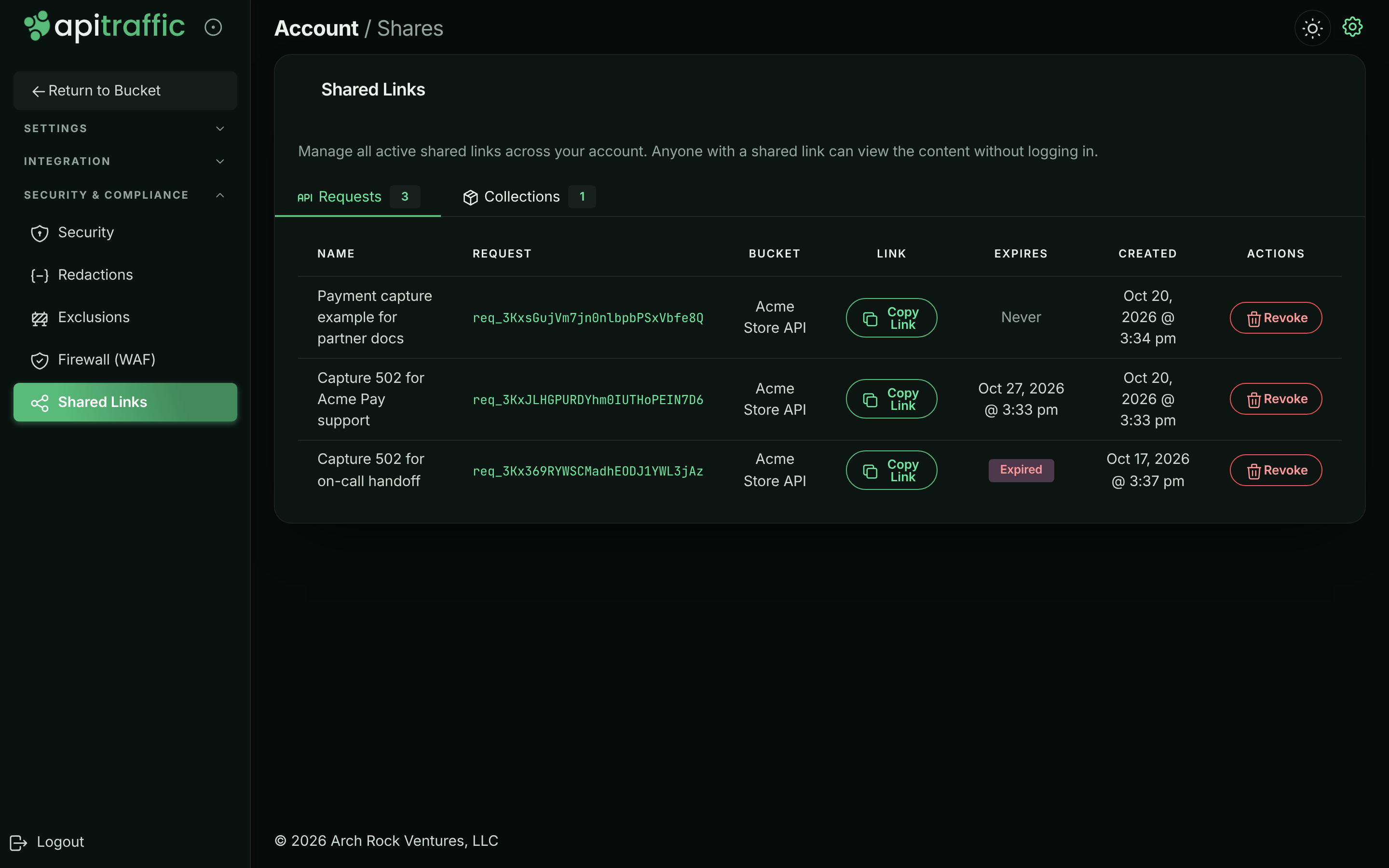
- The whole account: open the account menu, choose Account, then select Shared Links under Security & Compliance. This list adds a Bucket column.
Both pages have Requests and Collections tabs. Each link is listed with its Name, the request or collection, the Link (with a copy button), when it Expires (Never for a link with no expiration, an Expired badge once it has) and when it was Created.
All the account’s share links in one place.
To revoke a link, select Revoke on its row and confirm in the Revoke Shared Link dialog. The link stops working at once. You can also revoke from the request itself: open Share and select Revoke Share Link.
Note: Revoking a link that your plan has paused turns it off for good. It stays off even after you upgrade.
Troubleshooting
I don’t see Share in a request’s menu
Share isn’t offered on the sample bucket, or when your plan doesn’t include Share links. Open a request in one of your own buckets.
The person I sent it to sees an error
Check the table under When a link stops working. An expired or revoked link can’t be brought back; create a new one.
A value I expected to be hidden is visible on the shared page
The shared page shows what was stored. Revoke the link, then add a redaction rule for that field. Redaction applies to requests captured after the rule exists, so share a newer request once the rule is in place.
Related
-
Collections: Group requests and share them together.
-
Redactions: Mask sensitive values before they are stored.
-
Request details: What each tab of a request shows.
-
Account history: See who created and revoked links.