
Exclude requests from capture
Create exclusion rules so health checks and other noise are never sent to ApiTraffic, never stored and never counted toward your usage.
An exclusion rule stops your API from sending matching requests to ApiTraffic at all. Use it for traffic you never need to see - load balancer health checks, uptime probes, static assets, internal polling - so it does not clutter your request log, dashboards and metrics.
How exclusions work
- They run in your app. The SDK checks every captured request against your exclusion rules before sending it. A matching request is dropped there: it is never sent, never stored, and does not count toward your plan’s request usage.
- Changes reach your servers without a deploy. Saving or deleting a rule pushes it to connected servers.
- They only affect what is captured from now on. Requests already stored are not removed.
- They apply to traffic captured by the SDK. Your API itself still handles the request normally.
Warning: An excluded request is gone for good: it is not in search, metrics, alerts, workflows, APM or firewall analytics. Firewall verdicts are still enforced on excluded requests, but they will not be visible. Keep exclusions narrow.
Account rules and bucket views
Exclusion rules belong to the account, and each targets buckets and environments (or all of them). The bucket’s Exclusions page (Protect → Exclusions in the bucket’s left navigation) is a read-only view of the rules that apply to that bucket in the selected environment, with their criteria, description and status (Turned off for a rule that is sent to your servers turned off, with the reason under its criteria; see Criteria you can use). Select Edit Exclusions to manage them at the account level.
The sample bucket excludes its GET /health checks (url_path == "/health"), so they never reach its request log. That rule belongs to the sample and cannot be changed.
Before you begin
- You are an account owner or admin. Members can view exclusions but not create or delete them.
- You are viewing one of your own buckets; the sample bucket is read-only.
- Your plan may limit the number of exclusion rules.
Create an exclusion
You create an exclusion from a search, so you can see exactly which requests it will match before you save it.
Search for the requests to exclude
In the bucket, open All Traffic and search for the requests, for example url_path == "/health". Check the results: these are the requests the rule will stop sending. See Search requests for the criteria syntax.
Search for the requests first, then choose Add Exclusion.
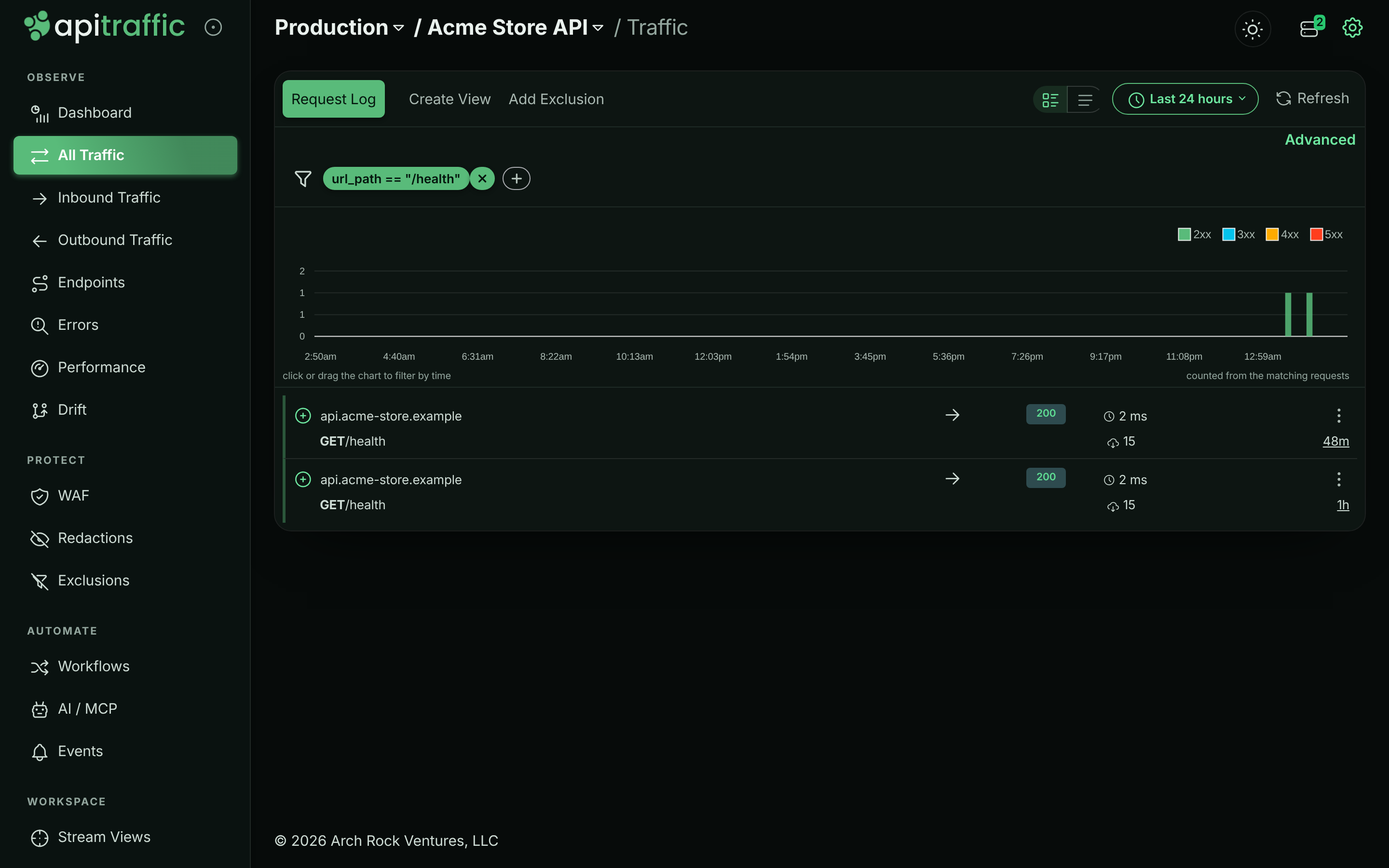
Open Add Exclusion
Select Add Exclusion in the traffic navigation. It appears once your search has criteria. The dialog shows the search as the rule’s Criteria, read-only.
Describe and target it
Enter a Description (for example Load balancer health checks). Under Targeting, leave Apply to all for Buckets* and Environments*, or switch it off and pick specific ones.
The Add Exclusion dialog.
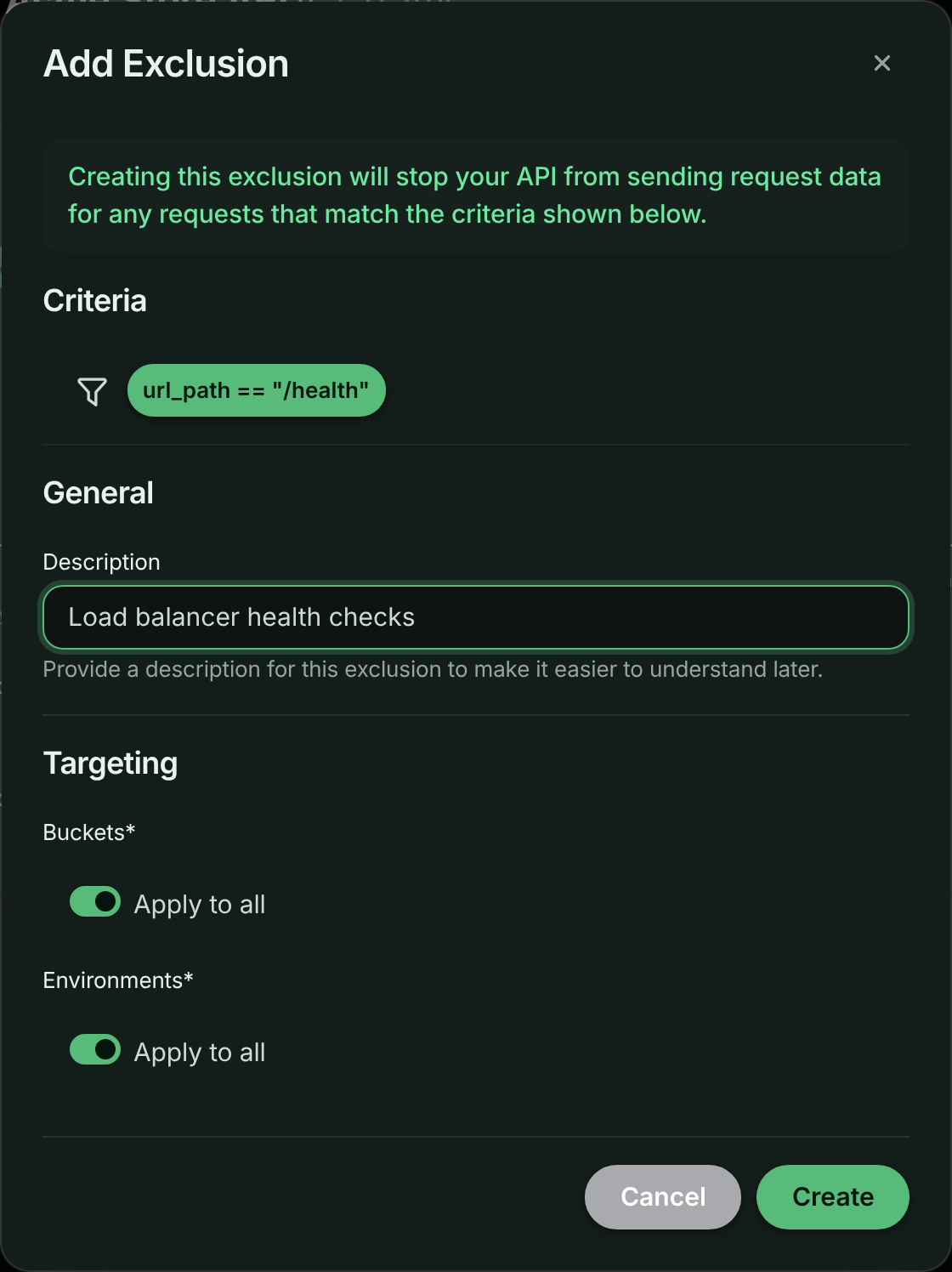
Create it
Select Create. The message The exclusion has been added and all servers updated! confirms it. Matching requests stop appearing within moments.
Criteria you can use
Exclusion criteria use the same syntax as request search and are evaluated in your app against the request it is about to send, so they can use what the SDK knows about the request: method, url, url_path, host, status_code, duration, request_size, response_size, request_header, response_header, query_param, tag, direction, endpoint, the APM rollups (such as db_time_ms), and firewall fields (such as waf_action).
| Goal | Criteria |
|---|---|
| Health checks | url_path == "/health" |
| Uptime probes by user agent | request_header:user-agent like ^UptimeRobot |
| Static assets | url_path like ^/static/ |
Successful OPTIONS preflights |
method == "OPTIONS" AND status_code == 204 |
| An internal polling endpoint, only when it succeeds | url_path == "/v1/jobs/poll" AND status_code < 400 |
Join conditions with AND; OR is refused (see There is no OR). An exclusion saved with OR before that runs as AND: it leaves out only requests that meet every condition. Criteria the SDK can’t parse, such as a condition without a valid operator or a field the SDK doesn’t see, are refused too: the SDK would never match them, so the exclusion would leave nothing out.
Four things in search criteria are refused in an exclusion, because SDKs on your servers read them differently from what you wrote, and the exclusion would leave out the wrong requests:
- A leading
-or!on a condition. SDK releases before the current one ignore it, so-method == "OPTIONS"would leave out theOPTIONSrequests instead of everything else. Write the opposite condition without it:method != "OPTIONS". >,>=,<or<=on a value the SDK holds as text: a header, query parameter or tag,request_size,response_size,waf_score, or a text field such asurl_path. SDK releases before the current one compare those as text, where"999"is greater than"1000", sorequest_size > 1000would leave out a 999-byte request and keep a 2 MB one there. The current release compares headers, query parameters, tags andwaf_scoreas numbers, but the rule is the same for every SDK version while older ones are still running. Use==or!=, or an ordered comparison on a number the SDK measures, such asstatus_code,durationor an APM rollup.- Any condition on
received. SDK releases before the current one never read the time a request was received, soreceived >= "2026-11-01"would never match there (the exclusion would leave nothing out) andreceived != …would match every request (it would leave out everything). The current release compares it as search does, but most servers run an earlier one. To exclude requests for a period, create the exclusion when it starts and delete it when it ends (or turn it on and off with the API). - Any condition on
capture. It marks captures, requests sent to the bucket’s capture URL, which never pass through an SDK, so every request an exclusion sees iscapture == false. SDK releases before the current one read no value for it, socapture == falsewould never match there andcapture != falsewould leave out every request. The current release does not accept it.
An exclusion saved with any of these before ApiTraffic refused them is sent to your servers turned off: it leaves nothing out until you replace it. The exclusion lists say so on the rule, and the API returns a criteria-rule-sent-disabled warning with it.
like values are regular expressions, case-sensitive, tested against the first 2,048 characters of a value. Each like pattern is checked when you save: one that does not compile, is longer than 512 characters, or can backtrack catastrophically is refused. See Regular expressions in criteria.
Tip: Exclude only successful responses where you can (
AND status_code < 400), so that when the excluded endpoint starts failing you still see it.
Keep requests but don’t log their bodies
An exclusion can also keep a request and leave out its request body, response body or both, for endpoints whose payloads you never want stored (personal data, uploads), or for a whole bucket or environment. The rest of the request (method, path, status, headers, timings, metrics) is still logged, and the body’s size is still recorded.
- From a search: choose Add Exclusion, then under What should happen? pick Don’t log the request body, Don’t log the response body or Don’t log either body.
- For a whole bucket or environment: on Exclusions, select Stop logging bodies for a bucket or environment, and choose the buckets and environments under Targeting. A rule for every bucket and environment asks you to confirm.
In the request view, a body a rule left out is shown as Body not logged, with its size and the rule, so it is never mistaken for a missing body. Requests whose body was omitted carry the apitraffic.body.omitted tag (request, response or both).
Delete an exclusion
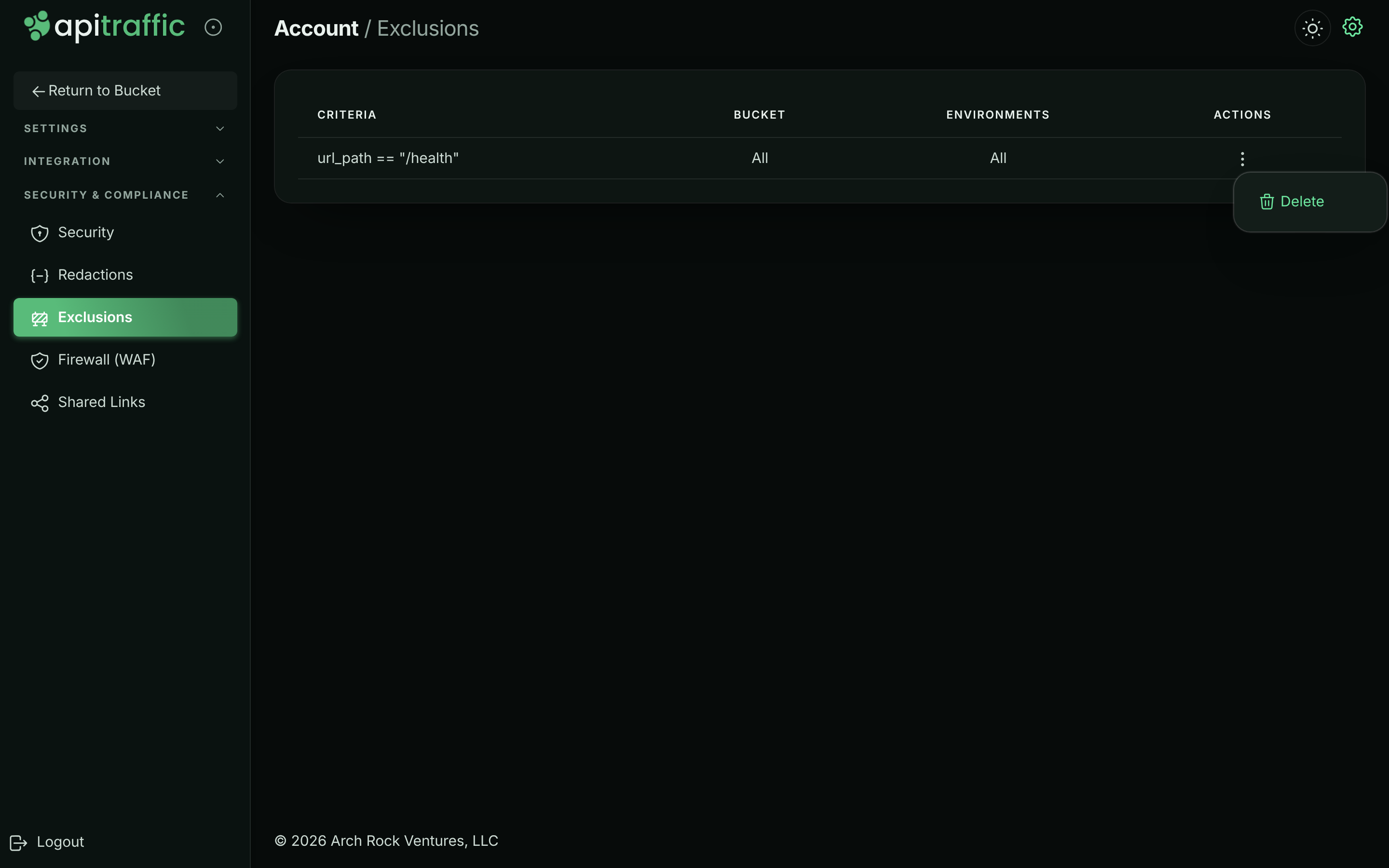
Open the account menu at the top right and select Exclusions (or, in the account area, Security & Compliance → Exclusions). The list shows each rule’s Criteria, Bucket and Environments. Open a rule’s menu (⋮), select Delete, then Delete Exclusion. Servers start sending matching requests again.
Exclusions cannot be edited in the app; to change one, delete it and create a new one from a search.
The account’s exclusion rules.
Troubleshooting
Add Exclusion does not appear
It appears only once your search has criteria, and only in your own buckets (not the sample bucket). Creating the rule also needs the owner or admin role.
Matching requests still appear
Check that the rule targets this bucket and environment, and that the request really matches (try the criteria as a search). Servers on an SDK that has not reconnected since the change pick it up when their settings reload. Requests captured before the rule are not removed.
An exclusion says it is sent to your servers turned off
Its criteria were saved before ApiTraffic refused a leading - or !, an ordered comparison (>, <) on a value the SDK compares as text, or a condition on received or capture. SDKs would leave out the wrong requests with it, so it is not sent: requests it was meant to leave out are captured. Search with criteria that say the same thing without them (method != "OPTIONS" rather than -method == "OPTIONS"; leave out the received and capture conditions, and keep the exclusion only for the period you want), create a new exclusion from that search, and delete the old one.
Saving is refused with a pattern error
A like value in the criteria is invalid, too long, or could backtrack catastrophically. Anchor it (^/static/ rather than .*static) or bound repetitions.
Related
-
Redactions: Keep a request but hide sensitive values.
-
Search and filter requests: The criteria syntax used by exclusions.
-
Exclusions API: Manage exclusions programmatically.
-
Plan, usage and billing: How request usage is counted.