
Set up the firewall
Set up the ApiTraffic firewall end to end: confirm the SDK, create a policy in Monitor mode, review what it catches, then switch to Enforcing.
This page takes you from an instrumented app to a firewall that blocks attacks: you confirm the SDK side, create a policy in Monitor mode, check what it would block against your real traffic, and switch it to Enforcing. No deploy is needed after the first step. For how the firewall works, see Web application firewall.
Before you begin
- Your app sends traffic to ApiTraffic with
@apitraffic/node, or with a framework package plus@apitraffic/waf(see Step 1). The firewall needs Node 20 or later. - Your plan includes the Web application firewall. Without it, the firewall pages show an upgrade prompt and no policy reaches your servers.
- You are an account owner or admin. Members can view policies and firewall analytics but cannot create or change policies.
Step 1: Confirm the firewall is in your app
If you use @apitraffic/node, the firewall is already there. There is nothing to install and nothing to add to your code. The engine is loaded the first time ApiTraffic delivers a policy that is switched on; until then it costs one check per request.
If you use a per-framework package (@apitraffic/express, @apitraffic/fastify, @apitraffic/koa or @apitraffic/hapi), install @apitraffic/waf and mount it after the ApiTraffic middleware and before your routes, so detections are attached to the request that caused them:
npm install @apitraffic/waf
yarn add @apitraffic/waf
pnpm add @apitraffic/waf
Express
const express = require('express');
const apitraffic = require('@apitraffic/express');
const waf = require('@apitraffic/waf');

const app = express();
app.use(express.json());
app.use(apitraffic.middleware());
app.use(waf.express());          // before your routes
Fastify
const fastify = require('fastify')();
const apitraffic = require('@apitraffic/fastify');
const waf = require('@apitraffic/waf');

fastify.register(apitraffic.middleware);
// preHandler, not onRequest: the body has been parsed by then, so body rules can see it.
fastify.addHook('preHandler', waf.fastify());
Koa
const Koa = require('koa');
const apitraffic = require('@apitraffic/koa');
const waf = require('@apitraffic/waf');

const app = new Koa();
app.use(apitraffic.middleware());
app.use(waf.koa());
Hapi
const Hapi = require('@hapi/hapi');
const apitraffic = require('@apitraffic/hapi');
const waf = require('@apitraffic/waf');

const init = async () => {
  const server = Hapi.server({ port: 3000 });
  await server.register(apitraffic.plugin);
  server.ext('onPreHandler', waf.hapi());
  // ...your routes, then server.start()
};

init();
The policy still comes from ApiTraffic; mounting the middleware is the only part that differs.
Step 2: Create a policy in Monitor mode
Open the firewall policies
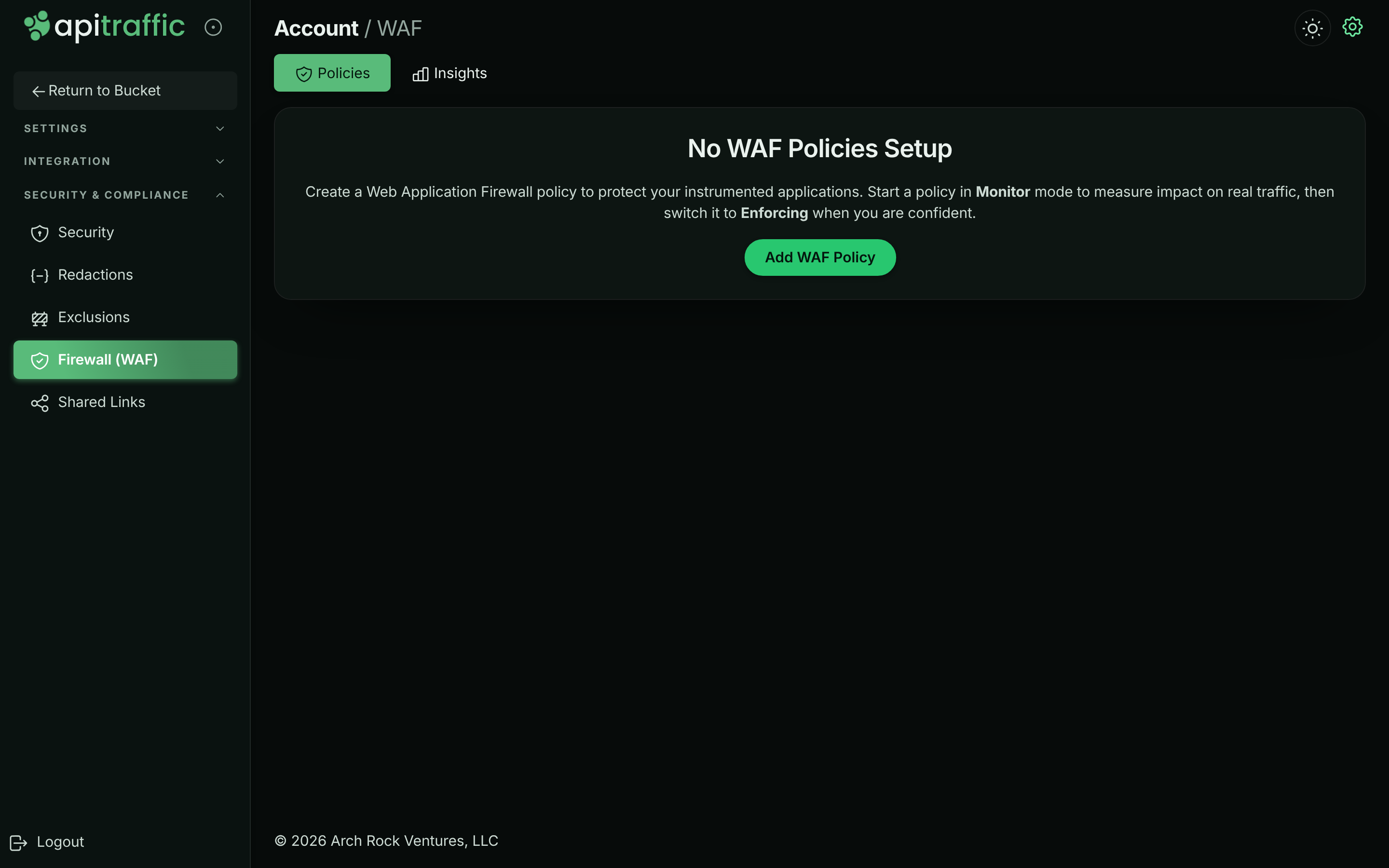
Open the account area and select Firewall (WAF) under Security & Compliance. The Policies tab lists your policies.
The Policies tab before any policy exists.
Name the policy and choose what it covers
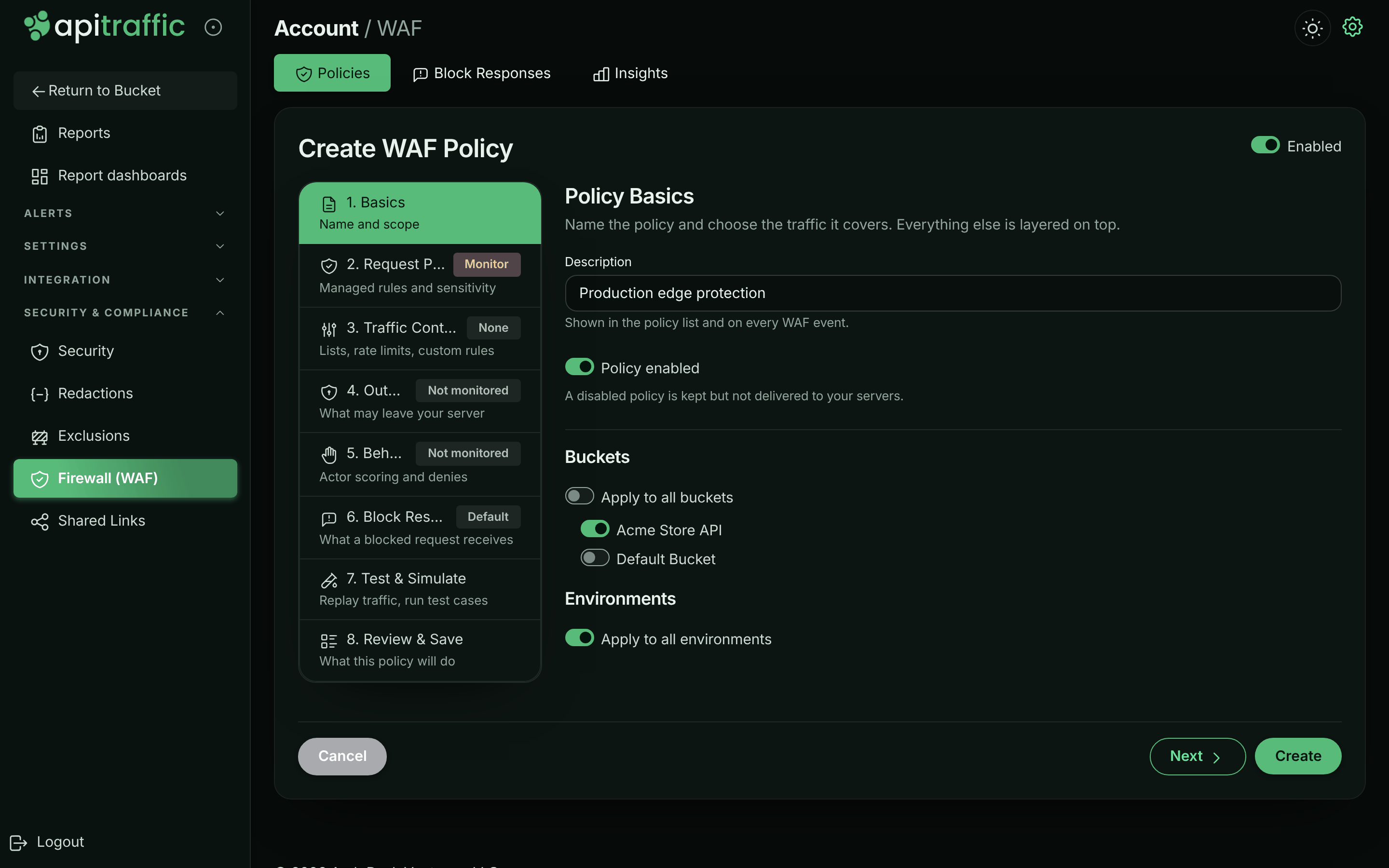
Select Add WAF Policy. On 1. Basics, enter a Description (for example Production edge protection), leave Policy enabled on, and choose the Buckets and Environments it applies to. Turn off Apply to all buckets to pick specific buckets.
Step 1, Basics: name the policy and scope it.
Set Request Protection to Monitor
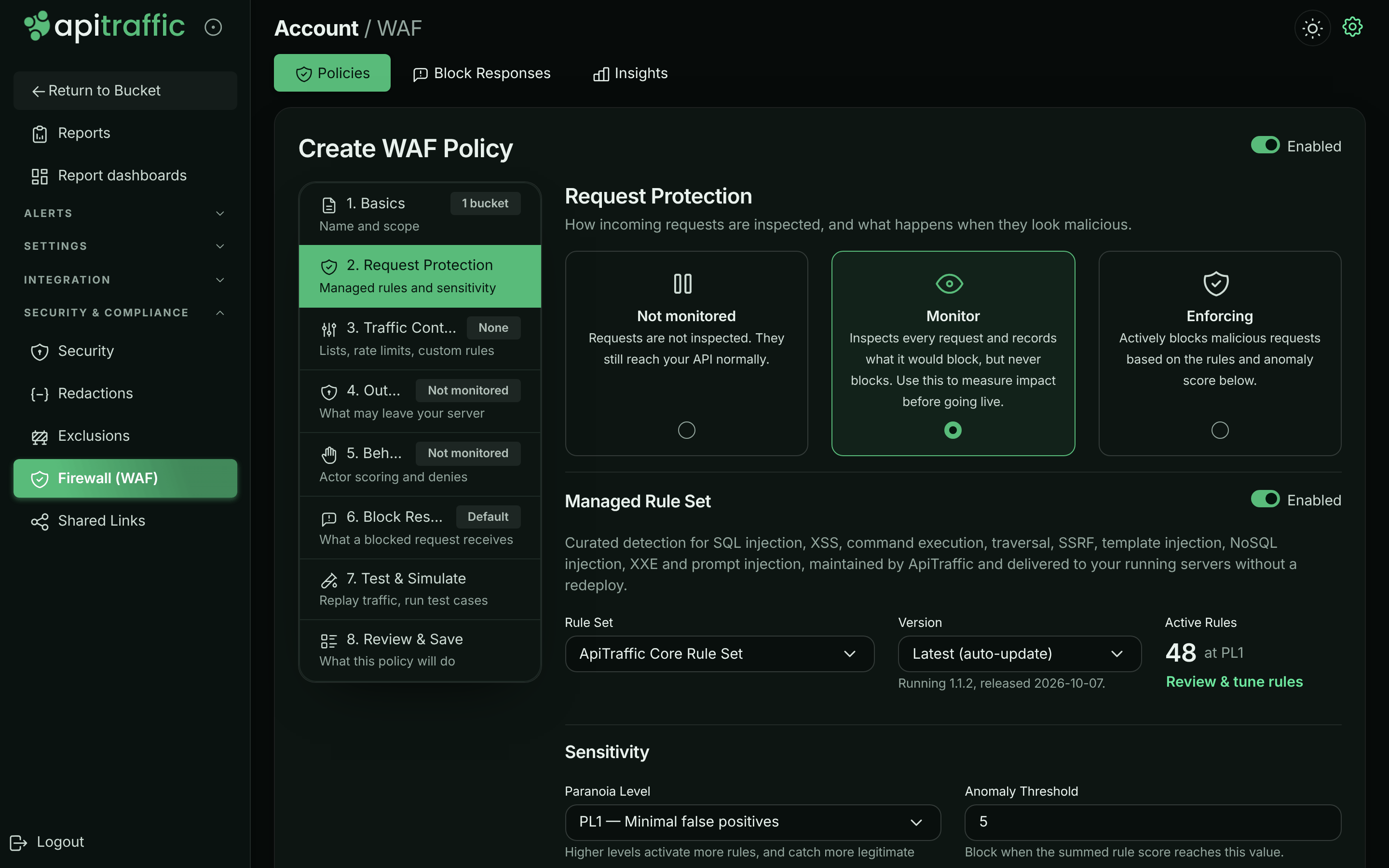
Select 2. Request Protection and choose Monitor. Keep the Managed Rule Set enabled on Latest (auto-update), the Paranoia Level at PL1 - Minimal false positives and the Anomaly Threshold at 5.
Step 2, Request Protection in Monitor mode.
Review and create
Select 8. Review & Save to read what the policy will do, then select Create. Connected servers receive the policy over their existing connection to ApiTraffic, with no deploy or restart.
You can add rate limits, lists and the other layers now or later; see Firewall policies.
Note: A server uses one policy: of the enabled policies that cover its bucket and environment, the most specific wins (a policy naming both the environment and the bucket beats one naming only the environment, which beats one naming only the bucket, which beats one for everything), and among equally specific policies the most recently saved. A policy whose Request Protection is Not monitored is not delivered at all.
Step 3: Review what it would block
Let real traffic run through the policy for a while - a few days of normal traffic is a good sample - then review it.
Open the bucket’s WAF page
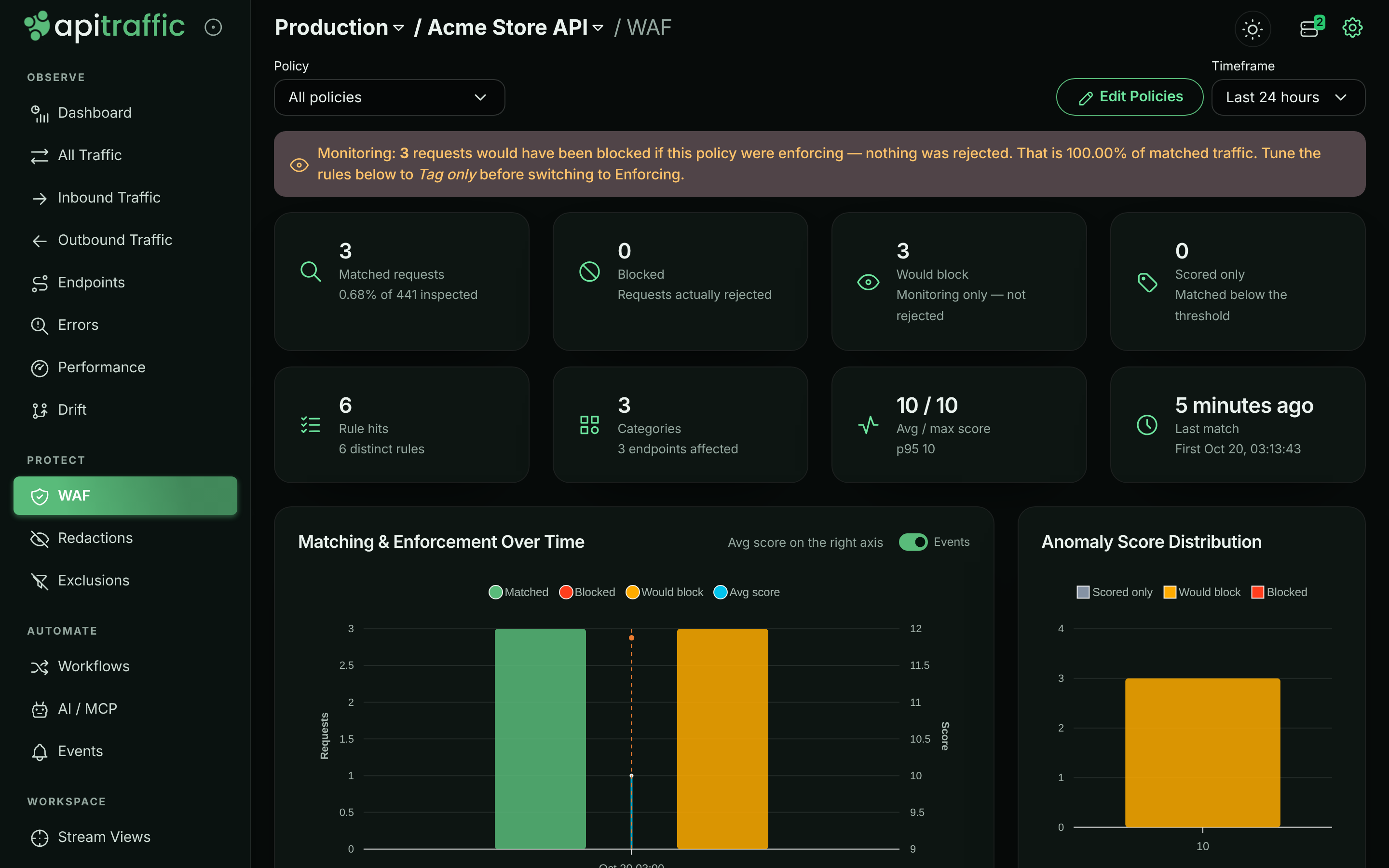
In the bucket, select WAF under Protect in the left navigation. With a Monitor policy, the banner reads Monitoring: N requests would have been blocked if this policy were enforcing - nothing was rejected.
A Monitor policy records what it would have blocked.
Check the rules and requests
In Rule Volume, select a rule to see its category, paranoia level and endpoints, and to filter Matched Requests to it. Open a matched request to judge it in place. Real attacks (SQL injection in a query parameter, scanner user agents such as sqlmap) are what you want; a legitimate request is a false positive.
Fix false positives
Silence a managed rule only where it misfires with a False Positive Exclusion, or from the request itself with Add to WAF. See Handle false positives.
Step 4: Switch to Enforcing
Edit the policy
In Firewall (WAF) → Policies, open the policy’s menu (⋮) and select Edit.
Test before you enforce
Select 7. Test & Simulate and run Replay Recent Traffic to see what would be blocked. See Test a policy.
Choose Enforcing and update
On 2. Request Protection, choose Enforcing, then select Update. Matching requests now get the policy’s block response (403 Forbidden by default) and never reach your route handler.
From then on, the bucket’s WAF page shows Blocked counts, and each blocked request shows a Blocked shield and a WAF tab in the request log.
Where its decisions show up
Every request the firewall matches carries its decision: the action (block, would block or tag), the anomaly score, the policy and the rules that matched.
- The request’s WAF tab: what the firewall decided and every rule that matched. Select a matched rule, or View rule details next to the deciding rule, to read:
- what the rule looks for, with example attacks and what else it can match for the managed rules that have them. Built-in checks that are in no ruleset, such as inspection limits (
AT-LIMIT-*), structural limits and outbound findings, are explained too; - its definition: source, category, severity, score, paranoia level, action and what it inspects;
- what it found on this request: where it matched, the evidence and the score it added;
- for managed rules, your own custom rules and inspection limits, how your policy treats it today: Active, Inactive with the reason (the policy is paused or not monitored, the rule or the managed ruleset is switched off, the rule is above the paranoia level, a custom rule was removed, or an exclusion silences it everywhere), or Check policy when that cannot be told from the request (for example, the policy has moved to another ruleset version), plus the exclusions that scope it. Lists, rate limits and other built-in checks are changed through the policy settings that produce them.
- what the rule looks for, with example attacks and what else it can match for the managed rules that have them. Built-in checks that are in no ruleset, such as inspection limits (
- WAF → Insights: each policy’s activity, with matches, blocks, the busiest rules and the matched requests.
- Filters: on the traffic pages and anywhere else that takes criteria, for example
waf_matched == "1",waf_action == "block",waf_policy == "wafp_…",waf_rule == "942100"orwaf_score >= 5. - Reports: group by Firewall action, Firewall policy, Deciding rule or Firewall matched, and measure Blocked by firewall, Would block (monitor mode) or the anomaly score, alongside your own tags: for example, which customers the firewall blocks most.
Turn the firewall off
Setting the policy’s Request Protection to Not monitored, or turning Policy enabled off, stops it across your whole fleet. That is the right choice when ApiTraffic is reachable.
Two local switches take precedence over the dashboard, for situations it cannot cover:
In code, when your change process requires that anything able to reject production traffic ships through a deploy:
const apitraffic = require('@apitraffic/node');

app.use(apitraffic.express({ waf: false }));
With @apitraffic/waf directly, pass enabled: false to its middleware (for example waf.express({ enabled: false })).
As an environment variable, for incidents. It works even when ApiTraffic is unreachable:
API_TRAFFIC_WAF_ENABLED=false
Either one keeps the firewall off whatever the policy says.
Failure behavior
A firewall must never be the reason your application stops working.
- If rule evaluation throws, the request is allowed and passed to your handler, tagged
waf.error=internal. Only a policy in Enforcing mode with Fail closed (block on engine error) refuses it instead. After 10 consecutive internal errors even a fail-closed policy allows the requests it fails on for 30 seconds, and logs it once. - Every policy is validated before it replaces the one in force. A policy that fails validation is refused and logged once, and the previous policy stays in force.
- If no policy has ever loaded, the firewall is inert, unless you set
offlineWafMode: 'closed'(below). Once settings have loaded, a bucket with no firewall policy simply allows traffic. - If the outbound guard throws, the outbound call proceeds.
- The kill switches above take effect without a restart.
Warning:
offlineWafMode: 'closed'(orAPI_TRAFFIC_OFFLINE_WAF_MODE=closed) refuses every request with503on a server that has never loaded a policy - for example one that boots while ApiTraffic is unreachable and has no cached or pinned copy of your policy. It is the only setting with which an ApiTraffic outage can take your application down. Removing or disabling the policy does not trigger it. See If ApiTraffic is unreachable and What the firewall does offline before you set it.
Local options
These are set in code or the environment and exist mainly as kill switches. Everything else is in the policy.
Option (@apitraffic/waf) |
Environment variable | Default | Details |
|---|---|---|---|
enabled |
API_TRAFFIC_WAF_ENABLED |
true |
Master kill switch. false makes the firewall a no-op without removing it. |
debug |
API_TRAFFIC_DEBUG |
false |
Log decisions to the console. |
offlineWafMode |
API_TRAFFIC_OFFLINE_WAF_MODE |
'inherit' |
What a server that has never loaded a policy does: 'inherit' or 'open' allow traffic, 'closed' refuses every request with 503. The environment variable overrides the option. |
onEvent |
none | none | Called for every inbound block or detection. |
onEgressEvent |
none | none | Called for every outbound block or detection. |
With @apitraffic/node, pass these as the waf option, for example apitraffic.express({ waf: { onEvent } }).
Troubleshooting
Nothing shows on the bucket’s WAF page
Check that the policy is enabled, that its Request Protection is Monitor or Enforcing, and that it covers this bucket and environment. Check that another, more specific policy is not the one in force. With a per-framework package, check that @apitraffic/waf is mounted before your routes. Finally, check that your plan includes the firewall.
The policy blocks nothing although attacks are matched
The policy is in Monitor mode, or the requests score below the Anomaly Threshold. Matches below the threshold show as Scored only / Inspected.
Legitimate requests are blocked
Switch the policy back to Monitor while you investigate, then add a False Positive Exclusion for the rule on that path or field. Lowering the paranoia level also reduces false positives.
Country or ASN lists have no effect
Country lists are looked up from the client IP by @apitraffic/waf 2.1.0 or later; earlier versions, and ASN lists, need the policy to name the header your edge sets (for example cf-ipcountry). See Block or allow countries.
I cannot add or edit policies
You need the owner or admin role, and your plan must include the firewall.
Related
-
Firewall policies: Every setting, rate limits, lists, testing and false positives.
-
How the firewall works: Evaluation order, modes and where verdicts appear.
-
Node SDK: Install and configure
@apitraffic/node. -
If ApiTraffic is unreachable: What the SDK and firewall do during an outage.