
Reports
Group your traffic by endpoint, customer or any tag, measure it, compare it with an earlier period, and save it to share or put on a dashboard
A report answers a question about your traffic: which customers sent the most requests last month, which endpoints got slower this week, how many tokens each customer used. You choose what to group by, what to measure and which requests to count, and ApiTraffic draws the answer as a table, a chart or a single number.
Reports read every bucket and environment in your account unless you narrow them, so they live at the account level: open Reports in the sidebar.
Reports count requests. To count the operations inside requests instead (database queries, outbound calls, cache and queue work), choose Spans (APM) under Count in the builder: see Span reports.
Who can use reports
Reports need the Custom reports feature in your plan. Without it, Reports and Report dashboards show a lock in the sidebar, and the pages explain how to upgrade.
If your plan stops including Custom reports, nothing you saved is lost. Your reports and dashboards stay listed and open view only: you can look at a report’s settings and History, and Delete reports and dashboards, but reports no longer run and you cannot save or create new ones.
- Any member can build, run and save reports.
- A private report is visible to its owner only. A report shared with the account is visible to everyone in it.
- The owner can change or delete a report. Owners and admins can also change or delete any shared report. Anyone else who opens a report can run it, change it in the builder and Save as new report, but not overwrite it.
- Your plan may limit how many reports you can save. When you reach the limit, the Save dialog says so and links to the plans.
Reports on the sample data
If your account shows the sample data, you can run reports on it to try them before your own traffic arrives. Under Scope and precision, open Bucket and choose Sample: Acme Store API under Sample data. The environment is pinned to Production (Sample). While the sample bucket is the bucket you have open in the app, New report and the templates start on it, and the Reports page says so.
On the sample data:
- A banner reads You’re viewing sample data from a demo API. Use my own data puts back the bucket and environment the report had (all your buckets and environments for a report that started on the sample data). Looking at the sample data is not a change to the report; other changes you make there are kept, and you can save them once you are back on your own data. A template opened on the sample data uses the sample’s customer key (
customerId): if you haven’t changed it, leaving the sample data (with Use my own data, or by choosing another bucket under Bucket) fills it in again with your own customer key. - Reports run, but are not saved. The banner says You can run reports here but not save them. To save, choose one of your buckets under Scope. Save is greyed out until you do, and clicking it takes you to that sentence. The sample data is a demo you look at, not part of your account.
- The tag pickers offer the sample’s own tags:
customerId(the customer key, labelled with each customer’s name),planandclient. Nothing is offered for promotion, because the sample data is read-only, so reports on it cover at most 31 days at a time. - The sample’s clients use documentation addresses (such as 192.0.2.10), which no geo data locates, so their countries under Country are made up for the demo: each address is always shown in the same country.
- Every feature is open, as everywhere on the sample data: you can run reports and span reports on it even if your plan does not include Custom reports or APM. Without Custom reports, New report offers Try reports on sample data (the banner on Reports says You can try reports on the sample data), and on the sample data the banner adds Reports on your own data need Custom reports, with See plans. Your saved reports stay in Reports. Dashboards are the exception: without Custom reports they stay view only on the sample data too, and their tiles do not run.
Building a report
Open the builder
In Reports, click New report, or Use template on one of the templates.
Choose what to group by
Pick a First dimension, such as Endpoint or your customer tag, and optionally a second one in Then by. Leave both empty for totals over all requests. If no tags are offered yet, send tags from your SDK first: see Tags.
Choose what to measure
Tick the Metrics you want, such as Requests, Error rate and p95 latency. Use Calculate to add a distinct count, a total or an average.
Narrow it down
Add conditions in Filter, choose a Time range and, under Scope and precision, a bucket, environment or direction.
Choose how to show it
Pick Over time for a trend and Compare with for a comparison. Show as picks a visualization that suits the report (a single number for one total, a line for a trend, bars for one dimension, a table for two) until you choose one yourself. Under a chart, Table sets whether its numbers show too: see The table under a chart.
Run it
Click Run report. The result appears on the right, with the meta strip above it. On a wide screen the result stays in view while you scroll the settings (unless the window is very short); a result taller than the window scrolls inside its card.
Nothing is saved until you click Save. The builder only offers choices that can run: a choice that would make the report too big is disabled, or explained next to the control with what to change, before you run it.
Changing Show as or Table redraws the result straight away. Changing anything else marks the result Settings changed: run the report to update the result until you run it again. A saved report with unsaved changes shows Unsaved changes, and leaving the page asks first. The notice and its Run report button stay at the top of the result, however far you have scrolled it.
The table under a chart
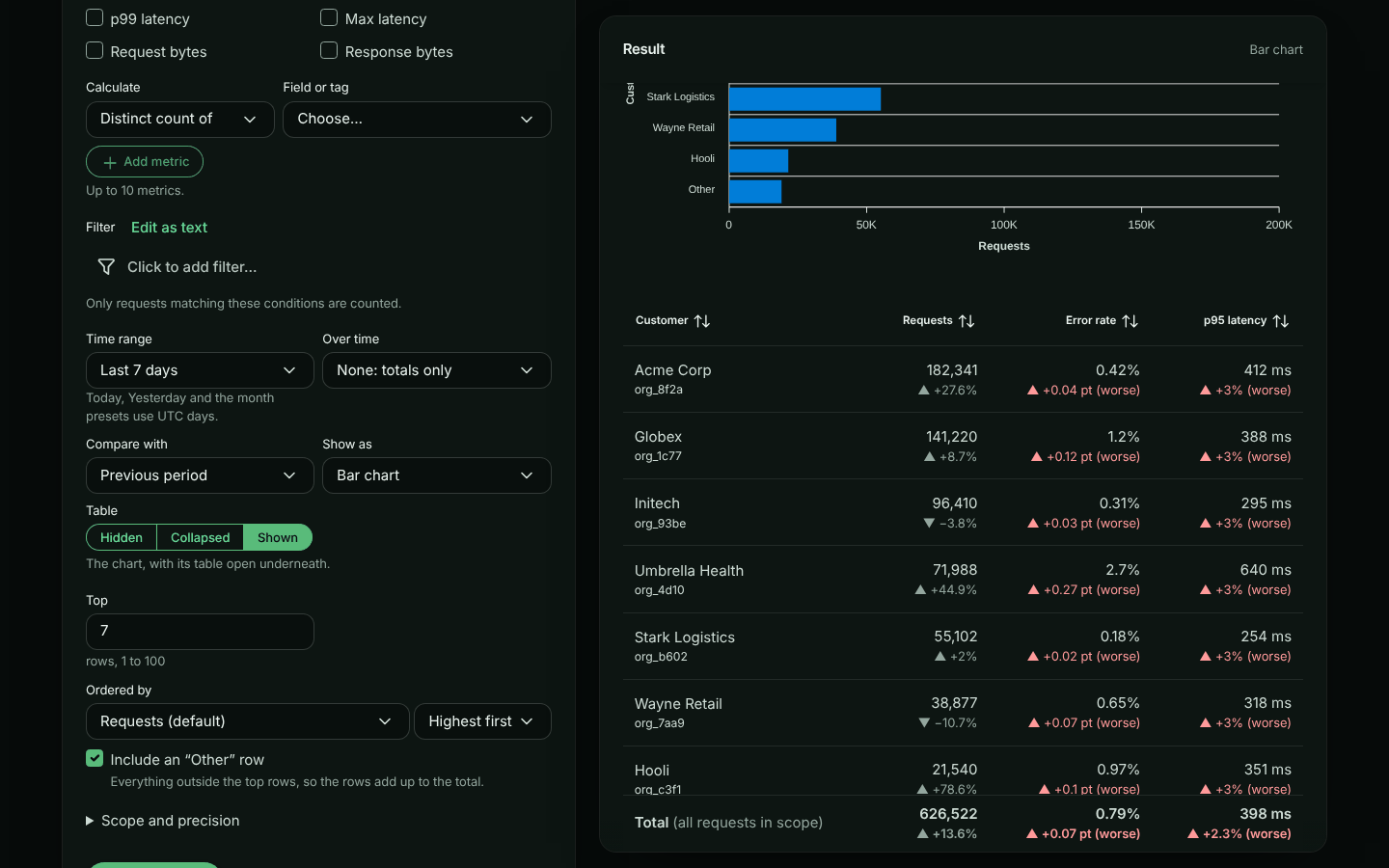
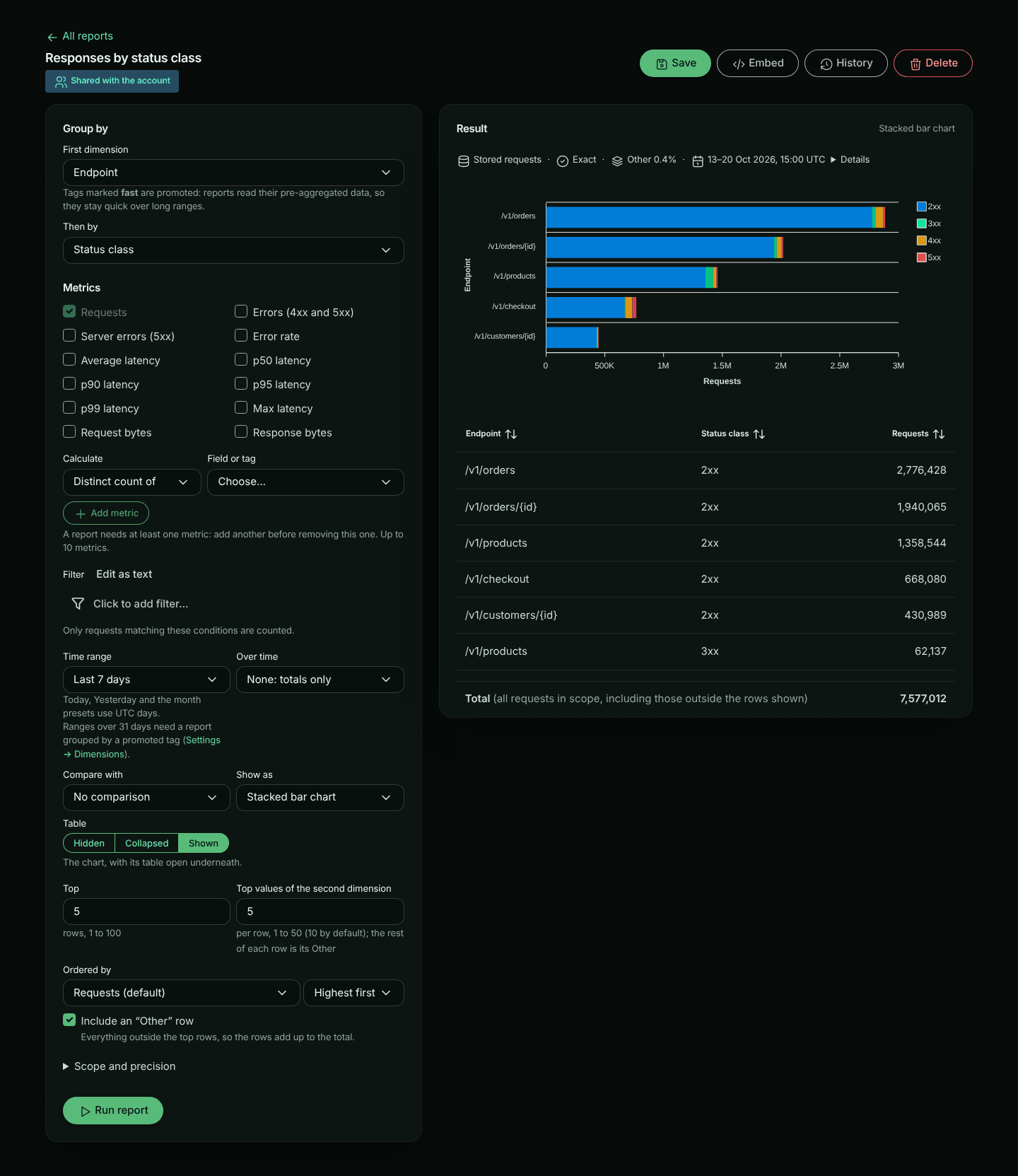
A chart (or a single number with a dimension) can show its numbers as a table too. Table, next to Show as, sets how:
| Table | What shows |
|---|---|
| Collapsed (the default) | The chart, with the table behind Show the numbers. Click it to open the table, and Hide the numbers to close it again. |
| Shown | The chart, with the table open under it. |
| Hidden | Only the chart. Screen readers still get every number: the table stays in the page for them, out of sight, and the chart’s description says so. |
The setting is saved with the report, and the report looks the same everywhere: in the builder, on dashboard tiles and in embeds. A Table report is its table, so the setting is not offered for it; nor for a single number with nothing grouped, which has no rows to list. Reports saved before the setting existed show the table collapsed.
Changing it is not a new version in History: like pinning, it changes how the report looks, not what it shows.
Dimensions
A dimension is what each row of the report is about. A report has up to two: the first picks the top rows, and the second splits each of them.
| Kind | Examples | Notes |
|---|---|---|
| Request fields | Endpoint, Method, Status code, Status class, Host, Path, Direction, Bucket, Environment, AI model, MCP tool | Bucket and environment rows show their names. Status class groups status codes as 1xx, 2xx, 3xx, 4xx and 5xx; charts stack them, and sorting by the column lists them, in that order. Requests without a status are No status |
| Tags | customerId, plan, region |
Your own tags. Keys marked fast are promoted: reports read their pre-aggregated data, so they stay quick over long ranges |
| Catalogue attributes | customerId → plan |
Groups a tag’s values by an attribute from the customer catalogue |
| Firewall | Firewall action, Firewall policy, Deciding rule, Firewall matched | What the firewall decided about each request. Offered when your plan includes the firewall |
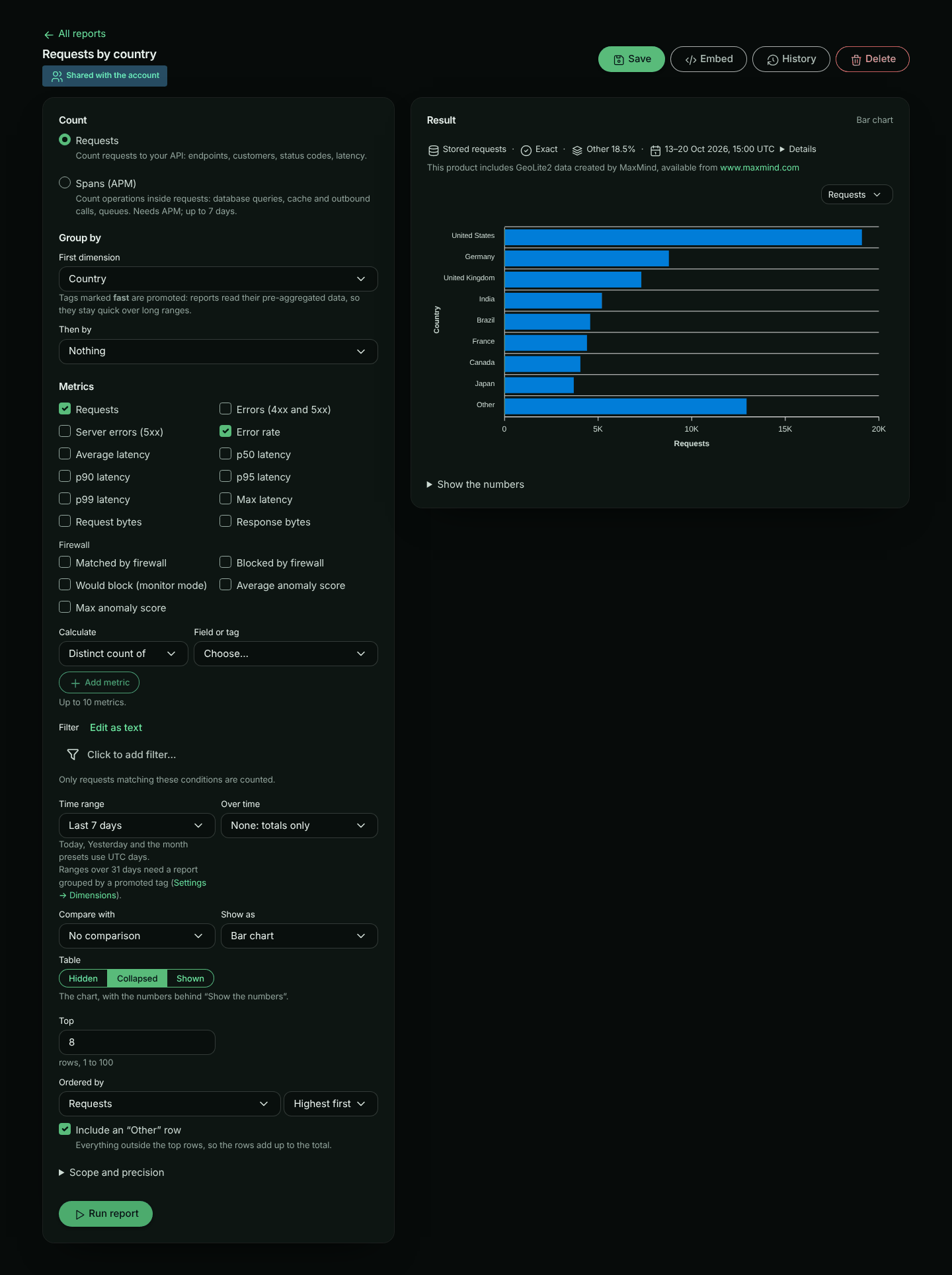
| Client | IP address, Country | Where each request came from. See IP address and country |
Tag keys classified Secret, and keys you hid in Settings → Dimensions, are not offered. Values of keys classified Personal are masked (d***@acme.com) for members who may not view personal tags.
To group by a catalogue attribute, choose Catalogue attribute…, then a Tag key and an Attribute. The builder suggests the attributes your catalogue holds. An attribute name starts with a letter and has only letters, digits, dots, dashes and underscores (up to 64). Values without a catalogue entry are grouped as (unlabelled). A catalogue attribute cannot be combined with a distinct count, so while one is chosen the other is not offered.
Where a value has a name in the catalogue, the table shows the name with the raw value small underneath, for example Acme Corp over org_8f2a. Charts show the name only. Requests without a value are the (none) row.
Firewall dimensions
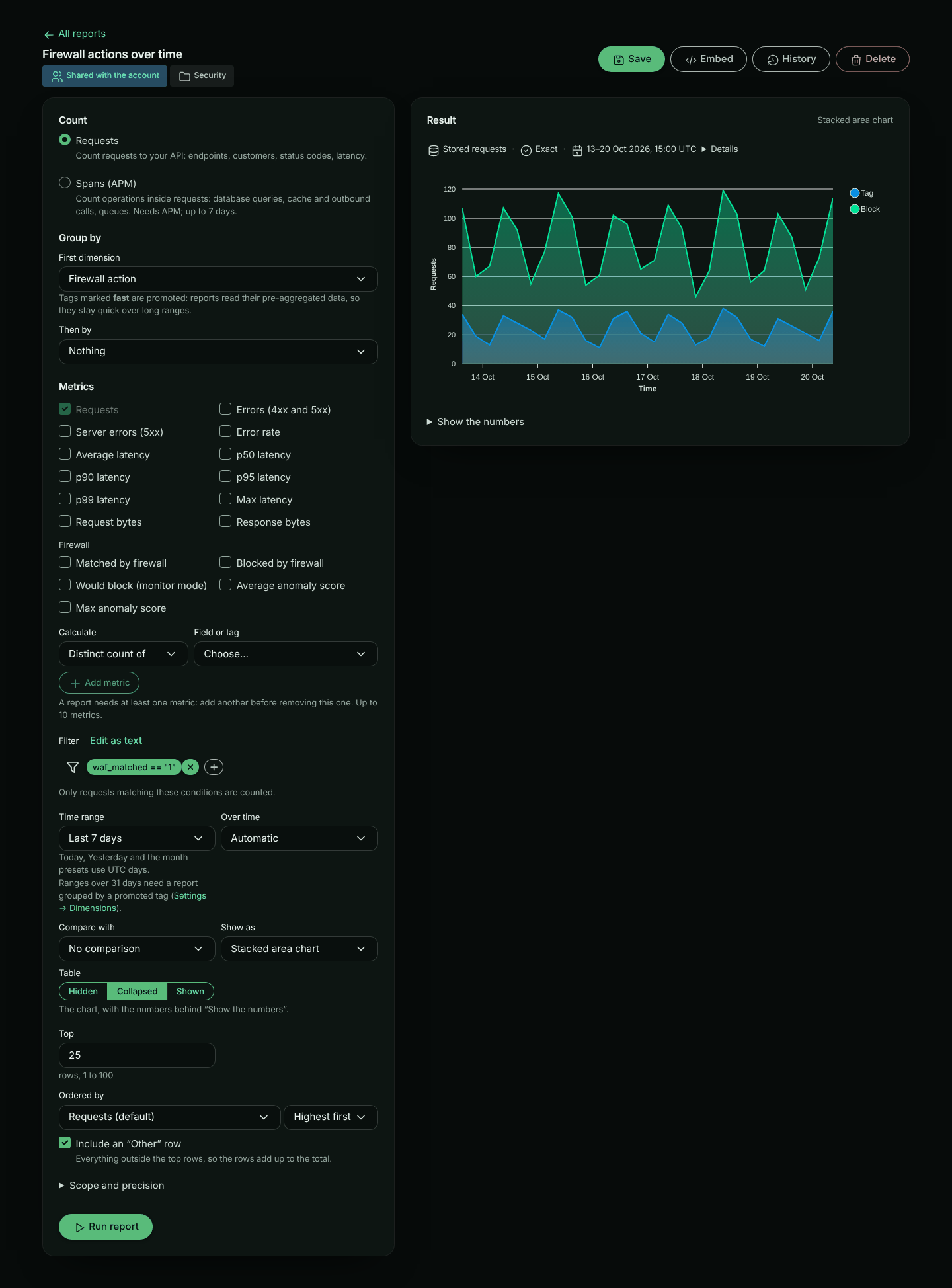
The firewall dimensions group inbound requests by the decision the firewall made about them:
| Dimension | Values |
|---|---|
| Firewall action | Block, Would block (a policy in monitor mode) or Tag |
| Firewall policy | The policy that decided, shown by its description with its sid underneath |
| Deciding rule | The rule that decided, shown by its message (a managed rule’s, or your custom rule’s) with its id underneath |
| Firewall matched | Yes or No |
Requests the firewall did not match (including outbound calls) have no firewall action, policy or rule: they are the (none) row. Add the filter waf_matched == "1" to leave them out. Firewall dimensions are read from stored requests, so a report that uses them covers at most 31 days at a time, whatever it is grouped by.
IP address and country
The client dimensions group requests by where they came from. Both are recorded on each request when it is received: its client IP address (the address your SDK reports; for traffic sent through the relay, the address our edge received the request from, never an address the caller wrote into X-Forwarded-For), and the country that address was located in at that moment.
| Dimension | Values |
|---|---|
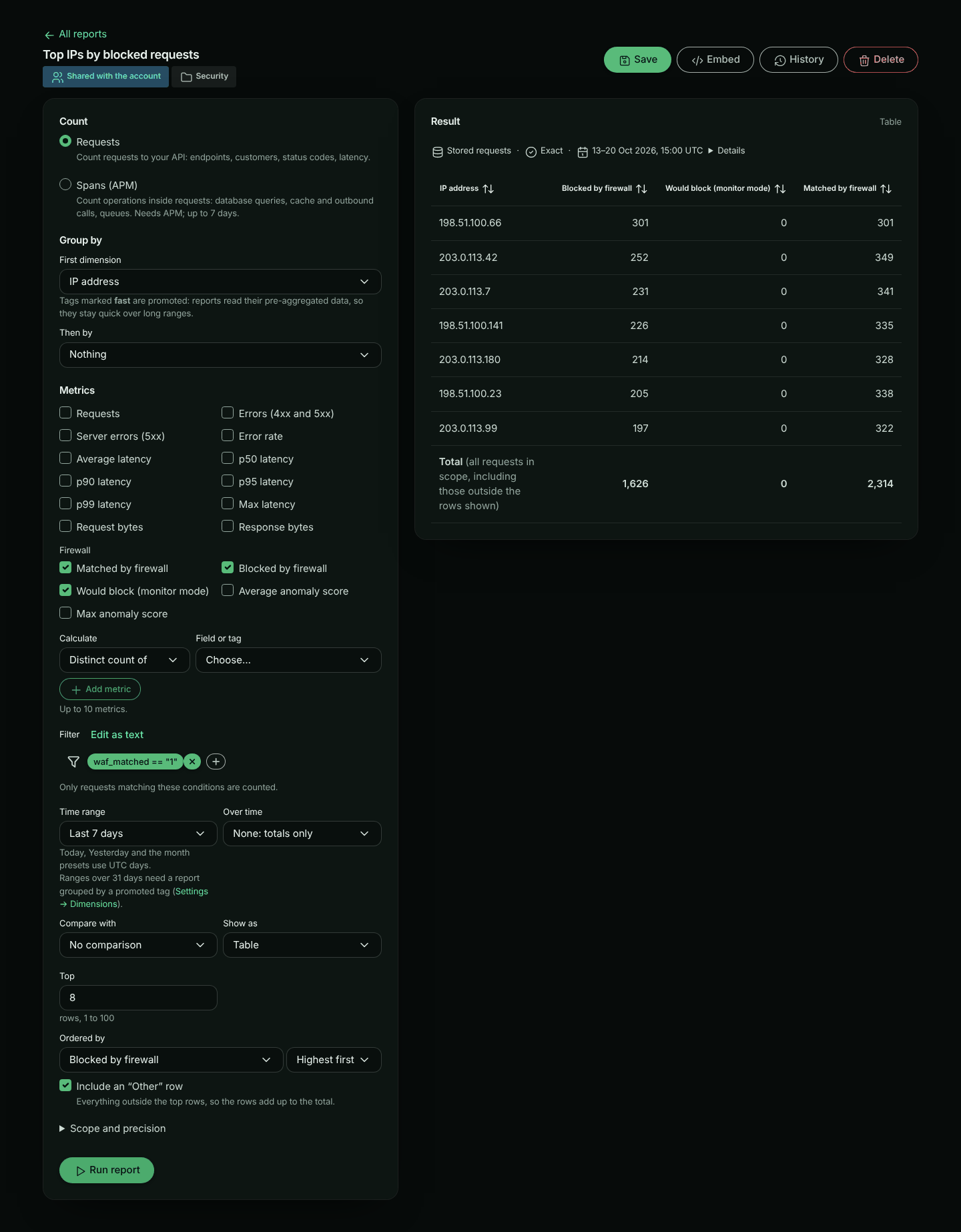
| IP address | The client’s IP address, for example 203.0.113.7 (or its network, 203.0.113.0/24, when the account keeps networks only) |
| Country | The country by name with its code, for example Germany (DE) |
Requests without a client IP address (outbound calls, for example) are the (none) row for both, and so are requests whose address has no known country (private and reserved addresses, and addresses the geo data does not locate). Both are read from stored requests, so a report that uses them covers at most 31 days at a time. Country is an ordinary dimension: it works with distinct counts (Distinct count of… Country counts different countries), Exact precision and the country filter, for example country == "DE" (two-letter upper-case code). Distinct count of… IP address counts different addresses.
Requests received before IP address and country were recorded have neither: they are (none), and Details says from when they are recorded (for example Country is recorded from 2026-10-22 14:05 UTC: 1,204 earlier requests in this window show as (none).).
How much of each address there is to report on follows the account’s client IP address setting. With Network only, IP address groups requests by network (the /24 of an IPv4 address, the /48 of an IPv6 one), labelled like 203.0.113.0/24, including requests stored before the change; Distinct count of… IP address then counts networks. With Don’t keep, IP address is (none) for every request and its distinct count is 0. Either way Details says so. Country is located from the full address in every mode, so it’s unaffected.
An IP address is personal data. For members who may not view personal tags, IP addresses are masked: the label shows only the network part, 203.0.113.x (an IPv6 address keeps its first three groups, the /48), the value behind it is an opaque id rather than the address, and the meta strip says Masked: IP addresses. A shared report or dashboard can group by IP address: each member sees the addresses as their role allows. Reports cannot filter on an IP address, and an embedded report never shows IP addresses. Country is not personal and is never masked.
Countries come from a third-party IP geolocation database, credited under the report wherever countries are shown. With the default configuration: This product includes GeoLite2 data created by MaxMind, available from https://www.maxmind.com.
Metrics
| Metric | What it measures |
|---|---|
| Requests | How many requests |
| Errors (4xx and 5xx), Server errors (5xx) | How many requests failed |
| Error rate | Errors as a share of requests |
| Average, p50, p90, p95, p99 and Max latency | How long requests took |
| Request bytes, Response bytes | Bytes sent and received |
| Distinct count of… | How many different values of a field or tag, for example active customers |
| Total of… and Average of… | A numeric field, such as AI input tokens, database time or outbound HTTP calls |
| Matched by firewall, Blocked by firewall, Would block (monitor mode) | How many requests the firewall matched, blocked, or would have blocked if its policy were enforcing |
| Average anomaly score, Max anomaly score | The anomaly score of the requests the firewall matched |
A report has up to 10 metrics. Ordered by picks the metric that decides the top rows (requests by default). The firewall metrics are under Firewall, offered when your plan includes the firewall, and are read from stored requests. The firewall’s decision tags (waf.action, waf.policy, …) count as firewall data too: without the firewall in your plan they are not offered as tags, and a report or dashboard filter on them (such as waf_action == "block") can’t be run or saved. If your plan no longer includes the firewall, a saved report that uses firewall dimensions, metrics or filters still runs as it was saved, and you can still rename it. Changed settings that still read the firewall are a new report, which can’t run or be saved: the builder says so, and Run as saved puts the saved settings back. Remove the firewall parts to change it. A report on a dashboard whose filter reads the firewall can’t be changed at all without it, since its tile would run the changed report with that filter: take it off the dashboard (or remove the dashboard’s firewall filter) first. Ordered by Blocked by firewall, a report’s top rows are the ones the firewall blocked most, not the busiest.
Durations switch unit as they grow (412 ms, 1.24 s, 2.5 min), and sizes use decimal units (1 KB = 1,000 bytes).
Filters
Filter uses the same builder and criteria language as the filter on the traffic pages: for example endpoint == "/v1/orders" or tag:plan == "enterprise". Click Edit as text to type the criteria. Conditions on request and response bodies are not allowed in reports.
To filter by status class, compare the status code with a class boundary: status_code >= 500 is 5xx, status_code >= 400 AND status_code < 500 is 4xx.
The firewall fields filter on its decision: waf_matched == "1" (requests the firewall matched), waf_action == "block" (or "would-block", "tag"), waf_policy == "wafp_…", waf_rule == "942100" and waf_score >= 5.
For example, to see which customers the firewall blocks most: group by your customer tag, tick Blocked by firewall and Would block (monitor mode), set Ordered by to Blocked by firewall, and filter on waf_matched == "1". The Blocked requests by customer template does exactly this, and Top IPs by blocked requests does the same by client IP address.
Time range and intervals
Pick a preset such as Last 7 days or Previous month, or Custom range… with a start and an end. Saved reports keep a preset as it is, so Last 7 days always means the last 7 days when the report runs. Today, Yesterday and the month presets use UTC days.
Reports that read stored requests cover at most 31 days at a time. Longer presets, such as Last 90 days, are greyed out and marked (needs a promoted tag) unless the report can read a promoted tag’s pre-aggregated data (see what pre-aggregated data answers): it groups by one promoted tag, uses only the standard metrics (no distinct counts, totals, averages or firewall metrics), is not Exact, has no firewall or client (IP address, country) dimension, and its other dimensions and filter are ones the pre-aggregated data holds.
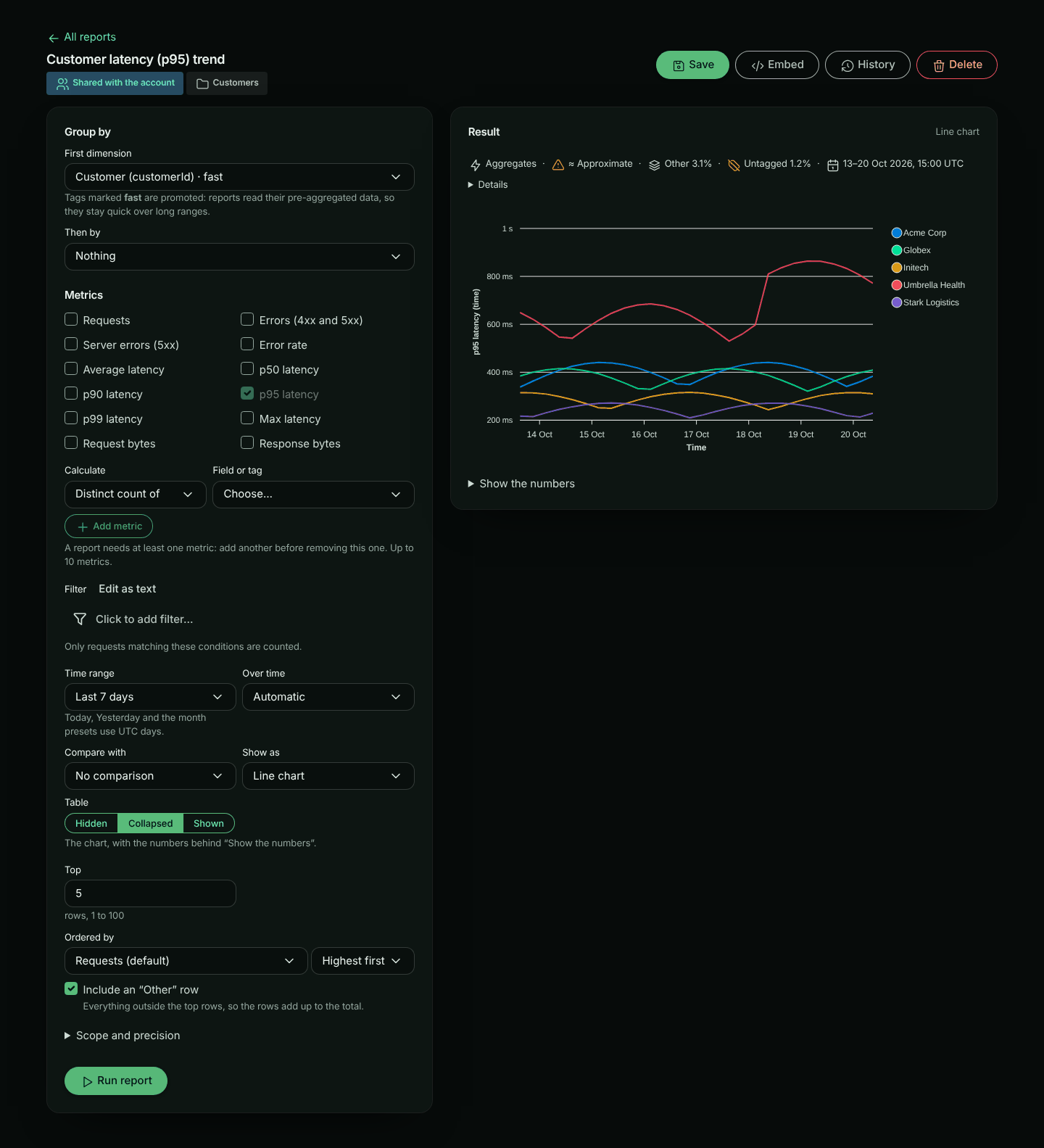
Over time splits the range into intervals for a trend: Automatic picks about 200 points, or choose 1 minute to 1 day. A report has at most 500 points, so an interval that would give more over the chosen range is disabled and says how many points it would give. A line or area chart needs an interval, so choosing one sets Over time to Automatic; setting Over time back to None shows the report as bars instead, and says so. Leave it at None for a table of totals.
Top rows and Other
Top sets how many rows the first dimension keeps (25 by default, up to 100). With two dimensions, Top values of the second dimension sets how many values of the second one each row keeps (10 by default, up to 50). With Include an “Other” row on, everything outside the top rows is added up in one Other row, so the rows always add up to the total. The table’s Total (all requests in scope) row covers every request in scope, including any outside the rows shown. On a dashboard tile the table scrolls inside the tile with the Total row held at its bottom; while more rows (the Other row among them) are hidden under it, the Total row adds scroll for more rows.
A report holds at most 20,000 values: rows × second-dimension values × points over time. When your choices would go over, the builder says so under Top before you run it, and Use top N lowers Top to the largest value that fits. You can also show fewer values of the second dimension, or pick a longer Over time interval.
Charts draw at most 10 series. When there are more rows, the chart shows the top 10 (with the rest added up as Other when the metric adds up, like requests or errors) and says where every row is: Chart shows the top 10 of 26; the table has every row when the table is shown, or … Show the numbers to see every row when it is collapsed. With the table hidden, the builder adds Set Table to Collapsed or Shown to see every row; on dashboards and in embeds only screen readers can reach the other rows, so choose Shown or Collapsed for a report with more rows than its chart draws. Bar charts are horizontal, so names read across.
Comparing with an earlier period
Choose Compare with: Previous period (the same length just before), Same period last week or Same period last month. Each value then shows its change, with an arrow and the percentage, for example ▲ +21.6%. Screen readers hear “up 21.6% from 150,002”. For errors and latency the change also says (better) or (worse), in words as well as colour. The error rate changes in percentage points, for example ▲ +0.1 pt (worse). A single number also says what it is compared with, and lets the arrow give the direction, for example ▲ 6% vs previous 30 days or ▲ 6% vs same period last week.
How the numbers are made
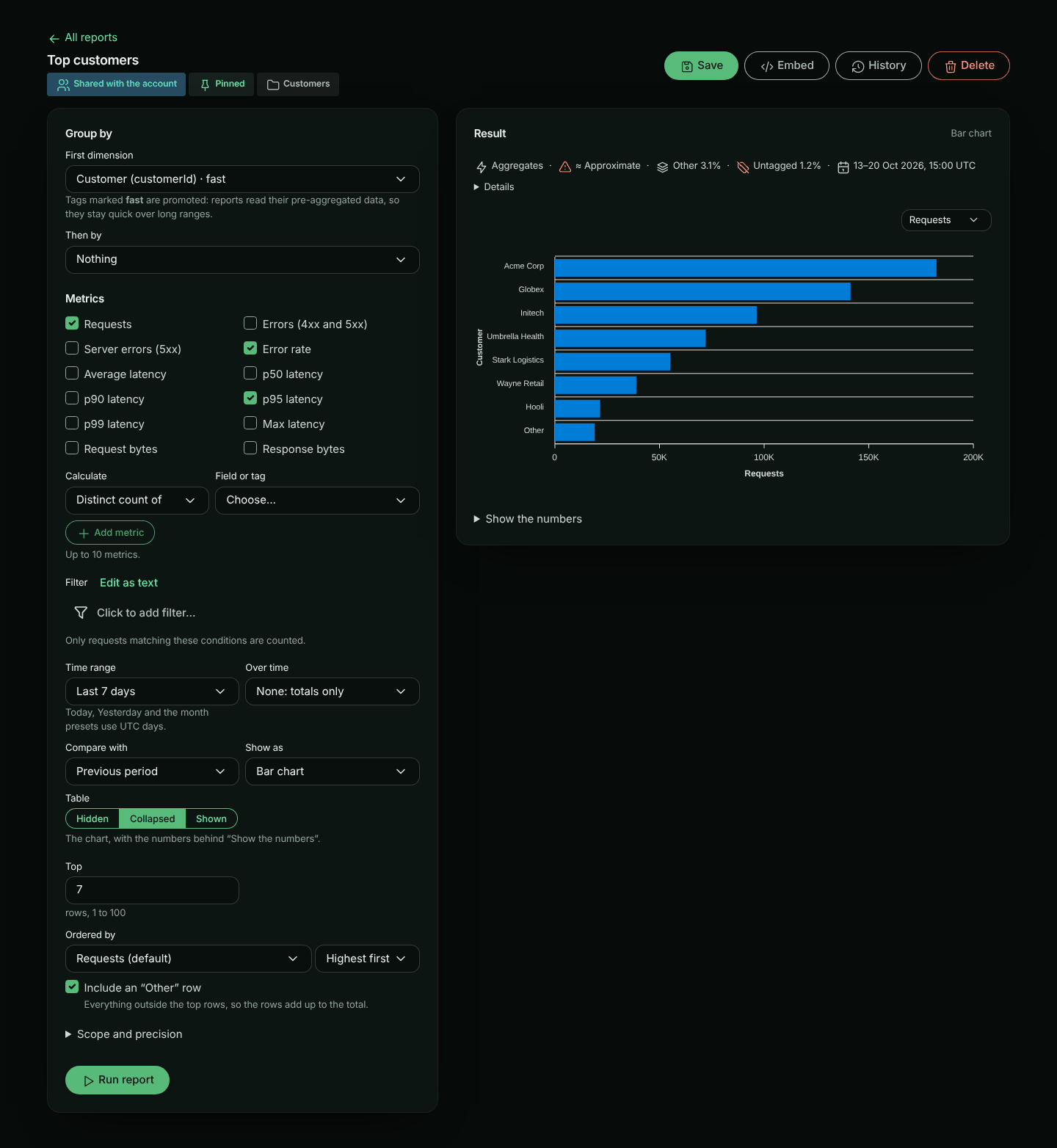
Every result has a meta strip above it: one quiet line that says how the numbers were made, so an approximation is never hidden. Click Details for the explanations. On a dashboard tile the line is shorter; click it to open the details over the tile.
| Item | Meaning |
|---|---|
| Aggregates | Read from pre-aggregated data for promoted tags and request fields. Fast over your whole retention |
| Stored requests | Read from stored requests. Exact per request, slower over long windows, and at most 31 days at a time |
| Aggregates plus the latest minutes | Pre-aggregated data, with stored requests for the latest few minutes (and for any part of the window the tag’s pre-aggregated data does not cover or cannot answer, such as exact status codes from before they were kept). This is normal. Details lists both ranges |
| Exact or ≈ Approximate | Approximate when, for example, percentiles are estimated from fixed latency buckets. Details lists each approximation |
| Other n% | The share of requests folded into Other. Aggregates also fold each minute’s least busy values into Other |
| Untagged n% | Requests in scope without the grouped tag. They are the (none) row. A high share usually means some routes are not tagged yet |
| Masked | Tags whose values, or IP addresses, are masked for your role |
| Shortened to your plan’s retention | The time range started before the data your plan keeps |
Times in the meta strip are in UTC, for example 13–20 Oct 2026, 15:00 UTC.
To get exact numbers from stored requests, tick Exact (slower) under Scope and precision.
Make this report fast
When a report read stored requests only because the tag it groups by is not promoted, the result says so: Make this report fast: promote customerId. It appears only when promoting that tag alone would let the report read pre-aggregated data. If something else in the report needs stored requests (a dimension, filter or metric the pre-aggregated data doesn’t hold, Exact (slower), or two tags), there is no suggestion, because promoting would not help; Details in the meta strip says why.
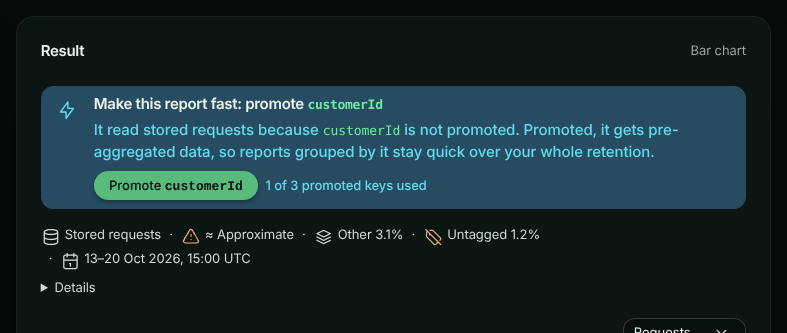
- Owners and admins see Promote customerId, with how much of your plan’s allowance is used when your plan limits it, for example 2 of 3 promoted keys used. Click it to promote the tag. The report then runs again, and a note says what happens next: New traffic is fast within about two minutes; earlier history fills in as it is backfilled. Until the history is filled in, older parts of the time range are still read from stored requests.
- At your plan’s limit, the button is replaced by Your plan’s allowance of promoted tag keys is used up. Demote a key you no longer need in Settings → Dimensions, or click See plans.
- Members see Ask an account owner or admin to promote customerId in Settings → Dimensions.
A report that can’t run because it would read more than 31 days of stored requests shows the same suggestion under the error, when promoting the tag would let it run.
On a dashboard tile the suggestion is one short line: Make this tile fast: promote customerId. Promoting from a tile runs every tile again.
Settings → Dimensions lists every tag your saved reports and dashboards would read pre-aggregated data for once promoted: see Suggested to promote.
What pre-aggregated data answers
A report that groups by one promoted tag reads that tag’s pre-aggregated data when the data holds everything the report asks for. Otherwise it reads stored requests, and Details says why (for example p95 latency by status class is not in pre-aggregated tag data).
| Pre-aggregated data | Other dimensions and filters | Metrics |
|---|---|---|
| Requests | Bucket, Environment, Direction, Status class, Status code | Requests, Errors, Server errors, Error rate, Request bytes, Response bytes |
| Latency | Bucket, Environment, Direction | Average, p50 to p99 and Max latency (≈, from fixed latency buckets) |
| Endpoints | Endpoint, Method, Status class, Status code, Bucket, Environment | Requests, Errors, Server errors, Error rate |
- Filters it can apply: the grouped tag (
==,!=), the status code (any comparison), the endpoint (==,!=,like), the method (==,!=), and the bucket and environment (==,!=). Anything else in the filter reads stored requests. - Methods and status codes are counted the way pre-aggregated data counts them, even while the tag is not promoted, so promoting it does not change how they are counted: a request without a method counts as GET (so
method == "GET"includes it), a method in lower case counts in upper case, an unusual method is OTHER, and a status code above 999 counts as 999. - Endpoints keep each tag value’s busiest endpoints each minute (20 by default); the rest are counted as Other, and the meta strip says so.
- Latency is not kept per status code, endpoint or method, so p95 by status class reads stored requests.
- Exact status codes are kept from when this was added: for older pre-aggregated data a report grouped or filtered by an exact code reads stored requests for that part of the window. Status class, and filters that select whole classes such as
status_code >= 500, work over all of it.
Templates
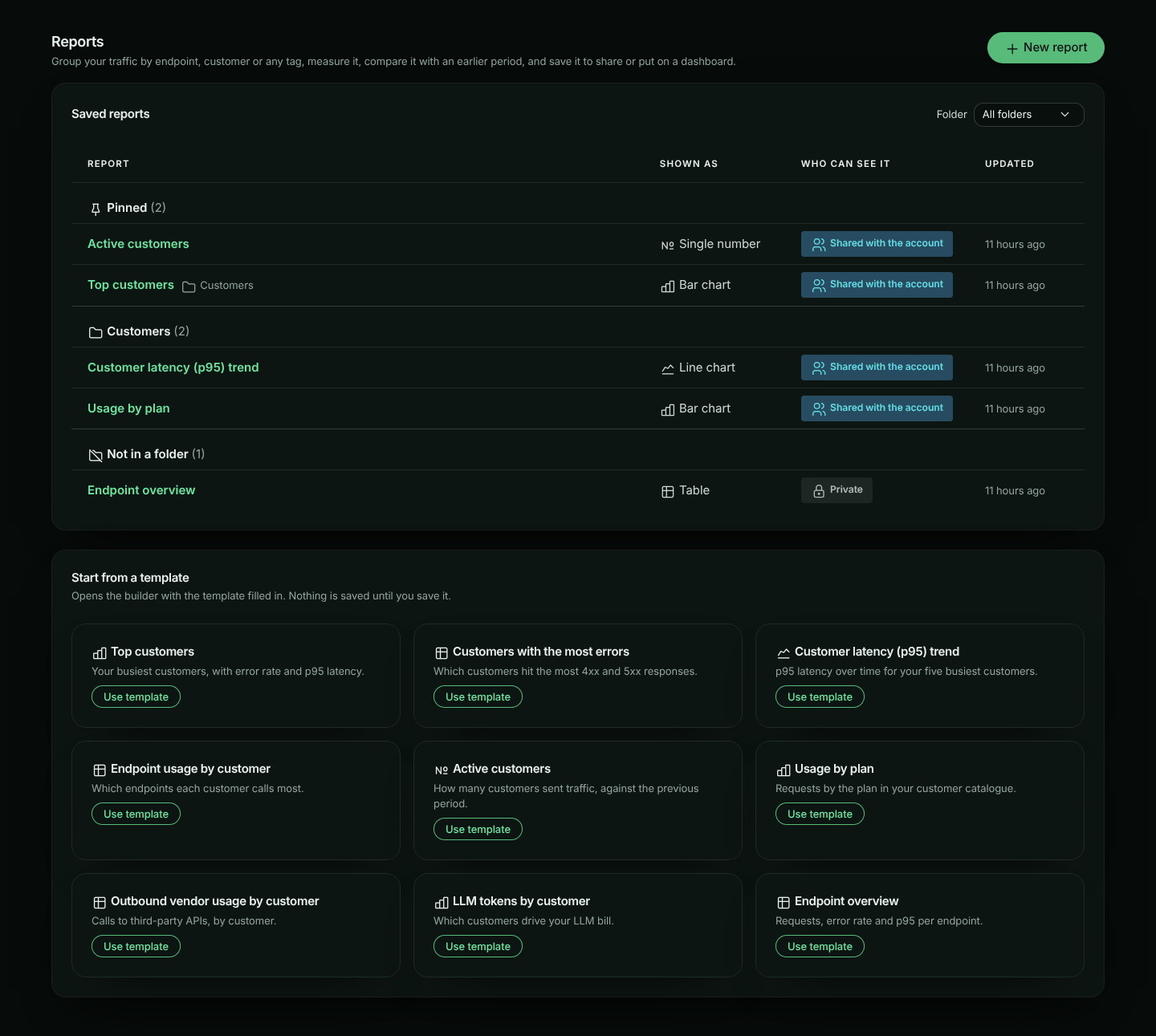
Start from a template in Reports opens the builder with a ready-made report. It is saved only when you save it.
| Template | Shows |
|---|---|
| Endpoint overview | Requests, error rate and p95 per endpoint, last 24 hours |
| Top customers by volume | Requests, error rate and p95 per customer, last 30 days |
| Customers with the most errors | Errors and error rate per customer, last 7 days |
| Customer latency (p95) trend | p95 over time for the top 5 customers, last 7 days |
| Endpoint usage by customer | Requests per customer and endpoint, last 7 days |
| Active customers | Distinct customers over the last 30 days, compared with the previous period |
| Usage by plan | Requests per plan, from the catalogue’s plan attribute, last 30 days |
| Outbound vendor usage by customer | Outbound requests per host and customer, last 7 days |
| LLM tokens by customer | AI input and output tokens per customer, last 30 days |
| Blocked requests by customer | Requests the firewall blocked, would block and matched, per customer, last 7 days |
| Firewall actions over time | Requests the firewall matched, by action (block, would block, tag), last 7 days |
| Top IPs by blocked requests | Requests the firewall blocked, would block and matched, per client IP address, last 7 days |
| Requests by country | Requests and error rate by the country of each client IP address, last 7 days |
With APM in your plan, the gallery also has span templates (Slowest database queries, Outbound calls by peer, Failed operations by type, N+1 queries by endpoint): see Span reports.
The firewall templates (Blocked requests by customer, Firewall actions over time and Top IPs by blocked requests) need the firewall in your plan; without it they say so. Every request template except Endpoint overview, Firewall actions over time, Top IPs by blocked requests and Requests by country needs a customer key. Until you choose one, those templates say so and link to Settings → Dimensions, and opening one does not give you an empty report to save. See Choosing the customer key.
Saving, sharing and history
Click Save and fill in:
- Name, and optionally a Description.
- Folder: reports with the same folder are listed together.
- Who can see it: Only me, or Everyone in the account. Only a shared report’s owner can make it private again: for an admin editing someone else’s report, Only me is disabled, because the report would disappear for them. A shared report cannot filter on a tag classified Personal; the API refuses to save it and suggests Only me.
- Pin to the top of Reports.
The Reports page lists your reports in one table: pinned reports first (with their folder beside the name), then each folder, then those not in a folder. Updated says how long ago a report changed, for example “2 hours ago”; hover over it for the exact date and time. Use Folder to show one folder.
Each time a report’s name, definition or visualization changes, a new version is kept (its folder, pin and Table setting are not versioned). Click History to see up to 50 versions, newest first; the newest is marked Current. Click Load on an earlier one to put it back in the builder. Loading does not save it: click Save to keep it.
Each version is judged by its own filter. A version whose filter uses a personal tag you can’t view is shown read-only, with This version filters on a personal tag you can’t view, so it can’t run or be copied for you.; click Show the current version to go back. A version without one can be loaded and run. Saving it with a filter of its own replaces the hidden one; saving it with no filter keeps the hidden filter (an empty filter never removes one), and the report goes back to read-only. On a shared report that save is refused instead, since a shared report cannot filter on a personal tag: remove the filter first. To drop a hidden filter, use Remove this filter.
Delete removes the report and its history for everyone, after you confirm (the dialog starts on Cancel). Dashboard tiles that show it are removed.
To show saved reports side by side, put them on a dashboard.
Embedding a report in your app
A shared report can be shown inside your own product, filtered to each of your customers: click Embed and turn on Allow embedding (account owners and admins). See Embedded Reports and Dashboards.
A filter on a personal tag you can’t view
If a report’s filter uses a tag classified Personal that your role may not see, the filter is not shown to you, and the report can’t run for you: running it, or running its settings without the filter, would show numbers the filter is meant to narrow. The builder says This report filters on a personal tag you can’t view, so it can’t run or be copied for you. and is read-only: there is no Run report, Save or Save as new report, and the settings can’t be changed. You can still look at its settings and History.
If you can edit the report, the notice offers Remove this filter. A dialog asks you to confirm, because the filter is deleted for everyone and is lost: you can’t see it to put it back. The report then reloads without the filter, runs, and can be edited like any other. Otherwise, ask someone who can view personal tags to change it.
Troubleshooting
“…is classified secret and cannot be reported on”. The report groups by, counts or filters on a key classified Secret. Remove it from the report.
A long report is slow, or times out. Reports over stored requests scan every request in the window. Shorten the time range, add a filter, or ask an admin to promote the tag you group by, so the report reads aggregates. When promoting would help, the result says so (Make this report fast).
“That Over time interval gives more than 500 points”. Choose a longer Over time interval or a shorter time range. The builder disables intervals that would give more than 500 points for the range you chose.
“This report would return more than 20,000 values”. Lower Top, show fewer Top values of the second dimension, or pick a longer Over time interval. Use top N under Top picks the largest Top that fits.
Last 90 days is greyed out, or “…reads stored requests over 45 days; at most 31 days…”. Reports that read stored requests cover at most 31 days. Choose a shorter range, or group by a promoted tag with only dimensions, filters and metrics its pre-aggregated data holds (what pre-aggregated data answers), so the report reads pre-aggregated data.
“…holds exact status codes for only part of this time range…”. The tag’s older pre-aggregated data was kept before exact status codes were, and the rest of the range is too long to read from stored requests. Group by Status class, or filter on whole classes (such as status_code >= 500), instead; or choose a shorter range.
“Your plan’s allowance of saved reports is used up”. Your plan limits how many reports you can save. Delete one, or click See plans.
“Your plan’s allowance of promoted tag keys is used up”. Your plan limits how many tags can be promoted. Demote one in Settings → Dimensions, or click See plans. If you need more than your plan includes, contact us: the allowance can be raised for your account.
Most requests are in the (none) row. Those requests have no value for the tag. Check the No tag value share in the meta strip, then tag the missing routes in your SDK.
The numbers say Approximate. Percentiles from aggregates are estimated from fixed latency buckets. Tick Exact (slower) for exact percentiles.
A template is unavailable. Choose a customer key in Settings → Dimensions.
Reports has a lock in the sidebar. Your plan does not include Custom reports. Reports you saved before stay available view only, and you can delete them.
For the REST API, see Reports API.