
Client IP addresses
Choose how every request in your account keeps its client's IP address: the full address, only its network, or none. Countries work in every mode.
Each request ApiTraffic receives can keep the IP address of the client that sent it. Reports use it for the IP address dimension. An IP address is personal data, so one account-wide setting decides how much of it each request keeps: the full address, only its network, or nothing.
We always work out the country from the full address first, whatever you choose. The Country dimension and the country filter work the same in every mode.
The choices
| Choice | What each request keeps | In reports |
|---|---|---|
| Full address (default) | The address as received, for example 203.0.113.7 |
IP address shows each address |
| Network only | The network the address is in: the first three parts of an IPv4 address (203.0.113.0, its /24), or the first three groups of an IPv6 address (its /48) |
IP address shows networks, for example 203.0.113.0/24 |
| Don’t keep | No client IP address | IP address is (none) for every request |
Who can change it
Only account owners and admins can change it. Everyone else on the account sees which choice is in use, and the card says that only an owner or admin can change it. A support session can’t change it.
Change the setting
Open your profile
Open the account menu at the top right and select Profile. Scroll to the Client IP addresses card.
Choose and save
Choose Full address, Network only or Don’t keep, then select Save. The choice in use is marked (current), and a confirmation appears under Save once it’s saved.
The Client IP addresses card on the Profile page.
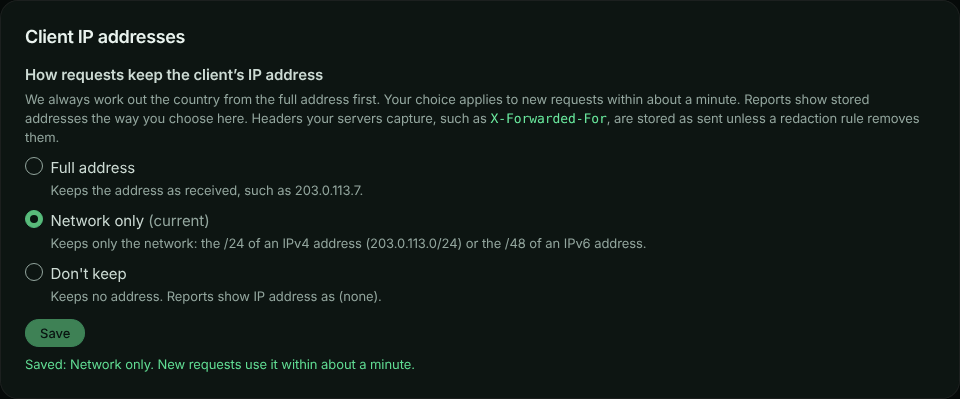
Each change is recorded in the account history as Client IP address setting changed (account.client_ip_mode_changed), with who made it and the previous and new setting.
What to expect after a change
- New requests. Your choice applies to new requests within about a minute. That includes requests still waiting to be processed when you saved.
- Stored requests keep what they had when they arrived. They stay that way until they age out with your plan’s retention or you purge them.
- Reports show stored addresses the way you choose now. With Network only, older full addresses show as their networks. With Don’t keep, no address shows at all. Switch back to Full address and the older full addresses show again.
- Country doesn’t change. It was worked out from the full address when each request arrived.
- Masking still applies. Members who can’t view personal data see IP addresses (and networks) masked in reports, whatever you choose. See IP address and country.
What the setting covers
- The client IP address recorded on each request and in its stored copy.
- For traffic sent through the relay, the header our edge adds with the client’s address (
DO-Connecting-IP), which is kept the same way, including in the copy workflows receive.
It doesn’t cover:
- Headers your own servers capture, such as
X-Forwarded-Forsent by your SDK. They’re stored as they were sent: remove them with a redaction rule if you need to. - Firewall behavioral protection. If a firewall policy has behavioral protection turned on, it still counts each caller’s recent requests by address to spot abuse. Those counters expire by themselves within minutes and are never stored with requests. When the policy blocks a caller, the block sent to your own servers names the address so your SDK can refuse it. Our own logs of a finding record at most the address’s network, and with Don’t keep no address at all.
Change it over the API
Send clientIpMode (full, truncated or off) to the account settings endpoint. It needs the session token of a signed-in owner or admin; API tokens and connected apps are refused, because this is a decision a person makes for the account:
curl -X PATCH "https://api.apitraffic.io/v1/account/settings" \
  -H "Authorization: Bearer your-session-token" \
  -H "Content-Type: application/json" \
  -d '{ "clientIpMode": "truncated" }'
The answer includes the account’s current clientIpMode.
Related
-
Reports: Group requests by IP address and country.
-
Redaction rules: Remove headers and values before they’re stored.
-
Account history: See who changed account settings and when.
-
Purge data or close your account: Delete captured traffic, including stored addresses.