
Manage environments
Separate production, staging and development traffic with environments: create, rename and delete them, choose the default, and switch between them.
An environment is a stage your software runs in, such as production, staging or development. Environments keep traffic from those stages apart, so a load test in staging never shows up in your production dashboards or alerts.
Environments are account-wide. Every bucket can receive traffic from every environment, and the environment menu at the top of the app filters what you see in the bucket you’re looking at.
How traffic gets its environment
Every ingest token belongs to one environment, and traffic sent with that token is filed under it. To send staging traffic, create an ingest token in the staging environment and use it in your staging deployment. See Create and manage API tokens.
Traffic that doesn’t name an environment, or names one that no longer exists, is filed under the account’s default environment. That is why the default can’t be deleted.
MCP tokens are also created for one environment, and can only read that environment’s data.
Before you begin
- Creating, renaming and choosing the default is open to everyone on the team: owners, admins and members.
- Deleting an environment needs the owner or an admin. See Team and roles.
- Your plan sets how many environments the account can have. See Plan limits.
Open the Environments page
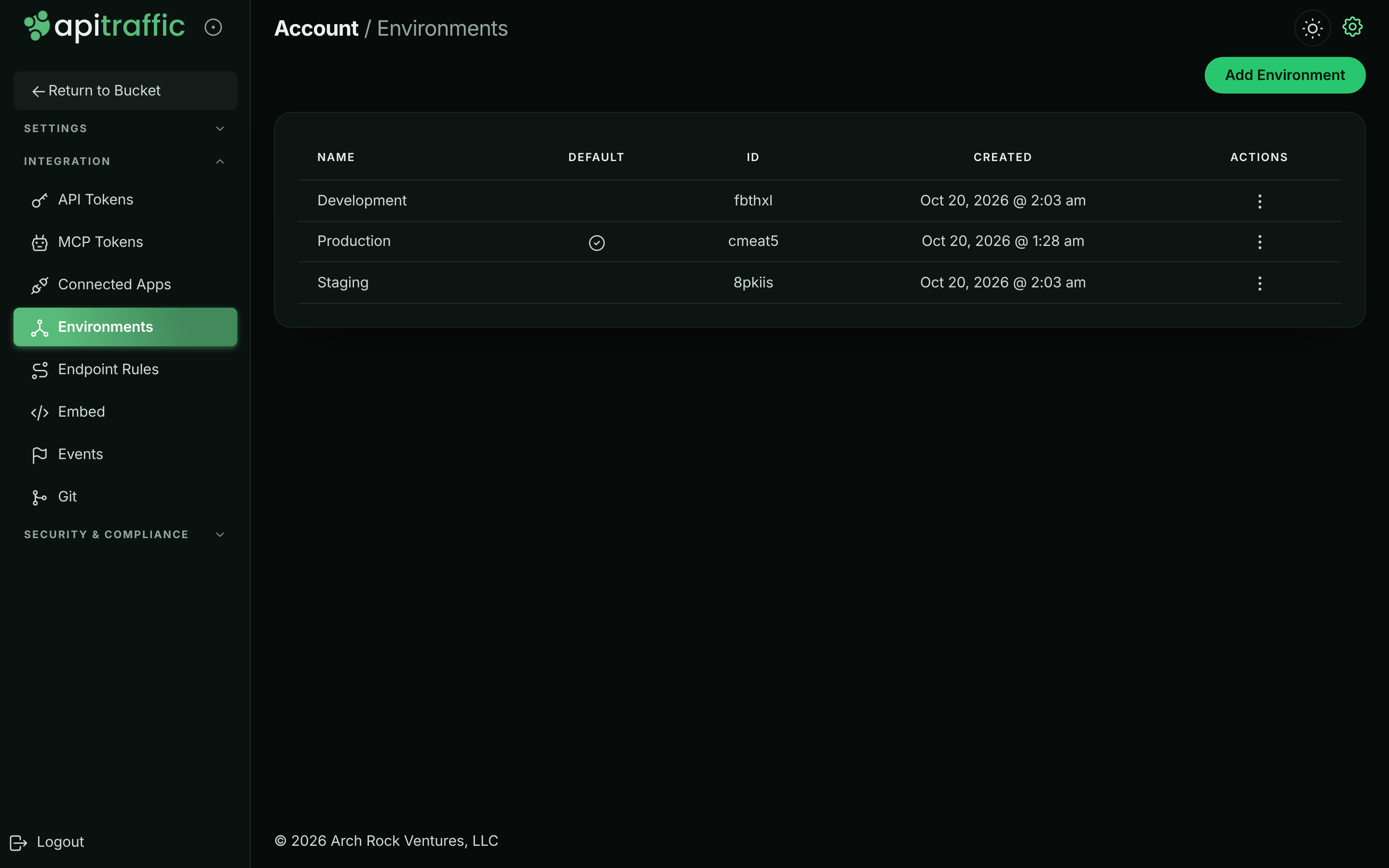
Go to the account settings (the user menu in the top right, then Environments), or select Environments under Integration in the account sidebar.
The page lists every environment with its Name, a check mark in the Default column for the default one, its ID, when it was Created, and an Actions menu.
The Environments page.
Create an environment
Start a new environment
On the Environments page, select Add Environment. You can also open the environment menu in the top bar of any bucket page and select Create Environment.
Name it
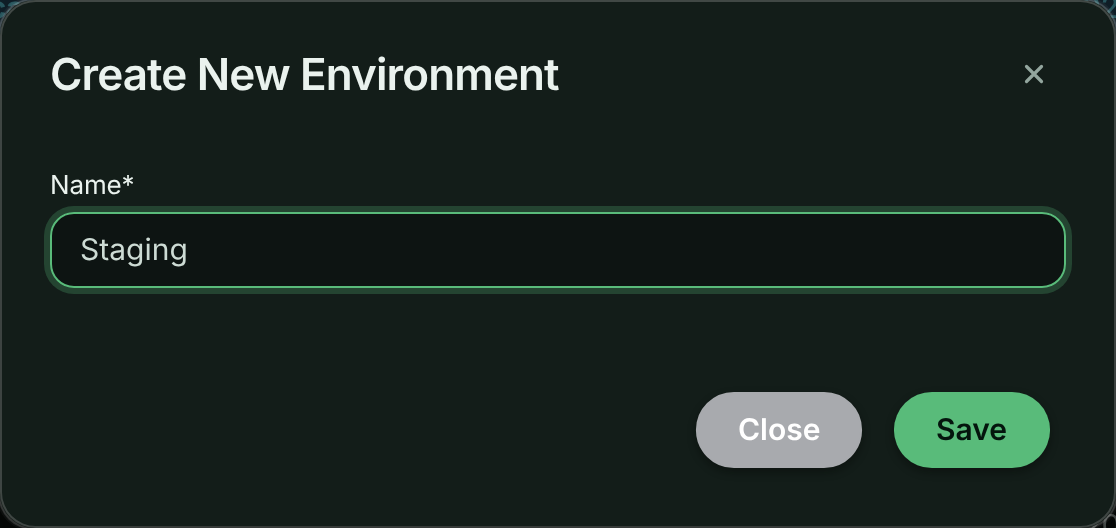
In Create New Environment, enter a Name (up to 50 characters), such as Staging.
Name the new environment.
Save it
Select Save. The environment appears in the list and in the environment menu straight away.
Create a token for it
Go to API Tokens, find the card for the new environment, and create an Ingest token for the deployment that should report to it. See Create an API token.
New environments are never the default. To make one the default, see Change the default environment.
Rename an environment
Open the Actions menu
On the Environments page, open the Actions menu (the three dots) for the environment and select Edit.
Change the name
In Edit Environment, change the Name and select Save.
Renaming changes nothing else. Tokens, traffic and settings stay with the environment, because they are attached to its ID, not its name.
Change the default environment
The default environment is account-wide: it decides where traffic that names no environment is filed, for everyone.
- On the Environments page, open the Actions menu for the environment you want.
- Select Make Default. The check mark moves to that environment.
The account always has exactly one default. To stop an environment being the default, make another one the default.
Your own default environment
Separately from the account default, each person can choose the environment the app opens when they sign in. It changes only what you see, not what your teammates see or where traffic is filed.
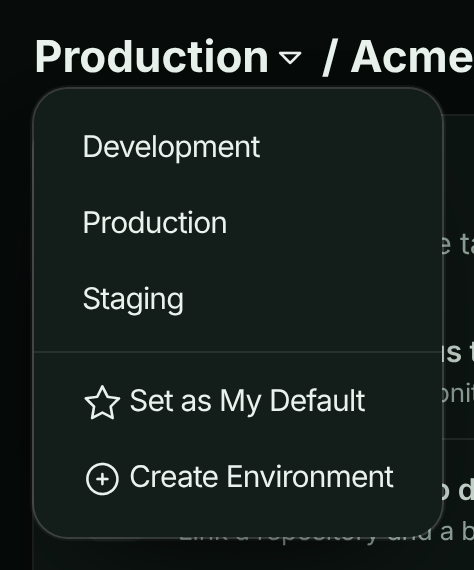
- In the environment menu in the top bar, switch to the environment and select Set as My Default. A star marks your default in the menu.
- Or go to Account → Profile, choose an Environment under Default view, and select Save default view. No preference (account default) clears it.
Switch between environments
The environment menu sits in the top bar of every bucket page, next to the bucket menu. Select an environment to filter the request log, dashboards, endpoints and every other bucket page to its traffic.
The environment menu in the top bar.
The sample bucket has one environment of its own, Production (Sample). While it’s open, the menu is replaced by a Sample chip. See Sample data.
Delete an environment
Warning: Deleting an environment revokes its API tokens and MCP tokens immediately. Any SDK, script or AI assistant still using them is refused from that moment.
When you delete an environment:
- Its API tokens and MCP tokens are revoked at once, and connected apps limited to it lose access.
- Its request data is no longer shown. Deleting doesn’t reduce the month’s request count on your usage or invoice.
- Account history records the deletion, and each token that was revoked with it.
Open the Actions menu
On the Environments page, open the Actions menu for the environment and select Delete.
Confirm
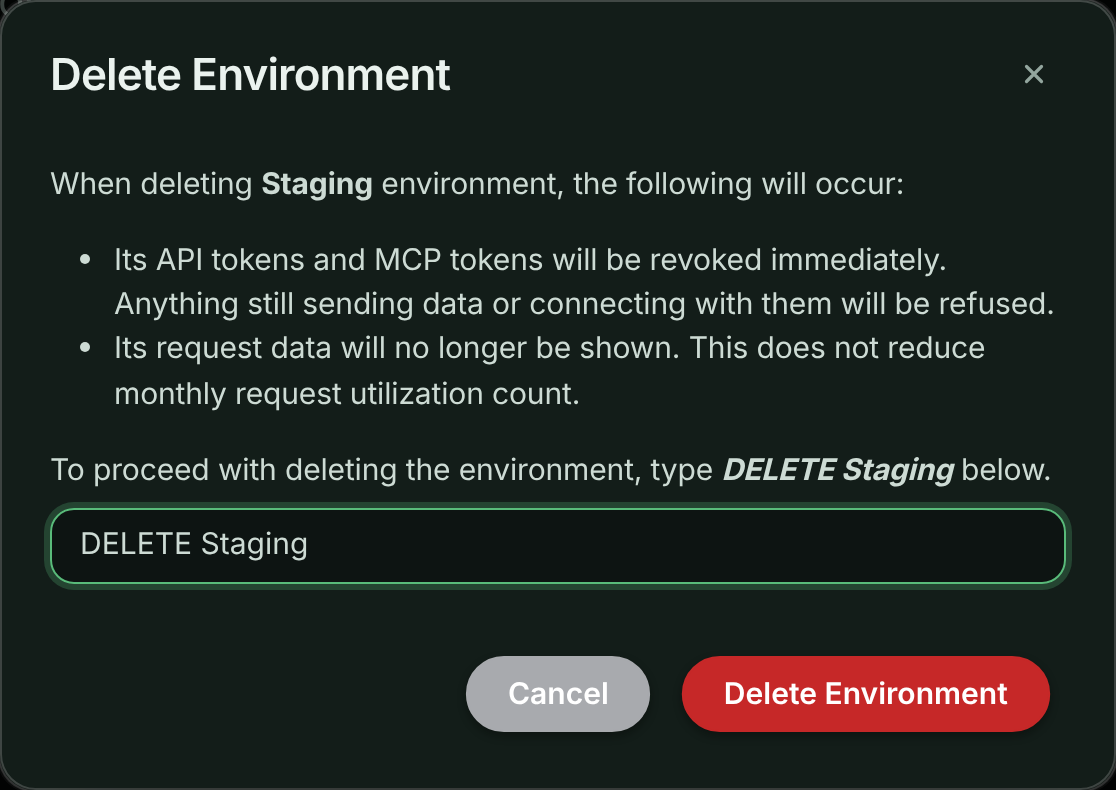
Type DELETE followed by the environment name exactly, for example DELETE Staging, then select Delete Environment.
Type the confirmation text to delete the environment.
You see Environment has been queued for removal! when it’s done. If you were looking at the environment you deleted, the app switches you to the default environment.
Delete isn’t offered for the default environment, or for an environment named Production. To delete the current default, make another environment the default first.
Plan limits
Your plan sets how many environments the account can have. When the account is at its limit, creating another is refused with This account’s plan limit has been reached. Upgrade the plan to add more. Delete an environment you no longer use, or change your plan. See pricing for each plan’s limits.
A plan change to a plan with fewer environments than you use is refused until you delete the extras. The change-plan dialog lists what to remove.
Troubleshooting
There is no Delete option for an environment
Either it’s the default environment, it’s named Production, or you aren’t an owner or admin. Make another environment the default first, or ask an admin.
The account’s default environment cannot be deleted
The environment is still the account default, even if another environment was made the default a moment ago. Refresh the page; if the check mark is still on this environment, make another one the default and try again.
New traffic isn’t showing in the environment I created
Traffic is filed under the environment of the token that sent it. Check that your deployment uses an ingest token from the new environment’s card on API Tokens, then select that environment in the environment menu.
An SDK stopped sending after an environment was deleted
Deleting an environment revokes its tokens. Create an ingest token in an environment that still exists and redeploy with it.
Related
-
API tokens: Create an ingest token for each environment.
-
Buckets: Organize traffic by application or service.
-
How ApiTraffic works: Accounts, environments, buckets and tokens together.
-
Plan, usage and billing: See your plan’s limits and change plan.