
Manage buckets and bucket settings
Create buckets for each application or service, configure endpoint learning, APM capture, host telemetry and drift detection, and delete buckets.
A bucket holds the traffic of one application or service. Each bucket has its own request log, endpoints, dashboards, performance data and settings, so metrics from your checkout service never mix with those from your admin API.
Use one bucket per service. Environments (production, staging and so on) are separate from buckets: every bucket can receive traffic from every environment. See Manage environments.
New accounts start with a bucket called Default Bucket. Every account must keep at least one bucket of its own.
Who can do what
| Action | Owner | Admin | Member |
|---|---|---|---|
| Create a bucket | Yes | Yes | Yes |
| Rename a bucket and change its settings | Yes | Yes | Yes |
| Turn on Collect SQL statements with their parameters or Collect concrete Redis and cache keys | Yes | Yes | No |
| Delete a bucket | Yes | Yes | No |
See Team and roles for the full permission list.
Create a bucket
Open the bucket menu
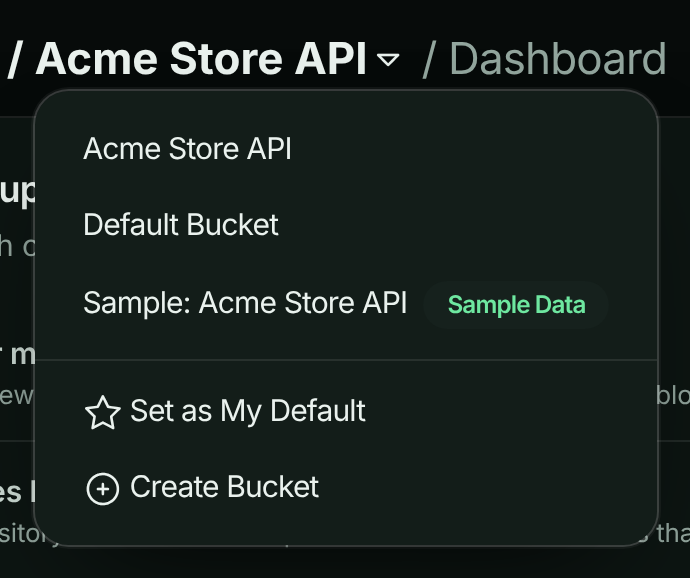
In the top bar of any bucket page, open the bucket menu (the current bucket’s name) and select Create Bucket.
The bucket menu in the top bar.
Name it
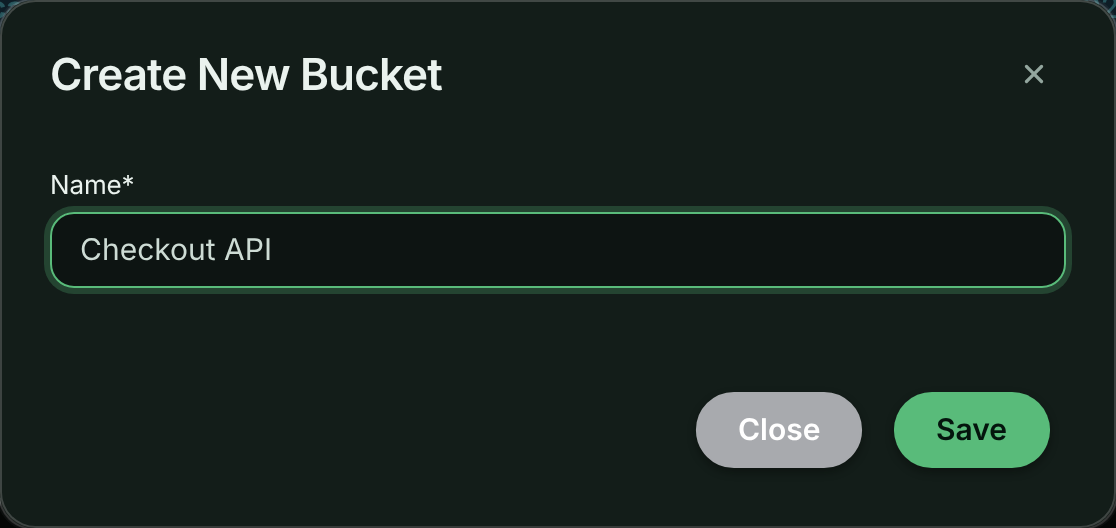
In Create New Bucket, enter a Name of up to 50 characters, such as Checkout API, and select Save.
Name the new bucket.
Connect your application
The app opens the new bucket. Until traffic arrives it shows the setup steps for connecting your application. See the Quickstart.
To have the app open a particular bucket every time you sign in, select it and choose Set as My Default in the bucket menu, or set Bucket under Default view on Account → Profile. This is your own preference; it doesn’t change what your teammates see.
Open bucket settings
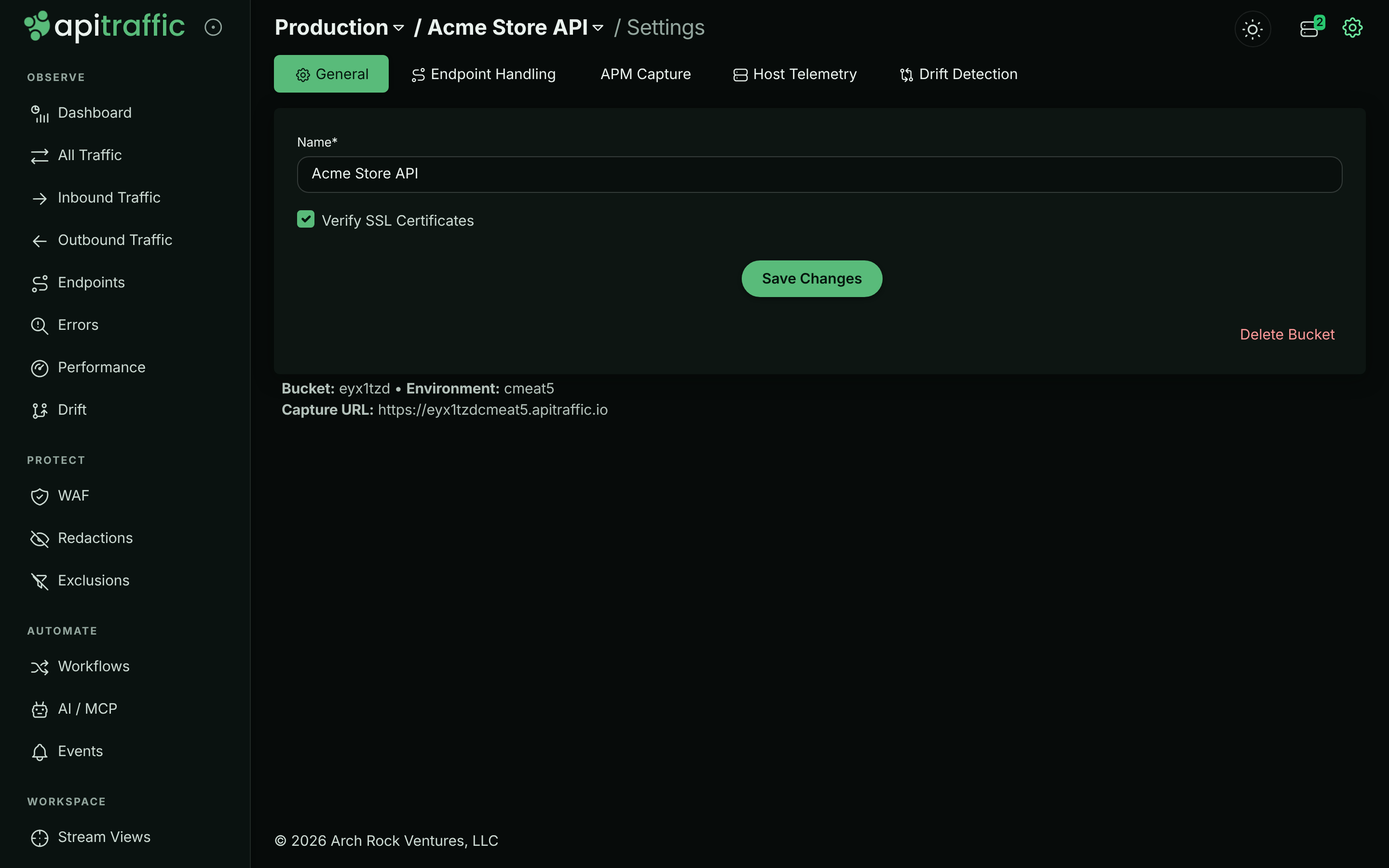
Select the bucket in the bucket menu, then select Bucket Settings in the left navigation. Settings apply to the selected bucket only.
The page has five tabs: General, Endpoint Handling, APM Capture, Host Telemetry and Drift Detection. Each tab has its own Save Changes button, and saves only that tab.
Below the tabs, the page shows the bucket ID, the selected environment’s ID, and the bucket’s Capture URL for that environment.
Bucket settings, General tab.
The sample bucket is read-only, so it has no settings page. See Sample data.
General
| Setting | What it does | Default |
|---|---|---|
| Name | The bucket’s name in menus and reports. Up to 50 characters. | The name you created it with |
| Verify SSL Certificates | A legacy setting kept with the bucket. It doesn’t change what the SDK captures. Leave it as it is. | On |
Endpoint Handling
ApiTraffic groups requests into endpoints such as GET /v1/orders/{order_id}. It replaces values such as IDs and UUIDs in each path with parameters, and endpoint learning catches the rest.
| Setting | What it does | Default |
|---|---|---|
| Learn endpoints from traffic | When a path segment is seen with several different values, that position is treated as a parameter from then on, so requests group into one endpoint instead of one row per value. | On |
| Minimum distinct values | How many different values a segment between two fixed parts of a path must be seen with before it becomes a parameter, from 2 to 100. Raise it to be more conservative. Segments at the end of a path or right after another value always need at least 25. Only applies while learning is on. | 2 |
For how grouping works and how to correct it, see Endpoint handling and Endpoint rules.
APM Capture
These settings control what the SDK records about database queries, cache calls and outbound requests. They’re delivered to every connected server when you save, so they take effect without a restart or deploy.
| Setting | What it does | Default |
|---|---|---|
| Collect SQL statements with their parameters | Captures full statements with their parameter values instead of the normalized shape (where id = ?). |
Off |
| Collect concrete Redis and cache keys | Records the actual key (user:42:profile) instead of its shape (user:{}:profile). |
Off |
| Collect the code location that started each operation | Records the file, line and callers in your code that started each operation. With it off, no location, function name or stack is collected. | On |
| Stack trace depth | How many of your own frames travel with each span: Call site only, 5 frames, 10 frames (recommended), 20 frames or 30 frames. | 10 frames |
| Auto-Disable | How long the two Collect switches for parameters and keys stay on: 15 minutes, 1 hour, 4 hours, 24 hours or Until I turn it off. The window restarts whenever you save. Code location isn’t affected. | - |
Warning: Parameters and concrete keys routinely contain personal data, tokens and secrets. Turn them on only while you need them, and keep an auto-disable window. Account redactions still apply.
Because of that, only the account owner and admins can turn on either Collect switch for parameters and keys. Members can turn them off and save the other settings on the tab. While a switch is off, members see it locked, with the notice Only account owners and admins can change this. Ask one of them if you need it updated.
For the details of each setting, see APM capture settings.
Host Telemetry
Every server running the SDK can report its own health (CPU, memory, event-loop delay and garbage collection), so a slow request can be traced to the machine that served it. Servers appear on the Servers page.
| Setting | What it does | Default |
|---|---|---|
| Report server health from connected servers | Turns host telemetry on for this bucket. | Off |
| Reporting Interval | How often each server reports: Use my plan default, Every 10 seconds, Every 15 seconds, Every 30 seconds or Every minute. Your plan sets the fastest interval allowed; a faster choice is raised to that limit instead of being rejected. | Use my plan default |
| Collect disk, network and per-core CPU | Adds disk usage, network throughput and per-core CPU. Runs at most once a minute, whatever the interval. | Off |
| Report host and pod names | Sends hostnames, pod names and region with each server. With it off, a server is identified only by a hashed machine ID. | On |
If no application has connected to the bucket yet, the tab says so: telemetry is reported by the SDK, so nothing appears until your application connects. Host telemetry is available on every plan; your plan sets the fastest reporting interval and how many servers can report. See Monitor your servers.
Drift Detection
| Setting | What it does | Default |
|---|---|---|
| Detect drift from traffic for this bucket | Learns a baseline for each endpoint, then flags changes to request and response shape, status codes, latency and error behavior, and downstream dependencies. It’s observe-only: it records drift findings on the Drift page and never blocks traffic. | Off |
Schema drift (added, removed and retyped fields) is inferred from the request and response bodies indexed for search. If the bucket indexes no bodies, or only request or only response bodies, the tab shows a warning; status code, latency, error rate and dependency drift are still detected. Which bodies are indexed for search is set per bucket through the Buckets API (searchBodyLogging: none, request, response or both; default none).
Drift detection needs a plan that includes it. See Drift detection.
Account-wide capture setting: database query text
One capture setting applies to every bucket in the account. On Account → Profile, Database query text has a switch, Store query text in performance data.
- On: keeps the text of each database query, with literal values replaced by
?, and the chain of calls in your code that led to it, so Performance can show exactly which query is slow. - Off (default): queries are still timed, grouped by operation and table, and keep the file and line that ran them.
Changes apply to new queries within a minute. Text stored before you last turned it off stays hidden. Only owners and admins can change it, and a support session can’t.
Account-wide privacy setting: client IP addresses
How much of each client’s IP address requests keep (the full address, its network, or none) is an account-wide setting too, on the same page. See Client IP addresses.
Delete a bucket
Warning: A deleted bucket disappears from the app straight away, for everyone. To restore it, contact support within 30 days; after that, the bucket and all of its requests are permanently deleted.
Open the General tab
Select the bucket, open Bucket Settings, and stay on the General tab.
Delete it
Select Delete Bucket, then Delete Bucket again in the confirmation dialog.
Confirm the bucket deletion.
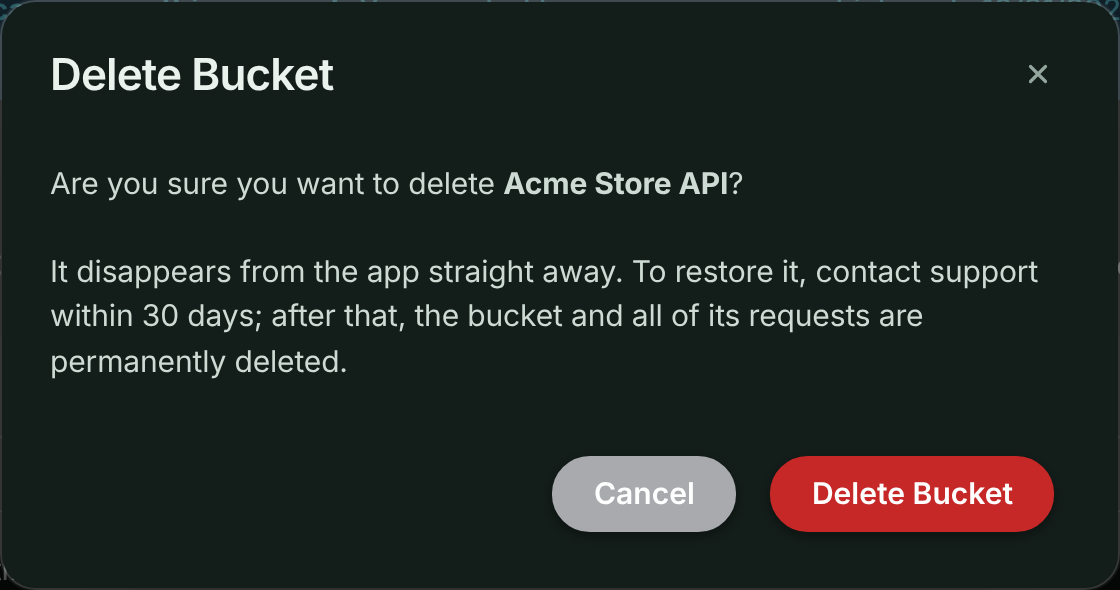
The app moves you to another of your buckets. If this is the account’s only bucket of its own, the dialog explains that you must create another bucket first. Deleting a bucket doesn’t reduce the month’s request count on your usage or invoice.
To delete captured traffic but keep your buckets, use Purge data.
Plan limits
Your plan sets how many buckets the account can have. The sample bucket doesn’t count. At the limit, creating a bucket is refused with This account’s plan limit has been reached. Upgrade the plan to add more. Delete a bucket you no longer need, or change your plan. See pricing for each plan’s limits.
The sample bucket
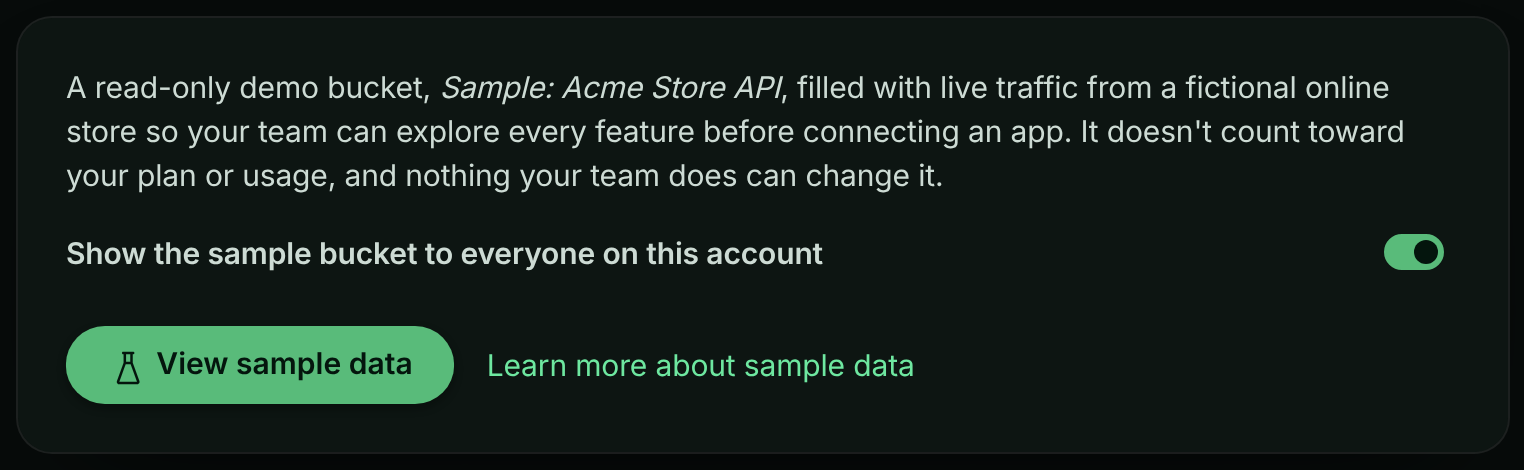
If sample data is turned on for your account, the bucket menu also lists Sample: Acme Store API, marked Sample Data. It’s read-only, has no settings, and doesn’t count toward your plan or usage. Owners and admins can show or hide it for everyone on Account → Sample data. See Sample data.
The account-wide switch for the sample bucket.
Troubleshooting
I can’t see Delete Bucket
Only owners and admins can delete buckets. Members can change bucket settings but not delete the bucket.
I can’t turn on SQL parameters or Redis keys
Only owners and admins can turn on Collect SQL statements with their parameters and Collect concrete Redis and cache keys. Ask one of them. You can still turn either off and change the other APM Capture settings.
You cannot delete this bucket since all accounts must have at least one bucket
Create another bucket first, then delete this one. The sample bucket doesn’t count as one of yours.
Bucket settings says it isn’t available
The sample bucket is selected. Choose one of your own buckets in the bucket menu.
Host telemetry is on, but no servers appear
Telemetry is sent by the SDK. Check that your application is connected to this bucket and running a recent SDK version, and that your plan’s server limit hasn’t been reached.
Related
-
Environments: Separate production, staging and development traffic.
-
APM capture settings: What each APM capture switch records.
-
Endpoints: How requests are grouped into endpoints.
-
Purge data or close your account: Delete captured traffic but keep your buckets.