
Monitor your servers
See every server running the ApiTraffic SDK: health, CPU, memory and event-loop delay, load distribution across the fleet, restarts and config status.
The Servers page lists every process running the ApiTraffic SDK for the current bucket and environment, with its health, its share of the traffic and the configuration it is running on. Use it to confirm a deploy came up, find the one server that is slower than its peers, spot a crash loop, or check that every server has your current rules.
Open it from the server icon in the top bar of any bucket page. The badge on the icon shows how many SDK processes are connected right now; with none connected, the icon takes you to the setup page instead.
Before you begin
- Servers running the SDK in the bucket and environment you have selected. A server authenticates with a token scoped to one environment, so switching environments shows a different fleet.
- Host telemetry turned on for the bucket, for the Health tab. The Traffic & Load tab works without it. See Turn on host telemetry.
Host telemetry is available on every plan. Your plan sets the fastest reporting interval and how many servers can report.
Turn on host telemetry
Host telemetry has each server report its own CPU, memory, event-loop delay and garbage collection, so a slow request can be traced to the machine that served it.
Open the bucket’s settings
Go to Bucket Settings and select the Host Telemetry tab.
Turn on reporting
Turn on Report server health from connected servers.
Choose the options
| Setting | What it does |
|---|---|
| Reporting Interval | How often each server reports: Use my plan default, Every 10 seconds, Every 15 seconds, Every 30 seconds or Every minute. Servers report faster on their own when something looks wrong and slower when idle. A choice faster than your plan allows is raised to the plan’s limit rather than rejected. |
| Collect disk, network and per-core CPU | Also report disk usage, network throughput and per-core CPU. Off by default, because it costs collection time on your machines; it runs at most once a minute. |
| Report host and pod names | Report host names, pod names and region with each server. On by default. Off, a server is identified only by a hashed machine ID, stable across restarts but not traceable to a named host. |
Save
Choose Save Changes. Connected servers pick up the change within seconds, with no restart or deploy.
If no application has connected to the bucket yet, the tab says so: host telemetry is reported by the SDK, so nothing appears until your application connects.
Read the Health tab
The Health tab is what is running now.
The Health tab for the sample bucket’s two servers.
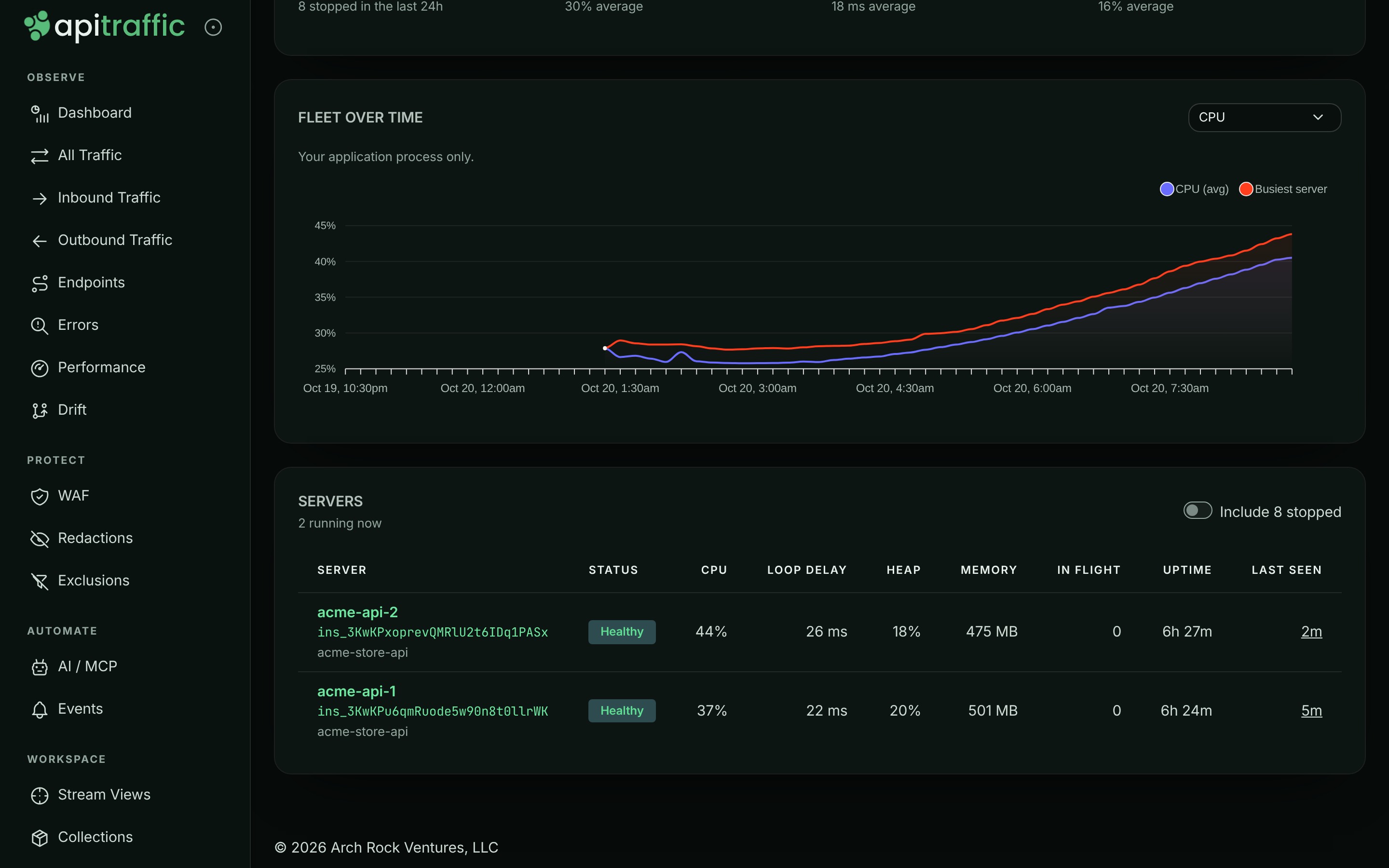
Summary tiles cover the last 24 hours: Running now (with how many stopped), Peak CPU, Worst loop delay and Peak heap, each with its average. When servers have something to say about their configuration, a Config tile appears too; see Config status.
FLEET OVER TIME charts one metric across the fleet: CPU, Event loop delay, Heap used, Resident memory, GC pause, Requests, In flight or Load average.
SERVERS lists each process with Status, CPU, Loop delay (p99), Heap, Memory (resident), In flight requests, Uptime and Last seen. Under each name are its instance ID, service, region and SDK version. Only running servers are shown; turn on Include n stopped to see the ones that stopped in the last 24 hours. Select a row to open the server’s detail.
Status
| Status | Meaning |
|---|---|
| Healthy | Reporting, with event-loop delay under 100 ms, heap under 75% and CPU under 75%. |
| Busy | Event-loop delay of 100 ms or more, heap at 75% or more, or CPU at 75% or more. |
| Degraded | Event-loop delay of 250 ms or more, heap at 90% or more, or CPU at 90% or more. |
| Not reporting | Connected, but no health sample yet: host telemetry is off for the bucket, or the server has not finished its first reporting window. |
| Stopped | No sample in the last 3 minutes and not connected. |
Event-loop delay is the first thing to look at. In a Node.js service, a backed-up event loop is what turns into slow responses: a server at 40% CPU with 400 ms of loop delay is in more trouble than one at 90% CPU with none.
Each process gets a new instance ID and a generated name every time it starts, so a restarted server appears as a new row and the old one becomes Stopped. Set API_TRAFFIC_SERVICE_NAME, API_TRAFFIC_SERVICE_VERSION, API_TRAFFIC_REGION and API_TRAFFIC_GIT_SHA (or your platform’s usual variables) to label servers; see Server labels.
If no server has reported health, the tab shows No servers are reporting host telemetry. Turn host telemetry on, and make sure your application runs an SDK version that supports it.
Read the Traffic & Load tab
Traffic & Load reads the server recorded on each request, so it works even with host telemetry off. Use it to see whether traffic is spread evenly and whether one server is slower than the rest.
Traffic & Load shows how requests are spread across servers.
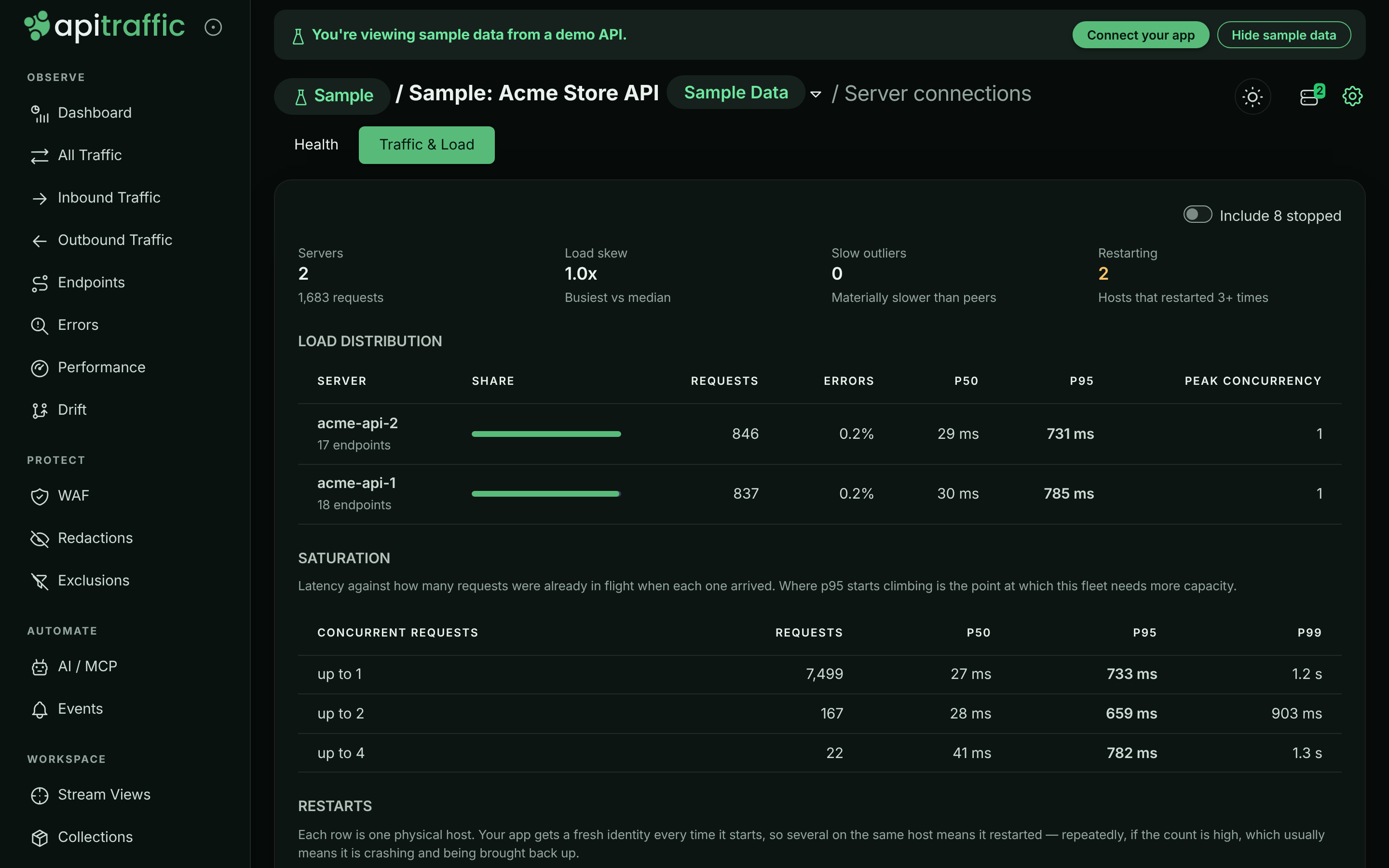
| Section | What it shows |
|---|---|
| Tiles | Servers and their total requests, Load skew (busiest server against the median), Slow outliers (servers materially slower than their peers) and Restarting (hosts that restarted 3 or more times). |
| LOAD DISTRIBUTION | Each server’s Share, Requests, Errors, p50, p95 and Peak concurrency. A slow outlier is marked Slow, with the fleet’s p95 for comparison. |
| SATURATION | Latency against how many requests were already in flight when each one arrived. Where p95 starts climbing is where the fleet needs more capacity. Rows with fewer than 20 requests are marked (thin). |
| RESTARTS | One row per physical host, with Times started and Restarts. Several starts on one host mean the app restarted; a high count usually means it is crashing and being brought back up. |
Two warnings can appear above the table. A load skew above 2x usually means load balancer stickiness or an instance that has fallen out of rotation. A server that reported no traffic while still present is commonly failing a health check without being removed from rotation.
Server detail
Select a server to see everything about it. Choose All servers to go back.
The detail view for one server.
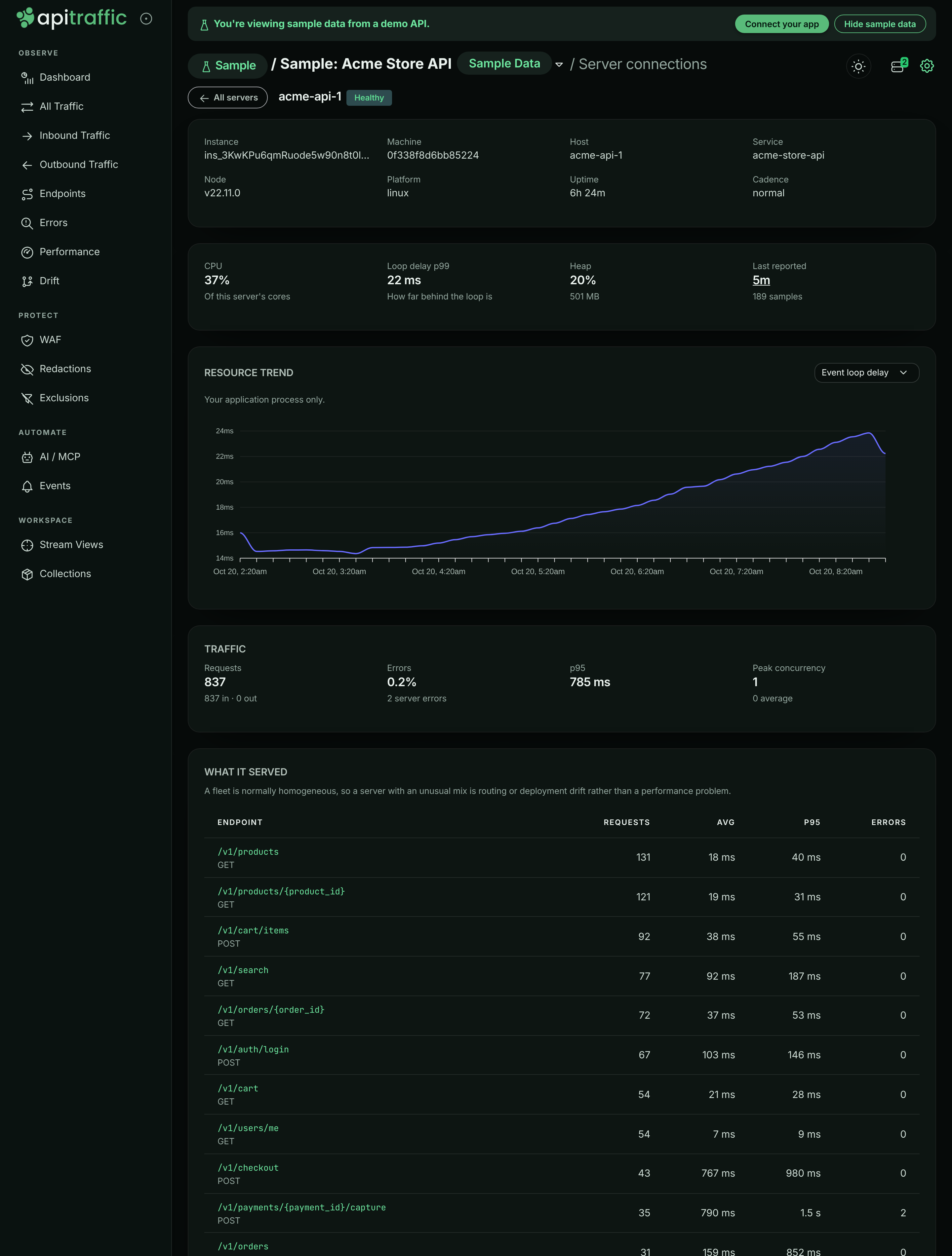
- Identity: Instance, Machine, Host, Service, Service version, SDK, Node, Platform, Region, Commit, Uptime and Cadence (its current reporting pace).
- CONFIGURATION, when there is something to say: the server’s config status, its Source, the hash of its Pinned file and your Current config.
- Current readings: CPU (of this server’s cores), Loop delay p99, Heap and when it Last reported.
- RESOURCE TREND: the same metrics as the fleet chart, for this server.
- TRAFFIC: Requests (inbound and outbound), Errors, p95 and Peak concurrency, then WHAT IT SERVED, the endpoints it handled with their request count, average, p95 and errors, and its own SATURATION table.
Config status
Every server reports where its configuration came from and, if its image carries offline definitions, the hash of that file. The status appears under the server’s health badge and on its detail page. A server running live configuration with no pinned file shows nothing, which is the normal case.
| Badge | Meaning | What to do |
|---|---|---|
| Pinned: current | The definitions file in this image matches your live configuration. | Nothing. |
| Pinned: out of date | The server runs live configuration and is not at risk now. The file in its image is older than your rules, so a cold start during an ApiTraffic outage would apply the older ones. | Run npx @apitraffic/cli definitions pull, commit, and redeploy. |
| Pinned | The image carries a definitions file that cannot be compared yet. | Nothing. |
| Running on fallback (cache), (mirror) or (pinned) | The server could not reach ApiTraffic on startup and is applying a local copy of your rules. It switches back to live configuration on its own, without a restart, when ApiTraffic is reachable. | Check the server’s network path to api.apitraffic.io. |
| No config | The server could not reach ApiTraffic and has nothing to fall back to. Capture is off. | Fix the network path; commit offline definitions so this cannot happen on a cold start. |
When any running server is affected, a banner above the table explains which case applies. Servers on an SDK too old to report their configuration show no badge.
The sample bucket does not show config badges, because its configuration hash is not available to other accounts.
Troubleshooting
My server is connected but shows Not reporting
Host telemetry is off for the bucket, or the server has not completed its first reporting window. Turn on Report server health from connected servers under Bucket Settings → Host Telemetry and wait one interval.
No servers reported in the last 24 hours
No SDK process has connected to this bucket and environment. Check that the environment selector matches the environment of the token your app uses, then see Verify the connection.
The same server appears many times
Each process start creates a new row. Many rows for one host, shown under RESTARTS on the Traffic & Load tab, mean the app is restarting repeatedly. Stopped rows are hidden unless you turn on Include n stopped.
Host and pod names are missing
Report host and pod names is off for the bucket, or the platform does not expose them. Set API_TRAFFIC_SERVICE_NAME and API_TRAFFIC_REGION to label servers yourself.
Related
-
Offline definitions: Keep rules available to servers that start during an outage.
-
SDK configuration: Server labels and every other SDK setting.
-
How APM works: Line server health up against request latency.
-
If ApiTraffic is unreachable: What servers do during an outage.