
Bucket dashboard
Read the bucket dashboard: attention signals, summary tiles, throughput and response-time charts, and the panels for slow endpoints, errors, firewall and drift.
The dashboard is the first page you see when you open a bucket. It answers two questions at a glance: is anything wrong right now, and what did the API do in the period you picked. Every panel links to the page that owns the detail, so you use the dashboard to triage and then drill in.
To open it, select a bucket and choose Dashboard under Observe in the left navigation.
The dashboard for the sample bucket over the past 24 hours.
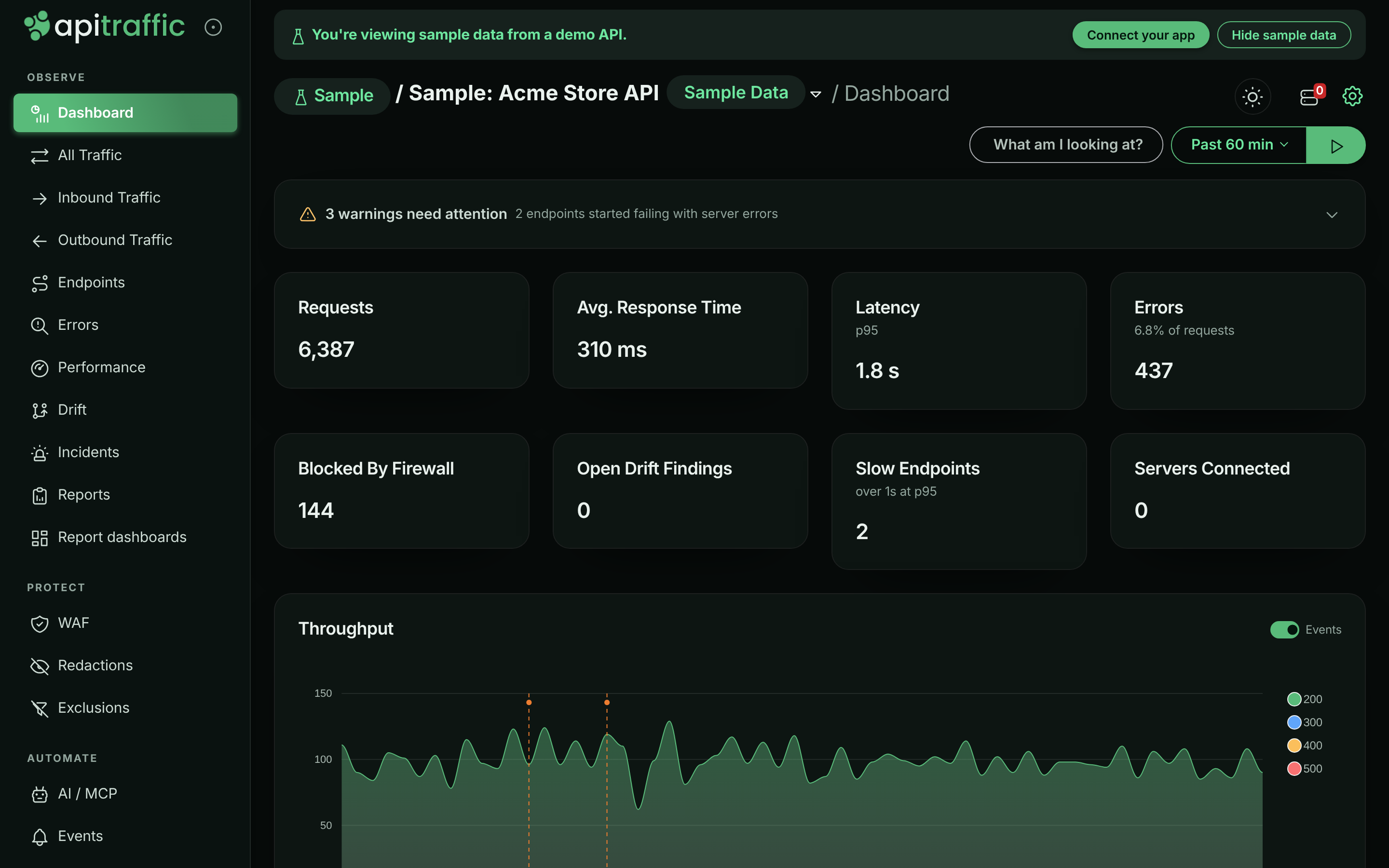
Note: Until a server in the bucket connects through an SDK, the dashboard shows the bucket’s setup steps instead. See the Quickstart. A checklist titled Finish setting up can also appear above the dashboard until you finish or dismiss it.
Choose the bucket, environment and period
Everything on the dashboard is scoped to three choices:
| Control | Where | What it changes |
|---|---|---|
| Bucket | Bucket selector at the top of the page | Which API’s traffic you are looking at. The sample bucket carries a Sample Data pill. |
| Environment | Environment selector next to the bucket | Which environment’s traffic is counted. Mark the one you use most with Set as My Default. On the sample bucket the selector is replaced by a Sample chip, because the sample has a single environment. |
| Period | Period picker at the top right of the dashboard | The window for the summary tiles, charts and panels. |
The period picker offers these windows. Each one shows its chart resolution next to it:
| Period | Chart resolution |
|---|---|
| Past 15 min, Past 30 min, Past 60 min, Past 2hrs | 1 min |
| Past 24hrs | 10 min |
| Past 72 hrs | 1 hr |
| Past 7 days | 2 hr |
The same period is used on the Endpoints page. The request log has its own, wider time range picker; see Request log.
Tip: Windows are aligned to stable boundaries (1 minute for short periods, 5 minutes for 24 hours, 15 minutes beyond), so two people looking at the same period see the same numbers.
Live updates
The dashboard loads once when you open it. To keep it current, select the play button next to the period picker (Automatically reload data while this tab is visible). Select it again to pause.
While auto-reload is on:
- the attention panel, drift findings and recent changes refresh every 10 seconds,
- traffic numbers and charts refresh every minute (or once per chart interval, if that is longer),
- APM panels (latency, slow endpoints, error hotspots, regressions) refresh every 2 minutes.
Refreshing pauses while the browser tab is in the background and backs off if the API is failing. Each panel loads on its own: a slow or failed panel shows its own loading or Could not be loaded state without holding the others back. When something fails, a line at the top lists what could not be loaded, with Retry.
Attention panel
The attention panel is the first card on the page. It lists everything that currently needs a look, ranked by severity: Critical, Warning, or Info. Each row links to the page that can act on it, for example Review errors, Open performance, Open WAF or Review drift.
The expanded attention panel in the sample bucket.
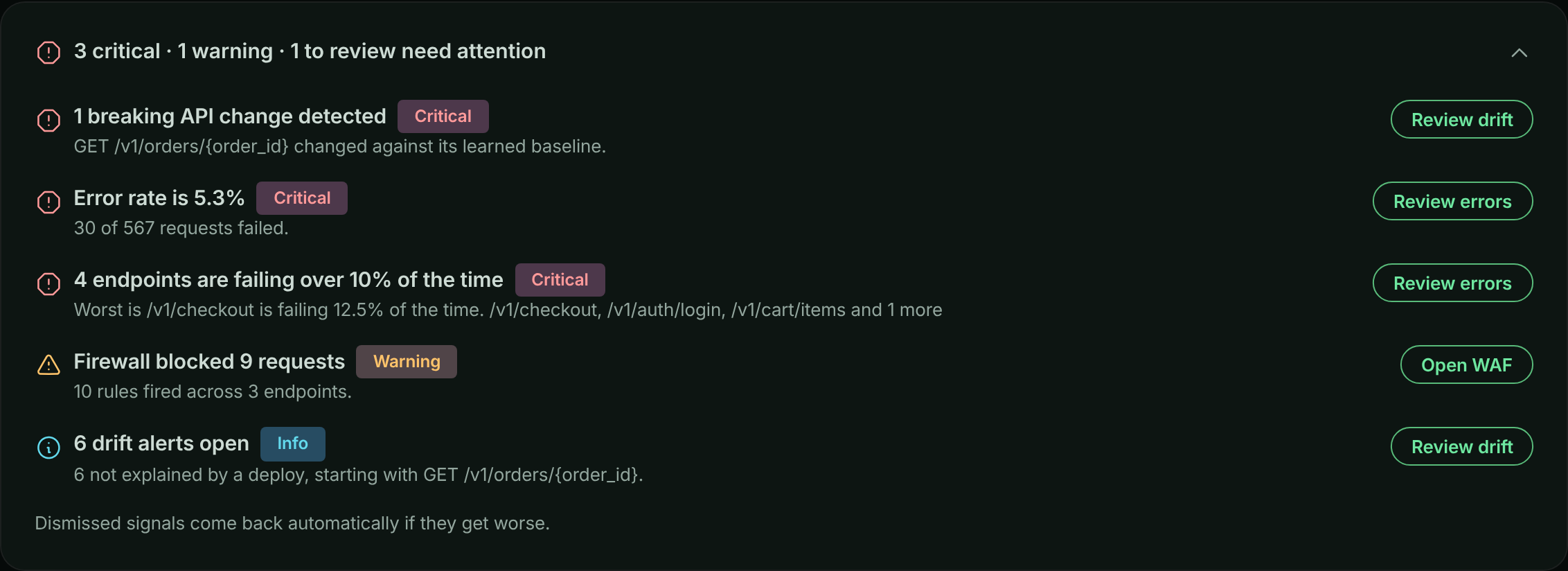
The panel starts collapsed to one banner line, such as “1 critical · 2 warnings need attention”, followed by the worst item. Select the banner to expand it. The panel remembers whether you left it open, per bucket, and opens on its own the first time a new critical signal appears. When nothing is wrong it says Nothing needs attention, so you can tell an all-clear from a panel that failed to load.
Warning: Unlike the rest of the dashboard, attention signals are not tied to the period picker. They are evaluated in the background every 5 minutes over the most recent 60 minutes, so changing the period does not change them.
Signals and thresholds
| Signal | Raised when | Severity |
|---|---|---|
| Error rate | The bucket’s error rate is at least 1% | Warning; Critical at 5% or more |
| Error hotspot | An endpoint with at least 20 requests fails 10% of the time or more | Critical |
| Latency regression | An endpoint’s p95 rose at least 25% against the previous window | Warning; Critical at 100% or more |
| Error regression | An endpoint’s error rate rose at least 1 percentage point against the previous window | Critical |
| Slow endpoint | An endpoint with at least 20 requests is over 1000 ms at p95 | Warning |
| Firewall blocked | The firewall blocked at least one request | Warning |
| Would have been blocked | A policy in Monitor mode scored requests high enough to block them | Critical |
| Breaking drift | An open drift finding is a breaking change | Critical |
| High-severity drift | Other open drift findings are high severity | Warning |
| Open drift | Other drift findings are open | Info |
Several signals of the same type are grouped onto one line, for example “3 endpoints are over 1000 ms at p95”, with the worst one named.
A few rows describe the view itself rather than your API, and can’t be dismissed:
- No servers are reporting: nothing checked in and no requests arrived in the period, so the numbers below are empty rather than healthy (Check setup).
- No traffic in this period: servers are connected but served nothing (Open traffic).
- N% of request time is spent waiting on dependencies: 70% or more of request time went to databases, caches, queues or outbound HTTP (See breakdown).
- … could not be loaded: a panel’s data failed to load.
Dismiss or snooze a signal
Open a row’s actions menu (…) and choose Dismiss, Snooze 1 hour or Snooze 24 hours. Dismissing a grouped row dismisses every signal behind it. Dismissals apply to the whole account, so the next person who opens the dashboard doesn’t see the signal either.
Dismissing or snoozing a signal also acknowledges the alert it raised, so the incident stops escalating. The incident stays open until someone resolves it or the problem clears.
Incidents
When alerting has opened incidents for the bucket, they’re listed at the top of the panel, one row each. Open a row’s actions menu (…) and choose Acknowledge or Resolve. Acknowledging an incident also acknowledges the signals and drift findings in it. Signals an incident already covers aren’t listed again next to it; signals that haven’t opened an incident, such as ones below the alerting thresholds, still are.
A dismissed or snoozed signal comes back on its own if it gets materially worse: a higher severity, or a value 1.5 times what it was when you hid it. Signals also resolve themselves once the problem stops.
Info: Attention signals are evaluated only on plans that include Attention signals. Dismissing and snoozing aren’t offered on the read-only sample bucket.
Summary tiles
Below the attention panel, eight tiles summarize the selected period. Select a tile’s label for its definition, or What am I looking at? at the top of the page for all of them. The full definitions are in the Metrics reference.
| Tile | What it shows |
|---|---|
| Requests | Requests your API served in the period, with the change against the previous period. See Requests. |
| Avg. Response Time | Mean response time across every request in the period, with the change against the previous period. See Average response time. |
| Latency (p95) | The response time 95% of requests came in under. See p95 latency. |
| Errors | Failed requests, with the error rate as a share of all requests underneath. See Error rate. |
| Blocked By Firewall | Requests the firewall rejected before they reached your handlers, with how many more would block under a policy in Monitor mode. See Blocked by firewall. |
| Open Drift Findings | Drift findings not yet reviewed, with how many are high severity. See Open drift findings. |
| Slow Endpoints | Endpoints over 1 s at p95 that served at least 20 requests. See Slow endpoints. |
| Servers Connected | Application instances connected right now. This is a live count and doesn’t move with the period. See Servers connected. |
A tile that shows – with Temporarily unavailable means its data failed to load, not that the value is zero.
Throughput and response time charts
Throughput stacks request counts per interval by status class (2xx, 3xx, 4xx, 5xx). Response Time plots p50, p95, p99 and the maximum, in milliseconds.
Throughput and response time, with deploy and incident markers.
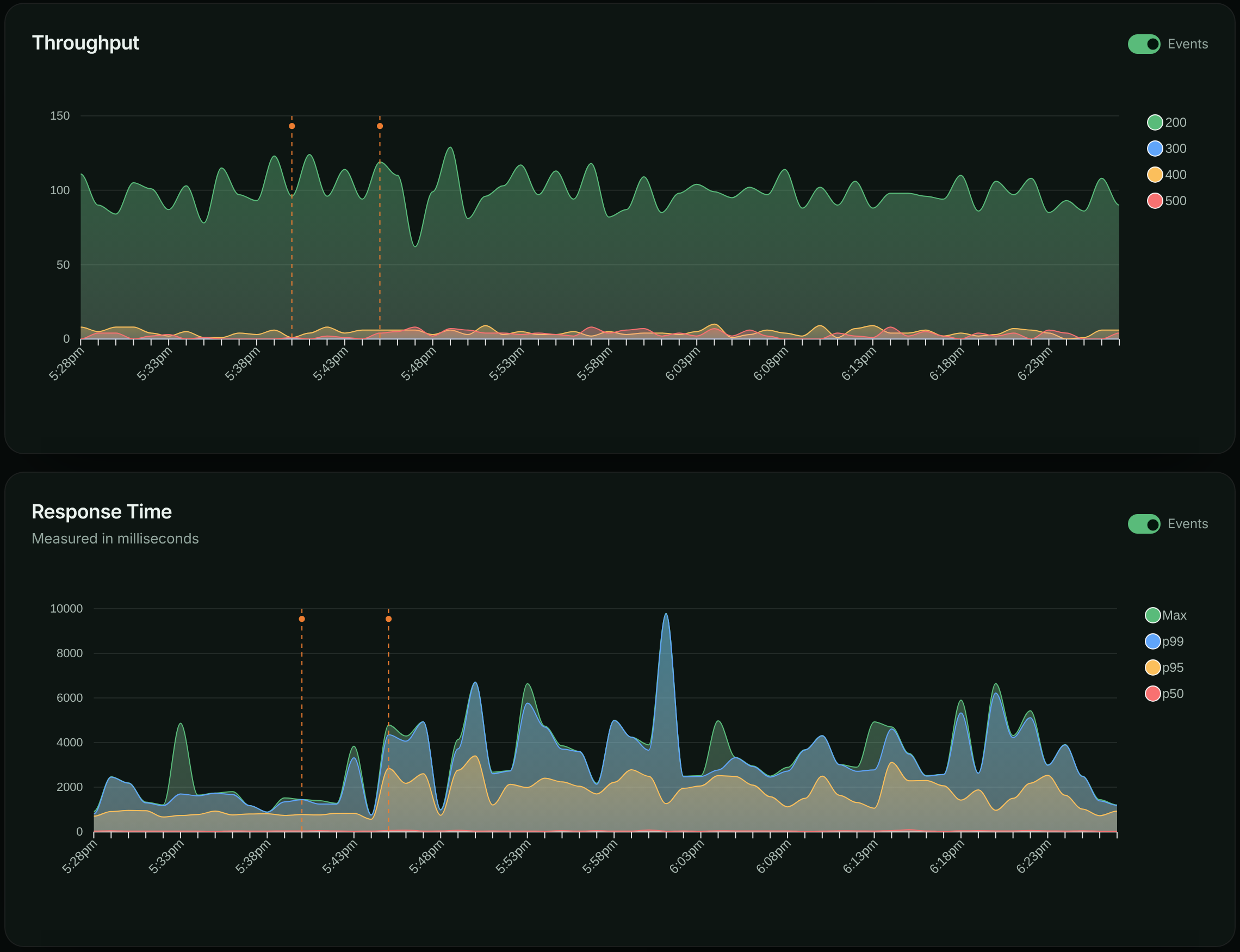
Both charts can overlay events such as deployments, incidents and config changes. Use the Events switch on each chart to show or hide the markers, and select a marker to see the events behind it. In the sample bucket you can see the daily deploy marker at 13:55 followed by the payment-capture incident from 14:00 to 14:40.
Performance panels
These panels come from APM. On a plan without APM, they are replaced by an upgrade notice, and the Latency and Slow Endpoints tiles show –.
- Slowest Endpoints: endpoints ranked by p95, with their request count, average, and the kind of work that dominates their time (Mostly: Database, Cache, Outbound HTTP, Queue / RPC or Application). In the sample bucket,
GET /v1/orders/{order_id}is slow because of an N+1 query. - Error Hotspots: endpoints with at least 20 requests, ranked by error rate, with errors and p95.
- Regressions: endpoints whose p95 or error rate moved against the previous period, with the old value (Was) and the Change.
Firewall, drift and recent changes
- Firewall: requests the firewall matched in the period, split into Matched, Blocked, Would block and Scored only, plus Top attack categories and Busiest rules. Open WAF goes to the bucket’s firewall page. See Web application firewall.
- API Drift: open drift findings with the endpoint, Change, Severity, Cause and when each was detected. Review drift opens the Drift page.
- Recent Changes: deployments, incidents and config changes in the period, newest first. All events opens the Events page.
Troubleshooting
Every number is zero
Check the attention panel first. If it says No servers are reporting, no SDK has connected and no traffic arrived: follow Check setup. If it says No traffic in this period, widen the period or check that the right environment is selected.
The attention panel doesn’t change when I change the period
That’s expected. Signals are evaluated on a fixed recent window (the last 60 minutes, every 5 minutes), independent of the period picker.
A tile shows – and Temporarily unavailable
The query behind the tile failed. Use Retry in the notice at the top of the page. A dash is shown instead of zero so an outage doesn’t look like a quiet period.
Slow endpoints, error hotspots and regressions are missing
These panels need APM. Your plan may not include it, or your application isn’t sending spans yet. See Set up APM.
Related
-
Request log: Look at the individual requests behind the numbers.
-
Metrics reference: How every number on the dashboard is measured.
-
Drift detection: Review changes to your API’s shape and behavior.
-
Performance analytics: Find where request time goes.