
Save searches as stream views
Save a request search as a stream view so your whole team can reopen it, edit it, and attach workflows to it.
A stream view is a saved search over a bucket’s traffic, with a name and an icon. Save the searches your team runs again and again, such as “Payment failures” or “Slow checkouts”, so anyone can open them in one click instead of rebuilding the filter. Stream views are also what workflows and embeds attach to.
Before you begin
- Plan: saving stream views needs a plan that includes Saved stream views. Your plan may also limit how many views the account can keep.
- Role: any team member (owner, admin or member) can create, edit and delete stream views.
- Bucket: views belong to one bucket. The read-only sample bucket comes with four views you can open, but you can’t change them or add your own there.
Who can see a stream view
A stream view is shared with everyone on your account who can open its bucket. There is no private view: when you save one, your teammates see it in the bucket’s Stream Views list straight away, and any change you make applies for everyone.
Open a stream view
Choose Workspace → Stream Views in the left navigation. The list shows each view’s Name and Criteria. Select a view’s name or Open.
The four stream views in the sample bucket.
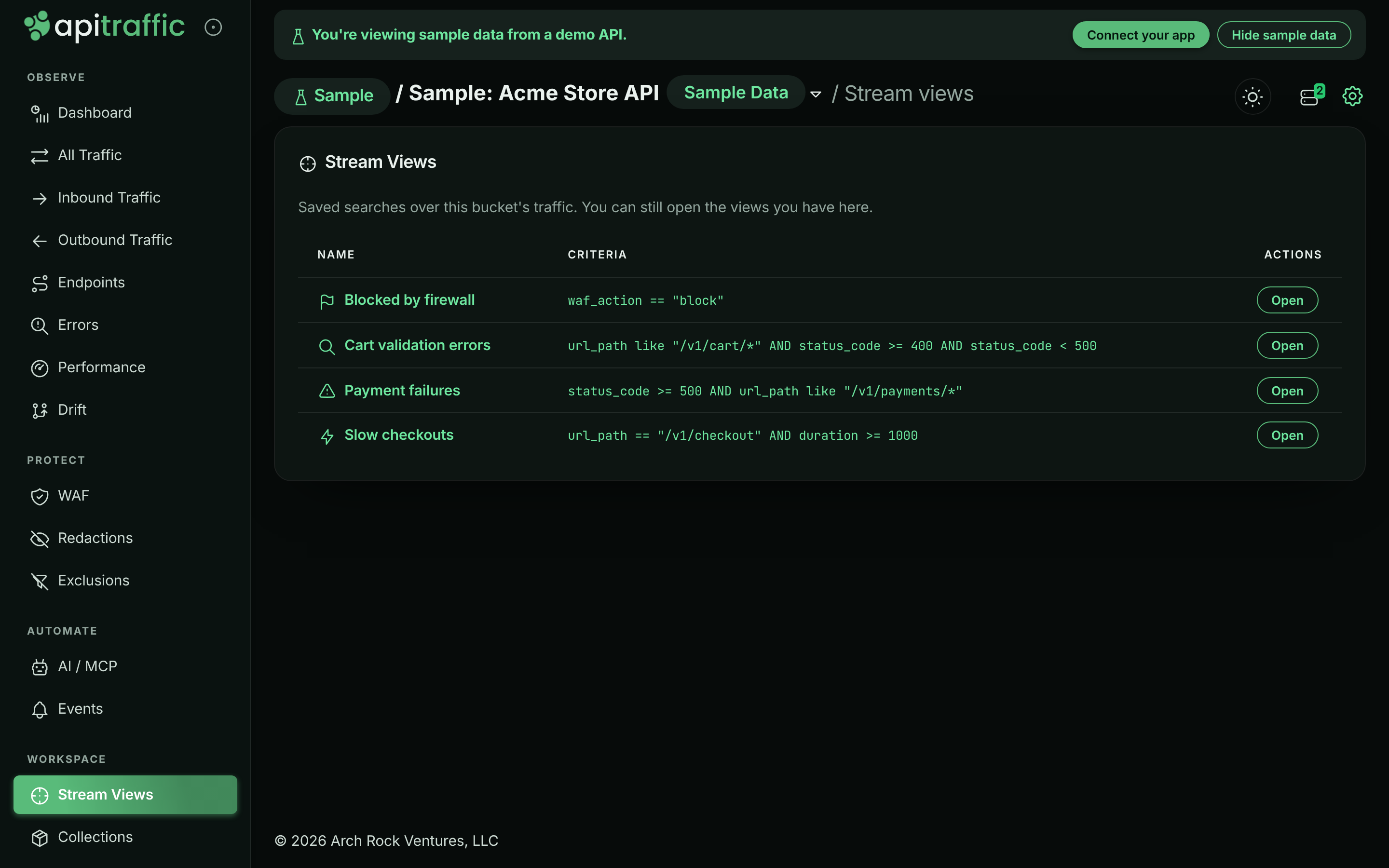
The view opens in the request log with its filters applied as chips. You can add, edit or remove chips to explore further; the stream view doesn’t change unless you update it.
The sample bucket’s views:
| View | Criteria |
|---|---|
| Payment failures | status_code >= 500 AND url_path like "/v1/payments/*" |
| Slow checkouts | url_path == "/v1/checkout" AND duration >= 1000 |
| Blocked by firewall | waf_action == "block" |
| Cart validation errors | url_path like "/v1/cart/*" AND status_code >= 400 AND status_code < 500 |
Create a stream view
Build the search
Open a request log view, such as All Traffic, and add the filters you want to keep. You can also select New Stream View on the Stream Views page, which takes you there. See Search and filter requests.
With filters applied, Create View appears next to Request Log.

Select Create View
The Create View tab appears next to Request Log once at least one filter is applied.
Name it and pick an icon
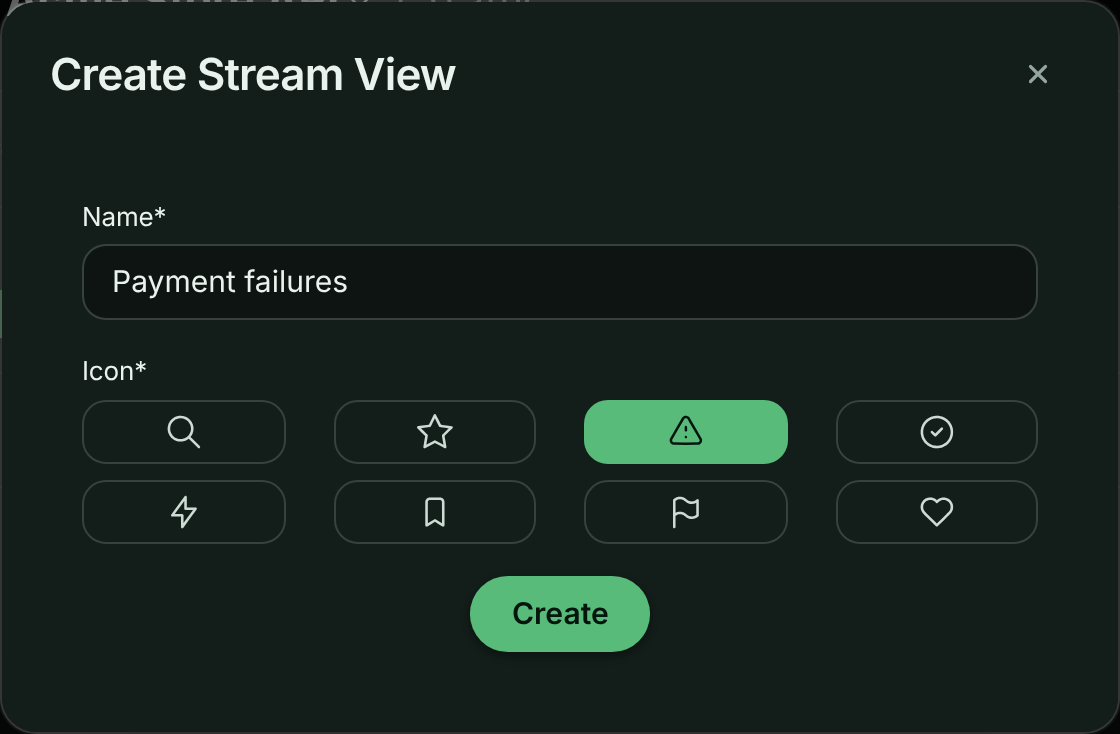
In Create Stream View, enter a Name (up to 50 characters) and choose an Icon: search, star, alert, check, bolt, bookmark, flag or heart.
Naming the view.
Save
Select Create. The view is saved with the filters currently applied, and becomes the active view.
Note: A view stores the filters you added, not the view it was created from or the time range. Opening a stream view always starts from All Traffic with the saved filters, over the time range currently selected.
Saved criteria are checked when you save: they must parse, use known fields, have at most 50 conditions, and keep each value under 1,024 characters. An invalid view is refused with a message naming the condition at fault.
Edit a stream view
Open the view
Open it from Stream Views.
Change the filters
Add, edit or remove chips until the log shows what the view should show.
Update the view
Select the Stream View tab next to Request Log. In Update Stream View, change the Name or Icon if you like, then select Update. The view now saves the filters currently applied.
Warning: Workflows attached to a view fire on the view’s criteria. Updating the filters changes which new requests trigger them.
Delete a stream view
On the Stream Views page, select the trash button on the view’s row, then Delete to confirm. You can also select Delete View in the Update Stream View dialog. Deleting a view can’t be undone and affects everyone on the account.
Use a view in workflows, embeds and MCP
- Workflows: open a view and select the Workflows tab to send its matching requests to a webhook or automation. See Workflows.
- Embeds: scope an embedded request log to a view with its id (
streamViewSid). See Embed the request log. - MCP: an AI agent can list the team’s views with
list_saved_viewsand pass a view’s criteria tosearch_requests, so “checkout errors” means the same thing to the agent as to your team. See MCP tools.
When your plan doesn’t include stream views
If your plan doesn’t include Saved stream views, the Stream Views item in the navigation shows a lock and the page explains the feature with a link to the plans. Create View and the Stream View tab aren’t offered, and creating or updating a view through the API is refused. Deleting a view is still allowed.
Troubleshooting
I don’t see Create View
Apply at least one filter first. The tab also isn’t offered on the sample bucket or when your plan doesn’t include stream views.
The view shows fewer requests than I expected
The time range isn’t saved with the view. Check the time range picker, and that the right environment is selected.
Saving a view fails
The criteria are checked when you save. Read the message, fix the condition it names, and try again. Your plan may also have reached its limit on stream views.
Related
-
Search and filter requests: Build the queries your views save.
-
Workflows: Act on every new request that matches a view.
-
Collections: Keep a hand-picked set of requests instead.
-
Embed the request log: Show a view’s requests inside your own app.