
Collections
Group captured requests into named collections to keep examples, reproduce bugs and share a set of requests with your team or outside it.
A collection is a named list of captured requests in a bucket. Use one to keep the requests that reproduce a bug, the examples a partner should look at, or the failures from an incident, so nobody has to search for them again. Your teammates see the bucket’s collections, and you can share a collection with anyone through a public link.
Before you begin
- Plan. Creating collections, editing them and adding requests needs a plan that includes Collections. Your plan can also limit how many collections the account keeps at once. If the plan no longer includes collections, existing ones stay readable, and you can still remove requests from them, share them and delete them.
- Sharing. Public links also need Share links on your plan. See Share requests and collections.
- Role. Any member of the account can create, edit, share and delete collections.
- Bucket. Collections belong to one bucket and hold requests from that bucket.
Collections in the sample data
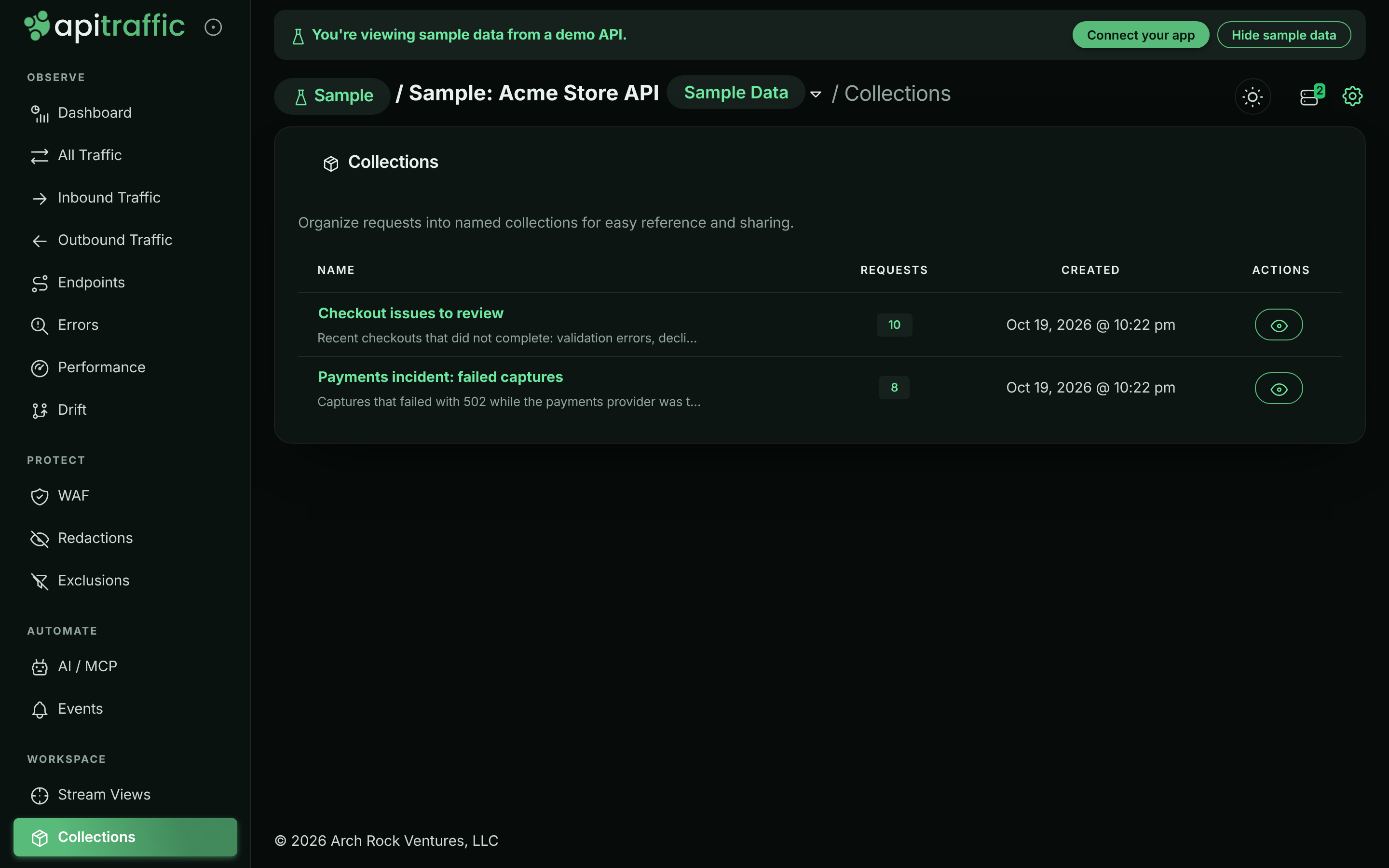
The Sample: Acme Store API bucket comes with two collections that the sample scenario refills every day:
| Collection | What it holds |
|---|---|
| Payments incident: failed captures | Captures that failed with 502 during the daily 14:00–14:40 UTC payments incident. |
| Checkout issues to review | Checkouts that did not complete: validation errors, declined cards, sold-out items and an inventory race. |
The sample bucket is read-only, so you can open these collections but not change or share them.
The two collections in the sample bucket.
Create a collection
Open Collections
In the left navigation, under Workspace, select Collections. Select New Collection.
Name it
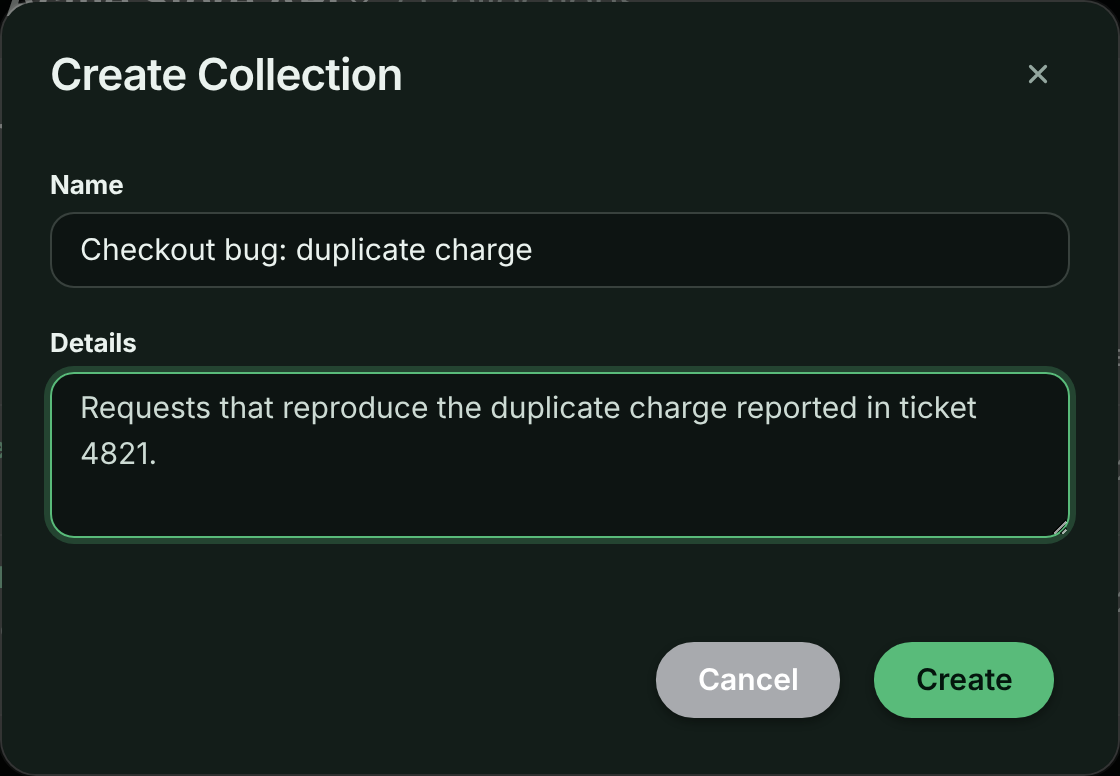
Enter a Name, such as Authentication Flow, and optional Details that say what the collection is for. Details appear under the name in the list, on the collection page and on the public page if you share it. Select Create.
The Create Collection dialog.
You can also create a collection while you add a request to it, as described next.
Add requests to a collection
Open the request
Find the request in the request log and open it.
Choose Add to Collection
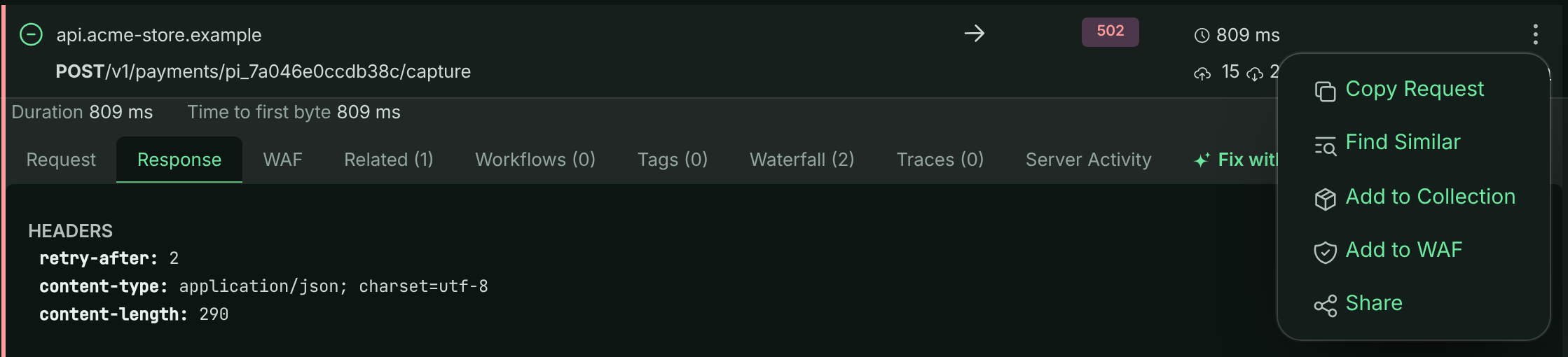
Open the request’s actions menu (the ⋮ button) and choose Add to Collection.
Add to Collection in a request’s actions menu.
Pick the collection
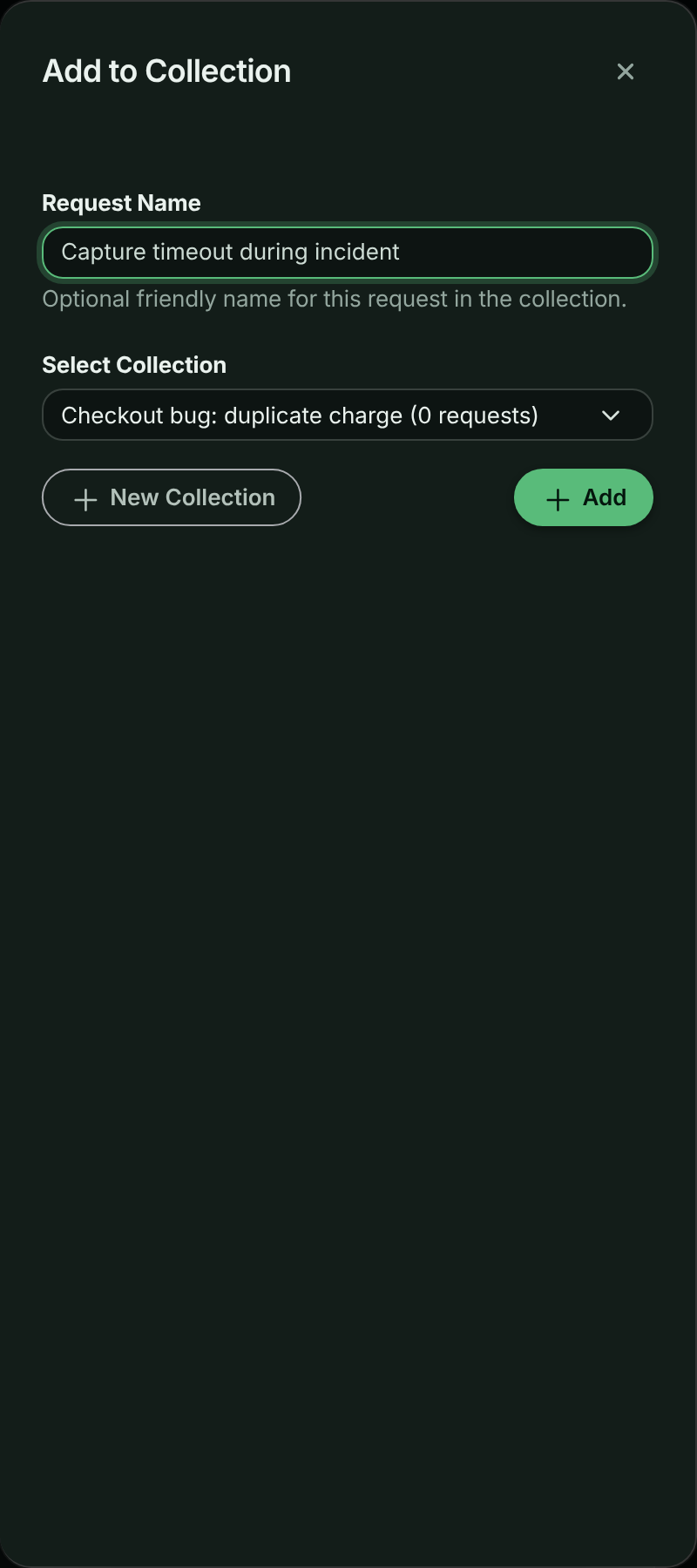
In the Add to Collection panel, enter an optional Request Name, such as Login POST request, so the request is easy to recognize in the list. Choose the collection under Select Collection and select Add.
To put the request in a new collection, select New Collection, enter a New Collection Name and select Create & Add.
Choosing a collection for the request.
Note: Add to Collection only appears on buckets you can change and when your plan includes collections. It isn’t offered on the sample bucket.
Work with a collection
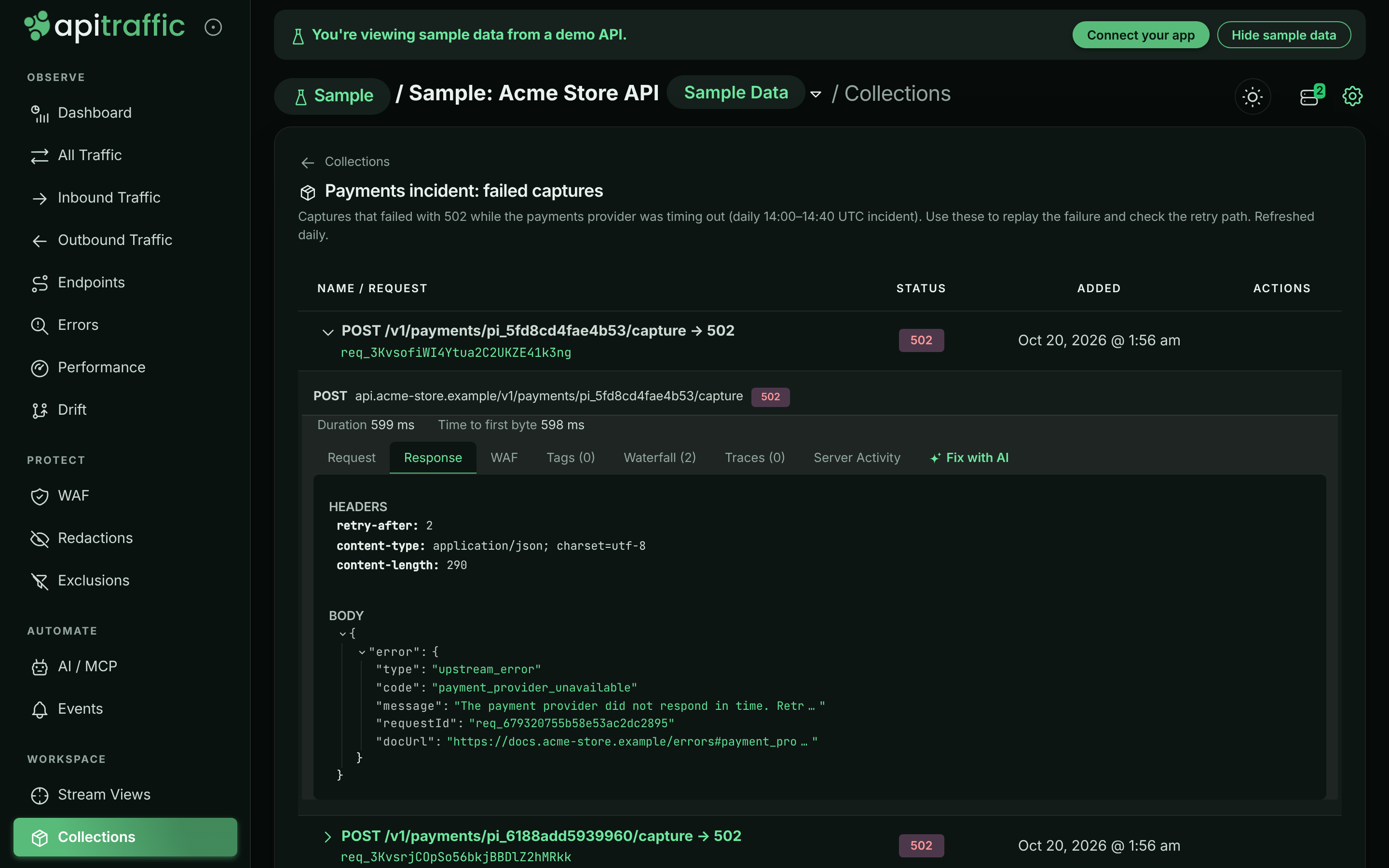
Select a collection’s name, or its view button, to open it. Each request is listed by the name you gave it (or its request ID) with its Status and when it was Added. Select a request to expand its full detail, the same view as in the request log.
A collection with one request expanded.
From the collection page you can:
- Rename a request in the collection. This changes only its name in the collection.
- Remove a request from the collection. The request itself stays in your request log.
- Share the collection with a public link.
From the Collections list you can also Edit a collection’s name and details, or Delete it. Deleting a collection doesn’t delete its requests, and any public link to it stops working.
Warning: A collection holds references to requests, not copies. When a request ages out of your plan’s retention period, it stays listed in the collection but its detail can’t be loaded any more.
Share a collection
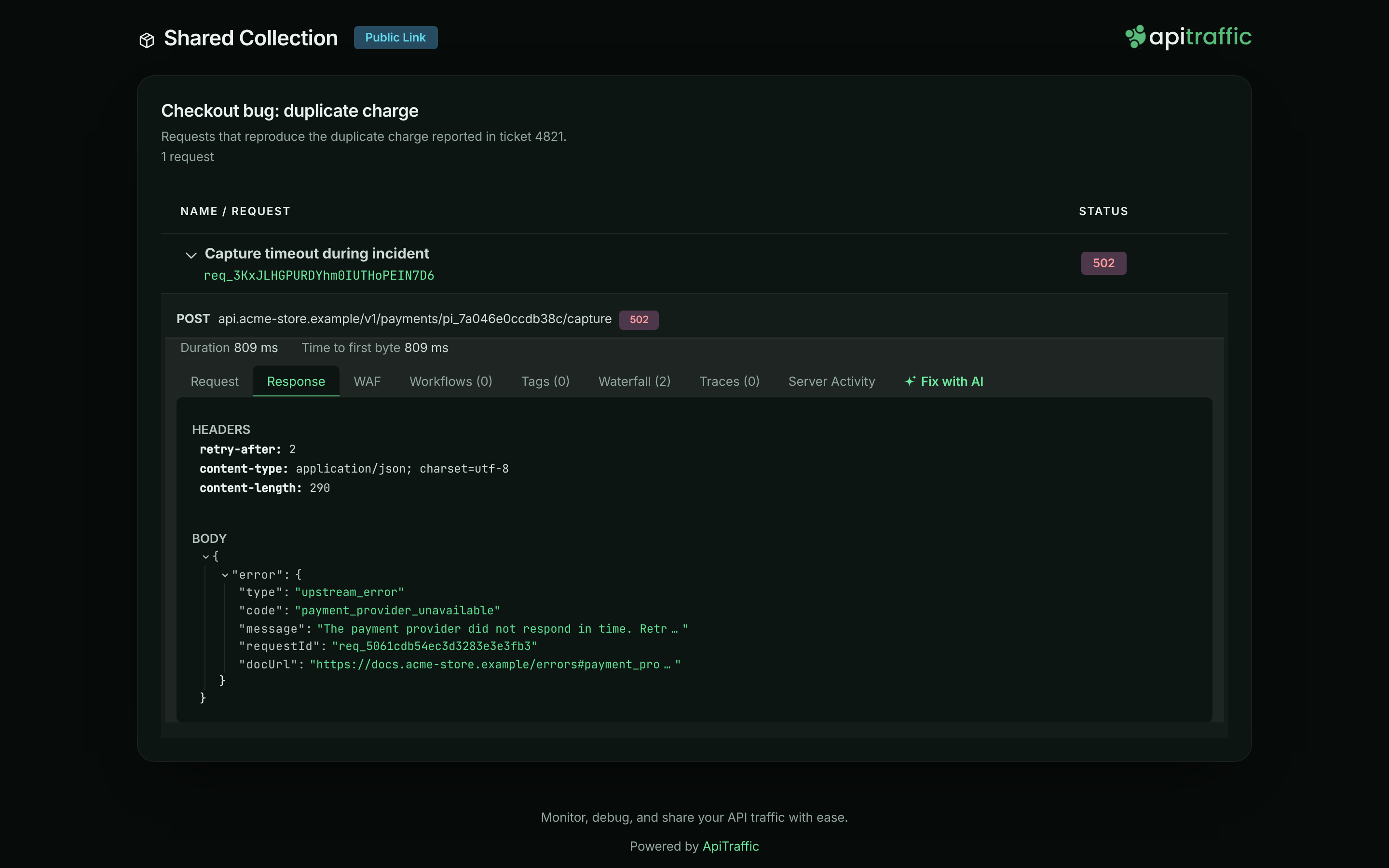
A shared collection is a read-only public page. Anyone with the link can see the collection’s name, details and every request in it, without signing in. It always shows the collection as it is now, so requests you add after sharing appear on the shared page too.
Open the share panel
Select Share on the collection page, or the share button on its row in the Collections list.
Set up the link
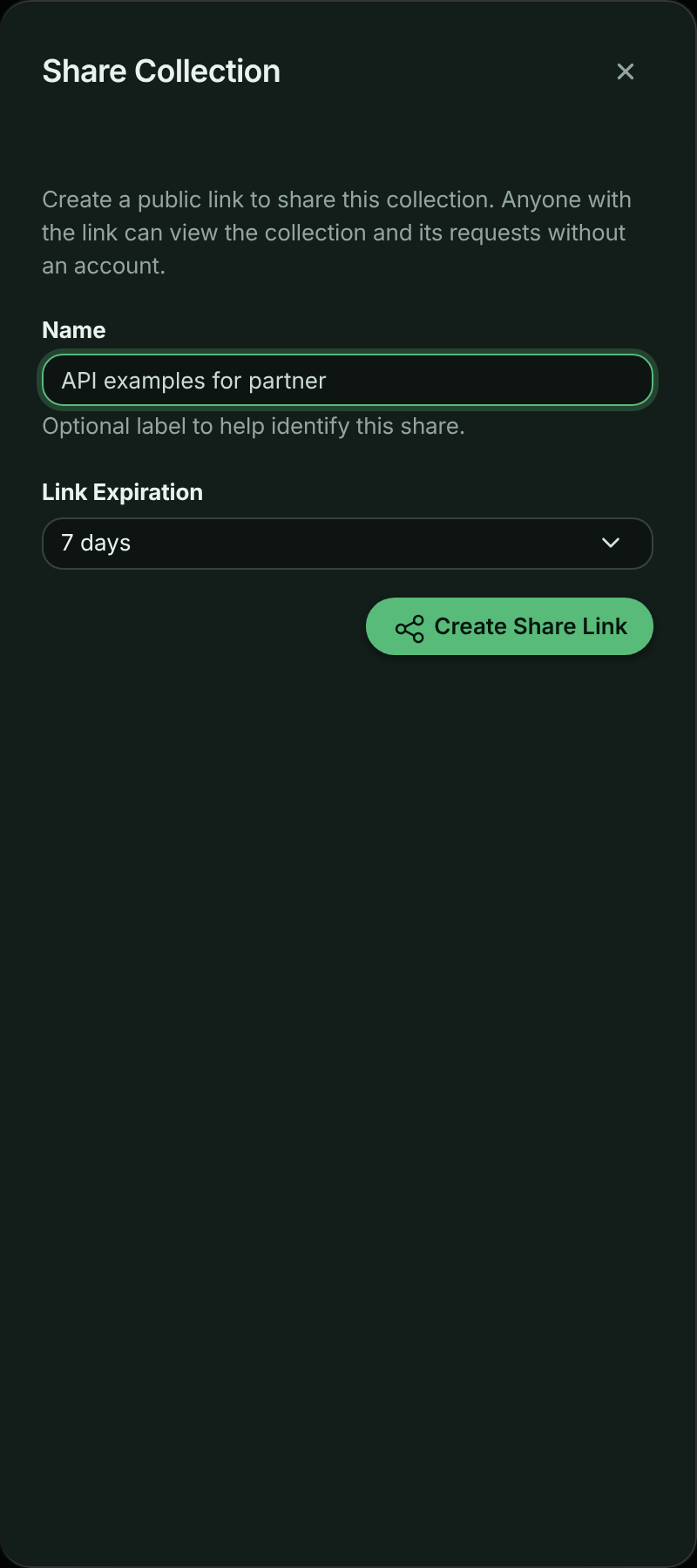
Enter an optional Name to recognize the link later, such as API examples for partner, and choose a Link Expiration: 24 hours, 7 days, 30 days or No expiration. Select Create Share Link.
Creating a share link for a collection.
Copy the link
Select Copy next to Share Link and send it. The panel shows when the link expires. To stop sharing, select Revoke Share Link.
A collection has one active share link at a time. Opening Share again shows the existing link rather than making a new one. To change the expiry, revoke the link and create a new one.
What people see when they open a shared collection.
Before you share, read what a public link exposes.
Collections and AI assistants
Assistants connected to the MCP server can read your collections with list_collections and get_collection, so you can point one at “the requests in Checkout issues to review” instead of describing them.
Troubleshooting
I don’t see Add to Collection on a request
It isn’t offered on the sample bucket, or when your plan doesn’t include Collections. Open a request in one of your own buckets.
Creating a collection fails
Your plan may limit how many collections the account can keep. Delete collections you no longer need, or change your plan.
A request in a collection won’t load
In the app the request shows Could not load request details., and on a shared page Request data is no longer available. If Retry doesn’t help, the request is older than your plan’s retention period or was deleted. The collection keeps the entry so you can see it was there.
Related
-
Share requests and collections: Public links, expiry, revoking and what a link exposes.
-
Request details: Everything you see when you open a request.
-
Stream views: Save a filter instead of a fixed list of requests.
-
MCP server: Let an AI assistant read your collections.