
Workflows
Run an automated flow every time a captured request matches a stream view: notify your team, open a ticket or call your own systems with the request's data.
A workflow is an automated flow that runs every time ApiTraffic captures a request that matches one of your stream views. Each matching request is sent to the workflow with its full data, and the flow does whatever you build into it: notify someone, create a ticket, update a record, or call your own API.
Use workflows when a request needs a reaction, not just a record. For example, when a payment capture fails with a 5xx, when a partner’s requests start returning 401, or when a request to a deprecated endpoint arrives.
How workflows work
flowchart LR
    A[Captured request] --> B{Matches the stream view?}
    B -- no --> C[Nothing happens]
    B -- yes --> D[Request sent to the workflow]
    D --> E[Your flow's steps run]
- The trigger is a stream view. A workflow is attached to one stream view in one bucket. The view’s search criteria decide which requests start it.
- It runs in one environment. A workflow fires for requests in the environment you created it in.
- Every match is delivered. Each captured request that matches is delivered once, shortly after it is processed. There is no batching.
- You build the steps in the workflow builder. The builder opens inside ApiTraffic. The first step, New Request, is the ApiTraffic trigger and is added for you; you add the steps that follow.
Before you begin
- Plan. Workflows need a plan that includes Workflows. Your plan can also limit how many workflows the account keeps and how many deliveries workflows make each billing period; you can see your usage under Account → Usage. If the plan stops including workflows, nothing is delivered, and existing workflows stay listed and can be deleted.
- Role. Any member of the account can create, edit and delete workflows.
- A stream view. Create a stream view whose criteria select the requests you want to act on.
- Your own bucket. Workflows aren’t available on the read-only Sample: Acme Store API bucket.
Create your first workflow
This example sends every failed payment capture to a flow. It assumes a stream view named Failed captures with the criteria status_code >= 500 AND url_path like "/v1/payments/*".
Open the stream view
Open the bucket’s request log and select the stream view, Failed captures. A Workflows tab appears in the request log’s toolbar when a stream view is open.
Add a workflow
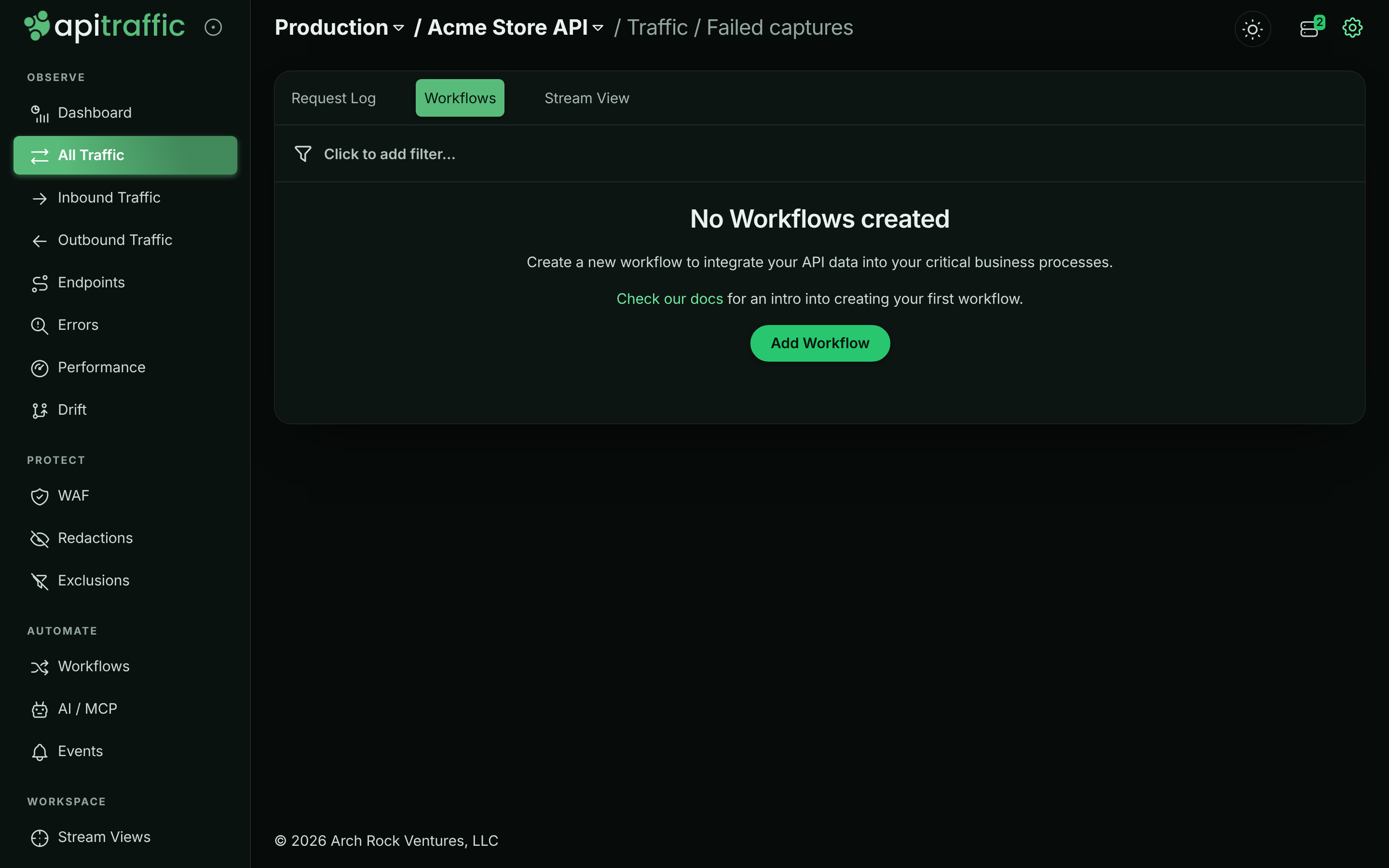
Select Workflows, then select Add Workflow.
The Workflows tab of a stream view.
Name it
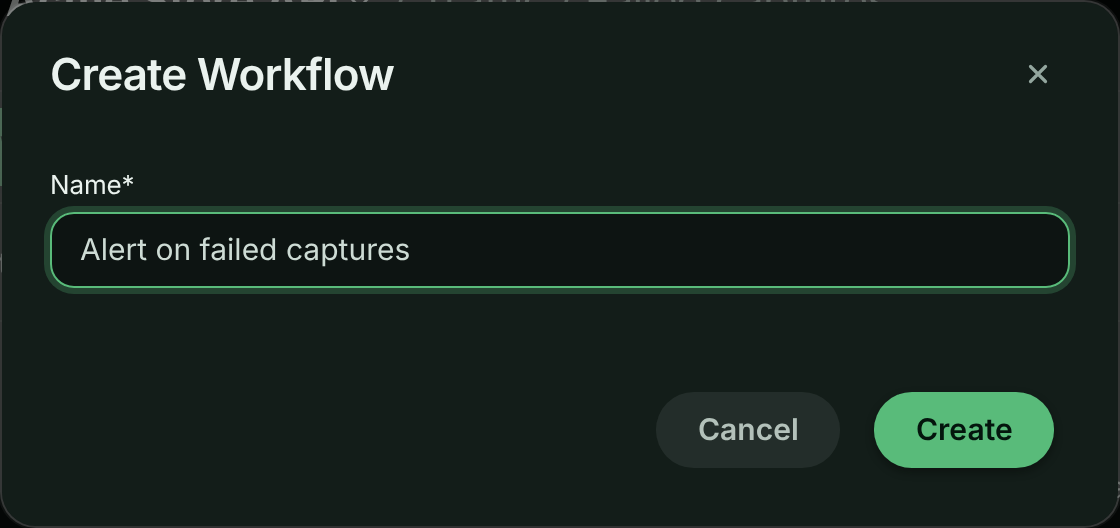
In the Create Workflow dialog, enter a Name of up to 50 characters, such as Alert on failed captures, and select Create.
Naming the workflow.
Build the flow
The workflow builder opens full screen, titled with the environment and the workflow’s name. The flow starts with the New Request trigger. Add the steps that should run for each matching request, and use fields from the request (for example the path, status code or a response body field) in those steps.
Turn it on
Publish the flow and turn it on in the builder. Requests are only delivered to a workflow that is on. Close the builder with the × button.
Check it
The workflow is now listed with its Status. Once a matching request is captured, check the flow’s runs in the builder.
Tip: Start with a narrow stream view. A workflow runs once for every matching request, so a broad view on a busy endpoint means a flow run for each of thousands of requests, and each one counts toward your plan’s delivery allowance.
What a workflow receives
Each delivery is the captured request as ApiTraffic stored it, in the same shape as the Requests API: the request line, headers, query string, request and response bodies, timings and tags. JSON bodies arrive parsed. It also carries triggerData, which identifies what fired:
{
  "triggerData": {
    "workflowSid": "flo_...",
    "streamViewSid": "sv_...",
    "externalWorkflowId": "..."
  }
}
A workflow receives the request as captured, before your account’s Redact at server redaction rules run. Those rules decide what ApiTraffic stores and shows, so a value masked in the request log can arrive unmasked in your flow. Two things a workflow never receives:
- Values redacted by Redact at API rules, or by the SDK’s default masking of credential-shaped keys. These are masked inside your app and never reach ApiTraffic.
- Credential headers such as
Authorization,CookieandX-Api-Key. They are always masked, in workflows too.
Warning: Because server-side rules don’t apply to workflow deliveries, make sure the destination of your flow may hold the data it receives. If a value must not reach the flow, redact it with a Redact at API rule instead.
Example workflows
| Stream view criteria | What the flow could do |
|---|---|
status_code >= 500 AND url_path like "/v1/payments/*" |
Notify the payments on-call channel with the path, status and response body. |
status_code == 401 AND request_header:x-partner-id == "acme-freight" |
Open a ticket for the partner team when one partner’s credentials stop working. |
url_path like "/v1/legacy/*" |
Record each call to a deprecated endpoint so you know who still uses it. |
duration >= 3000 AND method == "POST" AND url_path == "/v1/checkout" |
Flag slow checkouts for review. |
The criteria syntax is described in Search.
Manage workflows
Workflows, under Automate in the left navigation, lists the bucket’s workflows in the current environment. Each row shows the Name, how many stream views it is attached to (Views Attached), when it was Created and its Status (Enabled or Disabled).
From the Actions menu on a row:
- View / Edit opens the workflow builder.
- Delete asks you to confirm. Deleting a workflow removes it in every environment, along with its data and any runs in progress, and can’t be undone.
Changes to a workflow, such as turning it off, can take about a minute to reach every delivery.
Limits and delivery
- Deliveries are not retried. If the flow can’t be reached when a request matches, that request is not sent again. Don’t use a workflow as the only record of something you must not miss; the request itself is always in your request log.
- Delivery allowance. If your plan sets a hard limit on workflow deliveries and the account reaches it, deliveries stop until the next billing period starts.
- Stream view criteria. The stream view behind a workflow is checked against every captured request, so its criteria are validated when you save the view.
Troubleshooting
I don’t see a Workflows tab
The tab appears only when a stream view is open, on a bucket you can change, and when your plan includes Workflows. Open a stream view in one of your own buckets.
My workflow never runs
Check that the flow is published and turned on in the builder, and that the list shows the workflow as Enabled. Then open the stream view and confirm it lists recent requests in the same environment as the workflow. Finally, check Account → Usage in case the delivery allowance is used up.
The builder doesn’t load
If you see “There was an error loading the builder, please try again later.”, close it and try again. Opening the builder is refused when your plan doesn’t include Workflows.
A field is masked in the data my flow receives
The value was masked inside your app, by a Redact at API rule or the SDK’s default masking of credential-shaped keys, or it’s a credential header such as Authorization, which is always masked. Redact at server rules don’t apply to what a workflow receives. To deliver the value, narrow the Redact at API rule that covers it, or change it to Redact at server so the value reaches the workflow but still isn’t stored.
Related
-
Stream views: Create the view that triggers a workflow.
-
Search and filter requests: The criteria syntax for choosing requests.
-
Redactions: Control what workflows can see.
-
Workflows API: List and manage workflows over REST.