
Detect API drift
Drift detection learns each endpoint's normal request and response shape and behavior, then flags breaking, additive, behavioral and dependency changes.
Your API changes all the time: a deploy renames a field, a dependency starts failing, an endpoint gets slower. Drift detection learns what each endpoint normally looks like from its own traffic, then raises a drift finding when live traffic stops matching. You find out that a consumer-facing field disappeared before your consumers tell you.
Drift detection is observe-only. It records findings for you to review on the Drift page and on the dashboard; it never blocks requests.
Before you begin
- Plan: drift detection needs a plan that includes API drift detection.
- Bucket setting: drift detection is off for new buckets. Turn it on per bucket (see below).
- Bodies: schema drift (added, removed and retyped fields) is inferred from the bodies indexed for search, so the bucket needs body logging for requests, responses or both. Status code, latency, error-rate and dependency drift are detected without bodies. See Body search.
- Role: any team member can review findings and change their status.
Turn on drift detection
Open the bucket’s settings
Choose Workspace → Bucket Settings, then the Drift Detection tab.
Switch it on
Turn on Detect drift from traffic for this bucket and select Save Changes.
Turning on drift detection for a bucket.
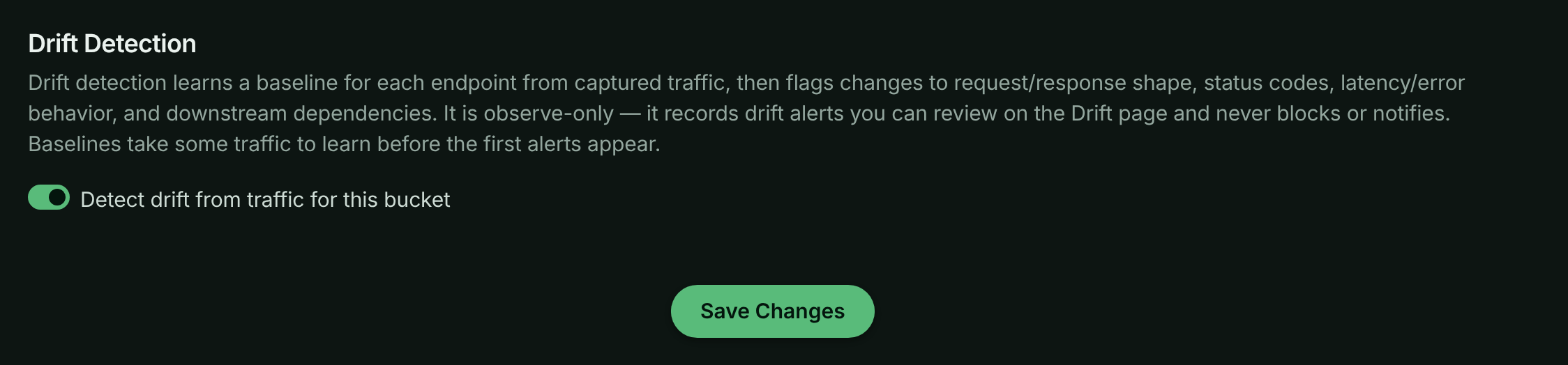
If body logging is off or covers only one side, the settings tab warns you which bodies are available for schema drift.
How detection works
Learn a baseline
Each endpoint and method (for example GET /v1/orders/{order_id}) gets its own baseline, learned from up to the last 24 hours of its traffic: which body fields are present and their types, the status code mix, latency percentiles, error rate, and the dependencies it calls. An endpoint needs at least 30 samples before its baseline becomes active. Until then it is learning.
Compare recent traffic
Every hour, a scan compares each endpoint’s recent traffic against its active baseline. An endpoint needs at least 20 recent samples to be compared.
Raise or refresh findings
Each kind of change becomes one finding. If the same change is still there on the next scan, the existing finding is refreshed rather than duplicated.
What drift detection flags
| Change | Raised when | Severity |
|---|---|---|
| Breaking (response) | A response field present in at least 90% of baseline responses is gone (present in 10% or fewer), or a stable field’s type changed. Also raised when a new 5xx status code appears in at least 10% of responses. | High |
| Breaking (request) | The same, for request bodies: a field clients always sent is gone, or its type changed. | High |
| Additive | A new field appears in at least 90% of bodies. | Low |
| Behavioral | p95 latency is at least 1.5 times the baseline’s, or the error rate rose by 10 percentage points or more. | Medium |
| Dependency | A dependency (a query, cache, queue or outbound call) appeared in at least 90% of requests, or one the baseline always used disappeared. | Medium; High when a dependency started failing (an error rate of 10% or more where it was below) |
| Response body missing | Responses that used to carry a body mostly stopped carrying one. | Medium; High when most responses lost their body |
The Change type filter on the Drift page also lists New endpoint and Disappeared endpoint.
Classification
Each finding is classified by whether something explains it:
- Deploy-correlated: a Git event from a connected Git integration (a push, commit, tag or release) for the same environment happened within 30 minutes of the change. These findings start with the status expected, because the change was probably intended.
- Unexplained: nothing explains the change. These start open, and are the ones to look at first: an unexplained change often means an upstream dependency or a configuration changed under you.
Note: Only Git events from a Git integration are used for classification. Deployment events you post through the Events API appear on charts and in Recent Changes, but don’t mark drift as deploy-correlated.
Review drift findings
Choose Observe → Drift in the left navigation.
The Drift page for the sample bucket.
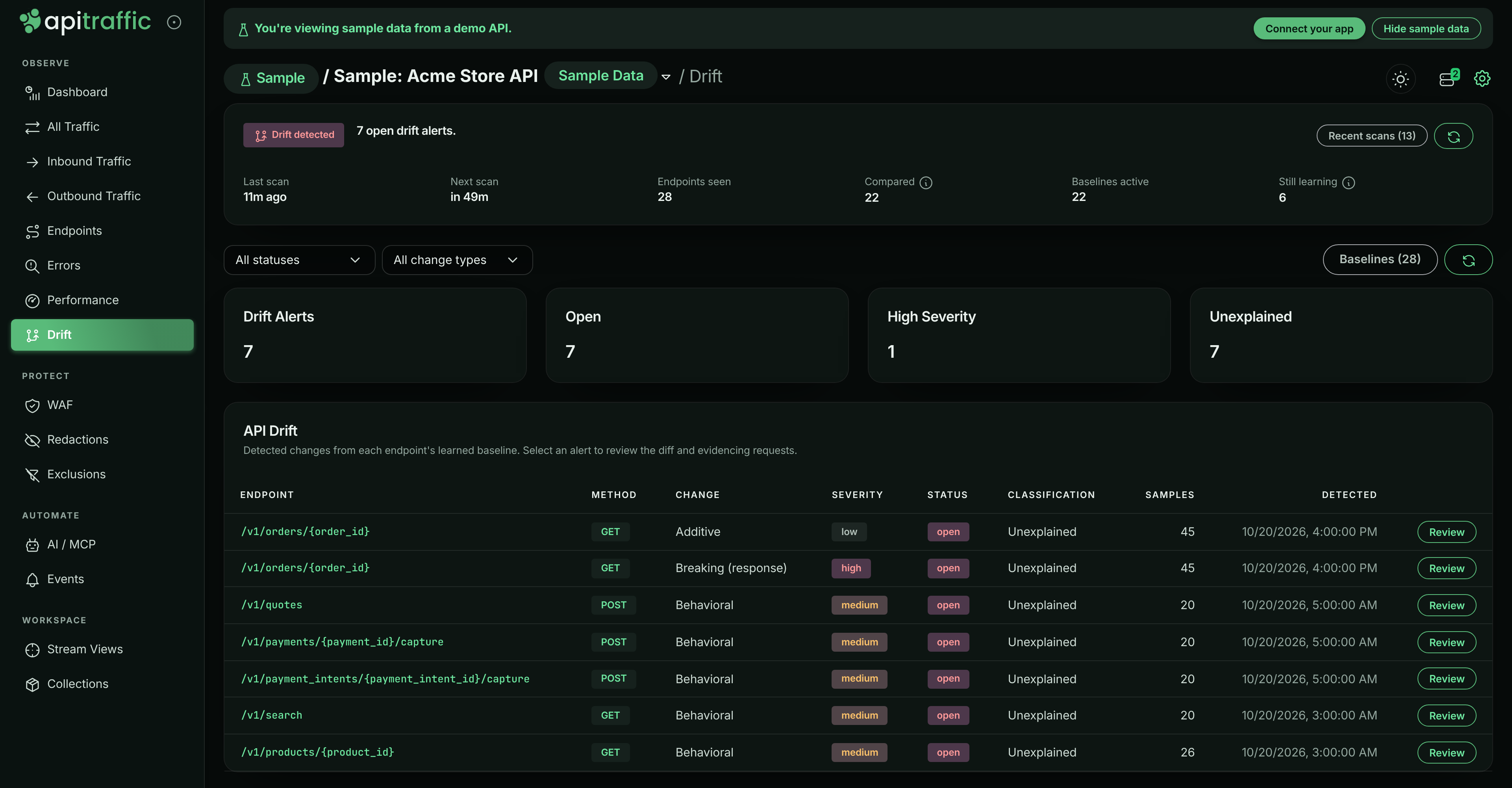
The page has three parts:
- Scan health at the top says whether detection is running and why the list might be empty. Its state is one of Off, Not started, Failing, No traffic, Learning, Watching or Drift detected, with Last scan, Next scan, Endpoints seen, Compared, Baselines active and Still learning. Select Recent scans for the last scans’ results.
- Summary tiles: Drift Findings, Open, High Severity and Unexplained.
- API Drift: the findings, with Endpoint, Method, Change, Severity, Status, Classification, Samples and Detected. Filter them by status (All statuses) and by change type (All change types).
Select Baselines to see each endpoint’s baseline: its Status (learning, active or superseded), Samples, First seen and Last seen.
Open a finding
Select a finding’s endpoint or Review. The finding opens with:
- Change Type, Severity, Status, Classification, Baseline Version, Samples, Detected, Onset and Correlated Deploy,
- What changed: the diff, for example Removed fields, Added fields, Type changed, a new error status, the p95 latency or error rate before and after, or new, removed or failing dependencies,
- the Baseline it was compared against,
- Evidencing requests: up to five requests that show the change. Expand one to read it in place, next to the diff.
A breaking change on GET /v1/orders/{order_id} in the sample bucket.
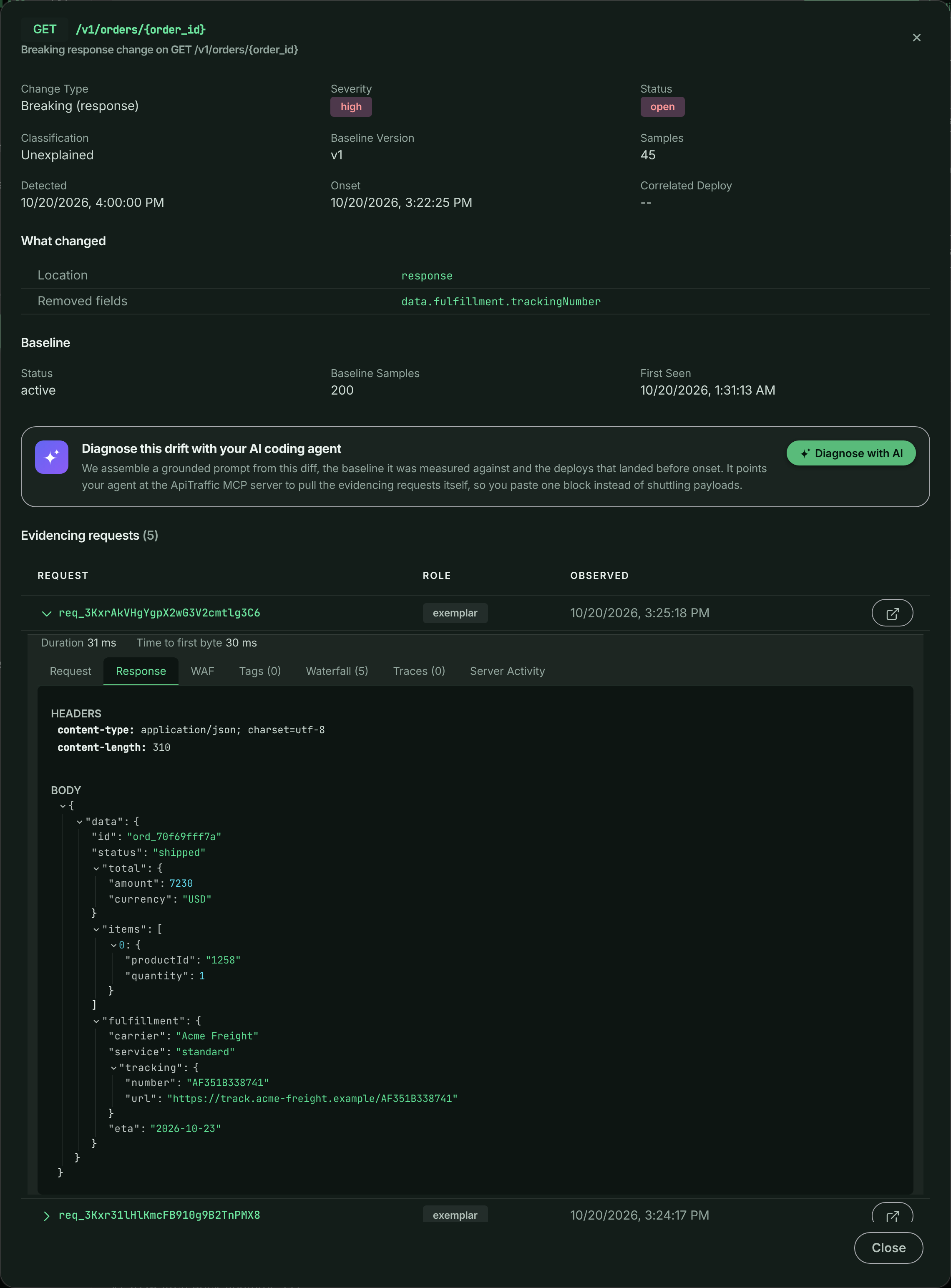
You can also open a specific finding from the endpoint detail’s Drift tab on the Endpoints page, or from the dashboard’s API Drift panel.
Diagnose with AI
Select Diagnose with AI in a finding to build a prompt for your AI coding agent that explains the change and correlates it with recent deploys. Pick how far back to look for deploys, then select Copy prompt. Each prompt counts as one AI diagnosis and needs a plan that includes AI diagnoses. The prompt works best when your agent also has the ApiTraffic MCP server connected.
Acknowledge and resolve findings
Findings move through four statuses:
| Status | Meaning |
|---|---|
| open | Not reviewed yet. Counted on the dashboard and in attention signals. |
| expected | An intended change, usually set automatically for deploy-correlated findings. |
| acknowledged | Someone has seen it and is dealing with it. |
| resolved | Dealt with. |
To change a finding’s status, open it and select Mark open, Mark expected, Mark acknowledged or Mark resolved at the bottom. Status changes apply for everyone on the account. Once you mark a finding acknowledged or resolved, later scans keep refreshing its details but don’t reopen or reclassify it. Status changes aren’t offered on the read-only sample bucket. Acknowledging a finding also acknowledges the alert it raised, so its incident stops escalating.
Open drift also feeds the dashboard’s attention panel: breaking changes as Critical, other high-severity findings as Warning, and the rest as Info.
Drift in the sample bucket
The sample bucket has drift detection on. On alternate days, from the 13:55 UTC deploy until a rollback just after midnight, GET /v1/orders/{order_id} adds fulfillment.eta and moves fulfillment.trackingNumber to fulfillment.tracking.number. That raises a Breaking (response) finding for the removed field and an Additive finding for the new ones. Because the sample’s deploys are posted as events rather than coming from a Git integration, both findings are Unexplained.
Troubleshooting
The Drift page has no findings
Read the scan health card: it says why. Off means the bucket setting is off. Learning means endpoints don’t have 30 samples yet. No traffic means the last scan found nothing to compare. Failing shows the error from the last scan under Recent scans.
Schema changes aren’t detected
Field-level drift needs bodies. Check that body logging is on for the bucket and covers the side (request or response) you care about.
Every finding says Unexplained
Classification only uses Git events. Connect a Git integration so pushes, tags and releases can explain changes.
Drift is locked or shows Paused - not in your plan
Your plan doesn’t include API drift detection, so no scans run. The Drift item in the navigation carries a lock and the page explains the feature with a link to the plans.
Related
-
Endpoints: How endpoints are named, and each endpoint’s drift tab.
-
Dashboard: Open drift on the dashboard and in attention signals.
-
Git integrations: Let deploys explain intended changes.
-
Event markers: Mark deploys and incidents on your charts.