
Tags and dimensions
Tag requests with your own context, such as a customer id, and manage those tags in Settings → Dimensions
Tags are your own context on a request: which customer made it, which plan they are on, which feature flag was on. Each tag key you send becomes a dimension. You can search on it, group reports and dashboards by it, and name, classify and label it in Account → Settings → Dimensions.
Tagging a request
Call tag() anywhere while a request is being handled:
apitraffic.tag('customerId', req.user.orgId);
apitraffic.tag('plan', req.user.plan);
apitraffic.tag('seats', 40);          // numbers and booleans are stored as text
apitraffic.tag('region', undefined);  // null or undefined: no tag, nothing dropped
tag() never throws. Outside a request it does nothing.
The tag rules
Every SDK and the ApiTraffic processor apply the same rules, so a tag that is kept is kept everywhere.
| Rule | |
|---|---|
| Keys | 1 to 64 characters: a letter first, then letters, digits, _, . or - |
| Reserved keys | Keys starting with waf., redaction., apitraffic. or at. are kept for system tags and refused |
| Values | Strings, numbers or booleans. Objects and arrays are refused. Control characters are removed |
| Value length | Longer than 255 characters: cut to 255 and kept |
| Per request | Up to 32 tag keys. Setting a key again replaces its value |
A tag that breaks a rule is dropped and counted, never silently lost. The request’s row records how many tags were dropped and which keys. Dropped tags in Settings → Dimensions shows the totals by reason, with how to fix each.
Tip: Put ids in the value, not the key:
tag('requestId', id), nottag('request_' + id, true). Each account keeps up to 200 keys in its registry. Keys past that are still stored and searchable, but are not listed, and Dimensions warns you about them.
Settings → Dimensions
Open Account → Settings → Dimensions. Each key your SDKs send appears within a minute. For each key you can see:
- Requests (7 days): the share of requests that carry it.
- Distinct values: how many different values it had. Both counts are updated nightly.
- Classification, and whether it is the customer key or promoted.
Turn on Show hidden to see keys you hid.
Click a key to open its page.
Naming and hiding a key
Any member can give a key a Display name and Description, or Hide it from pickers and the list. Click Save.
Classifying a key
What it holds says how sensitive a key’s values are. Only owners and admins can change it.
| Classification | Use for | What changes |
|---|---|---|
| Not identifying | Plans, regions, versions | Nothing |
| Pseudonymous | Opaque ids such as a customer or org id | Values go into notifications only where a channel allows tag values |
| Personal | Emails, names, user ids | Values are masked for members (d***@acme.com) unless their role may view personal tags |
| Secret | Values that should never have been tagged | The key cannot be promoted |
When the nightly scan finds values that look like email addresses, phone numbers or card numbers, the key shows Looks personal. Classify it yourself: ApiTraffic never changes a classification on its own.
Choosing the customer key
Tick This key identifies our customers on the key that holds your customer or organisation id. There is one customer key per account: choosing a new one moves the role from the old one. An unclassified customer key becomes Pseudonymous. Only owners and admins can choose the customer key.
Promoting a key
Promote the keys you report or alert on most, usually the customer key. A promoted key gets fast, pre-aggregated reports over your whole retention.
- On the key’s page, click Promote in Fast reports.
- Check the number of distinct values, then click Promote.
Promotion needs the Custom reports feature, as do reports and dashboards. Each promoted key uses one of your plan’s promoted-key slots. Click Demote to stop. Only owners and admins can promote and demote keys, and a key classified secret cannot be promoted. Keys classified personal can be promoted; reports on them still reach back only as far as your requests are kept.
You can also promote a key where you need it: a report that read stored requests only because its tag is not promoted offers Promote in its result (Make this report fast).
Your plan’s allowance. Your plan includes a number of promoted-key slots. Suggested to promote shows how many are used, for example 2 of 3 promoted keys used, when your plan limits them. At the limit, Promote is replaced by Your plan’s allowance of promoted tag keys is used up: demote a key you no longer need, or click See plans. If you need more than your plan includes, contact us: the allowance can be raised for your account.
Suggested to promote
Suggested to promote, at the top of Settings → Dimensions, lists the keys your saved reports and dashboards group by that are not promoted yet, most used first. For each key it shows how many saved reports and dashboards it would make fast, and its share of requests. A report counts only when promoting the key alone would let it read pre-aggregated data: a key a report only filters on, or a report that also needs something the pre-aggregated data doesn’t hold, is not counted. Reports and dashboards private to other people count too, but are never named.
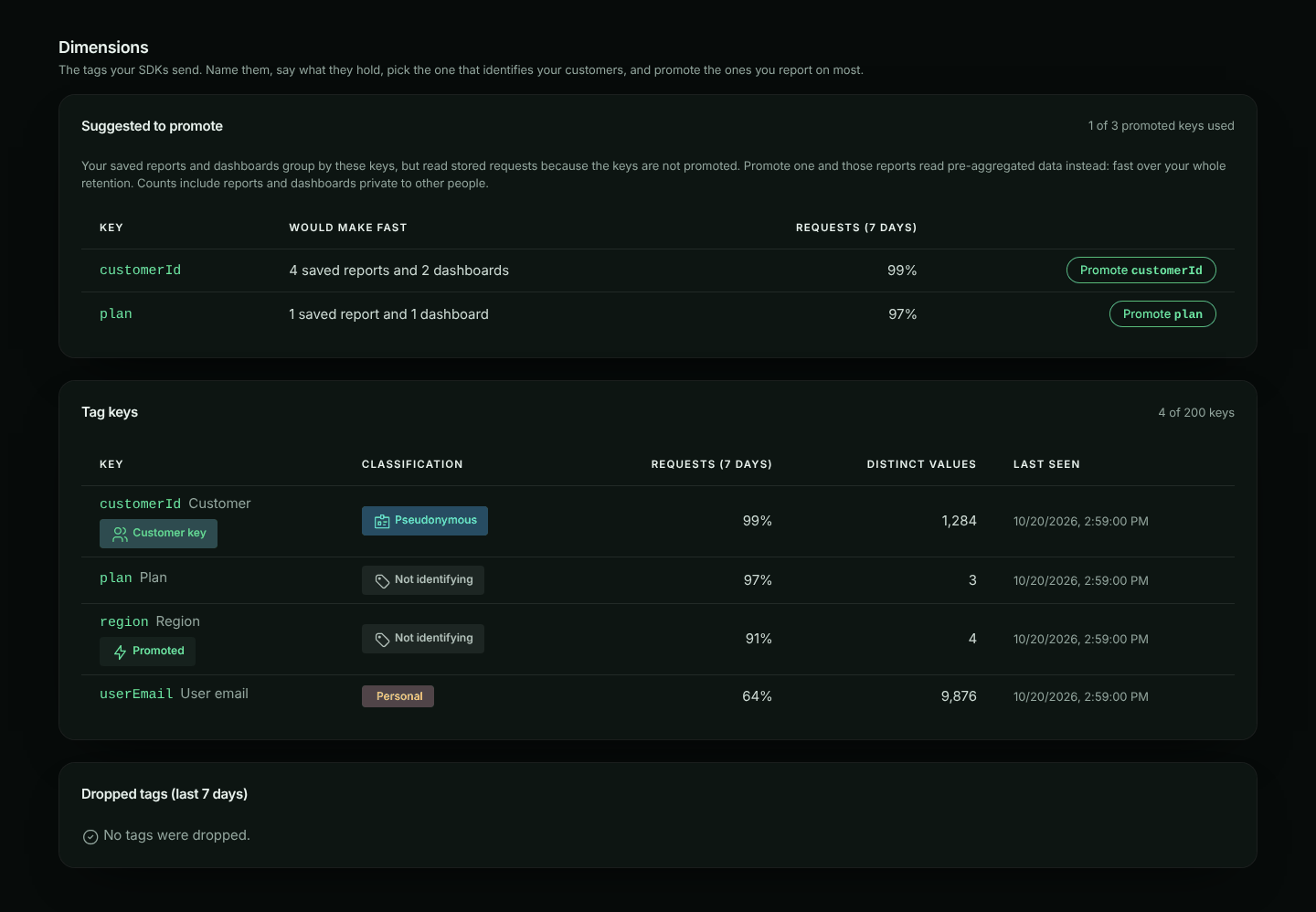
Owners and admins can click Promote next to a key. The key leaves the list, and a note says New traffic is fast within about two minutes; earlier history fills in as it is backfilled. Members see who can promote keys instead. The section appears when your plan includes Custom reports and there is something to suggest.
What happens after you promote
- New traffic is aggregated within about two minutes, minute by minute. Traffic from those first minutes is filled in with the history.
- History is filled in, newest day first, back to the oldest request your plan keeps. Fast reports shows how far it has got. Recent days are ready first, so you can use the key while older days are still being added.
- Top values, last 24 hours shows the key’s busiest values: requests, server error rate, and approximate p50 and p95 latency. Labels come from the catalogue.
What is kept. For each value, every minute: requests, errors and bytes by bucket, environment, direction, status class and exact status code; latency (in fixed buckets) by bucket, environment and direction; and requests and errors for its busiest endpoints by method, status class and status code. Reports use this to answer reports grouped by the key quickly. Exact status codes are kept from when this was added; older data has status classes only.
Approximate numbers. Latency percentiles come from fixed latency buckets, so they are shown with “≈”. The share of requests attributed to a value is shown under the table.
Other values. Each minute, the busiest values keep their own rows, and the rest are counted together as Other values. A key also has a daily limit of distinct values. Past it, the key shows a warning, and new values are counted as Other until the next day (UTC).
How long aggregates are kept. 13 months on Business and Enterprise plans, so you can compare year over year. On other plans they are kept as long as your requests. Keys classified Personal are always kept only as long as your requests.
Accuracy. Each night, the previous day’s totals are checked against the stored requests and corrected if they differ by more than 0.1%. Latency percentiles are not corrected.
When you demote a key, aggregation stops and existing aggregates expire with retention. If you promote it again, only the time its aggregates don’t already cover is filled in, so nothing is counted twice.
The customer catalogue
The catalogue gives values readable names and attributes, so a report shows “Acme Corp” instead of org_8f2a. Attributes such as plan or region can be reported on like tags. Only owners and admins can change the catalogue.
On a key’s page, under Catalogue:
- Search values and labels.
- Add or replace one entry: enter its Value and Label.
- Remove an entry (you confirm first). This removes the label and attributes, not the traffic.
- Upload CSV to add or replace many entries at once.
Uploading a CSV
The first row names the columns. value is required, label is optional, and every other column becomes an attribute:
value,label,plan,region
org_8f2a,Acme Corp,enterprise,eu
org_91bc,Globex,pro,us
- Click Upload CSV and choose the file (up to 5 MB and 50,000 rows).
- ApiTraffic checks every row first, without saving anything. It shows how many rows are ready, the first 20 rows, and each row it will skip, with its line number and why.
- Click Upload N rows to save the valid rows, all at once. Existing values are replaced. If the file would take the catalogue past its limit, nothing is saved.
Limits: labels up to 255 characters; up to 20 attributes per value, 4 KB in all; attribute names follow the key rules above; up to 1,000,000 catalogue entries per account. To fill the catalogue from your own systems, use the Dimensions API.
Common problems
A key doesn’t appear. Keys appear within a minute of the first request that carries them. If Dropped tags lists the key, it broke a rule. If you see the warning about keys past the 200-key limit, an id is probably in a key name.
Distinct values show a dash. The counts come from a nightly scan; new keys get them the next day.
Values show as d***. The key is classified Personal and your role may not view personal tags. You see the first entries only, and cannot search them. Ask an admin.
Promote is missing. Only owners and admins can promote, and your plan must include Custom reports. If you see Your plan’s allowance of promoted tag keys is used up, every promoted-key slot is in use: demote a key, upgrade your plan, or contact us to raise the allowance for your account.