
Browse the request log
Browse every request ApiTraffic captured: the All, Inbound, Outbound, Errors and Captures views, what each row shows, time ranges and paging.
The request log lists every request ApiTraffic captured for a bucket, newest first. Use it to see exactly what was sent and returned, to spot failing or slow calls, and to start any investigation from a real request.
Request log views
The left navigation has five views of the same log. Each one is the log with a fixed filter already applied; any search you add is combined with it.
| View | Navigation | Shows | Built-in filter |
|---|---|---|---|
| All traffic | Observe → All Traffic | Every request, in both directions | capture == false |
| Inbound | Observe → Inbound Traffic | Requests your API received | capture == false AND direction == in |
| Outbound | Observe → Outbound Traffic | Calls your application made to other APIs | capture == false AND direction == out |
| Errors | Observe → Errors | Requests answered with a status code of 400 or higher | capture == false AND status_code >= 400 |
| Captures | Workspace → Captures | Requests sent to the bucket’s capture URL | capture == true |
Outbound requests appear only when your SDK records outbound calls. See Outbound requests.
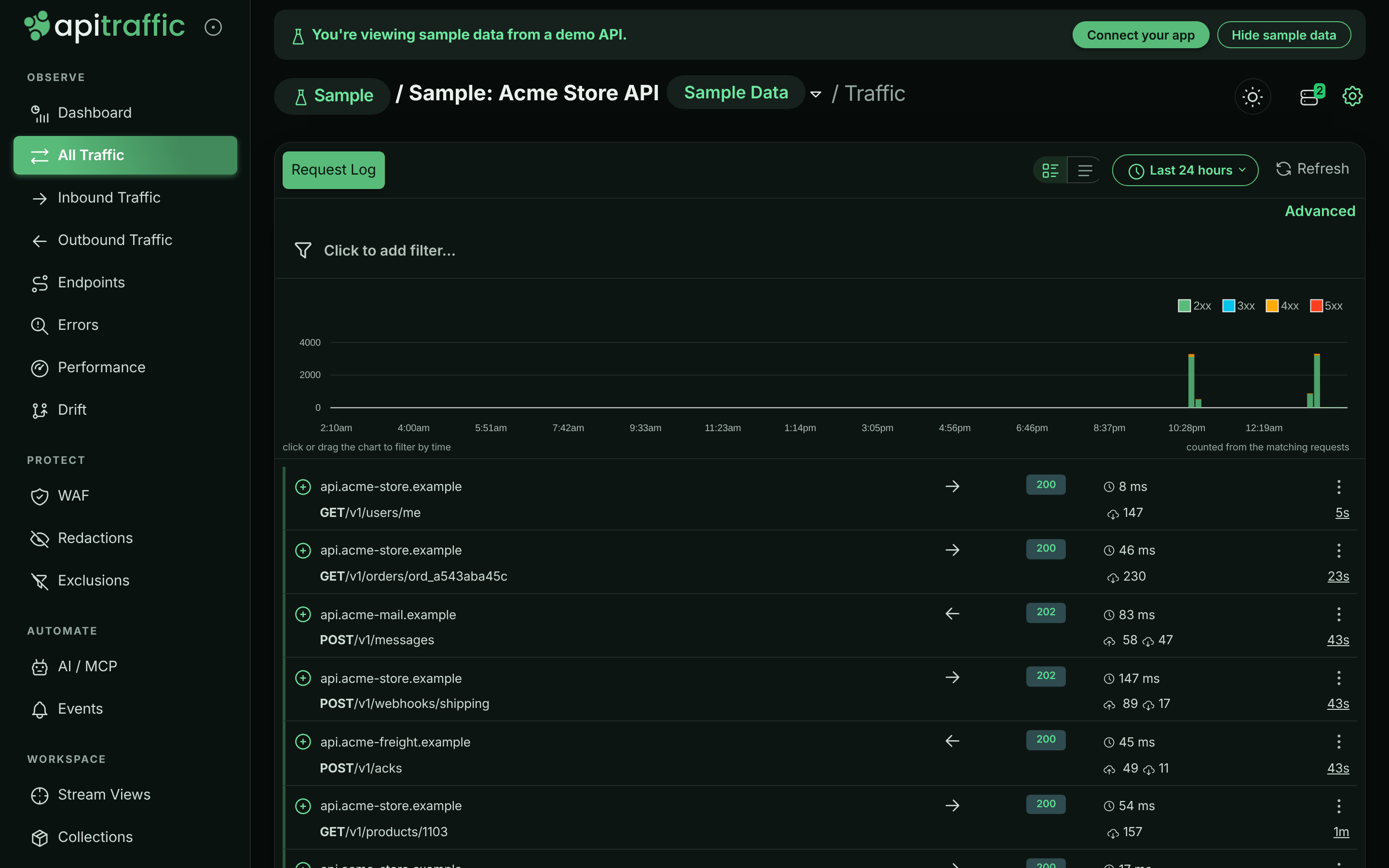
All Traffic for the sample bucket.
What each row shows
Each row has two lines. The colored left edge shows the outcome at a glance: green for 2xx and 3xx, amber for 4xx, red for 5xx, and a separate color for requests the firewall blocked.
First line
- The expand button, then the host the request was sent to.
- The direction: an arrow pointing right for inbound, left for outbound.
- The status code, colored by class. A shield replaces it when the firewall blocked the request.
- The duration in milliseconds. For long-lived connections such as Server-Sent Events, a Stream badge, how long the connection was open, and the time to first byte (TTFB) when the SDK reports it. Streams are left out of response-time metrics; see Long-lived connections.
- The actions menu (⋮).
Second line
- The method and path, followed by the query string in lighter text.
- A shield icon when the firewall matched the request. Hover it for the decision and rule.
- The request and response sizes in bytes.
- How long ago the request was received.
Use the density buttons at the top right of the log to switch between Comfortable rows and Compact rows. Your choice is remembered in this browser.
Open a request
Select the expand button at the start of a row to open the request in place, with tabs for the request, the response, timings, the firewall decision, related requests, tags, spans and more. See Request details.
The actions menu (⋮) on each row offers:
| Action | What it does | Availability |
|---|---|---|
| Copy Request | Generate code that replays the request. | Everyone |
| Find Similar | Build a search from this request’s facets. | Everyone |
| Add to Collection | Save the request into a collection. | Plans with Collections |
| Add to WAF | Block this path, client IP or user agent, or add a false-positive exclusion. | Owners and admins, plans with the Web application firewall, inbound requests only |
| Share | Create a public link to the request. | Plans with Share links |
These actions are described in Request details. The sample bucket is read-only, so it offers only Copy Request and Find Similar.
Time range
The time range picker sits at the top right of the log, next to Refresh. It applies to both the list and the status code chart. The default is Last 24 hours.
Relative presets and a custom range.
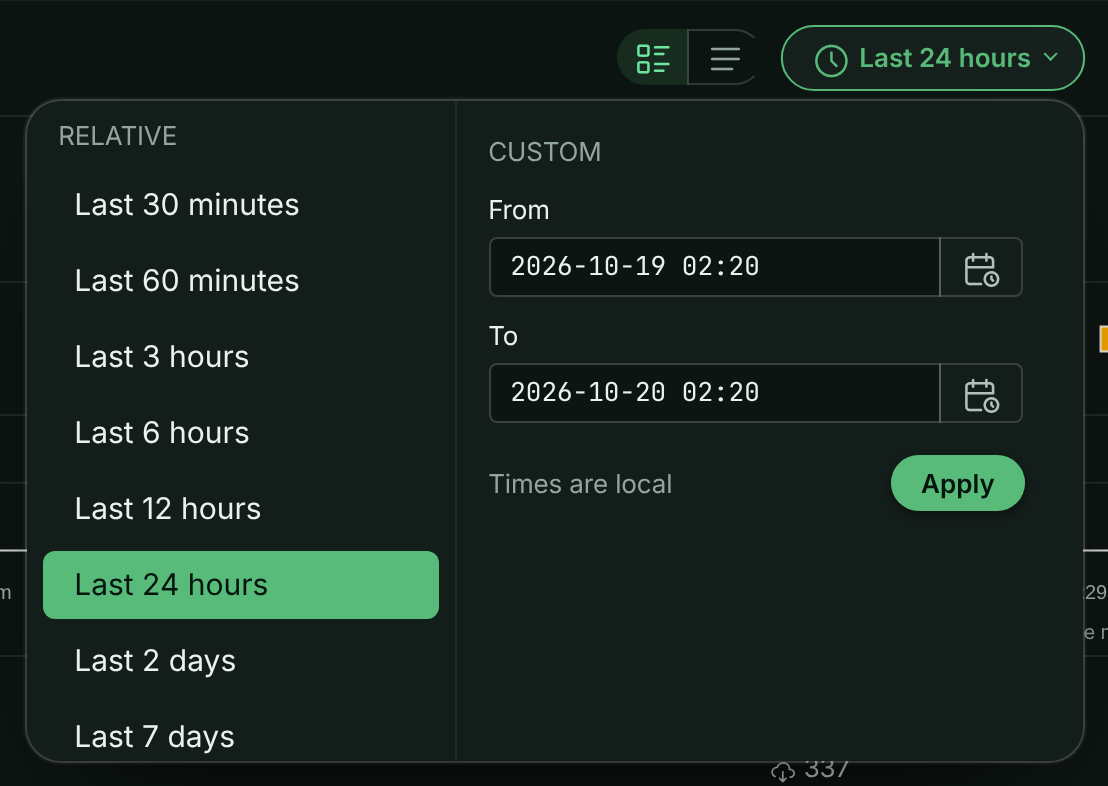
- Relative: Last 30 minutes, Last 60 minutes, Last 3 hours, Last 6 hours, Last 12 hours, Last 24 hours, Last 2 days, Last 7 days, Last 14 days, Last 30 days, or Everything.
- Custom: set From, To or both, then select Apply. Times are in your local time zone. Leave From empty to start at the beginning of your data, or To empty to run up to now. From must be before To.
You can only search as far back as your plan’s retention allows, whatever range you choose. With Everything, the status code chart covers the last 30 days.
Zoom in from the chart
The status code chart above the log stacks request counts by status class (2xx, 3xx, 4xx, 5xx) over the selected range, for the same filters as the list. Select a column to narrow the range to that interval, or drag across the chart to select a span. The list reloads for the new range. Select clear the selected range under the chart to go back to the preset you started from.
When a filter can’t be answered from pre-aggregated metrics, the chart counts the matching requests directly and says counted from the matching requests. Use the Events switch to overlay deployment and incident markers.
Load more and refresh
The log loads 50 requests at a time. Scroll to the bottom to load the next 50; the log keeps loading as you scroll until there are no more matches in the range.
The log doesn’t update itself while you read it. Select Refresh to load the newest requests for the current filters and range. For a view that refreshes on its own, use the dashboard with auto-reload on.
If part of the search could not be answered, the log says Older (archived) requests could not be searched; results may be incomplete. The rows shown are real, but older matches may be missing.
Filter the log
Add filters with the filter builder above the chart, or switch to Advanced to type a query. For example, status_code >= 500 AND url_path like "/v1/payments/*" shows failed payment calls. The full language, with every field and many examples, is in Search and filter requests.
Once you have filters applied, two more tabs appear next to Request Log:
- Create View: save the filters as a stream view.
- Add Exclusion: stop capturing matching requests. See Exclusions.
Neither is offered on the read-only sample bucket.
Captures
A capture is a request sent straight to your bucket’s capture URL instead of to an API. ApiTraffic records the request and answers it itself, so nothing is forwarded anywhere. Use captures to inspect payloads you can’t easily log, such as webhooks from a third-party service: point the webhook at the capture URL and read what arrives.
Captures have a request but no response, so the Captures view has no status code chart, and an opened capture shows only its Request tab.
Open Captures
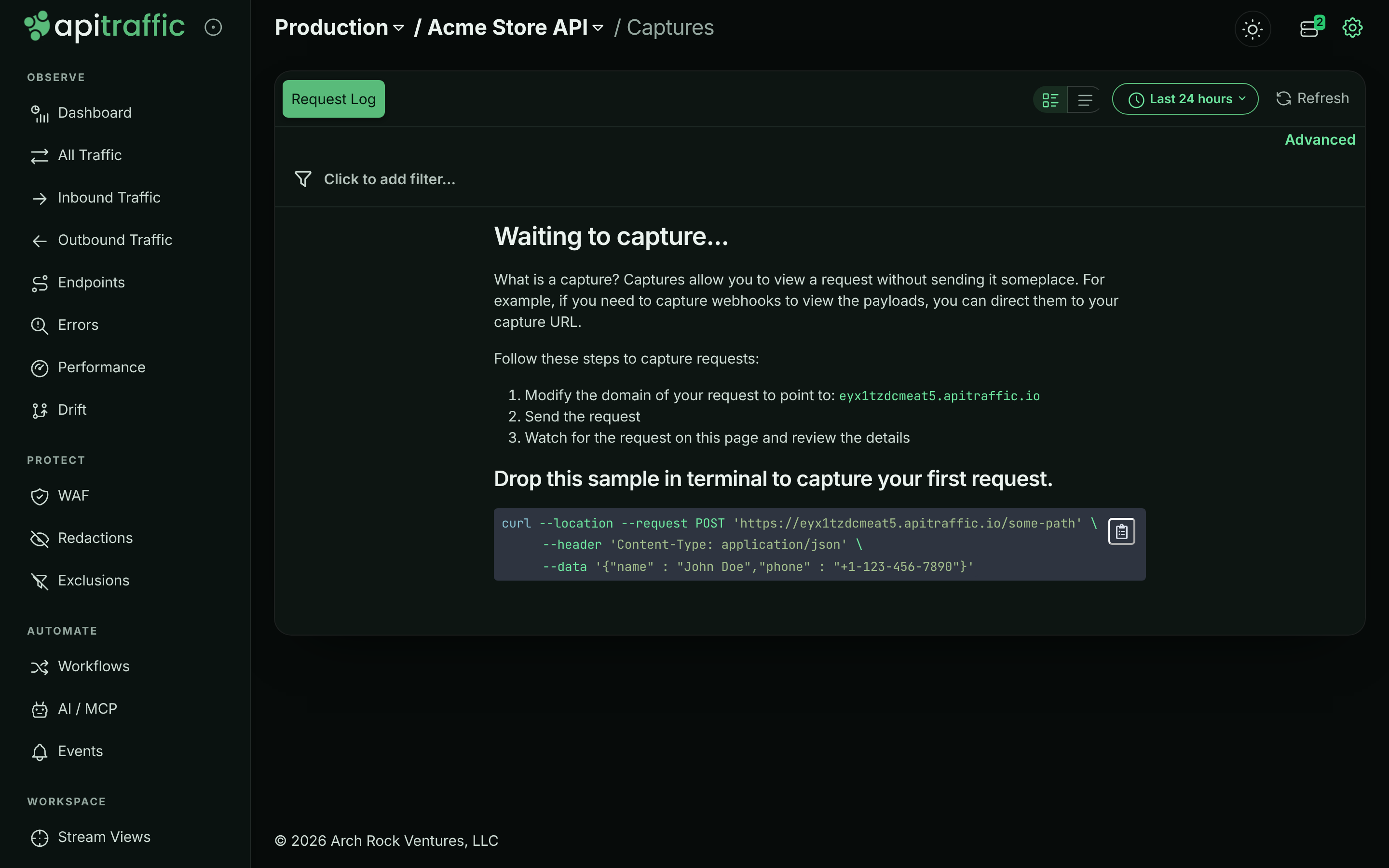
Choose Workspace → Captures in your own bucket. While the bucket has no captures, the page shows Waiting to capture… with your capture domain and a sample curl command.
Send a request to the capture domain
Change only the host of the request. The capture domain is your bucket id followed by your environment id, under apitraffic.io, and the page shows it ready to copy. Any method, path, headers and body are recorded.
curl --location --request POST 'https://<bucket-and-environment-id>.apitraffic.io/some-path' \
  --header 'Content-Type: application/json' \
  --data '{"name" : "Jordan Lee","email" : "[email protected]"}'
ApiTraffic answers 200 with the body Request Captured and an Api-Traffic-Request-Sid header carrying the captured request’s id.
Review the capture
The request appears in the Captures view. Expand it to see its URL, headers and body.
An empty Captures view with the bucket’s capture domain.
Note: The sample bucket can’t receive captures, so Captures is left out of its navigation. Use one of your own buckets.
Warning: Anyone who knows the capture domain can send requests to it. Share the domain only where you need it, and use redaction rules if the payloads carry secrets.
Troubleshooting
The log is empty
Check the time range and the environment selector first. If a filter is applied, the log says No requests matched and shows the query; select Clear filters. If the bucket has never received traffic, it shows the setup steps instead.
I don’t see outbound requests
The SDK records outbound calls only when outbound capture is on. See Outbound requests.
New requests aren’t appearing
The log doesn’t stream new rows. Select Refresh to load requests that arrived since the log was loaded.
That search could not be run
The query was rejected, for example because of an unknown field or a missing operator. The message under the filter builder says which condition is wrong. See Search and filter requests.
Related
-
Search and filter requests: Every field, operator and example query.
-
Request details: What each tab of an opened request shows.
-
Stream views: Save a search and share it with your team.
-
Exclusions: Stop capturing traffic you don’t need.