
Performance analytics
Use the Performance pages to find the endpoint, query, dependency or line of code that costs your API the most time, and what changed after a deploy.
Once APM is enabled, the Performance section of a bucket answers three questions: is anything slow, and where does the time go, which query, call or line of code is responsible, and did it get slower after a change. Everything is scoped to the bucket and environment selected in the header and to the period you pick on the page.
To ask your own questions of the same spans (group operations by peer, version or calling endpoint, compare with last week, save the answer or put it on a dashboard), build a span report.
Before you begin
- Your app sends spans to ApiTraffic. See Set up APM. Until the bucket has received traffic from a connected app, Performance shows the setup guide.
- Your plan includes APM. Without it, Performance shows an upgrade prompt. The sample bucket always shows Performance. See Sample data.
- Any team member can use these pages; nothing here changes data.
Open Performance
Select Performance in the bucket’s left navigation (under Observe). Each tab is a different way into the same data, and the selected tab is kept in the page address (?tab=), so you can bookmark or share a view.
| Tab | Answers |
|---|---|
| Overview | Is anything slow, and where does request time go? |
| Operations | Which query, host, database, endpoint or line of code costs the most? |
| Top Operations | The 50 most expensive queries and calls, ranked by the server, with a drill-down page each |
| Endpoints | Your own endpoints, or the endpoints you call on other services, ranked by cost |
| Dependencies | Latency and failures of every database, cache, API and queue you depend on |
| Regressions | What got slower after a deploy or another point in time |
| Servers | Whether a slow period lines up with CPU, event-loop or memory pressure on your servers |
Every tab has a period picker (Past 15 min up to Past 7 days) and a reload button.
Overview
The Overview tab reads per-request rollups rather than individual spans, so it stays fast at any traffic volume.
Service Performance summarizes the period: Requests, Error Rate, Latency (median, p95 and p99), Total Time, Waiting On Dependencies (the share of request time spent in instrumented dependencies) and Operations (spans recorded).
Time Breakdown charts where request time went over the period: Database, Cache, Outbound HTTP and Queue / RPC stacked under Application time (the time spent in your own code). Application time is what is left of the request duration after the instrumented work, never below zero, so a heavily parallel endpoint can show little or none. Use the markers toggle to show deploys and other events on the chart.
Endpoints By Time Consumed ranks endpoints by total time rather than average latency, with requests, errors, average and the dependency split for each. A 30 ms endpoint called a million times costs more than a 4 s endpoint called twice, and this ranking is what surfaces it.
Regressions lists endpoints whose p95 or error rate moved against a baseline, ranked by the time the change costs. Choose the baseline: vs previous period (the period just before the one selected) or vs same period last week, which suits traffic with a weekly shape. Low-traffic endpoints are ignored so noise from rarely called routes does not crowd out real changes.
Note: Regressions are calculated when you open the page. They do not send alerts. To be notified, use events and workflows.
Streams and long-lived connections
A streaming response stays open for as long as its client listens, so its duration measures how long the connection was open, not how long your server took. Responses sent as text/event-stream (Server-Sent Events) are marked as streams automatically. Mark other long-held connections, such as long polling, with Long-lived connection on an endpoint rule.
Streams count everywhere requests are counted - totals, throughput and error rates - but are left out of response-time metrics: average, median, p95 and p99 latency, slow operations and response-time charts. One stream held open for five minutes would otherwise outweigh thousands of ordinary requests. For a stream, the SDK’s time to first byte shows how quickly it started responding; it appears next to the open time in the request list and request details.
Operations
The Operations tab aggregates spans across requests and lets you choose how to group them with Group by:
| Group by | Answers |
|---|---|
| Query / Operation | Which individual query or command costs the most |
| Host / Connection | Which database host or external service you spend time on |
| Database | Which database or schema is busiest |
| System | How much time goes to Postgres, Redis, Kafka and so on |
| Type | The overall split by kind of work |
| Inbound Endpoint | Which of your endpoints issue the most dependency work |
| Outbound Endpoint | Which endpoint on another service you spend the most time calling |
| Outbound Path (All Hosts) | The same destination path across every host that serves it |
| Outbound Status | How outbound calls ended: 2xx, 3xx, 4xx, 5xx, or no response at all |
| Code Location | Which line of your code issues the most dependency work |
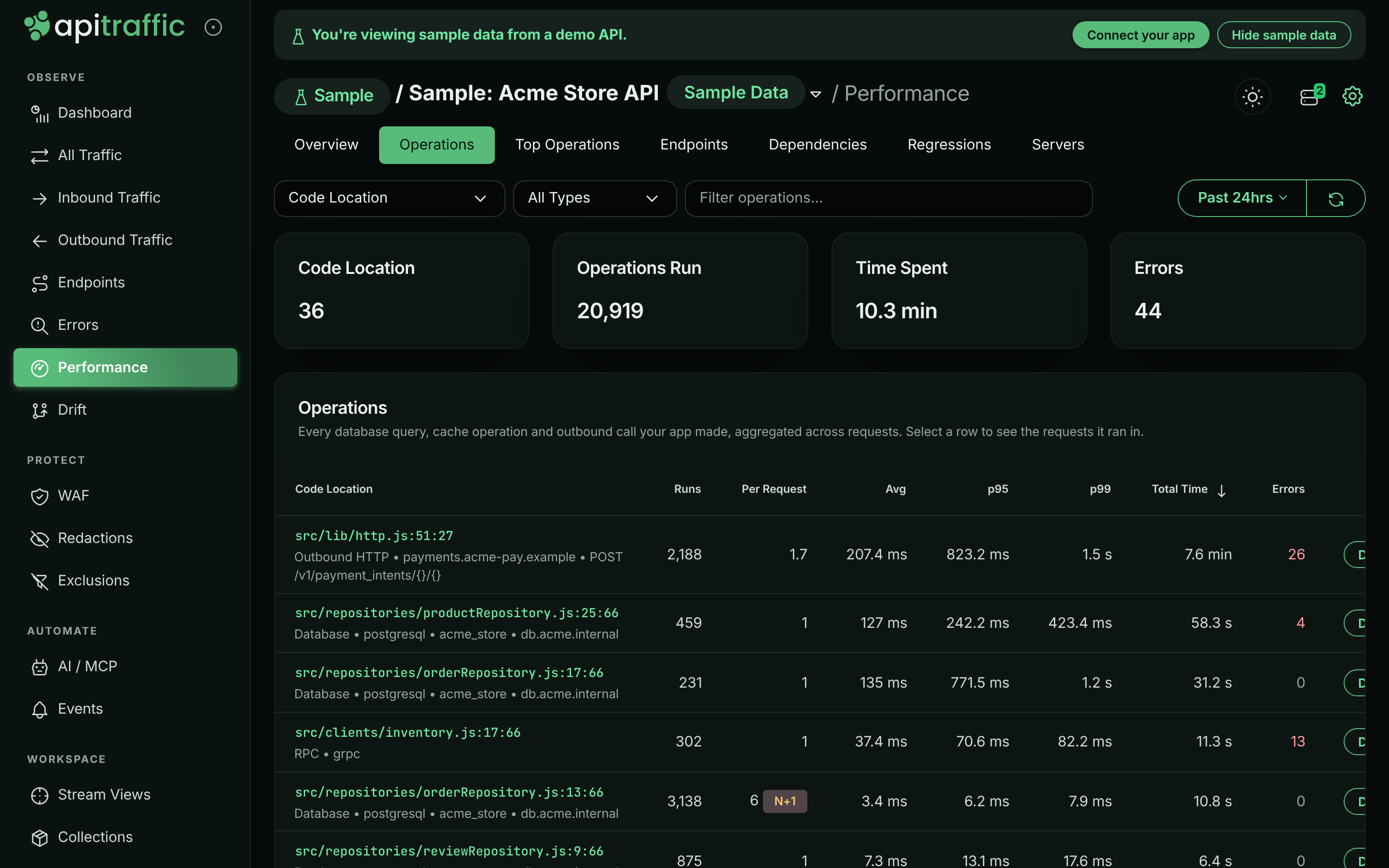
Narrow the list with the span type selector (All Types, Database, Redis, Cache, Outbound HTTP, Queue, GraphQL, Custom) and the Filter operations… box. Each row shows Runs, Per Request, Avg, p95, p99, Total Time and Errors, and any column can be sorted. Total Time is usually the right sort: it is what your users actually wait for.
Rows that run many times per request (five or more per request, across at least ten runs) are badged N+1: the classic symptom of a query issued inside a loop, individually fast and collectively slow.
Code location
Because code location capture is on by default, every row carries the file, line and function that issued the operation, and Code Location ranks your own source lines by the time they spend waiting on dependencies. Groups recorded while capture was off read (no code location captured).
Inbound and outbound endpoints
The two endpoint groupings answer opposite questions and are never mixed. Inbound Endpoint is your own endpoint - the request that made the calls. Outbound Endpoint is the endpoint on the service you called, normalized the same way your own paths are and qualified by the host, so POST payments.acme-pay.example /v1/payment_intents/{payment_intent_id}/capture never collapses into the same row as the same path on another provider. Selecting an outbound grouping limits the report to outbound HTTP, since a database or cache span has no destination endpoint. Outbound endpoint rules scoped to a host apply here, so you control how a vendor’s paths are grouped.
Upstream failures
Outbound groupings add an Upstream Failures column: the share of the group’s calls that returned 5xx or never got a response, with the 5xx, no-response and 4xx counts underneath. 4xx is deliberately left out of the rate: a 401 or 404 is normally your request being wrong rather than the dependency failing. A call that timed out, was refused or failed DNS has no status at all; it is reported as No response and counted separately from 5xx.
Sort an outbound grouping by Upstream Failures to see which dependency is failing now. In the sample data, /v1/payment_intents/{payment_intent_id}/capture on payments.acme-pay.example stands out, most of all during the daily 14:00–14:40 (UTC) incident, when it returns 503s.
Operation details
Select Details on a row to open the operation: full statistics (runs, requests, runs per request, errors, average and percentiles, total time, type, system, host, database, endpoints, code location, last seen), the statement, a sample stack trace, a Trend chart of runs, errors and latency over time, and the Requests it ran in. Select a request to open it and inspect its whole waterfall.
Operations grouped by code location: the order-items query is badged N+1.
Top Operations
Top Operations lists the 50 most expensive queries and calls, ranked by the server. Choose Rank by - Total time, p95, p99, Calls, Calls per request (N+1), Error rate or Regression - and optionally a Type. Each row shows calls, calls per request, p50, p95, p99, total and error rate. Select an operation to open its drill-down page.
Ranking by Regression adds a Compare around picker and a p95 change column (see Regressions).
When your account does not store database query text, queries are labeled by operation and table (for example SELECT order_items) and read Query text not stored for this account.
Endpoints
Endpoints ranks endpoints by the same measures (without calls per request). Switch between Inbound (your app’s own endpoints) and Outbound (calls your app makes to other services). The Errors column shows the error rate, with the number of 4xx responses underneath. Select an endpoint to open its drill-down page.
Dependencies
Dependencies shows the latency and failures of every system your app calls. Choose Per Peer (host / database) or Target (table / route), a Rank by and a Type. The Errors column breaks failures down by class: timeout, refused, DNS, 5xx, 4xx, exception and cancelled.
Regressions
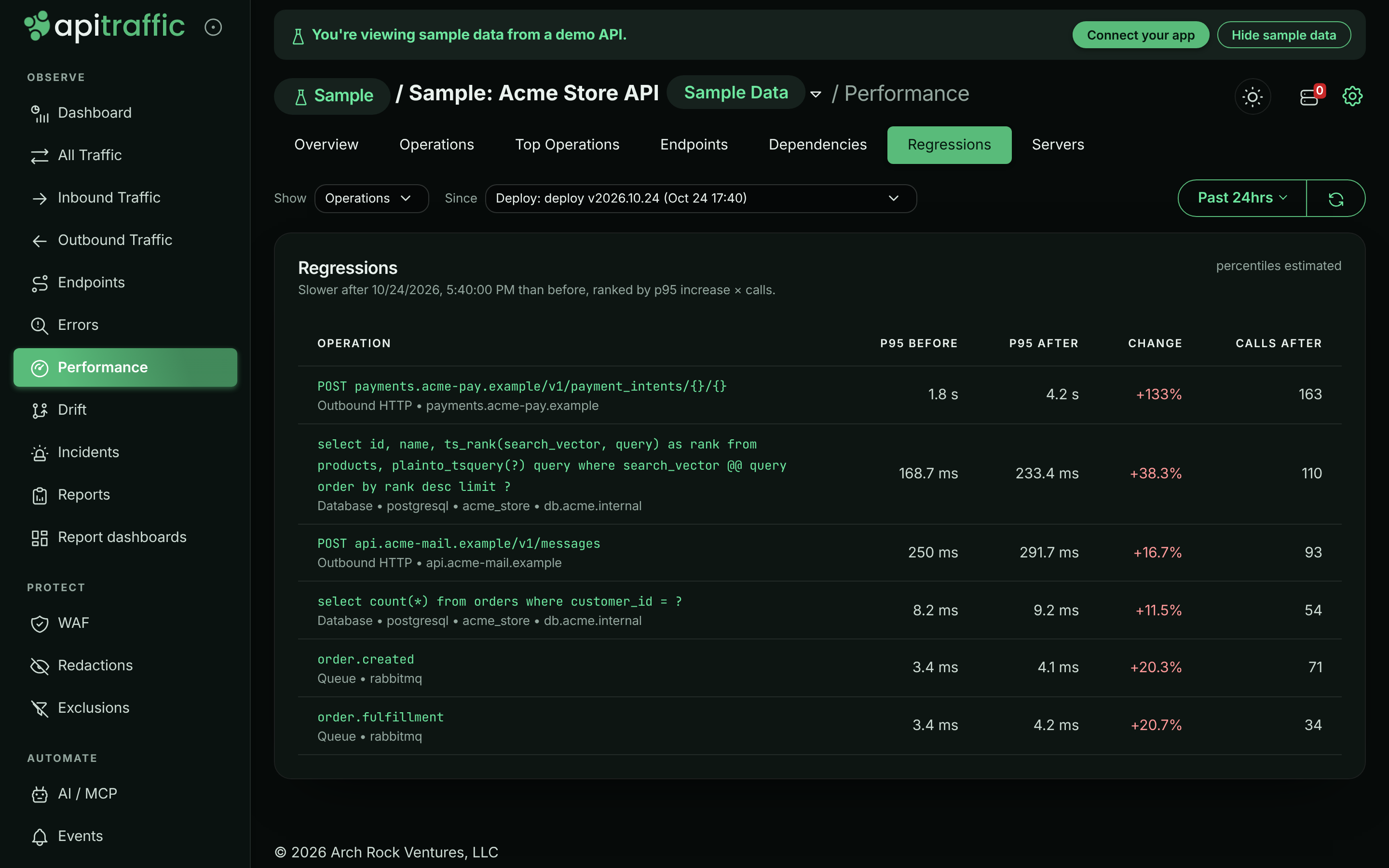
Regressions finds operations or endpoints that got slower after a point in time and ranks them by p95 increase multiplied by calls, so a small slowdown on a hot path outranks a large one on a rarely used route.
Choose what to compare
Under Show, pick Operations or Endpoints (with Inbound or Outbound for endpoints).
Choose the pivot
Under Since, pick a deploy or other event in the period (the sample data has a daily deploy v{yyyy}.{m}.{d} marker), Pick a time…, or leave Middle of the readable period.
Read the ranking
Each row shows p95 before, p95 after, Change and Calls after. Select a row to open its drill-down page on the same comparison.
Regressions ranked around the day’s deploy marker.
Drill-down pages
Selecting an operation or endpoint from Top Operations, Endpoints or Regressions opens a page for it. Back to performance returns you to the list exactly as you left it. Every panel follows the period picker:
- Latency trend: p50, p95 and p99 per time bucket, with deploy and event markers.
- Latency heatmap: calls per time bucket and latency band, which shows a bimodal or drifting latency that percentiles hide.
- Before vs after: the distribution of calls by latency on each side of the pivot, with calls and error rate, and a verdict: Slower, Faster, No significant change or Not enough data. Enter a deployed version in Version (optional) to split by version instead of by time.
- Slowest examples: real requests that ran the operation, with duration, endpoint, outcome and version. Open one to see its waterfall.
An operation’s page also shows its type, system, database, host, code location, the version it was first seen in, a Sample call stack, and Endpoints that run it - select one to scope the page to that endpoint.
Percentiles are labeled by how they were computed: estimated (within a few percent), exact, or bucketed (interpolated from latency bands). When a period reaches further back than a panel can read, the panel says which part of the period it covers.
Servers
When nothing in the queries or calls explains a slow period, the machine may be the cause. Servers lines up requests with server health - Requests, p95, Errors, CPU, Loop delay and Heap for each time slice - so you can see whether latency follows CPU or event-loop pressure. It needs host telemetry; see Servers and host telemetry.
Find an N+1 query
This walk-through uses the sample data, where GET /v1/orders/{order_id} runs one query per order line item.
Rank operations by calls per request
Open Performance → Top Operations and set Rank by to Calls per request (N+1). SELECT order_items is at the top with an N+1 badge.
Find the code that issues it
Open the operation. Code location points at src/repositories/orderRepository.js (findItems), and Sample call stack shows it is called from src/routes/orders.js (getOrder).
Confirm on a real request
Under Slowest examples, open a request. Its waterfall shows the repeated queries one after another.
Fix and compare
After you ship a fix (for example, one query with WHERE order_id IN (...)), open Regressions or the operation’s Before vs after around the deploy to confirm the change.
Inside a request
Open any request in the traffic log to see the same data for one request.
- Waterfall: every span on a timeline, positioned by when it started and sized by duration, with failed operations marked. The bar above it splits this request’s time across Database, Cache, Outbound HTTP, Queue / RPC and Application. Selecting a span shows its duration, start and end offsets, share of the request, and everything the instrumentation recorded - operation, system, database, table, host, URL, status, rows, code location and stack trace. Statements and parameters are shown as code. Anything an instrumentation attached that has no label is still shown under its own key.
- Distributed Trace: every request that shares this request’s trace id, in time order, with status, duration and span count. See Distributed traces.
When a Git integration has linked a deploy to the request, the code location links to the file at the commit that was running.
Troubleshooting
The page shows an upgrade prompt
Your plan does not include APM. See Account → Plan, or explore the sample data, which always includes it.
Operations says no operation data has been received
The bucket receives requests but no spans. Check that APM is started in every process that serves the bucket. See Set up APM.
Rows read (no code location captured)
Those spans were recorded while code location capture was off for the bucket, or by an app that set captureCallSite: false. See Code location.
Queries are labeled SELECT table instead of the full statement
Your account does not store database query text. An owner or admin can turn on Database query text.
The pivot I chose is ignored
A pivot must fall inside the selected period. When it does not, the page says so and compares around the middle of the period instead.
Related
-
APM API: Time breakdown, endpoint ranking, regressions and trace lookup.
-
Spans API: Operation reports, trends and drill-back to requests.
-
APM capture settings: Code location, query text, parameters and Redis keys.
-
Endpoint rules: Name endpoints and mark long-lived connections.