
Purge data or close your account
Clear your account's data, up to a complete reset, or close the account and have its data deleted 30 days later.
The Danger zone lets the account owner do two things that can’t be undone:
- Purge data: delete the captured traffic and, if you choose, saved work, rules and settings, and automations. Choose all four for a complete reset. The account stays open.
- Close account: end the subscription, stop all access and capture, and have all of the account’s data deleted 30 days later.
Who can do this
Only the account owner can purge data or close the account. Other team members see the purge history, under Data purges and closes, but not the controls.
These actions need you to be signed in as the owner. They can’t be done with an API token or from a support session. If you need ApiTraffic support to do it for you, contact us.
Where to find it
Go to Account → Profile and scroll to Danger zone.
The Danger zone at the bottom of the Profile tab.
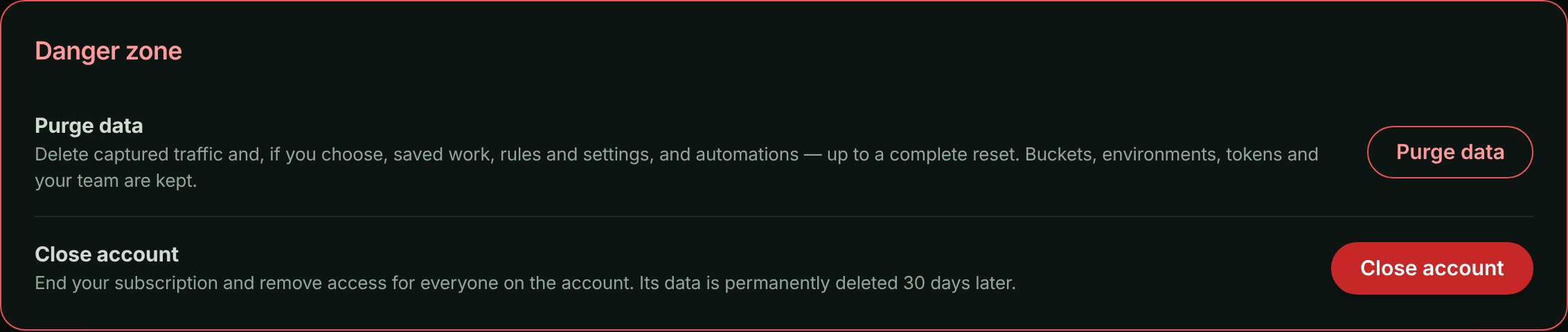
If your account has no active plan (your trial ended or your subscription was cancelled), the app keeps you on the Billing page. The Danger zone appears at the bottom of Account → Billing instead, so you can still delete your data or close the account.
Purge data
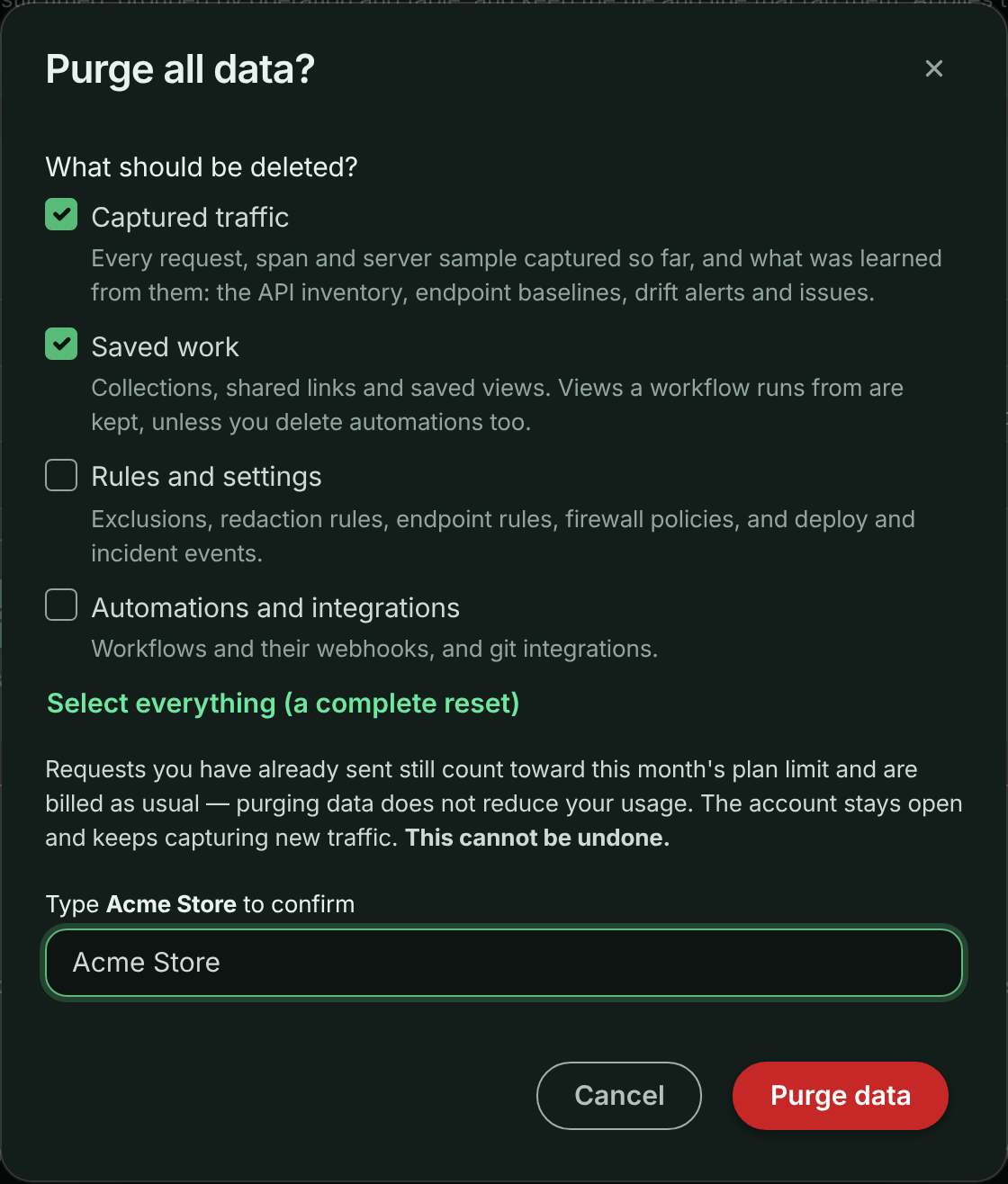
A purge deletes the kinds of data you choose, as they are when you confirm it:
| Kind | What’s deleted |
|---|---|
| Captured traffic | Every request (with its headers and bodies, its client IP address, as the account’s client IP address setting kept it, and the country it was located in), span and server sample, and their stored copies. Also what was learned from them: the API inventory (learned endpoint parameters), endpoint baselines, drift findings and issues, and captured SQL statements and call stacks in the APM fingerprint list. |
| Saved work | Collections, shared request and collection links, stream views, saved reports and dashboards. Stream views that a workflow runs from are kept, so the workflow keeps working, unless you also delete Automations and integrations. |
| Rules and settings | Exclusions, redaction rules, endpoint rules, firewall policies and block responses, and deploy and incident events. |
| Automations and integrations | Workflows, with their webhooks and automation flows, and Git integrations. Webhooks that were set up in your Git provider are removed. |
Choose all four for a complete reset: the account is left as it was when you created it, except for what’s always kept.
A purge always keeps:
- Your buckets, environments, API and MCP tokens, and team, so your installed SDKs keep capturing.
- Your plan, billing and usage history, and the account history.
Warning: If you delete Rules and settings, your redaction and exclusion rules go too. Traffic captured afterwards is stored without them until you add them again.
Purging doesn’t change your usage
Requests you’ve already sent still count toward this month’s plan limit, and are billed as usual. Purging deletes the data, not the usage. Your usage numbers on Account → Usage and your invoices stay the same.
On the Usage page, requests from the days up to a purge can’t be broken down by bucket any more, because that breakdown is read from the captured traffic. They’re shown as Not attributed. The monthly total doesn’t change.
Steps
Start the purge
In Danger zone, select Purge data. Purge all data? opens.
Choose what to delete
Under What should be deleted?, choose the kinds of data. Captured traffic is selected to start with. Select Select everything (a complete reset) to choose all four.
Choose what to purge and type the account name.
Confirm
Type your account name exactly as shown, then select Purge data.
Captured traffic is replaced with an empty store straight away. Its stored copies are then deleted in the background, which can take from a few minutes to a few hours on a large account. Other kinds of data are deleted within a few minutes. Follow the progress in the purge history.
You can run one purge at a time. A purge is refused while the account’s data is under a legal or support hold.
Close account
Closing the account:
- Ends the subscription.
- Signs everyone out. Nobody on the team can sign in to the account again, and the API answers
410 Gonefor it. - Stops capture. Traffic your apps send for the account is dropped.
- Stops shared request links, shared collections and embeds from working.
- Permanently deletes all of the account’s data 30 days later: its captured traffic, saved work, rules and settings, and automations and integrations. Contact support within those 30 days if you closed the account by mistake.
Steps
Start
In Danger zone, select Close account. Close account? opens.
Choose when to close
Under When should the account close?, choose Close now and cancel my subscription immediately or Keep using it until the end of the paid period, then close.
Confirm
Type your account name exactly as shown, then select Close account.
If you close now, you’re signed out straight away. Any usage over your plan in the current period is billed on a final invoice, and unused time isn’t refunded. If you close at the end of the paid period, that period is billed as normal.
Closing at the end of the paid period
The account keeps working until the date your paid period ends. A notice in the Danger zone shows the date it will close.
To change your mind before then, select Keep my account in that notice. Resuming your subscription from the billing page, or starting a new paid subscription, also cancels the close.
An account on a free trial has no paid period to run out. To close it, choose Close now.
Purge history
The Danger zone lists every purge and close on the account:
| Column | What it shows |
|---|---|
| When | When it started, or when it’s scheduled for. |
| What | Data purge (with the kinds of data it deleted) or Account close, and the date range of the traffic it removed. |
| By | Who asked for it. |
| Requests removed | How many captured requests were deleted. |
| Data removed | How much stored data was deleted. |
| Status | Scheduled, In progress, Completed, Completed with errors, Failed or Cancelled. |
Completed with errors means most of the data was deleted, but some of it couldn’t be. For a closed account, deleting what was left is retried every day. Contact support for the details of a purge that completed with errors or failed.
Activity events
Each step is recorded in the account history as an account activity event:
account.data_purged: a purge started.account.close_scheduled: the account will close at the end of the paid period.account.close_cancelled: a scheduled close was cancelled.account.closed: the account closed.account.data_purge_completed: the stored copies were deleted.
See the event reference for the payload of each one.
Troubleshooting
| Message | What to do |
|---|---|
| Type the account name exactly to confirm. | The name you typed doesn’t match the account name. Copy it from the dialog. |
| A purge of this account’s data is already running. | Wait for the current purge to finish. Its progress is in the purge history. |
| This account’s data is on hold and cannot be deleted. Contact support. | The account’s data is under a hold. Contact support. |
| This account has no paid period to run out. Close it now instead. | The account is on a free trial. Choose Close now instead. |
| Billing could not be reached to cancel the subscription, so the account was not closed. Try again in a few minutes. | Nothing was changed. Try again in a few minutes. |
For the API behind these screens, see Account Data.
Related
-
Account Data API: Purge and close through the API.
-
Plan, usage and billing: Cancel a subscription without closing the account.
-
Account history: Every purge and close is recorded.
-
Buckets: Delete a single bucket instead.