
Create and manage API tokens
Create ingest tokens for your SDKs and API tokens for scripts, choose a role, replace and delete tokens, and keep them safe.
Tokens are how software talks to ApiTraffic: your SDK uses one to send traffic, scripts use one to call the REST API, and AI assistants use one to query your data over MCP. Each token belongs to one environment and carries a role that limits what it can do.
Token types
| Credential | Used by | Role and reach | Where to manage it |
|---|---|---|---|
| Ingest token | The SDK in your application | Sends traffic and reads the bucket’s SDK settings. Belongs to one environment. | Account → API Tokens, role Ingest |
| User token | Scripts and integrations that read or change data through the REST API | Acts as a member. | Account → API Tokens, role User |
| Administrator token | Scripts that manage credentials, rules or other admin settings, and servers that mint embed tokens | Acts as an admin. The only API token that can mint embed tokens. | Account → API Tokens, role Administrator |
| MCP token | AI assistants and unattended agents using the MCP server | Queries one environment and the buckets you choose. | Account → MCP Tokens |
| OAuth connection | MCP clients and apps that support OAuth (such as Claude) | Signs in as you, limited to the environment and buckets you approve. No token to copy. | Account → Connected Apps |
No token can do what only the account owner can do: billing, support access, purging data or closing the account. See Team and roles.
For OAuth connections, see Connected apps and OAuth. For MCP tokens, see MCP server.
Warning: Treat every token as a secret. An ingest token can’t read captured traffic or mint embed tokens, but whoever holds it can send traffic into your account and read the SDK’s settings. An Administrator token can do everything an admin can, including minting embed tokens that read the account’s captured traffic. Keep tokens out of browsers and public repositories, and replace one straight away if it’s exposed.
Before you begin
- Creating, deleting and changing tokens needs the owner or an admin. Members can see the token list. Token values are always masked once created.
- The environment the token is for must exist. See Manage environments.
- Your plan sets how many API tokens the account can have. Tokens created for workflows don’t count.
Open the API Tokens page
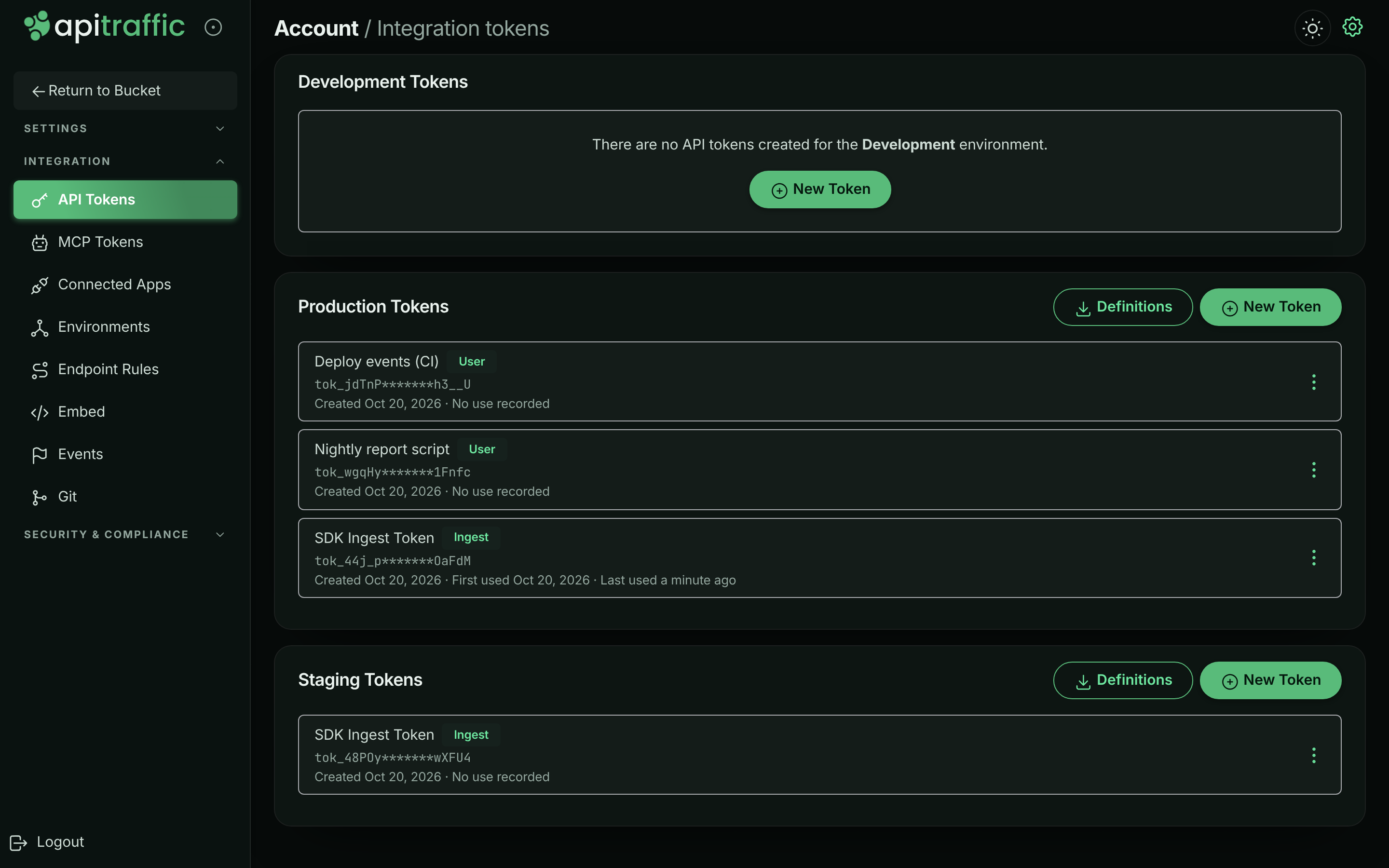
Select API Tokens under Integration in the account sidebar, or in the user menu. The page has a card per environment, titled with the environment’s name, for example Production Tokens.
Each token shows its name, role, a masked value (the first and last few characters), and when it was Created, First used and Last used. Hover over a date to see the exact time. No use recorded means ApiTraffic hasn’t recorded the token being used. Last used is updated every few minutes, not on every request.
API tokens, grouped by environment.
Create an API token
Choose the environment
On the API Tokens page, find the card for the environment the token is for, and select New Token.
Name it and choose a role
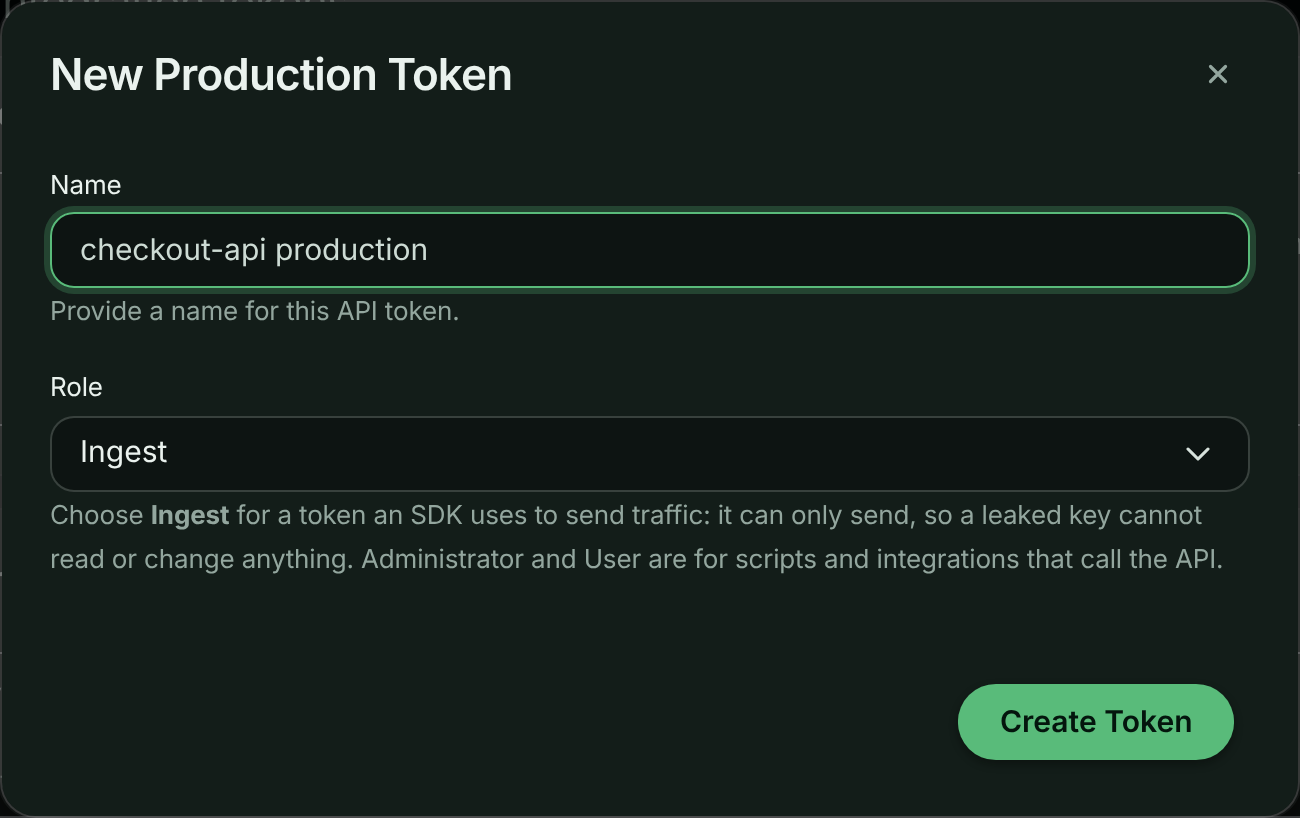
Enter a Name that says where it’s used, such as checkout-api production. Choose a Role:
- Ingest for an SDK that sends traffic.
- User for a script that calls the API with member permissions.
- Administrator for a script that needs admin permissions, or for a server that mints embed tokens (set it as
API_TRAFFIC_EMBED_TOKENfor the Node SDK).
Select Create Token.
Name the token and choose its role.
Copy the token
Token Created shows the full token. Select Copy Token and store it in your secret manager, then select Close.
The token value is shown once.
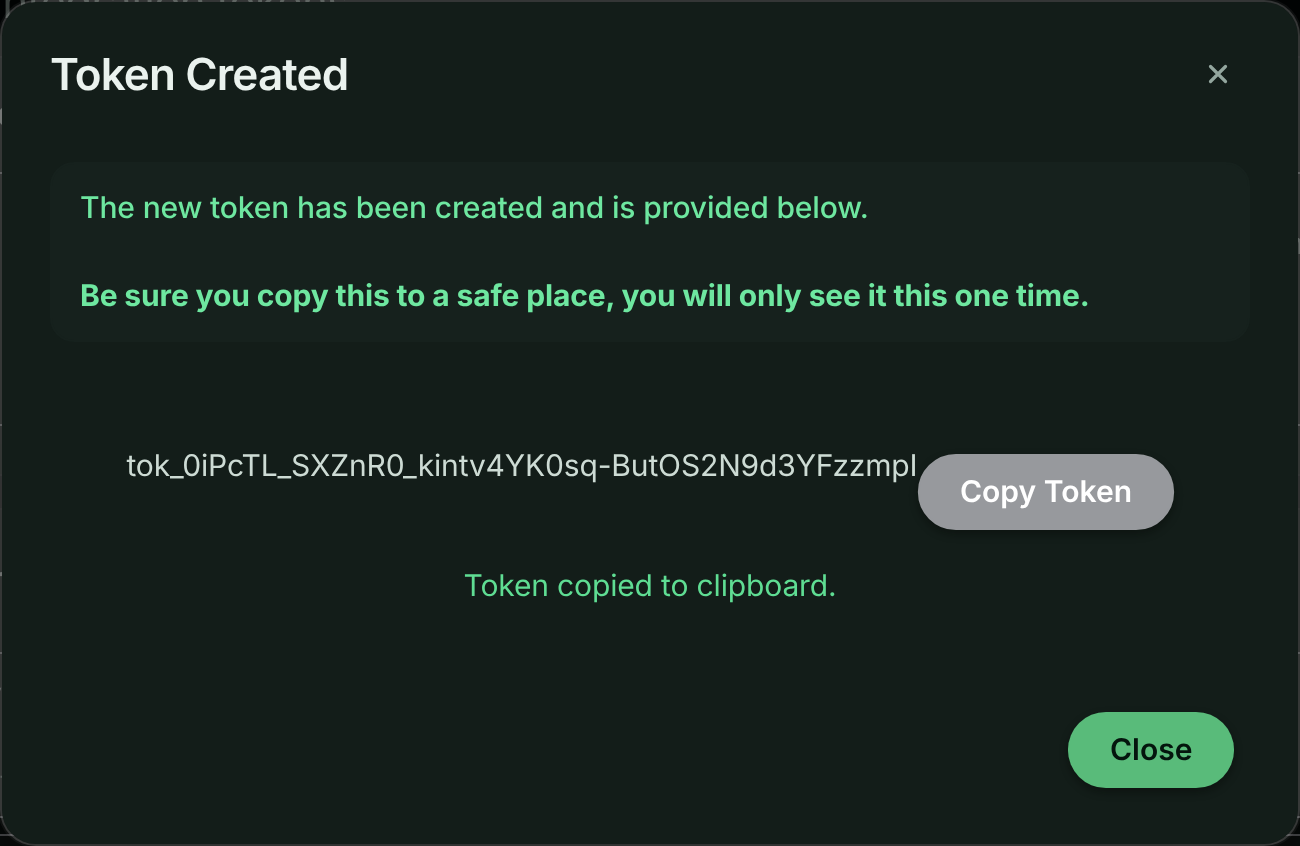
Warning: You see the full token only once. The dialog can’t be dismissed by clicking outside it, so you don’t lose the value by accident. After you close it, the list shows only a masked value.
New accounts start with an ingest token called SDK Ingest Token. The setup page for a new bucket can also create an ingest token for you (Create ingest token). See the Quickstart.
Use a token
Give an ingest token to the SDK, usually through an environment variable. See Configuration.
Send User and Administrator tokens as a bearer token in the Authorization header:
curl https://api.apitraffic.io/v1/accounts/$ACCOUNT_SID/buckets \
  -H "Authorization: Bearer $API_TRAFFIC_TOKEN"
See Authentication and the API tokens API.
Replace (rotate) a token
Tokens don’t expire, and a token’s value can’t be changed. To rotate one, replace it:
Create the new token
Create a token with the same environment and role, and a name that tells it apart, such as checkout-api production 2026-10.
Deploy it
Update the secret in every place that uses the old token, and deploy.
Check the new one is in use
On API Tokens, wait until the new token shows a Last used time, and the old one stops updating.
Delete the old token
Delete the old token as below.
If a token has been exposed, delete it first and accept a short gap in capture: an exposed token is worse than a few missing minutes.
A token’s name and role can be changed through the API tokens API; the app doesn’t have an edit control.
Limit a token to scopes
A User or Administrator token can be narrowed to scopes: named groups of actions, such as traffic:read or buckets:write. A scoped token can only do what its scopes cover and its role allows. A scope never adds anything its role can’t already do. Set scopes when you create or update a token through the API tokens API:
{ "name": "metrics exporter", "role": "user", "environmentSid": "a1b2c3", "scopes": ["traffic:read", "buckets:read"] }
Leave scopes out, or send null, for everything the role allows. An empty list isn’t accepted. That’s how tokens worked before scopes existed, and it’s how every existing token keeps working. When you update a token and leave scopes out, the token keeps the scopes it already has. Ingest tokens take no scopes. Scopes added to ApiTraffic later are never added to a token that already has a list.
| Scope | Covers |
|---|---|
account:read / account:write |
Account details, usage and activity / account settings, MFA policy and reindexing (settings and MFA policy need Administrator) |
environments:read / environments:write |
Environments |
buckets:read / buckets:write |
Buckets and their settings |
traffic:read / traffic:write |
Captured requests, metrics, spans, endpoints, dimensions, attention signals, drift findings, and reading saved reports and dashboards / annotating, sharing, resending and deleting requests, and triaging signals and findings |
traffic:sensitive |
Values classified as personal, unmasked (needs Administrator) |
endpoints:read / endpoints:write |
Endpoint rules |
dimensions:write |
Promoting, classifying and cataloguing tag dimensions |
collections:read / collections:write |
Request collections |
views:read / views:write |
Stream views / creating and changing stream views, saved reports and dashboards |
events:read / events:write |
Deployment markers and other events |
waf:read / waf:write |
Firewall policies and block responses (write needs Administrator) |
privacy:read / privacy:write |
Redactions and exclusions (write needs Administrator) |
alerts:read / alerts:write |
Incidents, silences, notification channels and routes |
workflows:read / workflows:write |
Workflows / changing and deleting workflows (creating them and the workflow editor need a token without scopes for now) |
integrations:read / integrations:write |
Git providers, linked repositories and webhooks |
credentials:read / credentials:write |
Listing API tokens, MCP tokens and connected apps / creating, changing and deleting API tokens (write needs Administrator) |
sdk:read |
The settings an SDK fetches for its bucket |
Actions only a signed-in person can take, such as changing a password, managing MFA or billing, or approving an application, aren’t in any scope. Any token can call GET /v1/authentication/verify to check itself, whatever its scopes. Anything that shows captured requests also needs traffic:read: sharing or resending a request, reading or changing a collection, and listing the requests of a stream view or a workflow.
A scoped token with credentials:write can only create or delete tokens limited to scopes it holds itself, and only changes the role or scopes of those (it can rename any token). It can’t create, change or delete ingest tokens, which send traffic that no scope covers, and it only creates, changes the role or scopes of, or deletes tokens in its own environment. A scoped token can’t create, change or delete MCP tokens, disconnect apps, mint embed tokens, create workflows or open the workflow editor: those work through credentials that can’t carry scopes yet, so they would be wider than the token managing them.
Delete a token
Open the token’s menu
On API Tokens, open the menu (the three dots) next to the token and select Delete.
Confirm
In Delete API Token, select Delete Token.
Deleting a token stops everything that uses it.
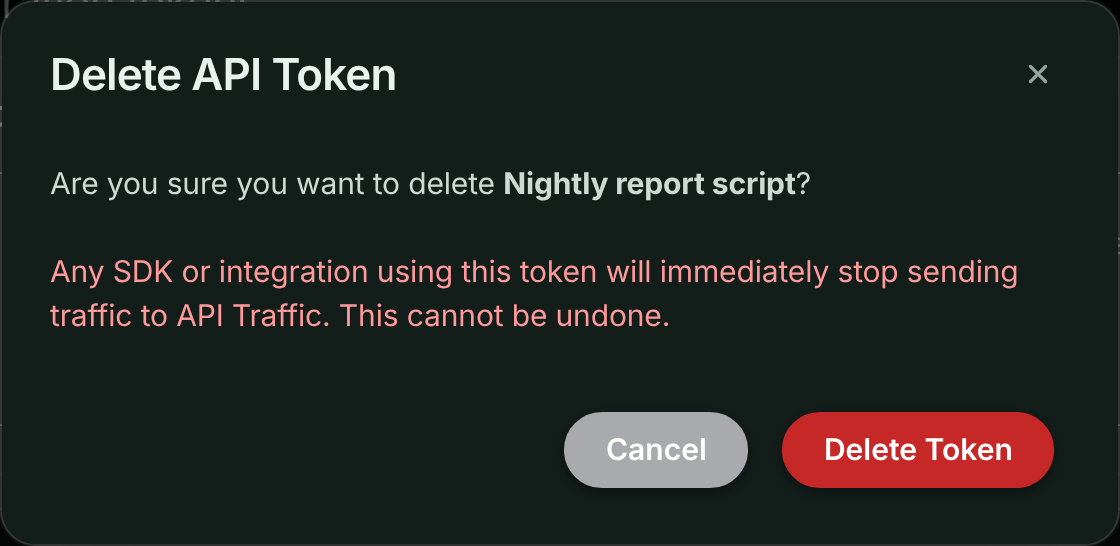
Any SDK or integration using the token stops working immediately. This can’t be undone. Deleting an environment deletes all of its tokens too.
Download offline definitions
Each environment card with at least one token also has Definitions. It builds a file of a bucket’s redaction rules, exclusions and firewall policy that your servers use if they start while ApiTraffic can’t be reached. Choose a Bucket, then Download definitions, or copy the command that keeps the file current from your terminal or CI.
The file describes your defenses, so commit it only to a private repository. See Offline definitions.
Store tokens safely
- Keep tokens in a secret manager or your platform’s encrypted environment variables, never in source code.
- Use one token per deployment or script, named after it, so you can see which one is used and replace one without touching the others.
- Give each token the least role it needs. An SDK only ever needs Ingest. Minting embed tokens needs Administrator, so keep that token only on the servers that mint them.
- Narrow tokens for scripts to the scopes they use. A metrics exporter only needs
traffic:read. - Keep environments apart. Use a token from the staging environment in staging, and from production in production.
- Watch Last used. A token that hasn’t been used for a long time is a candidate for deletion.
- In CI, pass tokens as variables (for example
API_TRAFFIC_TOKEN), not as command-line arguments, which end up in build logs.
Token creation and deletion appear in the account history under Security.
Plan limits
When the account has as many API tokens as the plan allows, creating another is refused with This account’s plan limit has been reached. Upgrade the plan to add more. Delete a token you no longer use, or change your plan. Account → Usage shows how many tokens you have against the limit under Plan limits. See pricing.
Troubleshooting
I don’t see New Token or the Delete option
Only owners and admins can create and delete tokens. Ask one of them.
I lost the token value
It can’t be shown again. Create a new token, deploy it, and delete the old one.
My SDK stopped sending traffic
Check that its token still exists on API Tokens and has the Ingest role, and that its environment wasn’t deleted. Then check Account → Usage: a used-up, hard-capped allowance also stops capture.
A script gets You are not authorized to perform this action.
The token’s role doesn’t allow the call. Ingest tokens can’t call the REST API or mint embed tokens; User tokens can’t do admin actions such as managing tokens, redactions, exclusions or firewall policies, or minting embed tokens. Use an Administrator token for those. If the token has scopes, check that one of them covers the call (see Limit a token to scopes).
Related
-
API tokens API: Create, list, change and delete tokens programmatically.
-
Offline definitions: Keep your rules working when ApiTraffic is unreachable.
-
MCP server: Connect AI assistants with an MCP token or OAuth.
-
Environments: Each token belongs to one environment.