
Team and roles
Invite teammates to your ApiTraffic account, choose between the Owner, Admin and Member roles, and remove people or revoke invitations.
Invite the people you work with so everyone sees the same traffic, dashboards and alerts. Each person has a role that decides what they can change: members use the product, admins also manage people and security settings, and the owner also controls billing.
Roles
Every person on an account has one of three roles.
| Role | Who has it | In short |
|---|---|---|
| Owner | One person: whoever created the account. Shown with an Owner badge. | Everything, including billing, support access, purging data and closing the account. The only person who sees the plan and what it costs. |
| Admin | Anyone the owner or another admin promotes. | Manage people, credentials, security posture and account settings. Everything except the owner-only actions. |
| Member | Everyone who joins through an invitation, to start with. | Use the product: read everything, and create and edit buckets, views, collections, workflows and endpoint rules. |
What each role can do
| Action | Owner | Admin | Member |
|---|---|---|---|
| View traffic, dashboards, performance, drift, the firewall and every setting | Yes | Yes | Yes |
| Create buckets, change bucket settings | Yes | Yes | Yes |
| Turn on collecting SQL statements with their parameters, or concrete Redis and cache keys (members can turn them off) | Yes | Yes | No |
| Create, rename and change the default environment | Yes | Yes | Yes |
| Create and edit stream views, collections, share links, workflows, endpoint rules and events | Yes | Yes | Yes |
| View usage and the account history | Yes | Share of each allowance used, and whether each limit has room; history without billing events | Share of each allowance used, and whether each limit has room; history without billing events |
| See the plan, prices, invoices, payment methods, the billing email, referrals and promotions | Yes | No | No |
| Turn Allow overage on or off | Yes | No | No |
| Create, change and delete API tokens and MCP tokens | Yes | Yes | No |
| Generate embed tokens, including the Embed Setup preview | Yes | Yes | No |
| Create, change and delete redaction rules, exclusions and firewall policies | Yes | Yes | No |
| Delete buckets, environments and individual requests | Yes | Yes | No |
| Connect or disconnect Git providers, change or delete webhooks | Yes | Yes | No |
| Change account settings: show or hide sample data, store database query text, how client IP addresses are kept, require MFA for all team members | Yes | Yes | No |
| Invite people, revoke invitations, remove members, change roles | Yes | Yes | No |
| Choose a plan, cancel, manage payment methods, billing address and invoices | Yes | No | No |
| Grant or revoke ApiTraffic support access | Yes | No | No |
| Purge data or close the account | Yes | No | No |
The app hides or disables controls you can’t use, and shows Only account owners and admins can change this. Ask one of them if you need it updated. where a setting is admin-only. The API enforces the same rules, so a request you aren’t allowed to make is refused whatever sends it.
API tokens follow the same model by their own role: an Administrator token acts as an admin, a User token as a member, and an Ingest token can only send traffic and read SDK settings. Only an Administrator token can mint embed tokens. No token can do the owner-only actions. See Create and manage API tokens.
Open the Team page
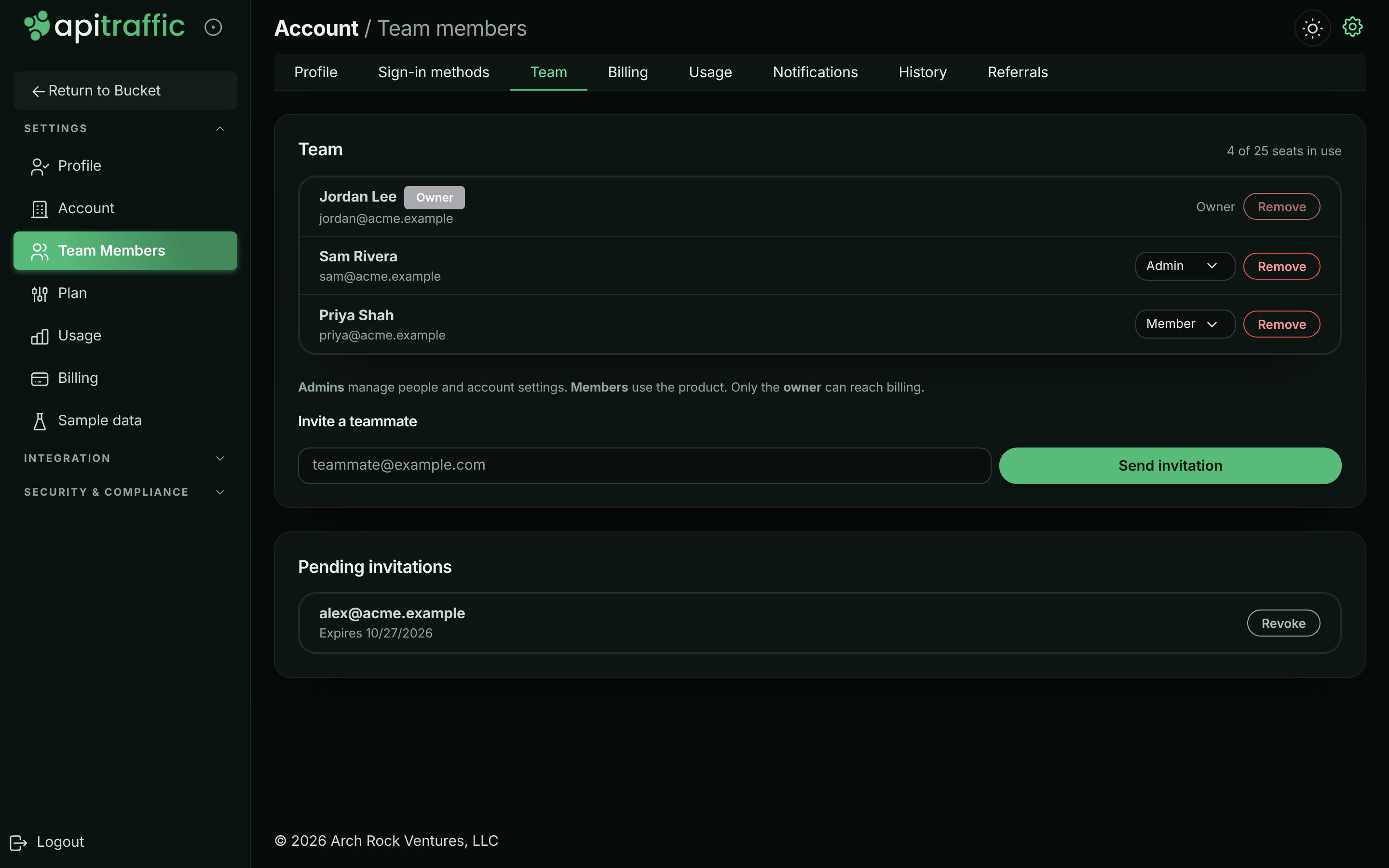
Go to Account → Team, or select Team Members in the account sidebar or the user menu. The page lists everyone on the account, with their role, and shows how many seats are in use. The owner sees the plan’s seats too, such as 3 of 5 seats in use; admins and members see 3 in use, and are told when every seat is taken.
The Team page.
Invite a teammate
Before you begin
- You need to be the owner or an admin.
- The account needs a free seat. Pending invitations hold a seat until they’re accepted, revoked or expire.
Enter their email address
On the Team page, under Invite a teammate, enter the person’s email address.
Send the invitation
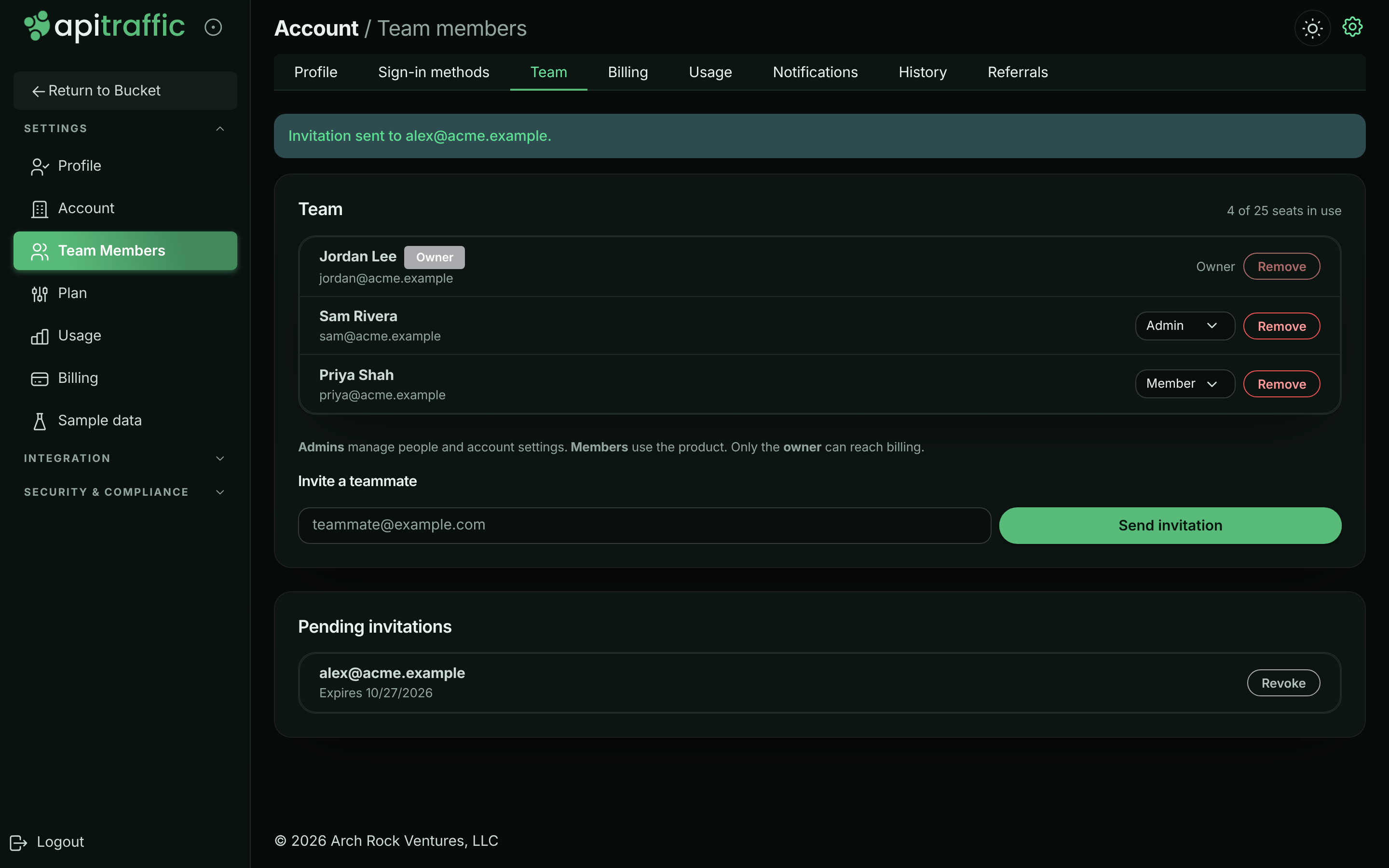
Select Send invitation. You see Invitation sent to …, and the address appears under Pending invitations with the date it expires.
The invitation is sent and waits under Pending invitations.
They accept
The person gets an email with a link. They join as a Member. Promote them afterwards if they need more.
An invitation is valid for 7 days. Sending a new invitation to the same address replaces the previous one, so only the newest link works.
Accept an invitation
Open the link in the email
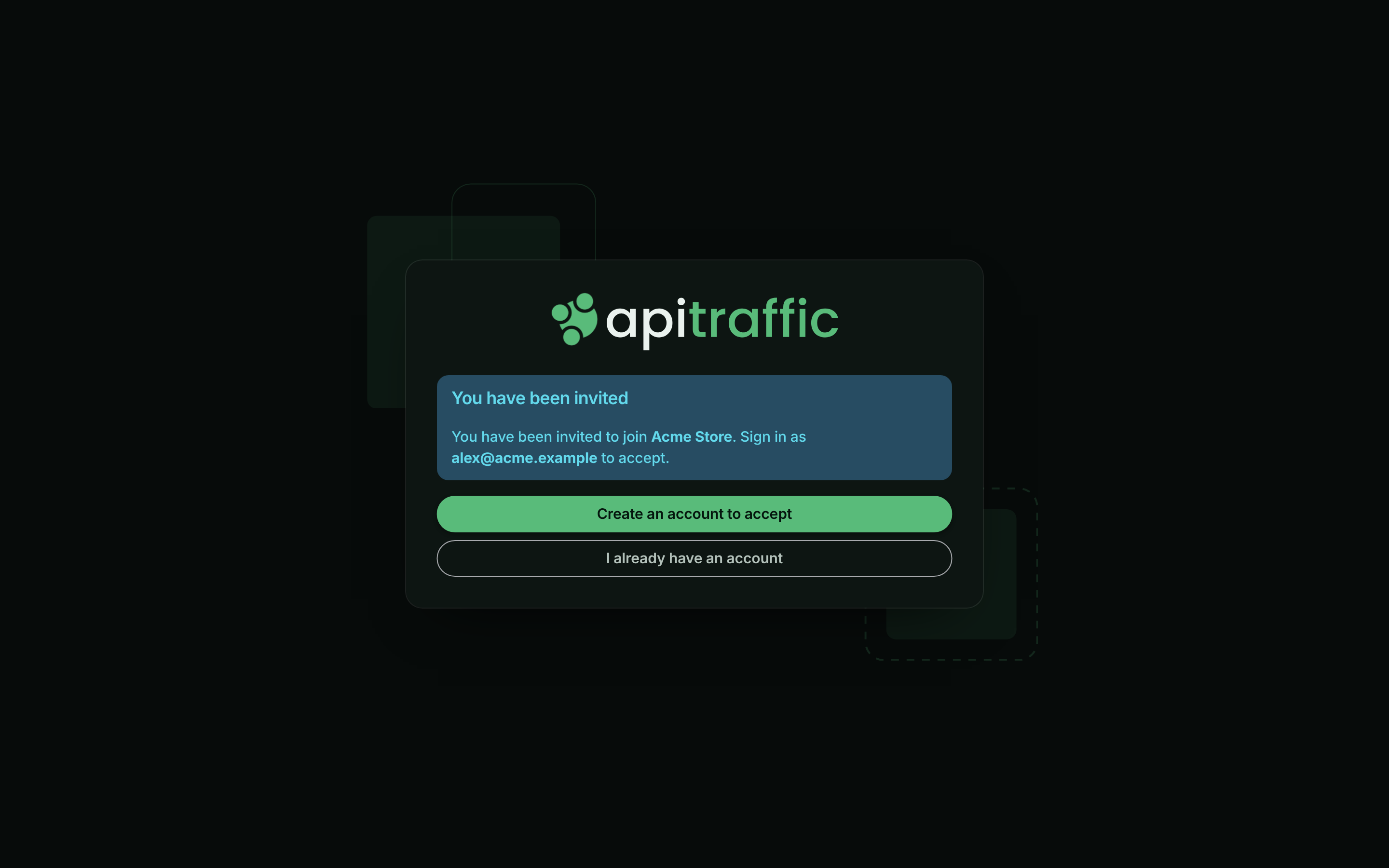
The page shows which account you’ve been invited to and the address the invitation was sent to.
The invitation page when you aren’t signed in.
Sign in or create an account
Select Create an account to accept if you’re new to ApiTraffic, or I already have an account to sign in. Use the address the invitation was sent to: an invitation can only be accepted by that address.
Go to the account
You see You are in and You now have access to …. Select Go to your dashboard.
If you’re already signed in with the right address when you open the link, the invitation is accepted straight away.
Change someone’s role
- On the Team page, choose Member or Admin in the role menu next to the person.
- In Change role, select Change role to confirm.
The person is signed out and needs to sign in again, so their new permissions apply at once. You can’t change your own role; ask another admin. The owner’s role can’t be changed here.
Revoke an invitation
- Under Pending invitations, select Revoke next to the address.
- In Revoke invitation, select Revoke invitation.
The link in their email stops working and the seat is free again. You can send a new invitation later. Expired invitations are marked Expired and no longer hold a seat; revoke them to tidy the list.
Remove a member
- On the Team page, select Remove next to the person.
- In Remove team member, select Remove member.
They lose access straight away and are signed out. You can invite them again later.
You can’t remove yourself or the owner.
Transfer ownership
The owner can’t be removed and their role can’t be changed, because the account always needs one owner. Ownership moves only by a transfer, which makes another member the owner and the previous owner an admin. Both are signed out so their new roles apply.
The Team page doesn’t have a transfer control. To transfer ownership, contact ApiTraffic support from the owner’s account.
Seats and plan limits
Your plan sets how many people the account can have. Members and pending invitations both count. When all seats are in use, the Team page says All seats on this plan are in use. Upgrade the plan or remove a member first. and Send invitation is disabled. Remove a member, revoke a pending invitation, or change your plan. See pricing for the seats on each plan.
Changing to a plan with fewer seats than you use is refused until you remove members or revoke invitations.
Activity
Invitations, joins, removals and role changes are recorded in the account history as account activity events: team.member_invited, team.invitation_accepted, team.invitation_revoked, team.member_removed, team.role_changed and team.primary_changed.
Troubleshooting
This account has no seats left. Upgrade the plan or remove a member first.
Every seat is taken by a member or a pending invitation. Revoke an invitation that isn’t needed, remove someone, or upgrade.
That person is already on this account.
The address already belongs to someone on the team. Check the member list.
That invitation is invalid, expired, or has already been used.
The link is more than 7 days old, was replaced by a newer invitation, was revoked, or was already accepted. Ask an owner or admin to send a new one.
This invitation was sent to a different email address.
You’re signed in with another address. Sign out and sign in (or sign up) with the address the invitation was sent to.
You do not have permission to do that on this account.
Inviting, removing people and changing roles need an owner or admin.
You cannot change your own role. Ask another admin to do it.
Roles are changed by someone else, so an account can’t be left without anyone able to manage it.
Related
-
Sign-in and security: Require MFA for everyone on the team.
-
Account history: See who joined, left or changed role.
-
API tokens: Token roles map onto the same permissions.
-
Plan, usage and billing: Add seats by changing plan.