
Sign-in and security
Sign in with a password or Google, GitHub, Microsoft or Atlassian, set up MFA with an authenticator app, passkey or text message, and require it for your team.
Protect your account with more than a password. You can sign in with a password or a social provider, add a second factor (an authenticator app, a passkey or a text message), and require every teammate to use one.
Your sign-in methods and second factors belong to you, not to the account: they follow you to every ApiTraffic account you’re a member of. The account-wide MFA requirement is set per account.
Sign-in methods
You can sign in with:
- Email and password.
- Google, GitHub, Microsoft or Atlassian, where they’re offered on the sign-in page.
Link more than one, so a provider outage can’t lock you out.
Link or remove a sign-in method
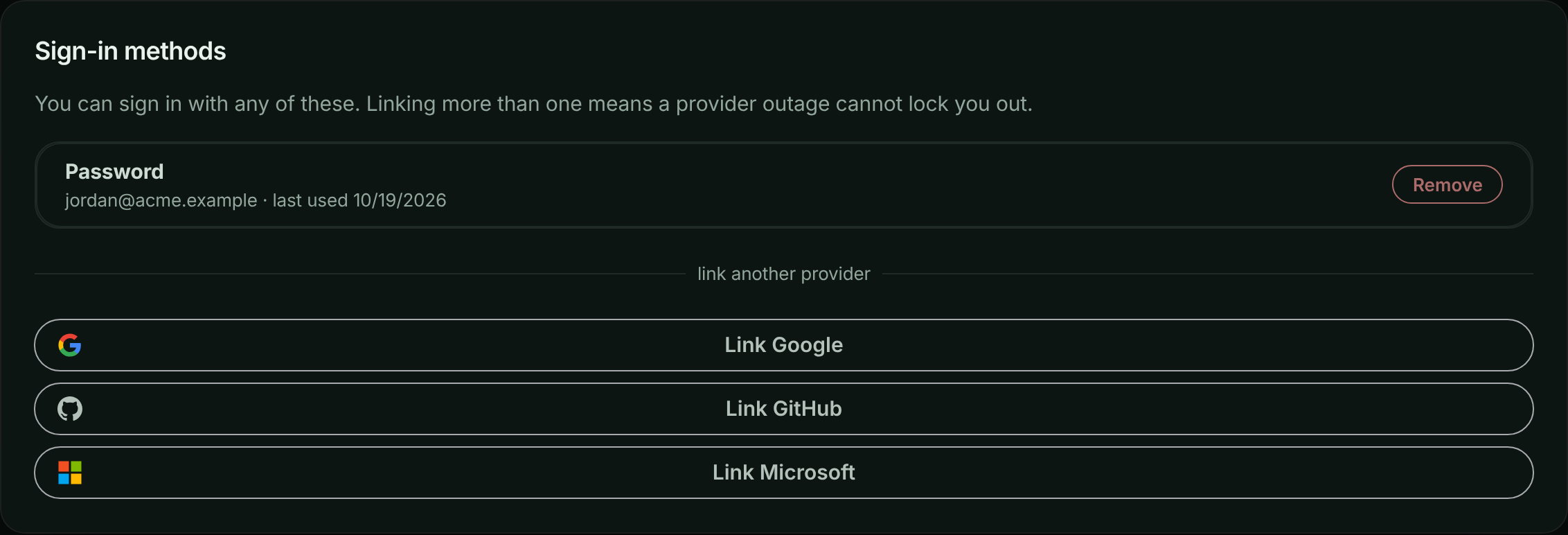
Go to Account → Sign-in methods. The card lists every method you can use, with its email address and when you last used it.
- To add a provider, select it under link another provider. You’re sent to the provider to approve, then back here with Sign-in method linked.
- To remove one, select Remove next to it. You can’t remove your only sign-in method.
Sign-in methods linked to your login.
Signing in with a provider for the first time
When you sign in with a provider whose email address already belongs to an ApiTraffic login, the two are linked only if the provider confirms the address is verified. If it doesn’t, you see An account already uses that email address. Sign in with your existing method, then link this provider from Account settings. Sign in the way you usually do, then link the provider from Account → Sign-in methods.
If the provider shares no email address (for example, a GitHub account with no verified primary email), sign-in can’t continue. Add a verified email to the provider account, or use another method.
Your profile
On Account → Profile you can change your First name, Last name and Timezone (an IANA name such as America/Detroit, used for the times the app shows you), then select Save profile. To change the email address you sign in with, contact support.
Passwords
A password must:
- be 12 to 256 characters long,
- contain a lowercase letter, an uppercase letter, a number and a symbol,
- not be a single repeated character, and not contain your email address.
Change your password
- Go to Account → Profile and find Password.
- Enter your Current password, then your New password twice.
- Select Change password.
Changing your password signs out every session you have, on every device, including this one. Sign in again with the new password.
Reset a forgotten password
- On the sign-in page, select Forgot password?.
- Enter your Email address and select Send reset link.
- Open the link in the email within 30 minutes, choose a new password, and select Update password.
You see the same answer whether or not the address has an ApiTraffic login, so nobody can use the form to find out who has one. A reset also signs out every session you have.
Sessions and signing out
- You’re signed out after 1 hour without activity, and after 12 hours in any case.
- To sign out, select Logout at the bottom of the account sidebar, or Log Out in the user menu.
- There’s no list of active sessions to end one by one. To sign out everywhere, change your password.
- When your role on an account changes, or you’re removed from it, your sessions end so the change applies at once.
Too many failed sign-ins
After 10 failed sign-in attempts for the same email address, sign-in is refused with Too many failed sign-in attempts. Please wait before trying again. Wait 15 minutes after the last failed attempt, or reset your password.
Two-factor authentication (MFA)
A second factor means a stolen password isn’t enough to sign in. ApiTraffic offers three, and you can set up all of them:
| Factor | How it works | Strengths and limits |
|---|---|---|
| Authenticator app | A six-digit code from an app such as Google Authenticator, 1Password or Authy. | Works from any device and on every ApiTraffic site. |
| Passkeys | Your fingerprint, face, screen lock or a security key. | Nothing to type. A passkey only works on the site it was created on, so you need one per ApiTraffic site you use. |
| Text message | A six-digit code sent by SMS. | Needs no app or hardware. The least secure: a phone number can be transferred away from you by someone who convinces your carrier. |
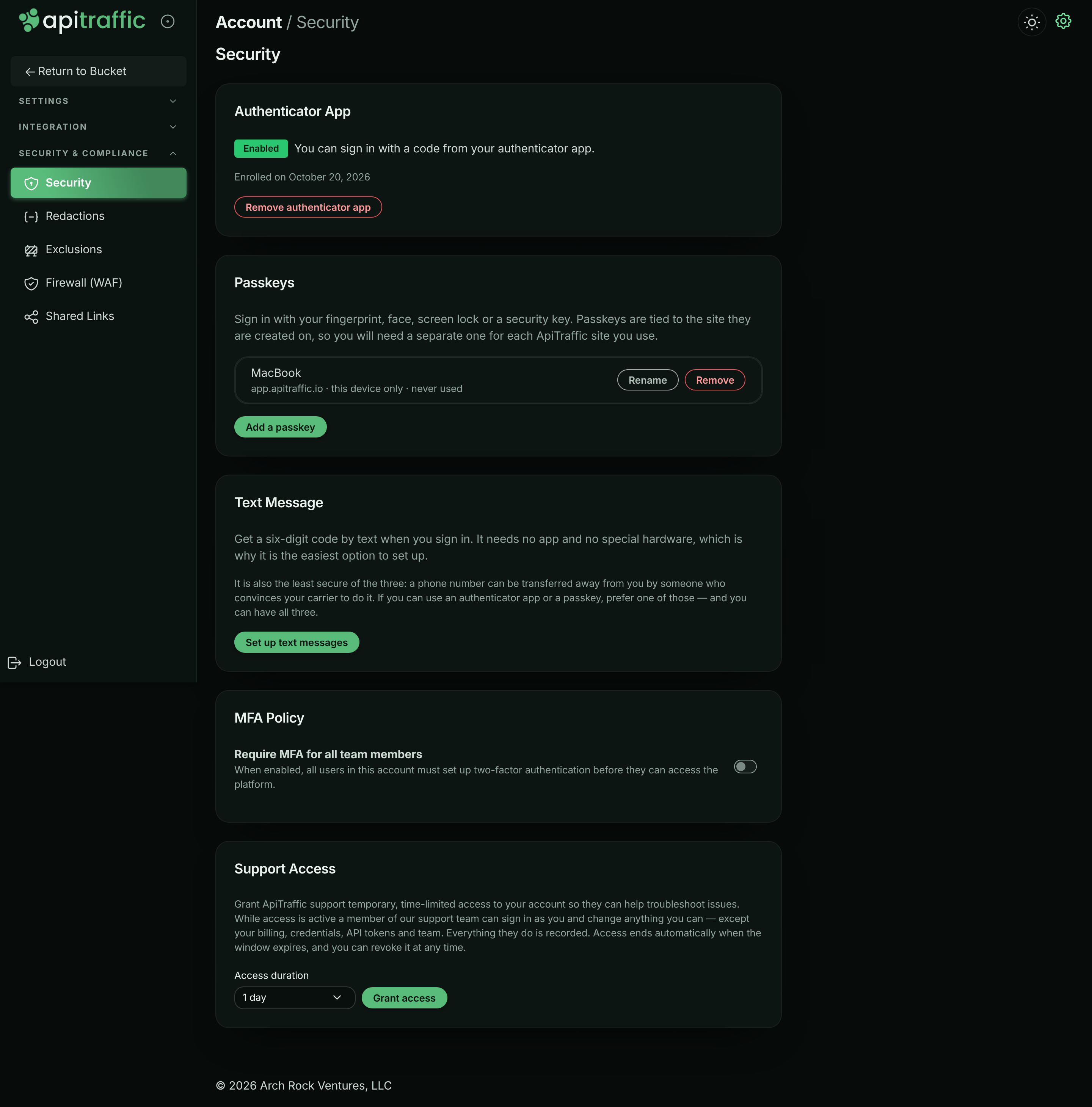
Manage all three on Account → Security (in the account sidebar under Security & Compliance). If you can, prefer an authenticator app or a passkey to text messages.
The Security page.
Backup codes
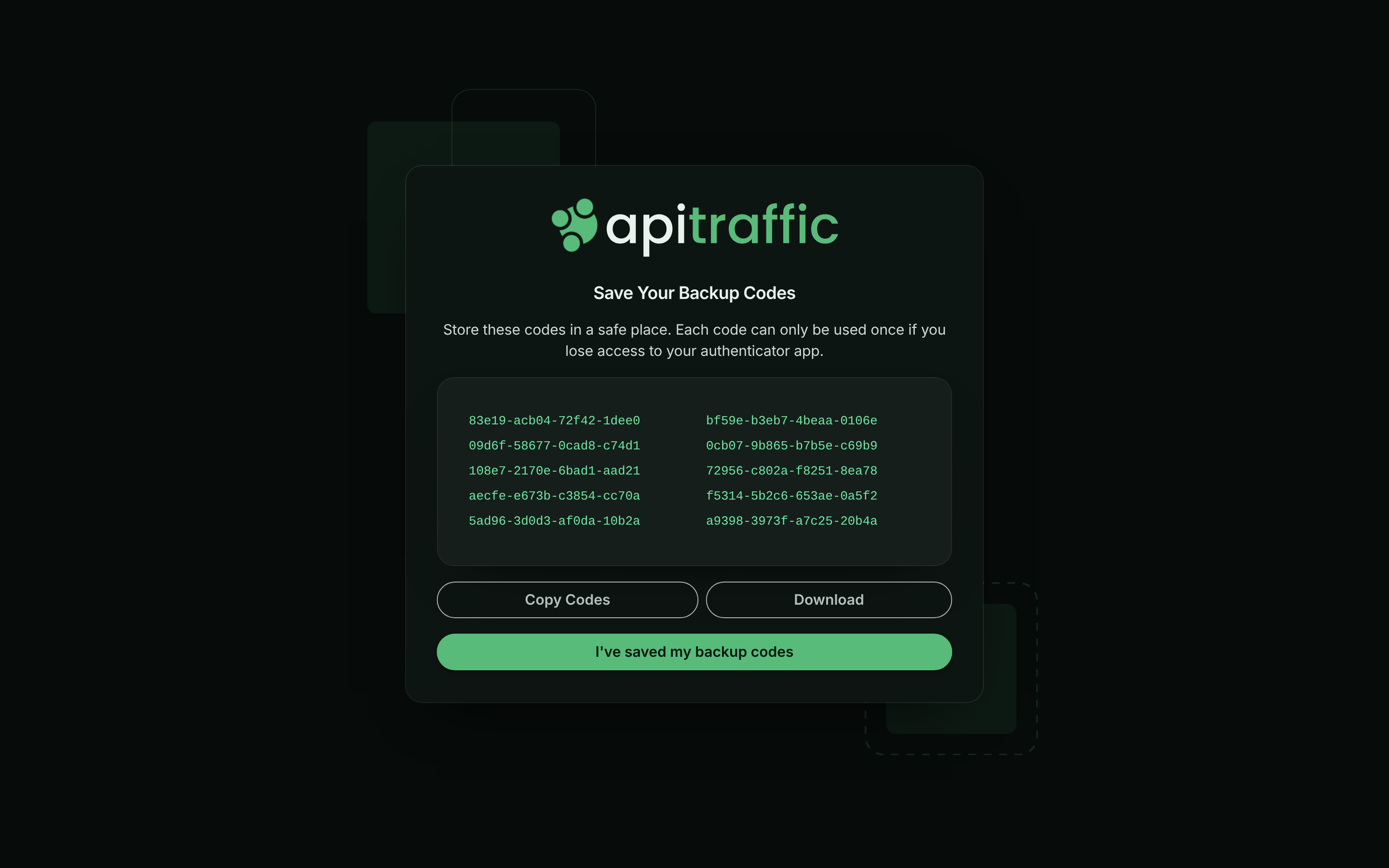
When you set up your first factor, you get 10 backup codes. Each works once, in place of a code from your device. Save them somewhere safe, such as a password manager: they’re shown only once.
Set up an authenticator app
Start setup
On Account → Security, in Authenticator App, select Set up authenticator app.
Scan the QR code
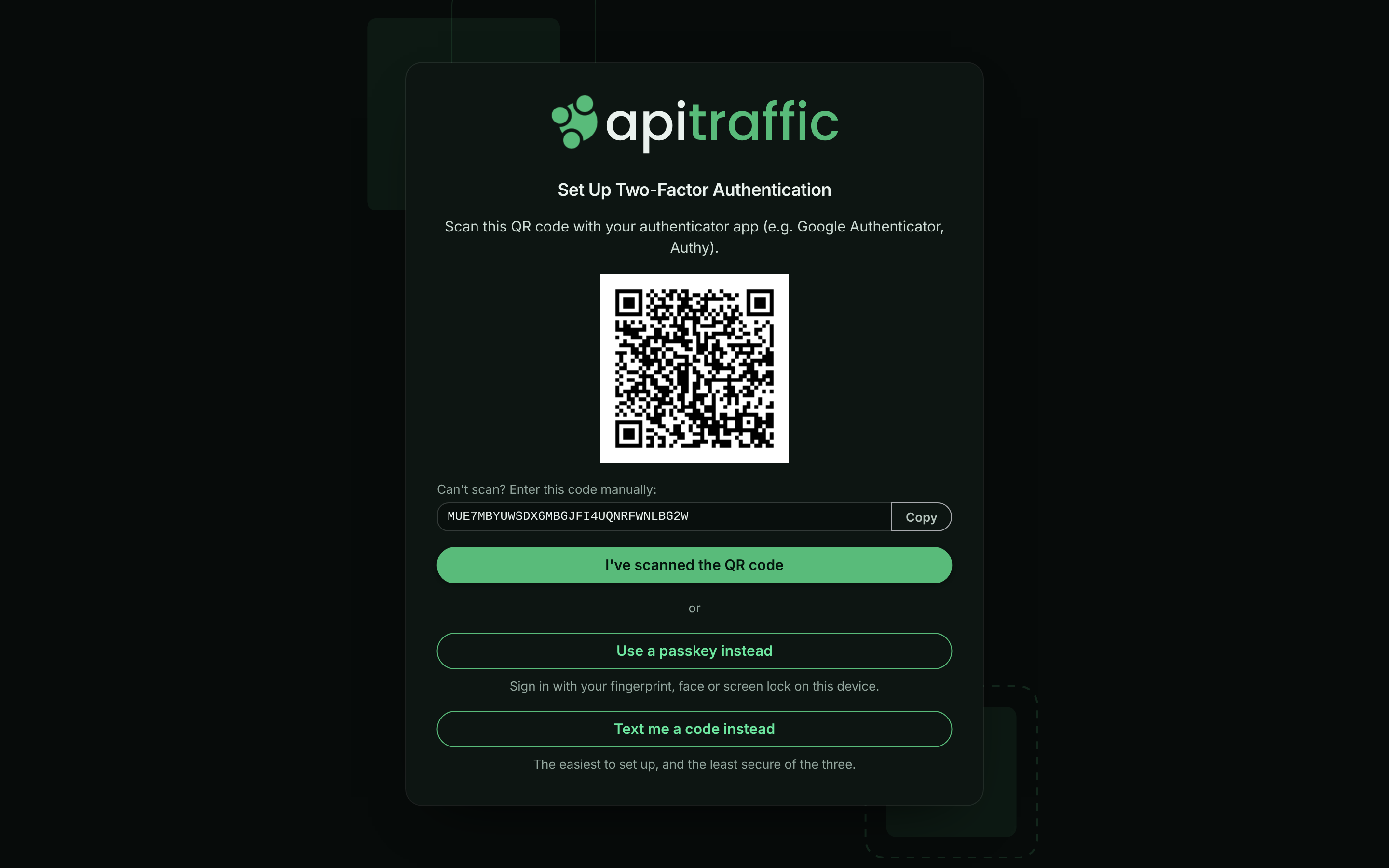
On Set Up Two-Factor Authentication, scan the QR code with your authenticator app. If you can’t scan it, copy the code under Can’t scan? Enter this code manually: into the app. Then select I’ve scanned the QR code.
Scan the QR code with your authenticator app.
Confirm a code
On Verify Setup, enter the 6-digit code from the app and select Verify & Enable MFA.
Save your backup codes
On Save Your Backup Codes, select Copy Codes or Download, store them safely, then select I’ve saved my backup codes.
Save your backup codes before you finish.
You’re returned to the Security page, where Authenticator App shows Enabled and the date you enrolled.
To remove it, select Remove authenticator app, enter a current code, and select Confirm.
Add a passkey
Start
On Account → Security, in Passkeys, select Add a passkey.
Name it
Give the passkey a name you’ll recognize, such as MacBook or YubiKey, and select Continue.
Confirm on your device
Your browser asks you to confirm with your fingerprint, face, screen lock or security key. When it’s done you see Passkey added. If this is your first factor, save the backup codes shown, then select Copy and dismiss.
Each passkey in the list shows the site it was created for, whether it’s synced across your devices or this device only, and when it was last used. A passkey made on a different ApiTraffic site is marked Other site and can’t be used here. Use Rename or Remove to manage them.
Passkeys need a current version of Chrome, Safari, Edge or Firefox. You can also choose Use a passkey instead on the authenticator setup screen.
Set up text messages
Start
On Account → Security, in Text Message, select Set up text messages.
Enter your number and agree
Enter your Mobile number, including the country code. Read the messaging terms and tick the box to agree to receive verification codes; the box is never ticked for you. Select Send code.
Enter the code
Enter the six-digit code you were texted and select Confirm. You see Your phone number is set up.
About the texts:
- They’re only ever verification codes, never marketing: one when you set the number up, then one each time you sign in.
- A code is valid for 5 minutes and allows 5 tries. You can ask for another after 30 seconds (Didn’t get it? Send another), up to 5 texts an hour.
- Reply HELP for help. Reply STOP to opt out; that turns text codes off, so you’ll need another factor to sign in.
- Message and data rates may apply.
To remove the number, select Remove phone number. Text messages may not be available on every installation; the card says so when they aren’t.
Signing in with MFA
After your password or provider, the Two-Factor Authentication screen asks for a code. Depending on what you’ve set up, you can choose Use a passkey, Use authenticator app, Text me a code or Use a backup code.
After 5 wrong codes, you see Too many verification attempts. Please log in again. Start again from the sign-in page.
If you’ve lost every factor and every backup code, contact ApiTraffic support to have your MFA reset.
Require MFA for everyone on the account
The MFA Policy card on Account → Security has one switch, Require MFA for all team members.
Only the account owner and admins can change it. Members see the card read-only, with the switch turned off and the notice Only account owners and admins can change this. Ask one of them if you need it updated. The API refuses the change for members with 403 and code 2010.
When you turn it on, you’re asked to confirm with Yes, enable enforcement. From then on:
- Everyone who hasn’t set up a factor is taken to setup the next time they sign in, and can’t use the account until they finish.
- Nobody can remove their last remaining factor. They can remove one only while another is still set up.
- The card shows the date enforcement was turned on.
Turning it off takes effect at once. People can still keep or add factors voluntarily.
Tip: Before turning enforcement on, set up a factor yourself and tell your team, so nobody is surprised at their next sign-in.
A support session can’t change the policy.
Support access
The last card on the Security page, Support Access, lets the account owner grant ApiTraffic support temporary access to the account. See Grant support access.
Activity
Security changes appear in the account history under Security: sign-ins and sign-outs, password changes, MFA turned on or off, passkeys and phone numbers added or removed, and changes to the MFA requirement.
Troubleshooting
Too many failed sign-in attempts. Please wait before trying again.
Wait 15 minutes after the last failed attempt and try again, or reset your password.
MFA cannot be disabled because your account administrator requires it.
The account requires MFA and this is your last factor. Set up another factor first, then remove this one.
I can’t change Require MFA for all team members
Only the account owner and admins can change the MFA policy. Ask one of them to turn it on or off.
Passkey setup was cancelled or timed out.
The browser prompt was closed or not answered in time. Select Add a passkey and try again.
A passkey is marked Other site
Passkeys only work on the site they were created on. Add a separate passkey here, or sign in on the site the passkey belongs to.
Too many codes have been sent to this number. Please try again later.
You’ve reached the hourly limit for texts. Wait, or use another factor or a backup code.
The reset link has expired
Reset links work for 30 minutes and once. Select Request a new reset link and use the newest email.
Related
-
Team and roles: Who can change what on the account.
-
Grant support access: Let ApiTraffic support help, for a limited time.
-
Account history: Review sign-ins and security changes.
-
API tokens: Credentials for SDKs, scripts and AI assistants.