
Services
The apps sending traffic to a bucket: how the SDK names each service, the Services page, instances and names, and the Service menu on Traffic and Errors.
A service is one app inside a bucket: the processes that run the same code, under one name. The bucket stays the unit of data, settings and access. Services tell you which app a request came from, and which Node and SDK versions each app is running, server by server.
Most buckets hold one app, and get one service without any setup. When a bucket receives traffic from several apps, services keep them apart, so you can look at one at a time.
How the SDK names a service
The SDK names its service when it starts, on the settings call it already makes. It uses the first of these it finds:
| Order | Source | Example | Shown as |
|---|---|---|---|
| 1 | The service option, or API_TRAFFIC_SERVICE |
svc_2Yq... |
The id of a service, copied from its page. Survives renames. |
| 2 | The serviceName option |
checkout-api |
option |
| 3 | API_TRAFFIC_SERVICE_NAME, SERVICE_NAME, K_SERVICE or FLY_APP_NAME |
checkout-api |
The variable’s name |
| 4 | name in your app’s package.json |
@acme/checkout-api |
package.json |
| 5 | Nothing found | The bucket’s default service |
The first time a name is seen, ApiTraffic creates a service for it. Names are matched without case and without an npm scope, so @acme/checkout-api and checkout-api are the same service. Fifty servers starting at once create one service, not fifty.
A bucket creates at most 50 services from detected names. Past that, new names go to the bucket’s Unassigned service, and the Services page says so: it usually means a name carries a build number or a hash. Set a fixed name with API_TRAFFIC_SERVICE_NAME to fix it. SDKs released before services report no service, and their traffic also lands on Unassigned.
To keep a process on one service whatever its name becomes, pin it with the service’s id:
API_TRAFFIC_SERVICE=svc_3Lki3jAZ6jtHAhf0nuYp3vnoUVn
The id is on the service’s page. If the id is not a service of this bucket, the SDK logs a warning and falls back to the name.
The Services page
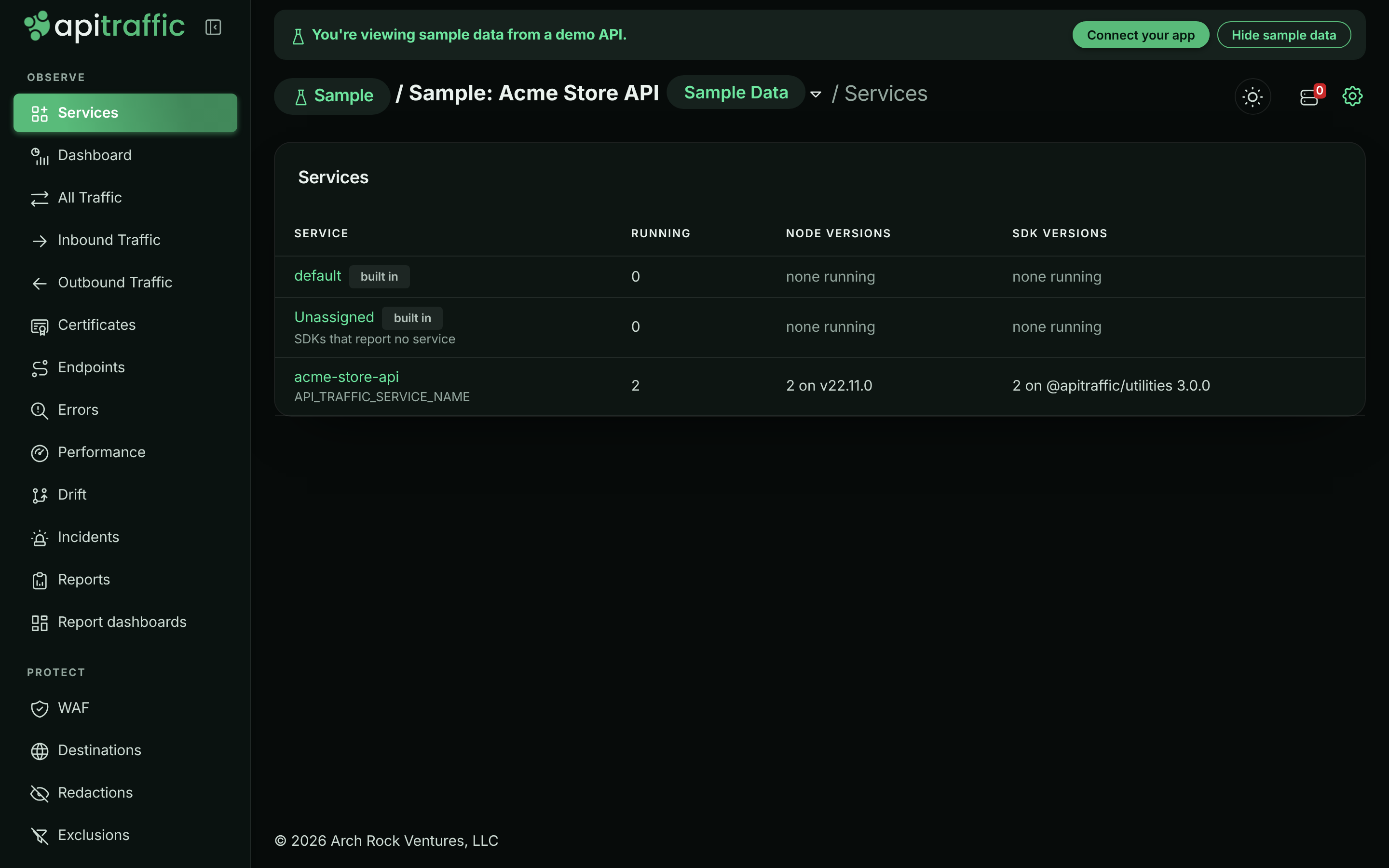
Choose Services at the top of the bucket’s left navigation. To see every service in every bucket, choose Services in the All buckets menu instead. Each row is a service in the bucket:
- Service: its name, and where the name came from (for example
API_TRAFFIC_SERVICE_NAMEorpackage.json). default and Unassigned are marked built in: every bucket has them. - Running: how many SDK processes of the service are connected now.
- Node versions and SDK versions: the versions those processes run, with a count for each, so a server left on an old version stands out.
The Services page for the sample bucket: the two built-in services and the Acme Store API, named by API_TRAFFIC_SERVICE_NAME.
When the bucket receives traffic from more than one app, the page says how many. One bucket per app keeps settings and limits separate; services already keep the data apart.
A service’s page
Select a service to open its page:
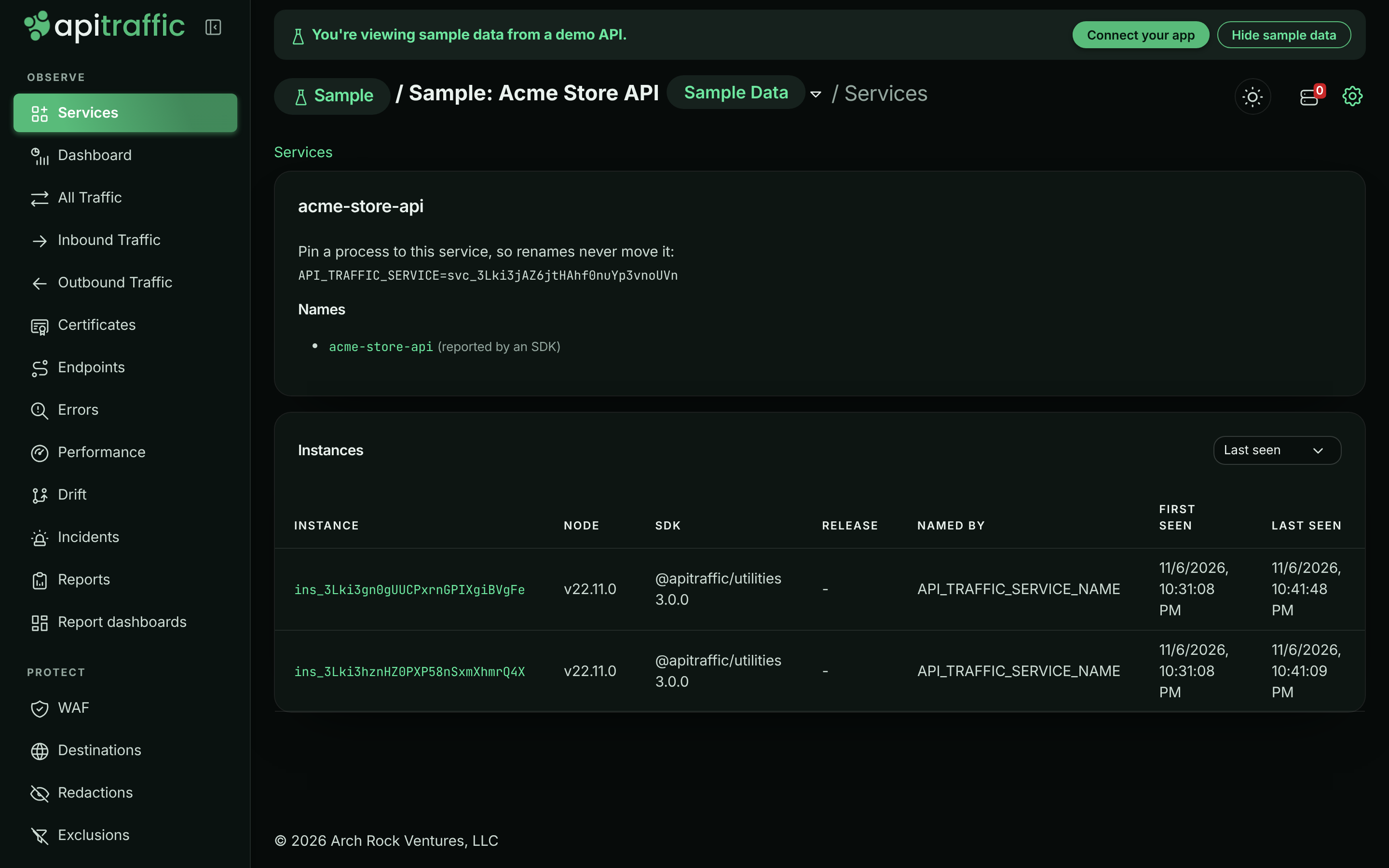
- Pin a process to this service: the
API_TRAFFIC_SERVICEline to copy, with the service’s id. - Names: every name that leads to this service, and where each came from (reported by an SDK, added by you, or built in).
- Instances: every running and recently seen process, with its Node version, SDK name and version, release, the source that named it, and when it was first and last seen. Sort by Last seen, Node version or SDK version to find the server left behind.
The acme-store-api service in the sample bucket: the pin snippet, its name and its two instances.
In your own buckets the page also lets you:
- Rename the service. Only the display name changes: the name the SDK reports still leads here.
- Add a name an SDK may report, for example a staging variant, before that app ever starts.
- Merge into another service, when a rename in
package.jsoncreated a second one. Its names, instances and traffic move to the service you choose. This cannot be undone. - Archive a service you no longer run. Its traffic and names are kept; if the name comes back, the service returns.
The sample bucket is read-only, so these actions are not shown there.
The Service menu
On Traffic and Errors, a Service menu next to the search shows one service’s requests at a time. Choose All services to see everything again.
The choice is kept in the page address (?service=svc_...), like the environment, so a link you share opens on the same service. The menu appears once the bucket has more than one service to choose between: with a single app, there is nothing to pick.