
Connect GitHub
Install the ApiTraffic GitHub App, link a repository to a bucket and map branches to environments so pushes, tags and releases become event markers.
Connecting GitHub installs the ApiTraffic GitHub App on the repositories you choose. The app sends push, tag and release events to ApiTraffic, so you don’t create any webhooks yourself.
Before you begin
- You are an ApiTraffic account owner or admin.
- On GitHub, you can install apps on the organization or personal account that owns the repositories (an organization owner, or a repository admin where the organization allows it).
- Your plan includes Git integration. See Git integrations.
Connect GitHub
Start the connection
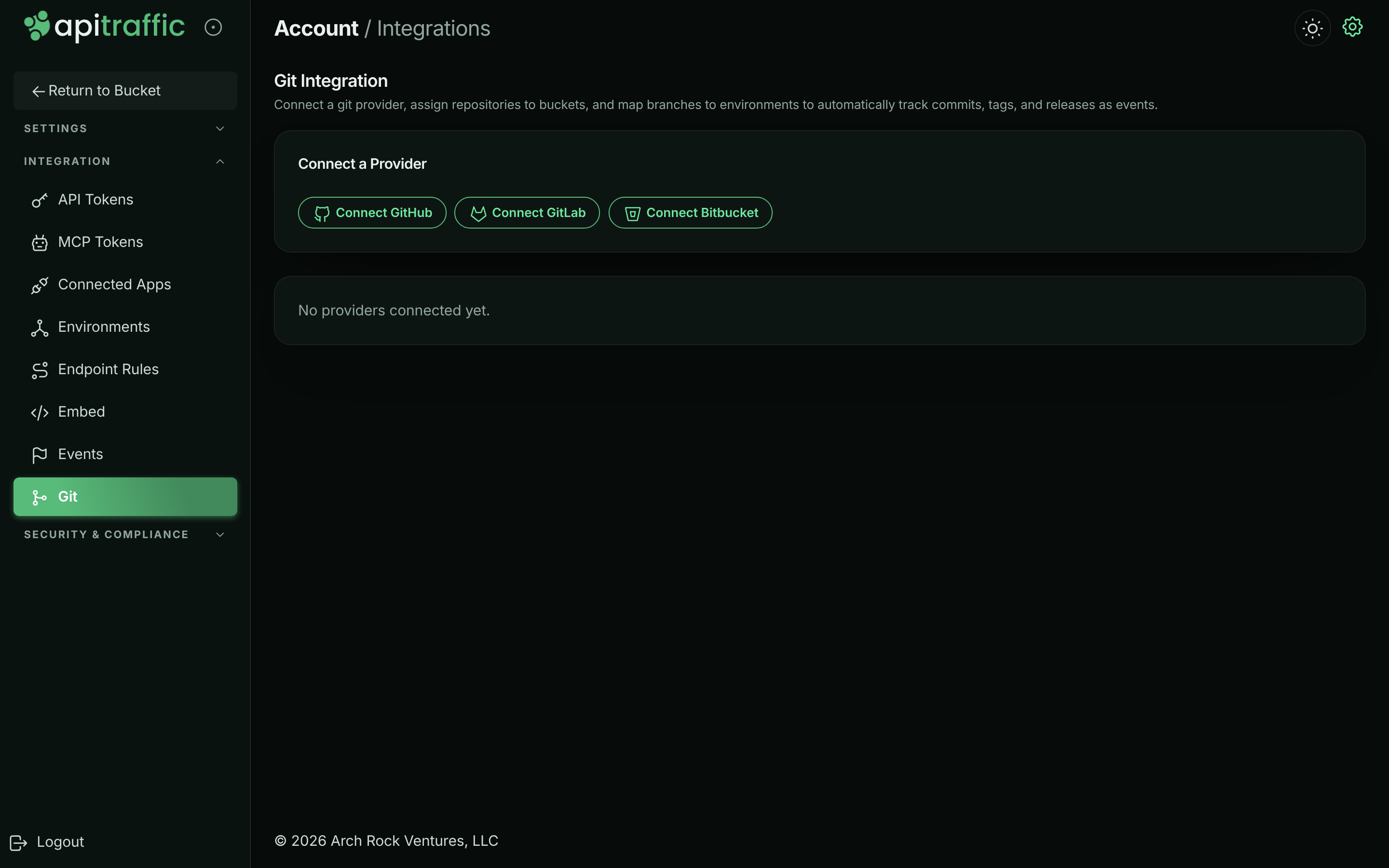
Open the account menu, choose Account, then select Git under Integration. In Connect a Provider, select Connect GitHub.
The Git Integration page before any provider is connected.
Install the app on GitHub
GitHub opens the ApiTraffic app’s install page. Choose the organization or personal account to install it on. Then choose All repositories, or Only select repositories and pick the ones to track, and select Install.
Return to ApiTraffic
GitHub sends you back to Git Integration, which shows Git provider connected. The GitHub card shows the account you installed on and the status active.
Link a repository
On the GitHub card, select Add Repository. Choose the Repository and the Bucket whose traffic it serves, keep the Subscribed events you want, and select Link Repository.
Map branches to environments
Under Branch → Environment mappings, add a row for each branch that deploys, such as main (exact) to Production and release/* (glob) to Staging, and select Add for each. Mark one row Fallback if tags and releases should go to an environment other than the default branch’s.
Verify
Push a commit to a mapped branch. Within a few seconds a git.push marker appears on the bucket’s charts, and the repository’s badge reads Healthy. If it doesn’t, select Diagnose.
Tip: To change which repositories the app can reach later, configure the ApiTraffic app in your GitHub organization’s or account’s installed GitHub Apps settings.
How GitHub diagnostics work
Diagnose checks the app installation, whether the app is subscribed to the events it needs, whether it can reach the repository, the app’s webhook, and GitHub’s own log of recent delivery attempts. If GitHub’s deliveries were refused, fix the reported cause and select Redeliver failed to have GitHub resend them. When the installation itself needs a change, the check links to Open GitHub App settings.
Disconnect
- In ApiTraffic: select Disconnect on the GitHub card. All of its repositories are unlinked.
- On GitHub: uninstalling the ApiTraffic app also stops all deliveries for that account.
Troubleshooting
A repository I want isn’t listed
The app doesn’t have access to it. Add the repository to the app’s installation on GitHub, then open Add Repository again.
No marker after pushing
Select Diagnose. It shows whether GitHub sent the push and why it was refused, and whether the branch matched a mapping. Unmapped branches are ignored on purpose.
I don’t see Connect GitHub
Only owners and admins can connect a provider, and your plan must include Git integration.
Related
-
Git integrations: Branch mappings, marker types and health checks.
-
Event markers: How markers appear on charts.